Finding the best touchscreen software for Mac presents unique challenges because macOS doesn’t natively support touchscreen input like Windows does. Whether you’re setting up a kiosk in a museum, creating an interactive display for your school, or deploying public information terminals, Mac users need specialized software solutions that bridge the gap between Apple’s ecosystem and touchscreen functionality.
While Macs have traditionally been mouse-and-keyboard focused devices, the growing demand for interactive displays in education, retail, hospitality, and public spaces has created a market for Mac-compatible touchscreen solutions. From kiosk mode browsers that lock down devices for public use to comprehensive interactive display platforms, the right software transforms standard Mac computers into engaging, touch-enabled experiences.
This comprehensive guide explores the best touchscreen software options for Mac in 2026, examining kiosk mode solutions, touchscreen drivers, interactive display platforms, and specialized applications. Whether you need simple web-based kiosks or sophisticated multi-touch interactive experiences, understanding your options helps you select solutions matching your technical requirements, budget constraints, and user experience goals.
Mac computers offer exceptional reliability, security, and design that make them attractive choices for public-facing touchscreen installations. However, achieving seamless touchscreen functionality requires careful software selection addressing both touch input support and kiosk lockdown capabilities that prevent unauthorized access or configuration changes.

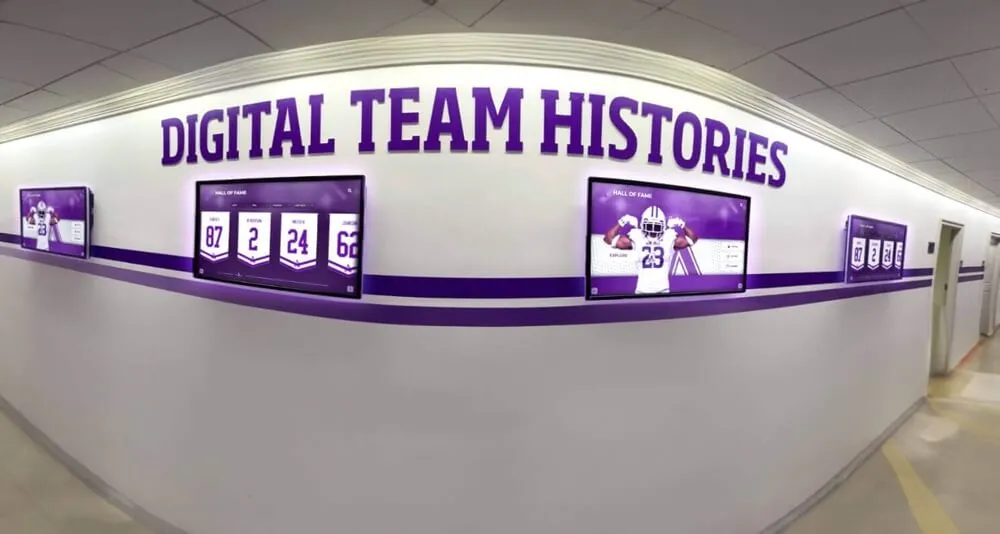
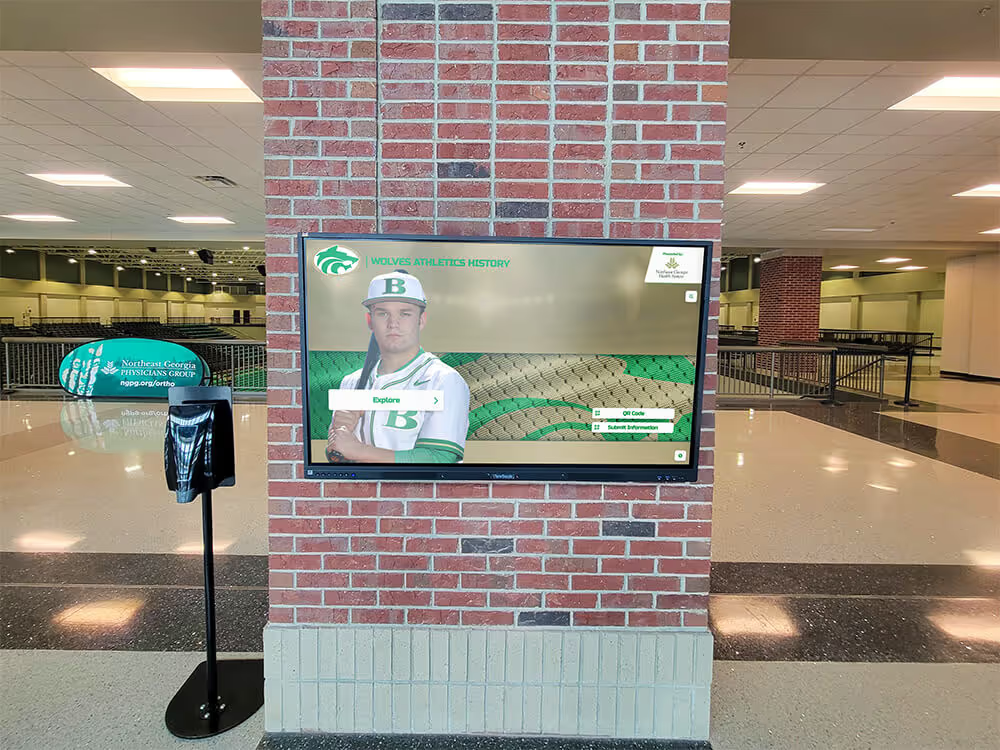
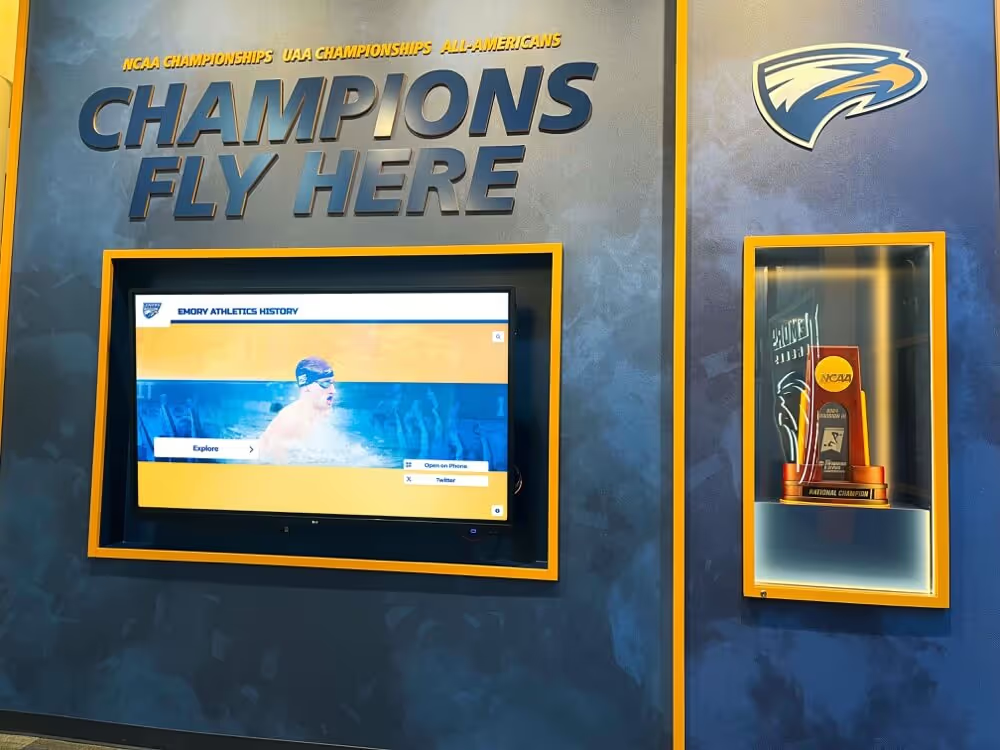
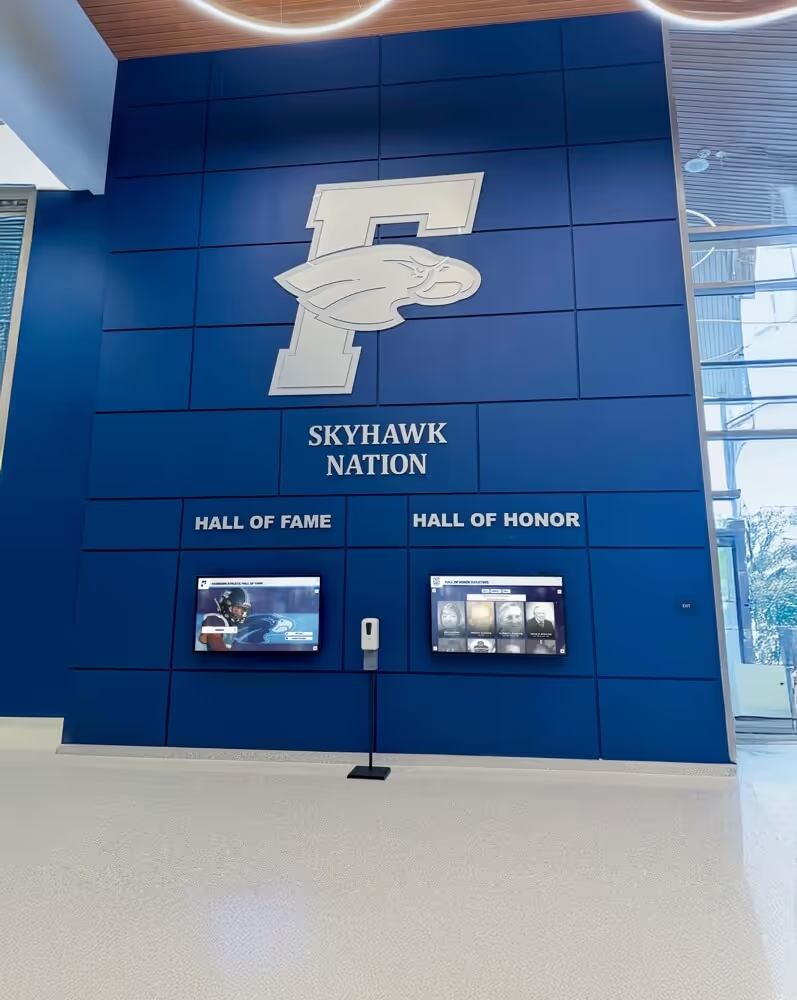
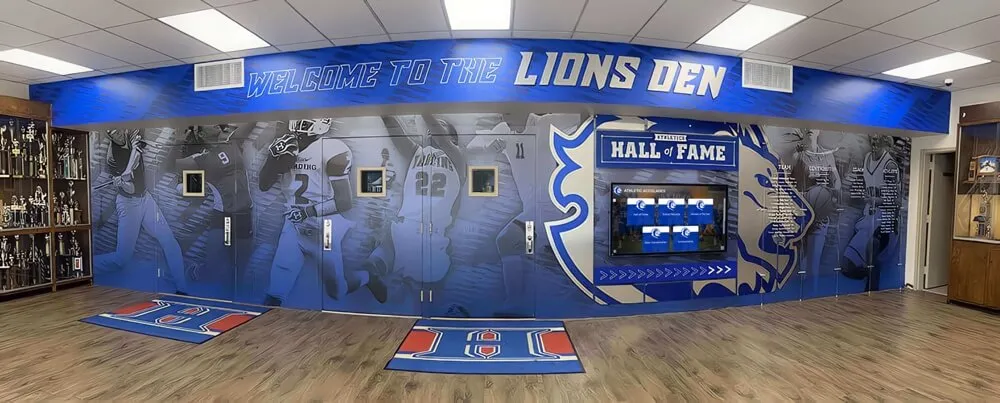
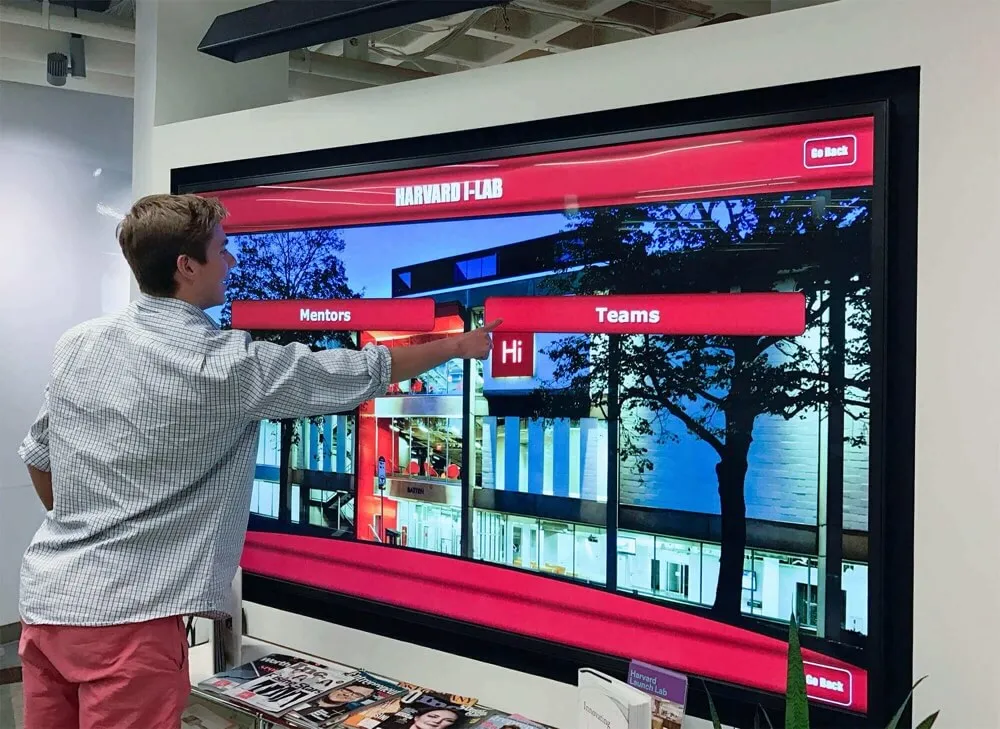
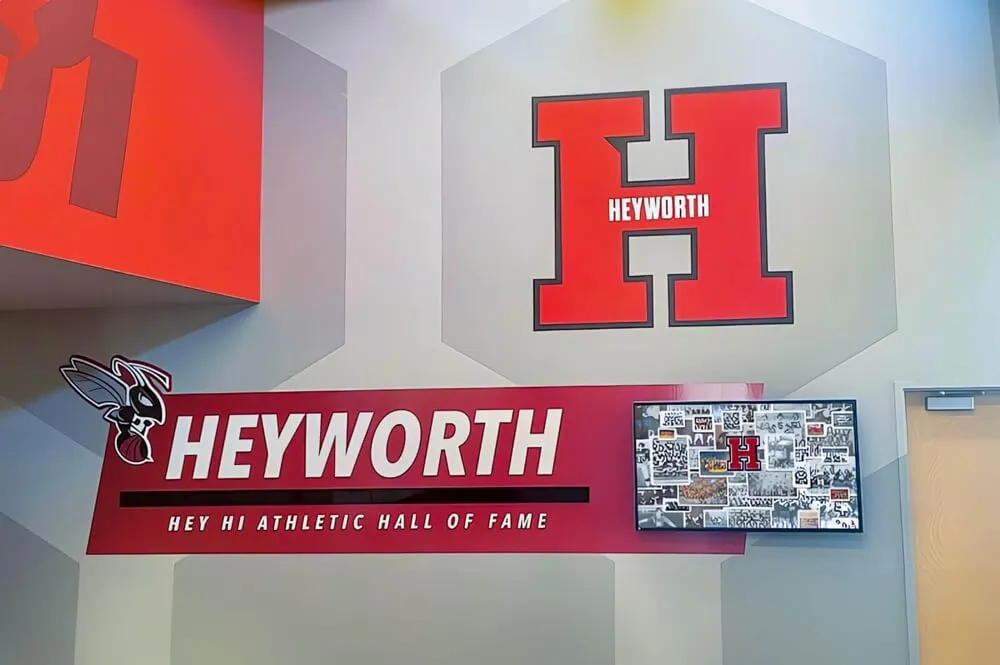
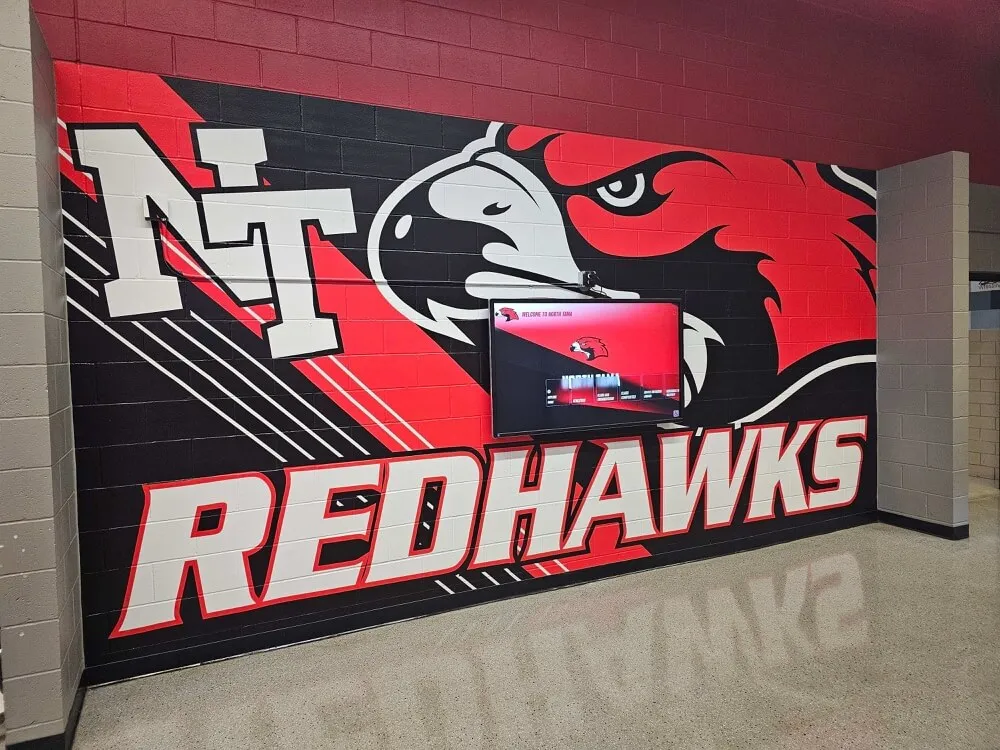
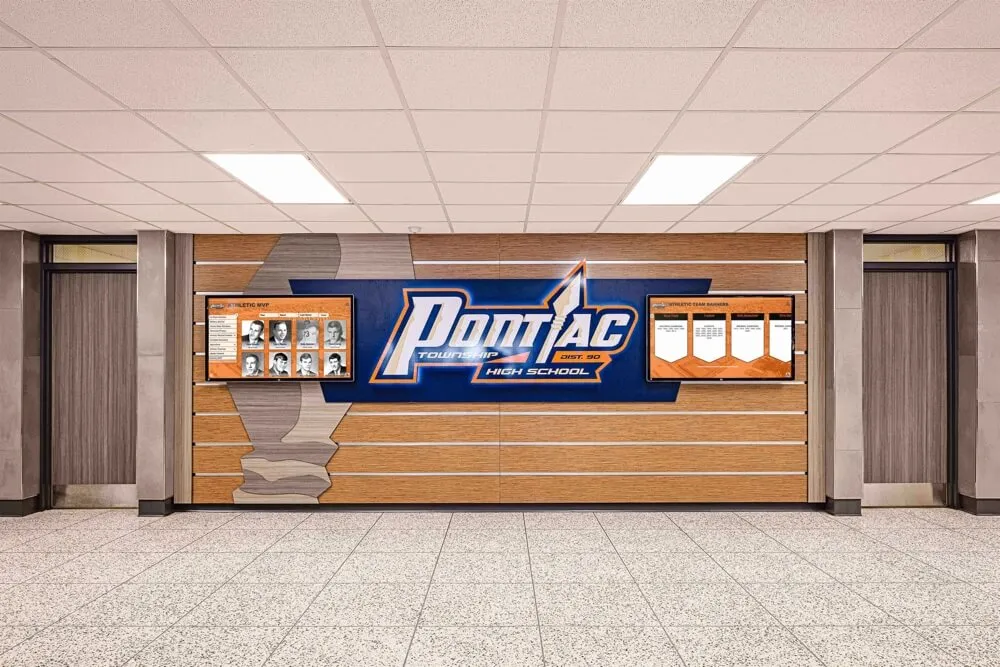
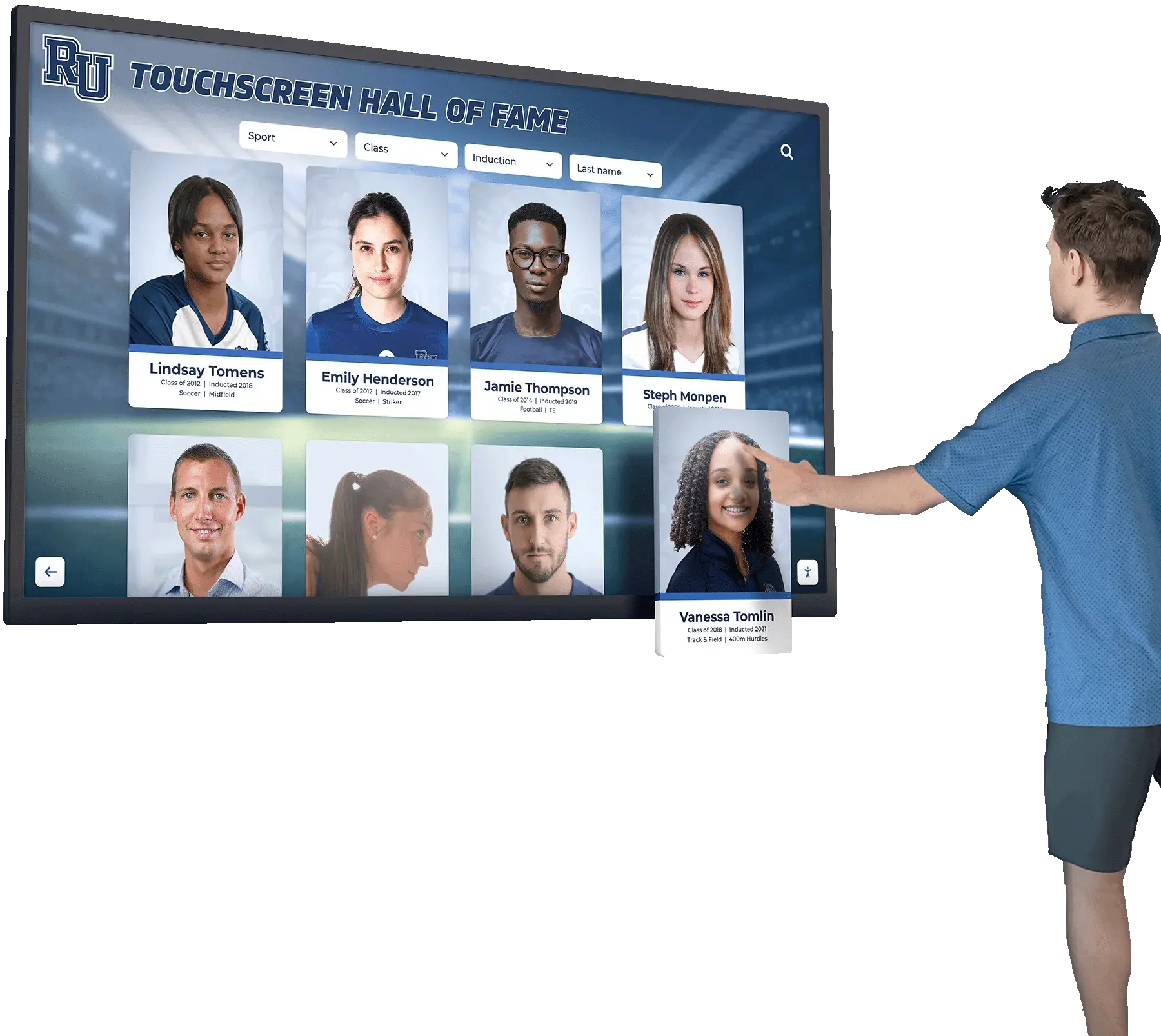
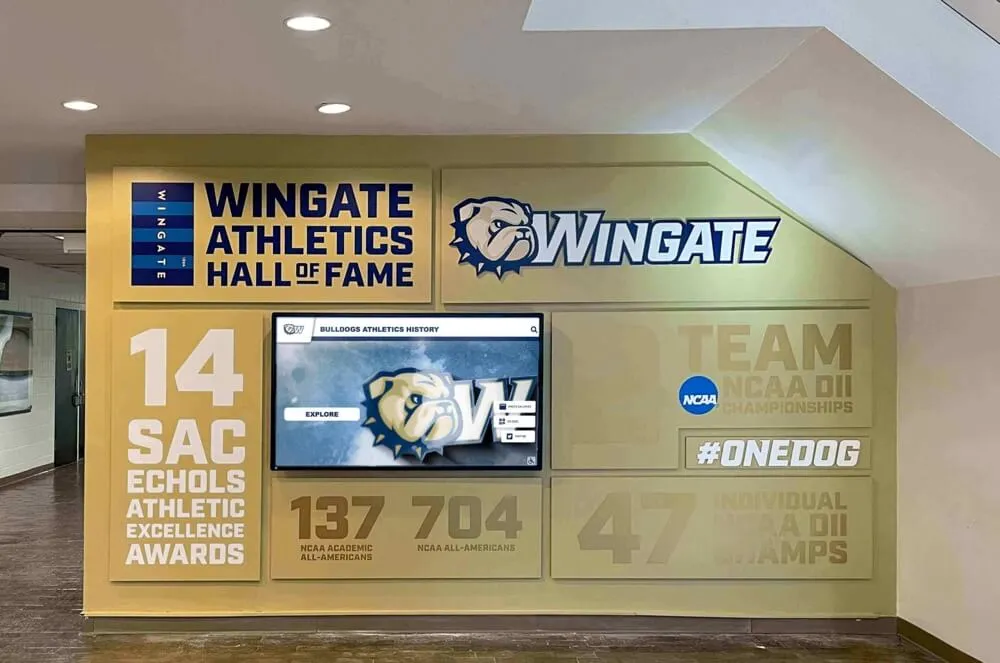
Professional Mac-powered touchscreen installations provide reliable, intuitive experiences across diverse environments
Understanding Mac Touchscreen Challenges and Solutions
Before exploring specific software options, understanding why Mac touchscreen implementation differs from Windows helps contextualize available solutions and their approaches.
Why macOS Doesn’t Natively Support Touchscreens
Apple has intentionally separated touch interfaces between devices—iPhones and iPads use touch, while Macs use traditional input methods. According to Apple’s design philosophy, vertical touchscreens create ergonomic issues causing “gorilla arm” fatigue when users repeatedly reach forward to touch vertical displays.
Despite this philosophy, many organizations need Mac-powered touchscreen solutions for legitimate use cases including educational interactive displays requiring Mac’s stability, institutional standardization on Apple ecosystem, creative applications leveraging Mac’s graphics capabilities, existing Mac infrastructure that organizations want to repurpose, and scenarios where Mac’s security features provide advantages.
This creates demand for third-party solutions that add touchscreen capabilities to macOS through specialized drivers and software.
Two Categories of Mac Touchscreen Software
Mac touchscreen solutions generally fall into two distinct categories serving different needs:
Touchscreen Driver Software enables external touchscreen monitors to send touch input to macOS, translating touch events into mouse movements and clicks the operating system understands. These drivers make touch physically functional but don’t address kiosk lockdown or public use requirements.
Kiosk Mode Software locks down Mac computers for public use, preventing unauthorized access to system settings, applications, or files. These solutions may or may not include specialized touchscreen optimization, focusing primarily on security and controlled access.
Comprehensive touchscreen installations often require both categories—drivers enabling touch input hardware to function, and kiosk software providing appropriate public use lockdown and interface customization.
Common Mac Touchscreen Use Cases
Organizations deploy Mac touchscreen solutions across diverse applications including interactive museum exhibits and educational displays, retail product information kiosks, hospitality check-in and wayfinding systems, corporate lobby directories and visitor management, library catalog search stations, athletic and academic recognition displays in schools, and public information terminals in community spaces.
Each use case brings specific requirements influencing software selection—museums need engaging multimedia presentations, retailers require inventory integration, schools want recognition databases, and public spaces demand vandal-resistant lockdown.
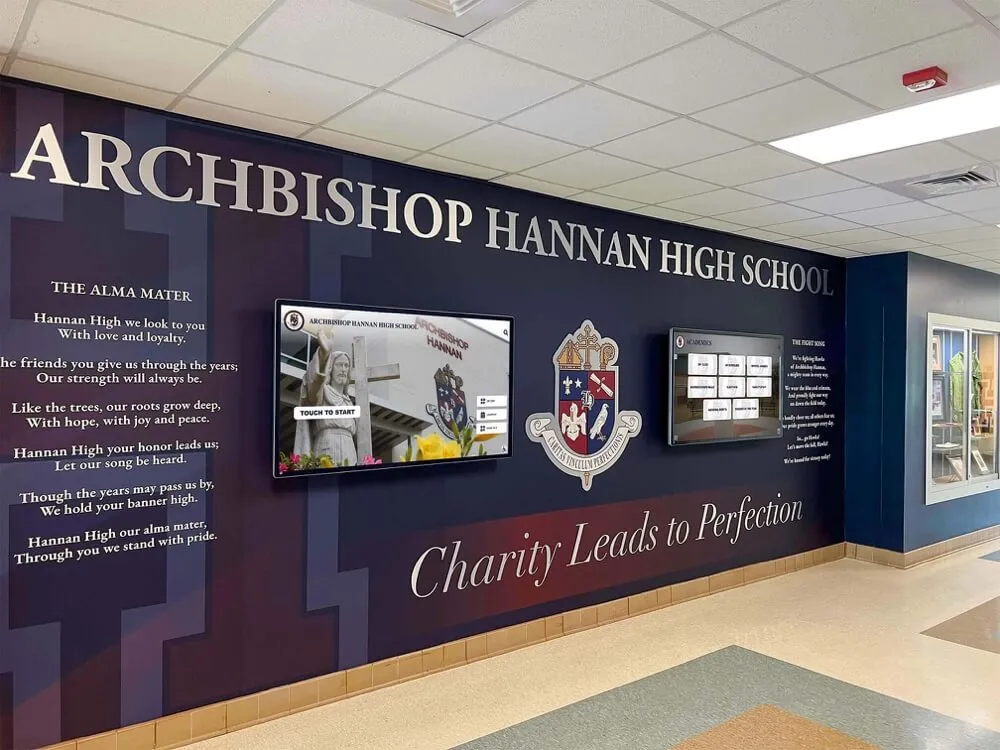
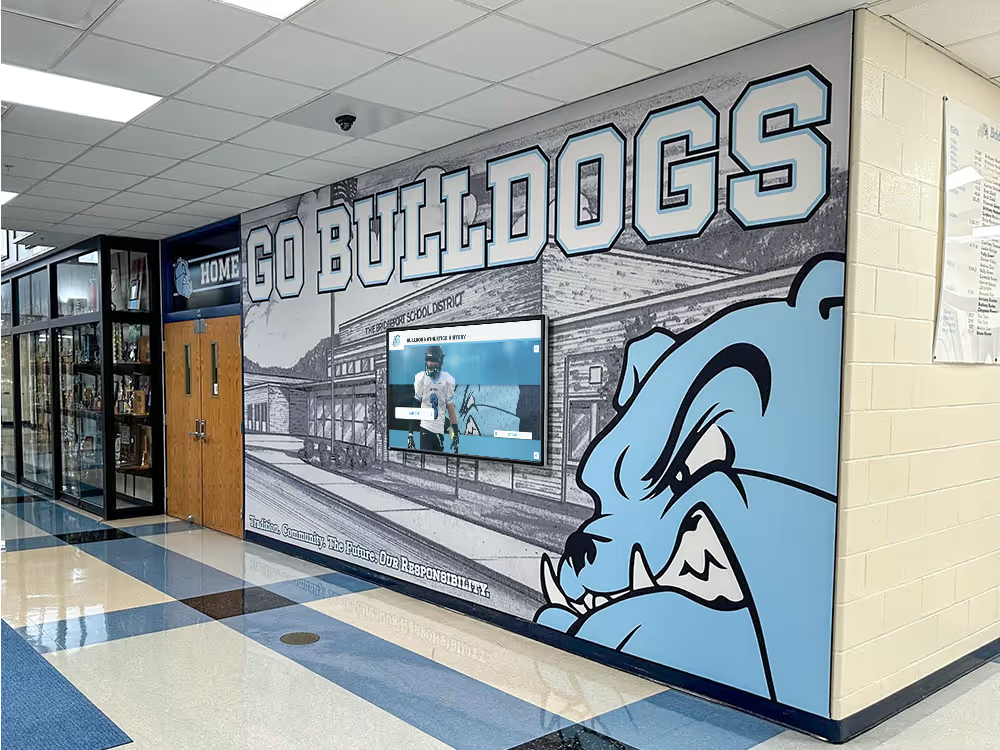
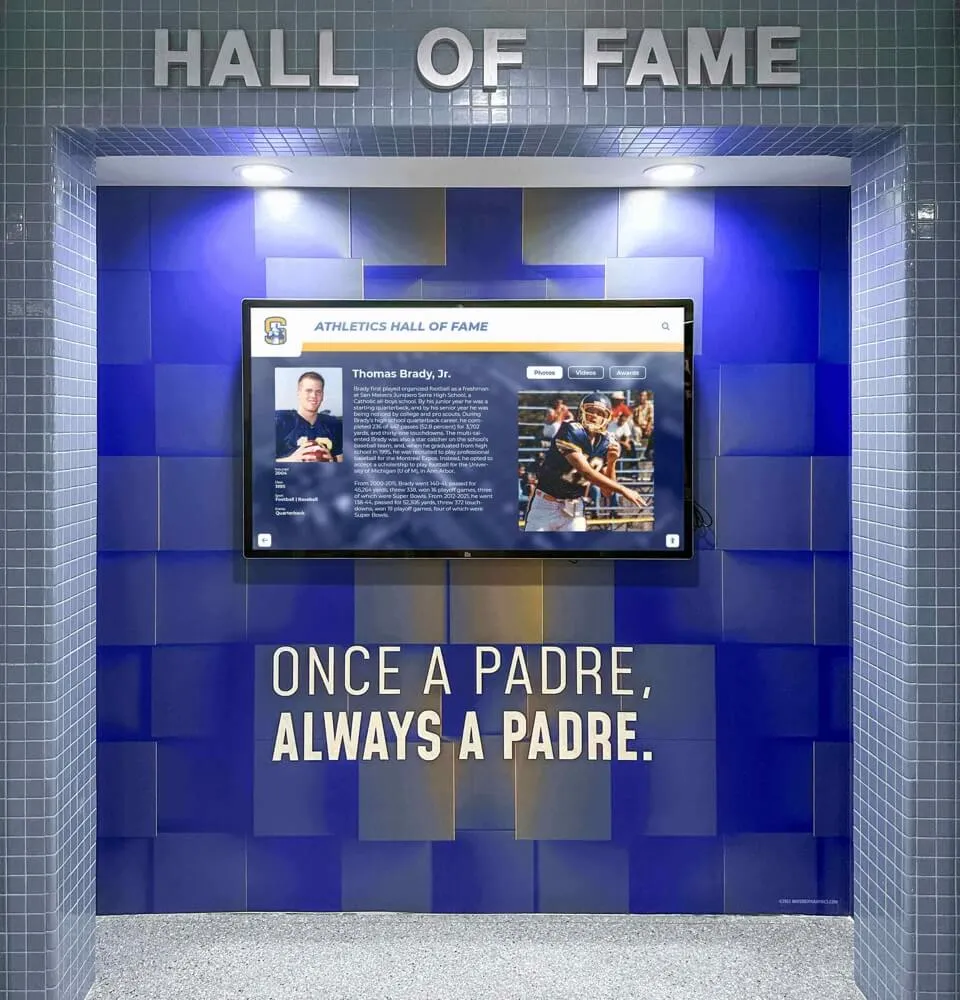
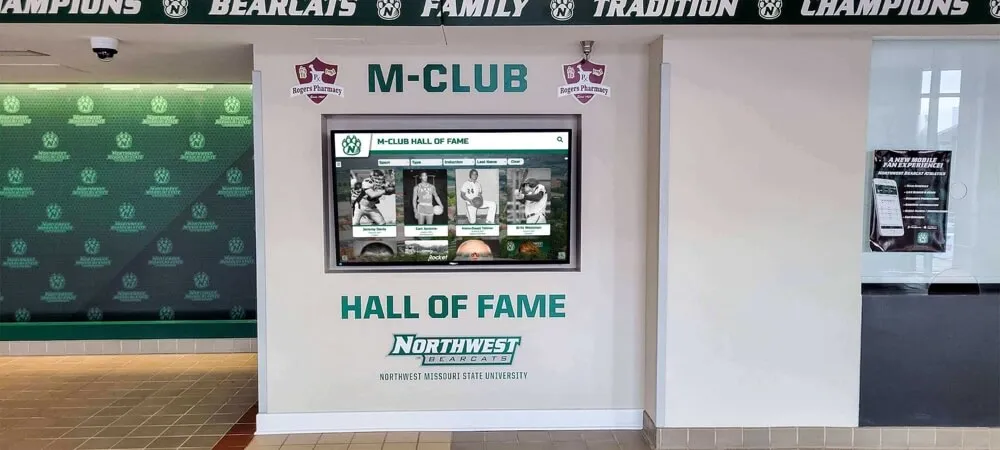
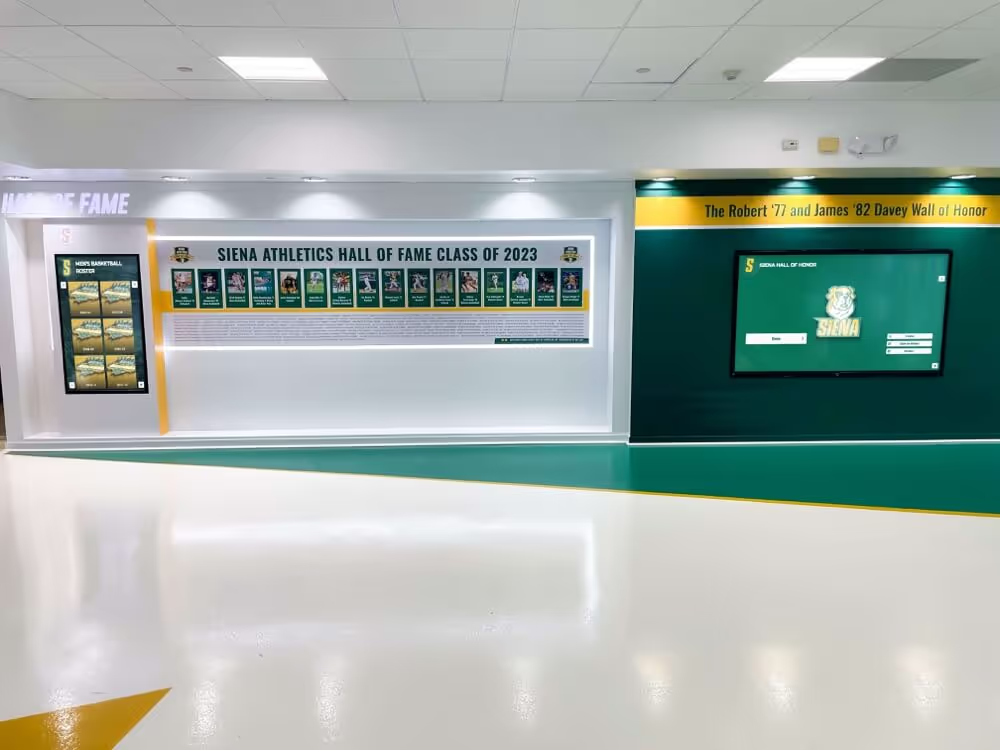
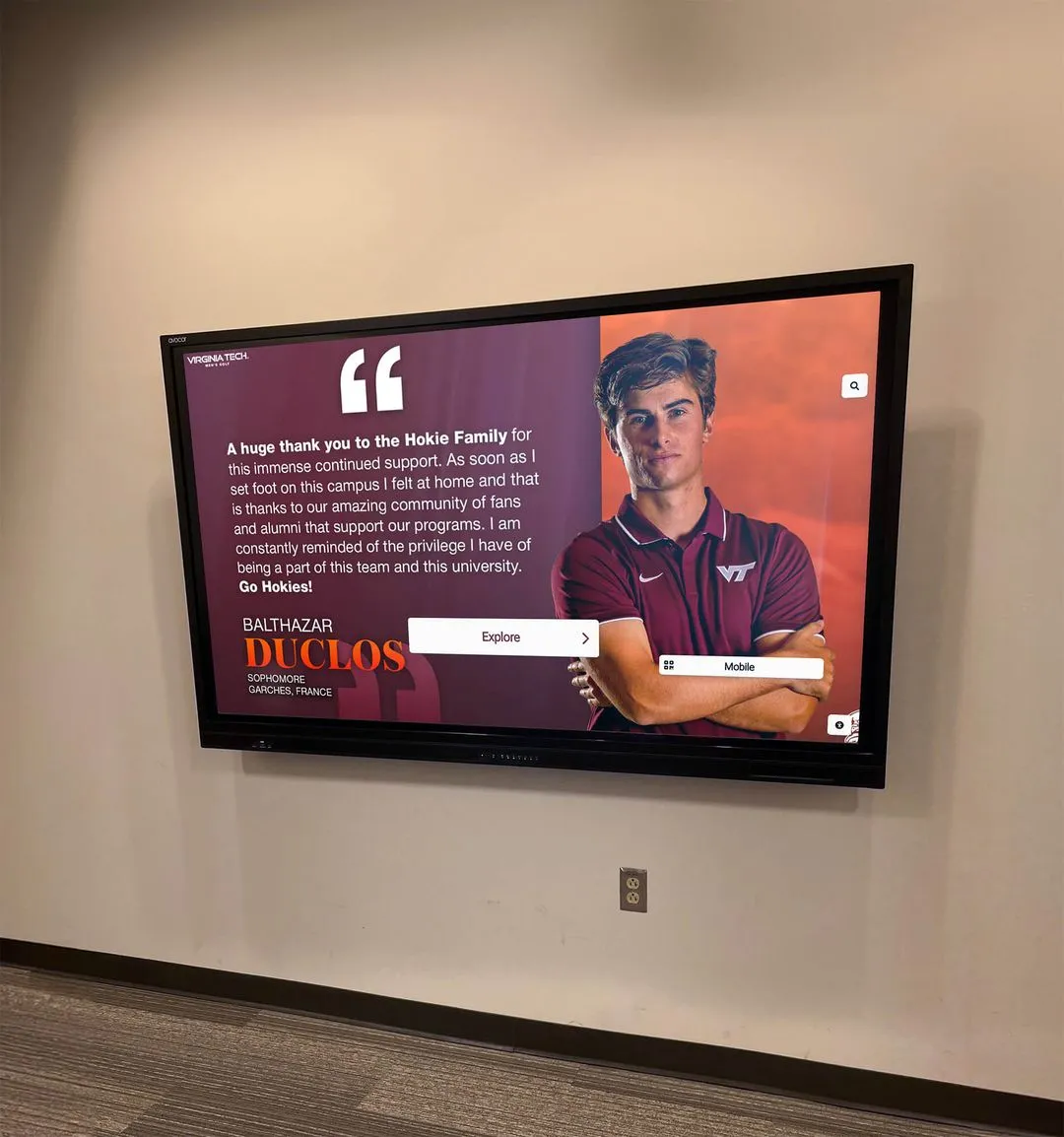
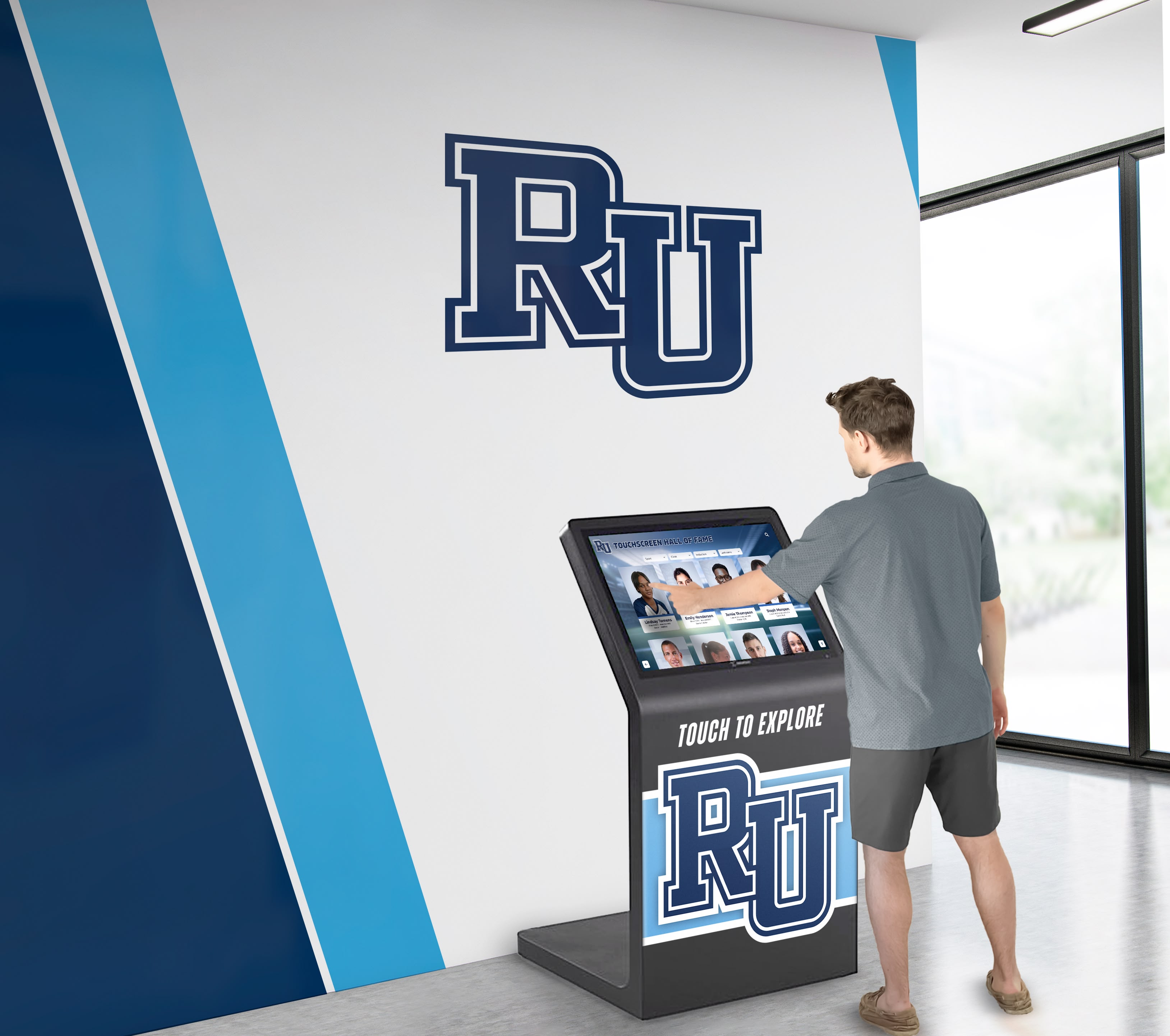
Well-designed kiosk software transforms Macs into secure, user-friendly public displays
Organizations implementing interactive touchscreen displays benefit from understanding both hardware and software requirements for successful Mac-based installations.
Best Mac Kiosk Mode Software Solutions
Kiosk mode software represents the most critical component for public-facing Mac deployments, providing security lockdown and controlled user experiences.
Rocket Touchscreen: Purpose-Built Mac Kiosk Solution
Rocket Touchscreen is Rocket Alumni Solutions’ dedicated Mac kiosk software available in the Mac App Store that addresses the specific needs of organizations requiring secure, touch-optimized public displays.
Key Features:
- Automatic launch into full-screen kiosk mode at startup
- Chromium-based web browser providing modern web standards support
- Single-touch optimized interface eliminating multi-touch gesture requirements
- URL locking for dedicated display of specific websites
- Password-protected settings preventing unauthorized changes
- Commercial display optimization for public use scenarios
- Touch-friendly navigation requiring no user instruction
Rocket Touchscreen excels in scenarios where organizations need to display web-based content—whether internal recognition platforms, information portals, or custom applications—on Mac hardware in public spaces. The single-touch optimization proves particularly valuable for simple, intuitive interfaces accessible to all users regardless of technical sophistication.
The software’s automatic kiosk mode launch means Mac computers boot directly into locked-down browsing without exposing system interfaces or requiring staff intervention. This makes Rocket Touchscreen ideal for unattended installations where reliability and security are paramount.
Ideal Use Cases:
- Schools displaying digital recognition platforms on touchscreens
- Museums running web-based interactive exhibits
- Businesses presenting information portals on lobby displays
- Organizations with existing web content to present via kiosk
Learn more about Rocket Touchscreen in the Mac App Store.
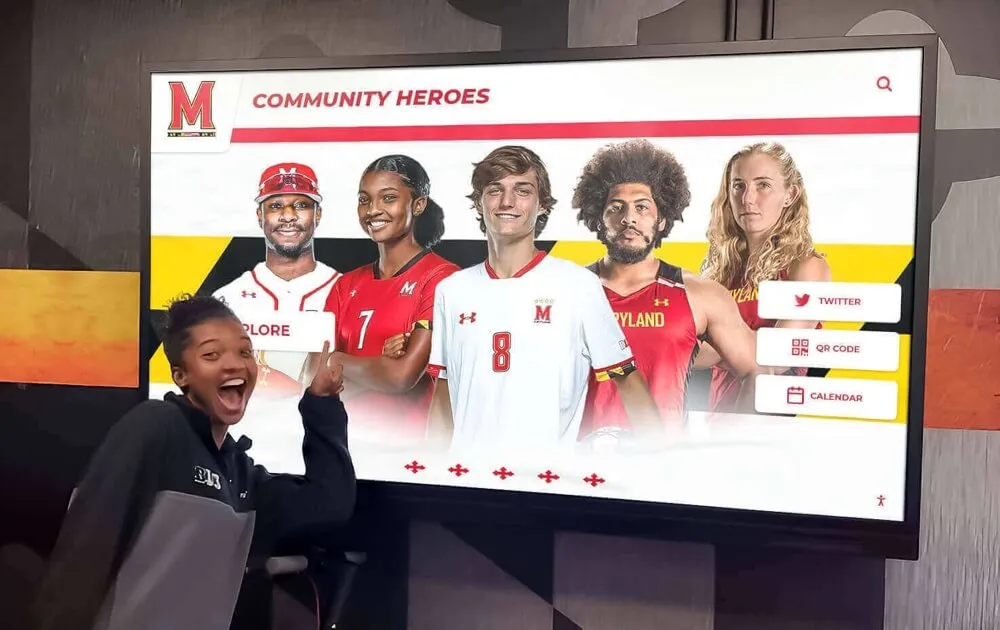
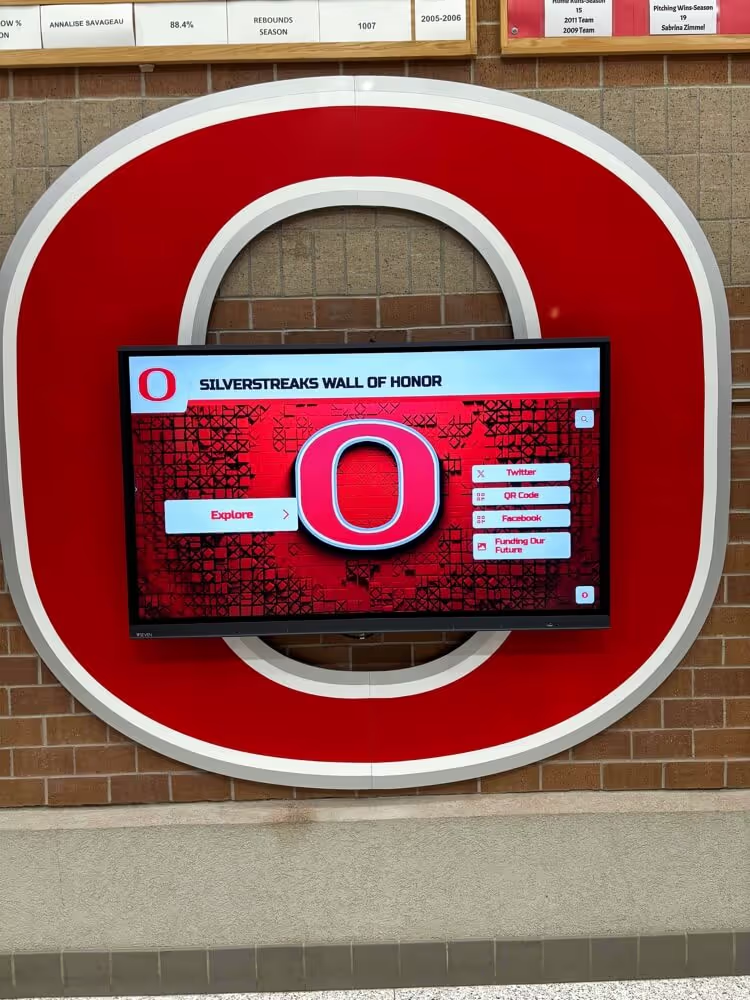
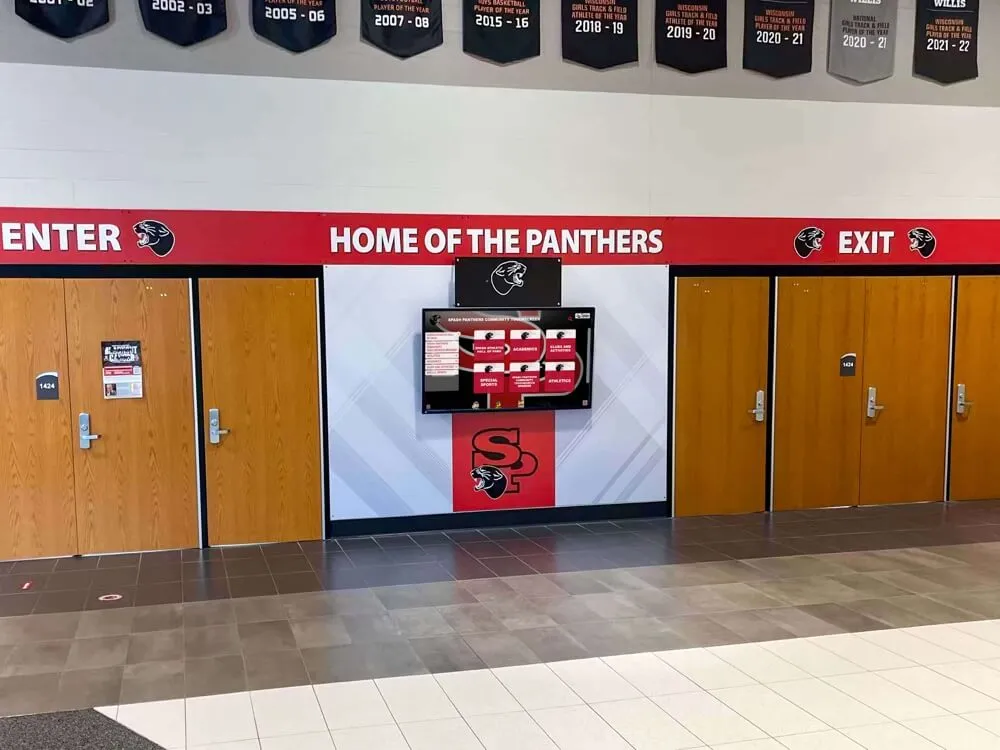
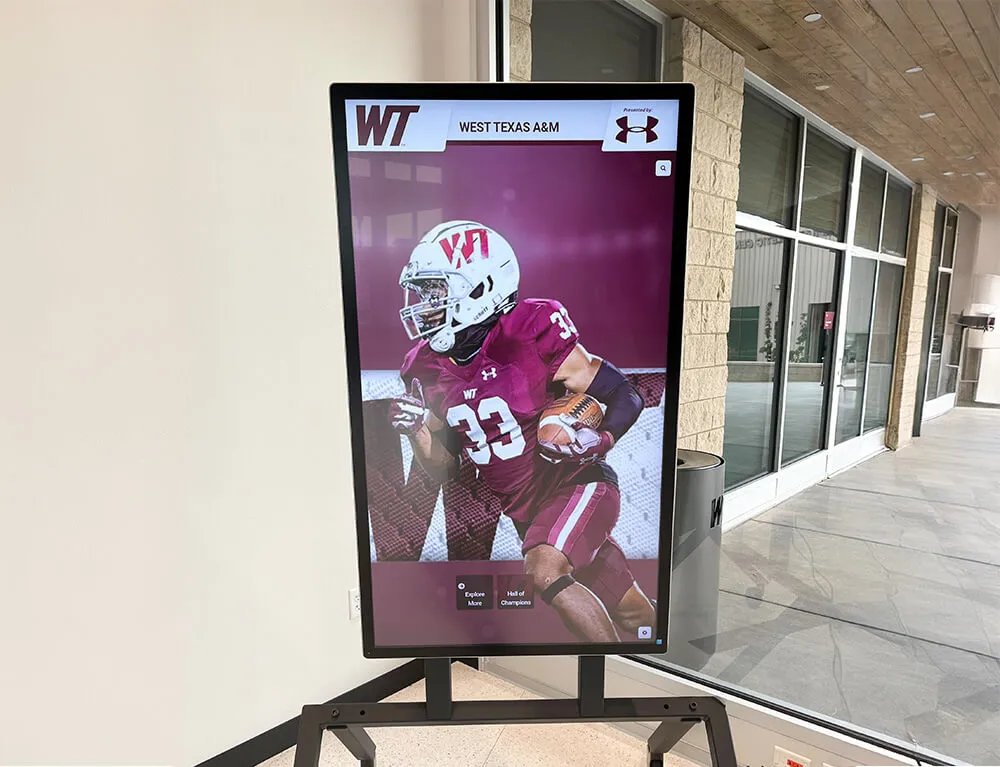
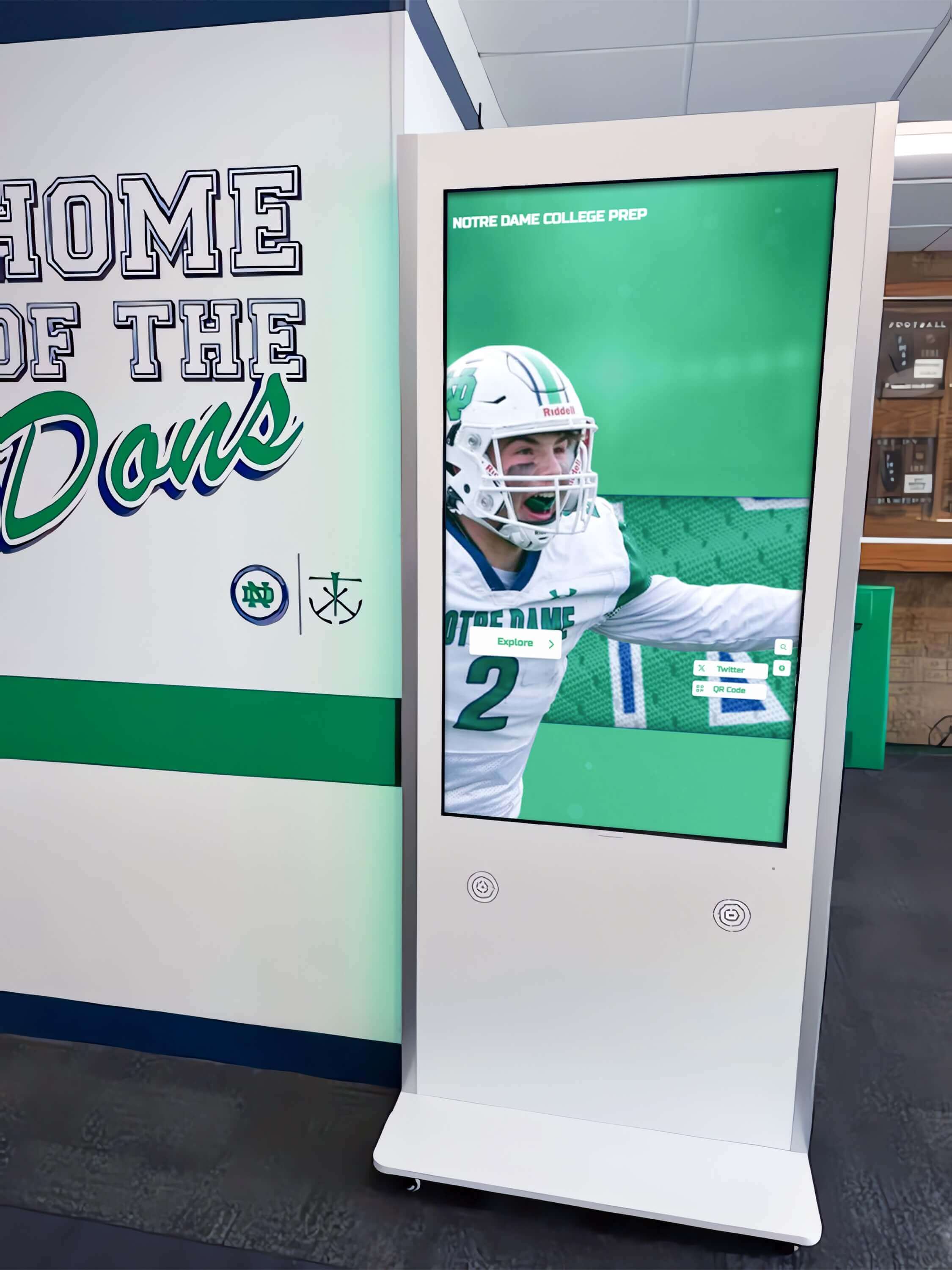
Single-touch interfaces provide intuitive navigation accessible to users of all technical abilities
AppKiosk: Touchscreen-Optimized Kiosk Platform
AppKiosk is a native macOS application specifically designed for creating kiosk experiences optimized for touchscreens and large displays. Available on the Mac App Store, AppKiosk provides flexible kiosk configuration without recurring subscription fees.
Key Features:
- Touchscreen and large display optimization
- Full-screen app lockdown preventing system access
- Web content display with URL restriction capabilities
- One-time purchase model without recurring costs
- Native macOS application ensuring compatibility
- Suitable for museums, libraries, trade shows, and public spaces
AppKiosk works well for organizations needing general-purpose kiosk functionality with touchscreen support across various content types and use cases.
Considerations: As with any kiosk software, organizations should verify current support status and compatibility with latest macOS versions before deployment.
Kiosk Pro and Screen: Web-Based Kiosk Solutions
Kiosk Pro and Screen represent purpose-built kiosk browsers for Mac providing extensive customization and lockdown capabilities for web-based content presentation.
Common Features:
- Full-screen web browser with lockdown capabilities
- URL whitelisting restricting browsing to approved sites
- Customizable interface removing browser chrome
- Remote management capabilities for distributed installations
- Scheduled content rotation and automatic updates
- Offline content caching for reliability
These platforms suit organizations with web-based content requiring secure presentation on Mac kiosks with professional features and commercial support.
eCrisper Kiosk Software
eCrisper provides comprehensive kiosk solutions for Mac computers, transforming them into secure public access terminals commonly deployed in schools, museums, hotels, churches, and libraries.
Key Features:
- Full system lockdown preventing unauthorized access
- Web browser restriction and filtering
- Time-limited sessions with automatic reset
- Print management for public printing scenarios
- Suitable for public internet access terminals
eCrisper works well for organizations providing general public internet access on Mac computers while maintaining security and preventing system modification.

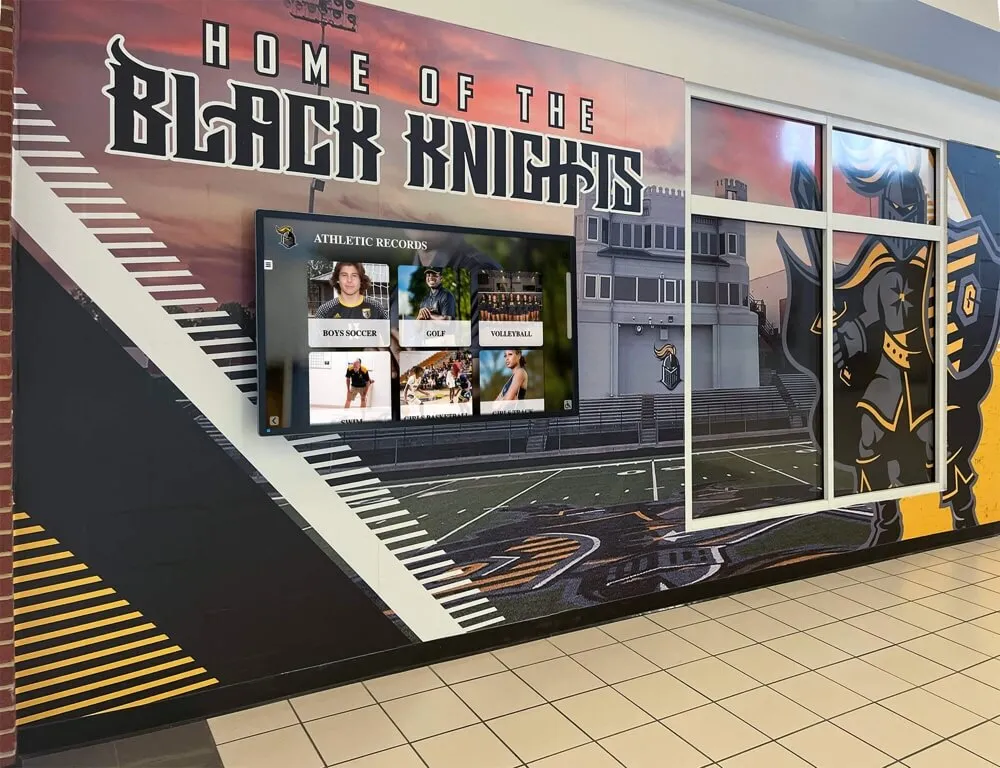
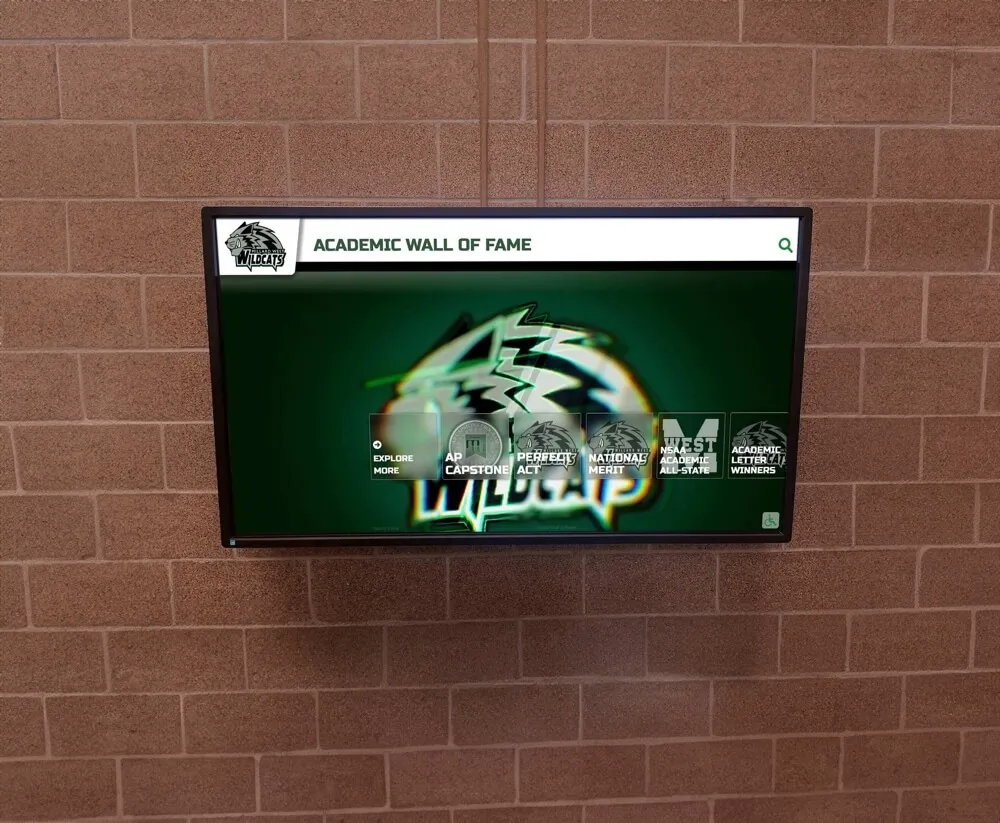
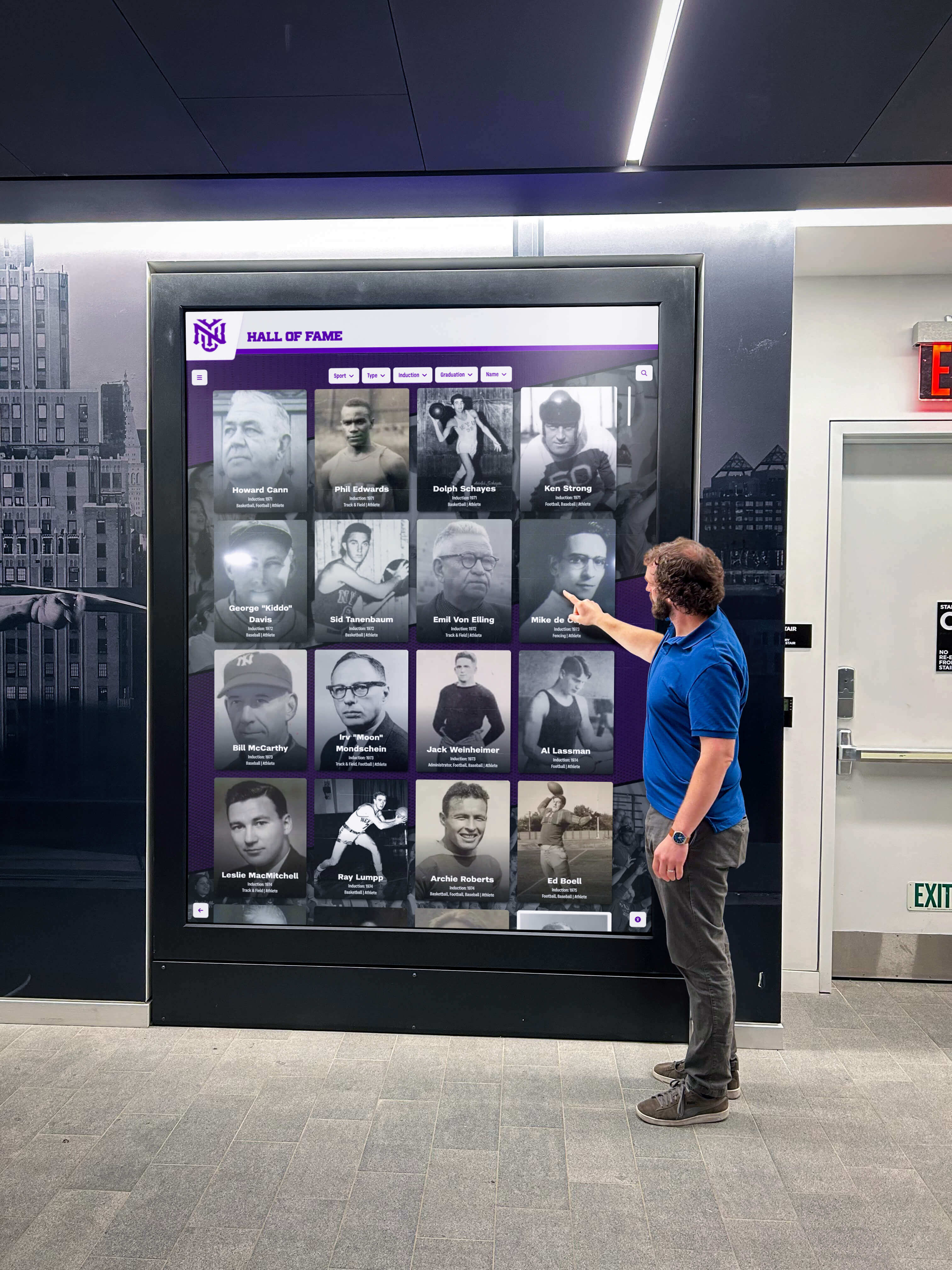
Responsive touch interfaces enable precise content selection and intuitive navigation
Similar kiosk mode principles apply across platforms, as demonstrated by touchscreen kiosk software implementations in various institutional settings.
Touchscreen Driver Software for Mac
While kiosk software controls the user experience, touchscreen drivers enable physical touch input hardware to communicate with macOS.
Touch-Base UPDD Driver
The UPDD (Universal Pointer Device Driver) from Touch-Base represents one of the most comprehensive third-party touchscreen drivers supporting macOS along with Windows, Linux, and Android.
Key Features:
- Multi-touch gesture support (swipe, pinch, rotate, two-finger scroll)
- Compatibility with macOS 10.6 and above
- Support for diverse touchscreen hardware manufacturers
- Gesture customization and calibration tools
- Commercial-grade reliability for professional installations
UPDD typically requires a commercial license (approximately $35 USD) and translates touch events into mouse input that macOS applications understand. The driver works by emulating traditional mouse interactions rather than providing native touch API support.
Considerations: Third-party drivers require ongoing compatibility maintenance as macOS updates are released. Organizations should verify current driver support for their specific macOS version before deployment.
ViewSonic vTouch Driver
ViewSonic vTouch provides touchscreen driver support specifically for ViewSonic touch displays connected to Mac computers.
Key Features:
- Touch and gesture control support
- Optimized for ViewSonic touchscreen monitors
- Enables standard touch interactions on compatible displays
- Manufacturer-supported ensuring hardware compatibility
Organizations standardizing on ViewSonic touchscreen hardware benefit from purpose-built driver optimization and manufacturer support for compatibility issues.
Mimo Touchscreen Drivers
Mimo offers touchscreen drivers for their display products with free downloadable “Gesture Pack” enabling advanced touch interactions.
Key Features:
- Gesture support including swipe, scroll, pinch, magnify, and rotate
- Designed for Mimo touchscreen monitors
- Free gesture pack providing enhanced functionality
- Suitable for smaller-format touchscreen displays
Mimo drivers work well for organizations using Mimo touchscreen hardware, providing manufacturer-optimized compatibility.
Important Driver Considerations
Mac touchscreen drivers universally face the limitation that they translate touch input into mouse emulation rather than providing true native touch support. This means:
- Applications don’t receive true touch events as they would on iPad
- Multi-touch gestures require driver-level implementation
- Some applications may not respond optimally to emulated input
- Driver updates are required for macOS compatibility
- Performance depends on both driver quality and display hardware
Organizations should set appropriate expectations about Mac touchscreen capabilities compared to native touch platforms like iPad, while recognizing that well-implemented solutions still provide effective interactive experiences for most use cases.
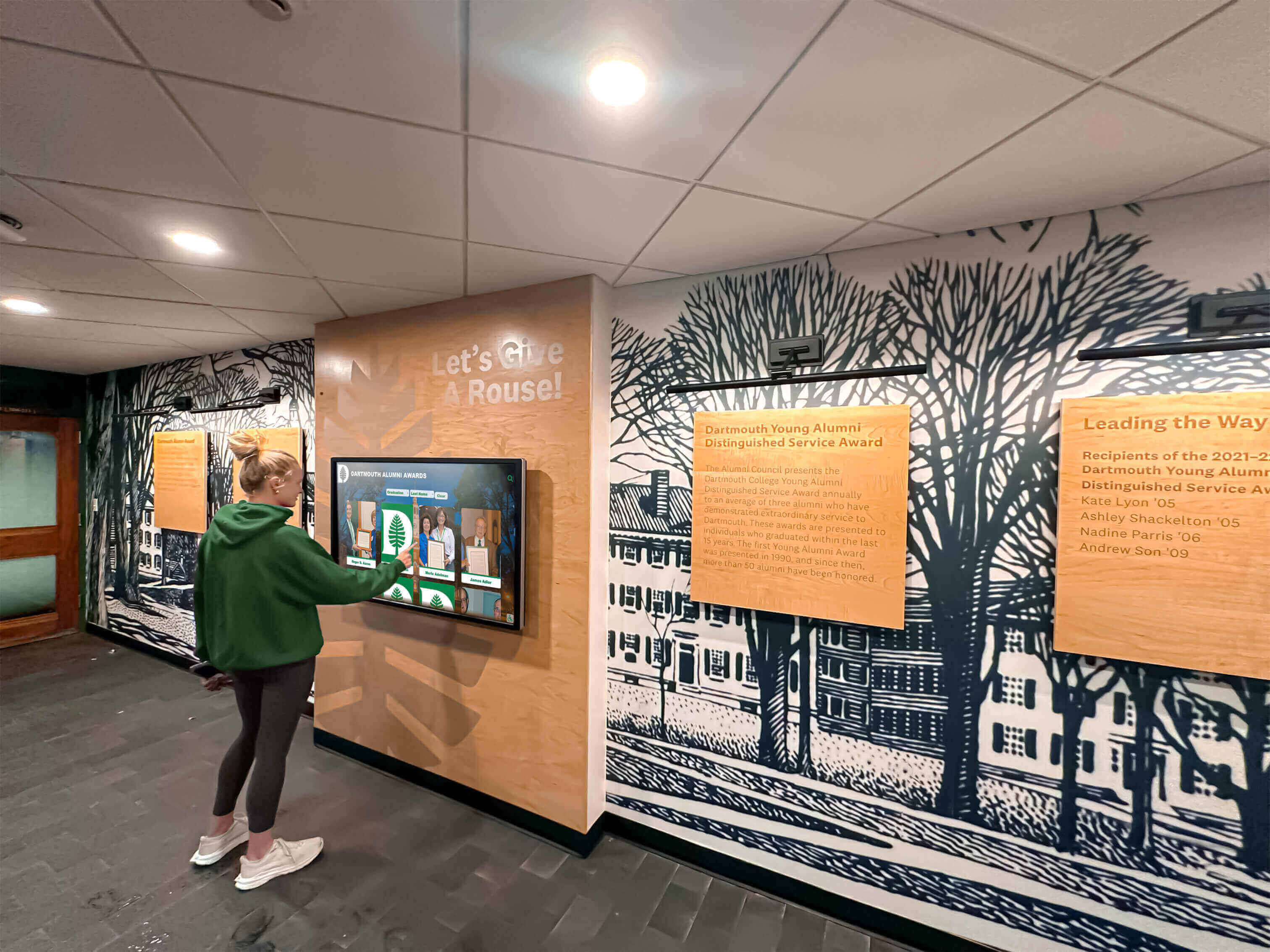
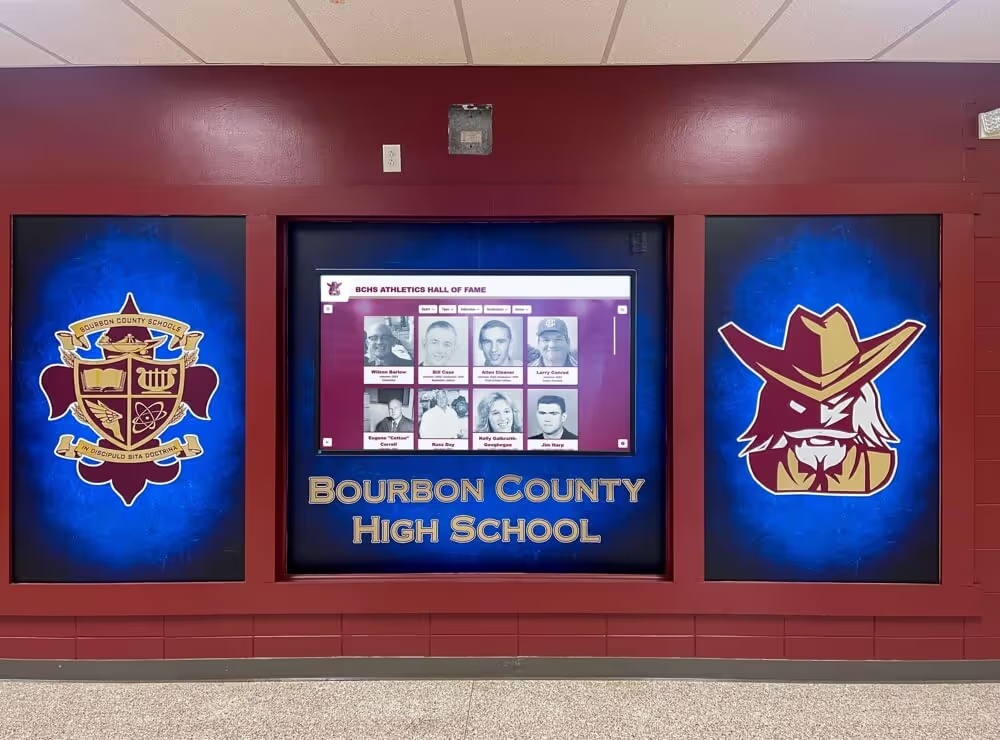
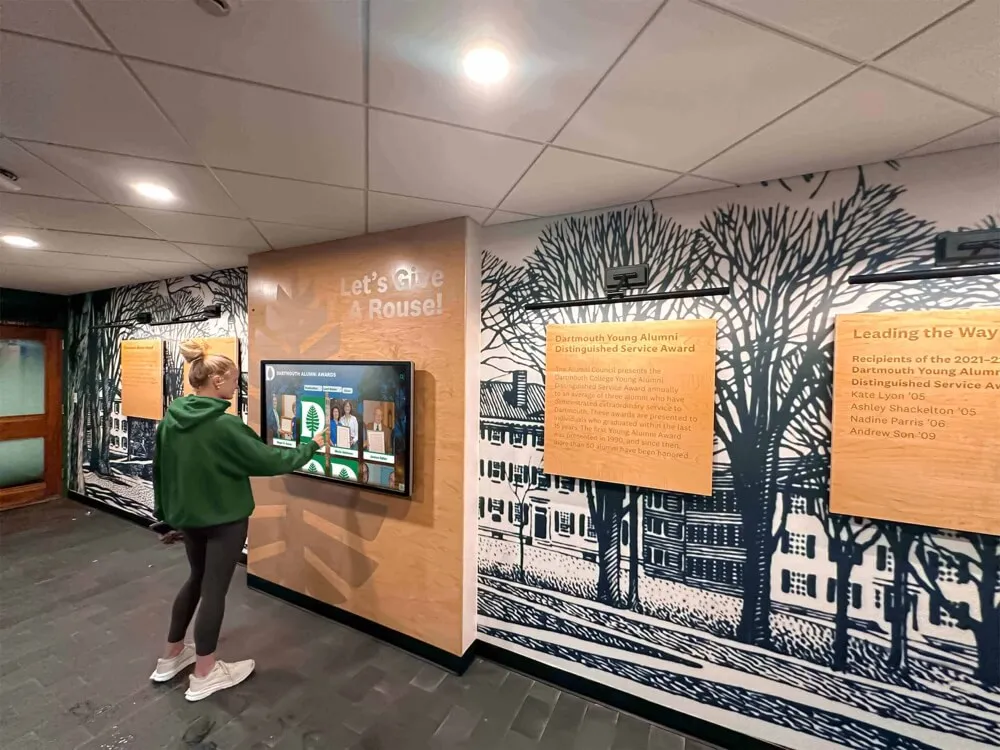
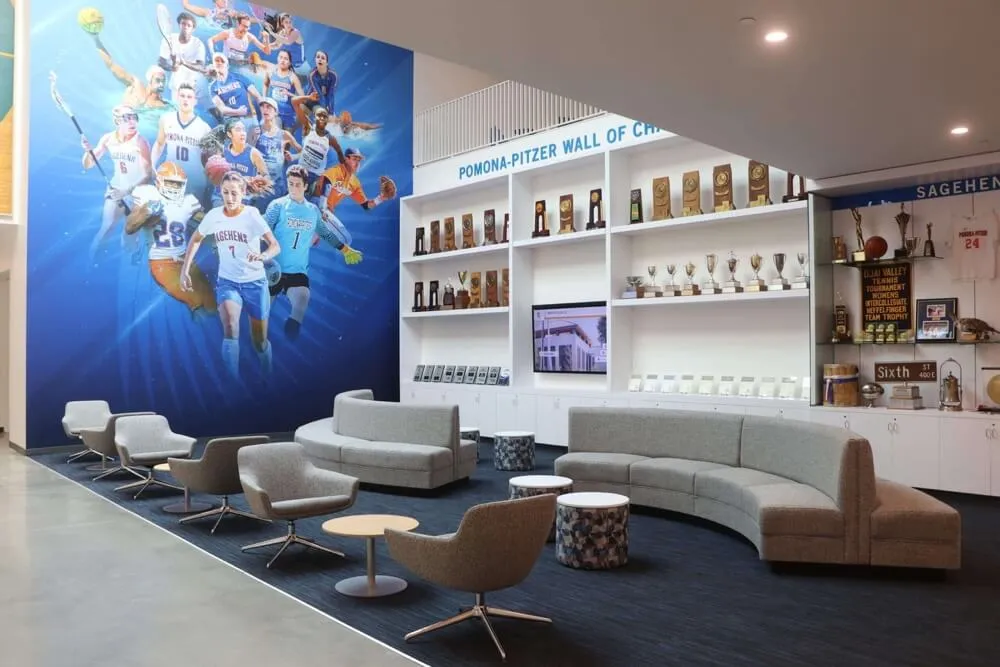
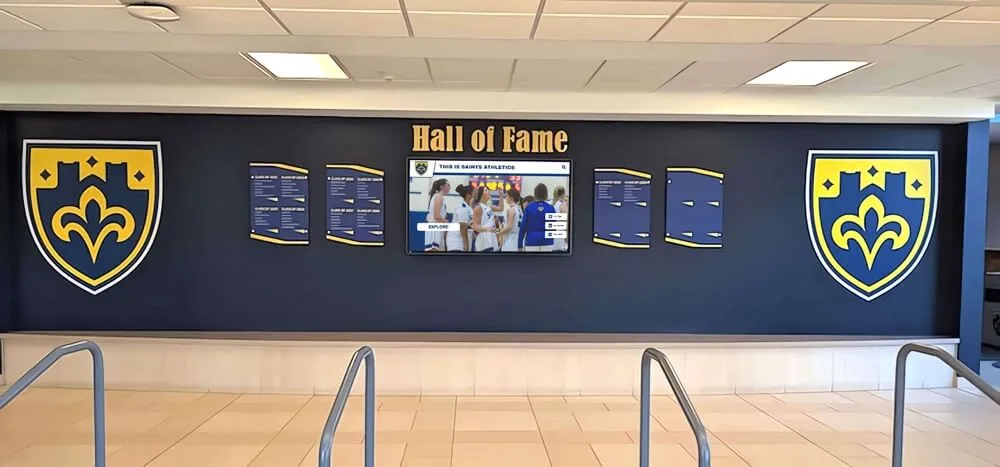
Educational institutions leverage Mac touchscreen solutions for engaging student recognition displays
Purpose-Built Interactive Display Platforms for Mac
Beyond general kiosk software, specialized platforms provide comprehensive interactive display solutions optimized for specific applications.
Rocket Alumni Solutions: Education-Focused Interactive Displays
Rocket Alumni Solutions provides comprehensive interactive touchscreen platforms specifically designed for schools, colleges, and universities celebrating achievements and preserving institutional history.
Platform Capabilities:
- Web-based platform accessible through any browser including Mac kiosk software
- Cloud-based content management enabling remote updates
- Recognition databases for athletes, scholars, alumni, and donors
- Searchable profiles with photos, videos, and biographical information
- Timeline displays documenting institutional history
- Mobile-responsive design working across devices
- Professional templates designed for educational contexts
The platform combines with kiosk software like Rocket Touchscreen to create complete Mac-powered recognition displays requiring no technical expertise for content management. Schools maintain recognition content through intuitive web interfaces, with changes automatically appearing on campus touchscreen displays.
This approach proves particularly effective for educational institutions wanting comprehensive recognition capabilities without custom development or complex technical infrastructure.
Organizations implementing digital recognition displays in schools benefit from specialized platforms understanding educational workflows and requirements.
Digital Signage Platforms with Mac Support
General-purpose digital signage platforms increasingly support Mac as display endpoints, though often with limitations compared to primary Windows support.
Common Platforms with Mac Support:
- ScreenCloud (cloud-based signage with Mac player apps)
- Yodeck (web-based signage supporting Mac browsers)
- OptiSigns (digital signage with Mac compatibility)
- NoviSign (cloud signage with Mac browser support)
These platforms work well for organizations with mixed hardware environments requiring centralized management across multiple display types and locations. However, touchscreen interaction support varies significantly between platforms, with many designed primarily for passive broadcast signage rather than interactive kiosk use.
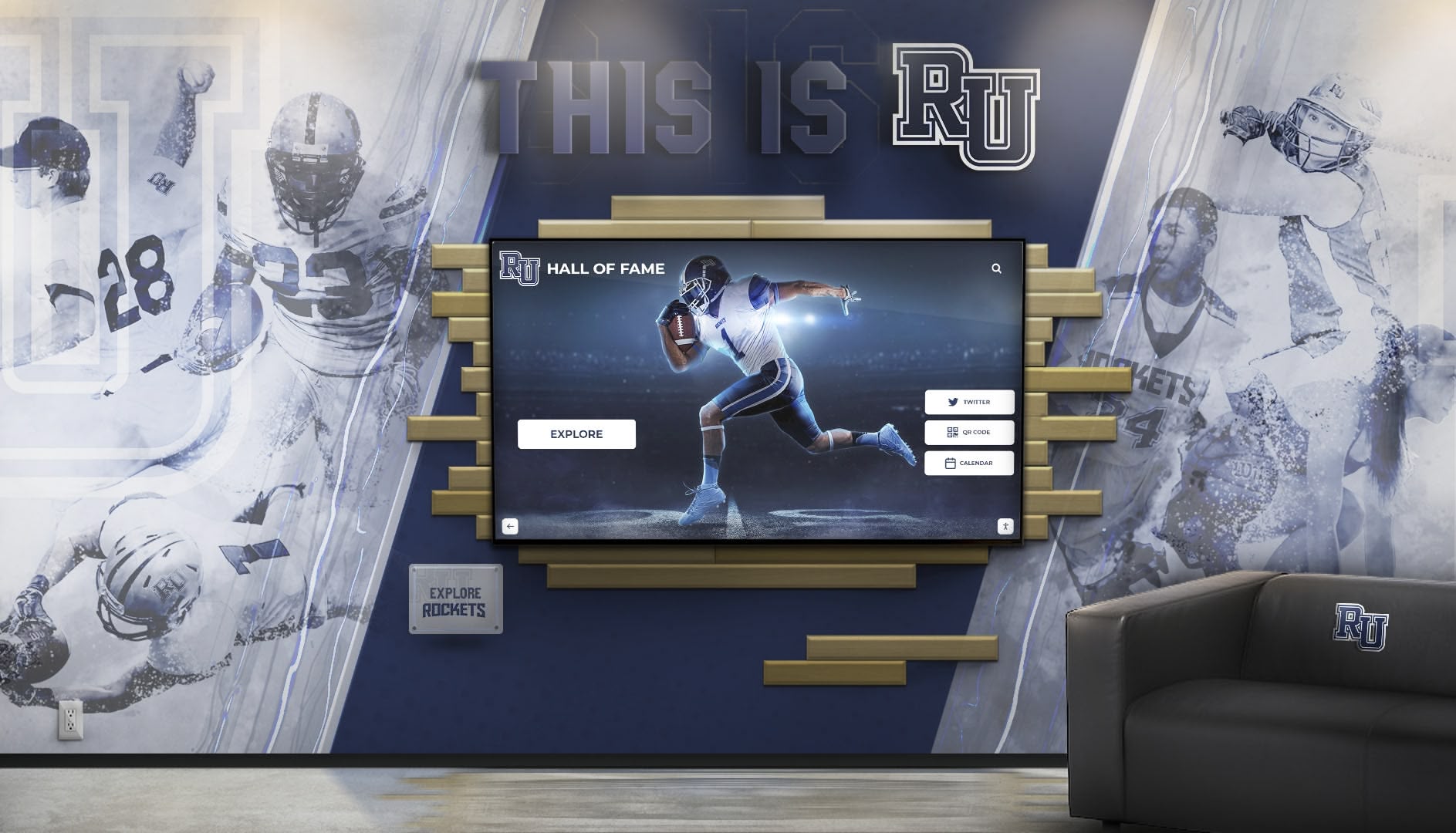
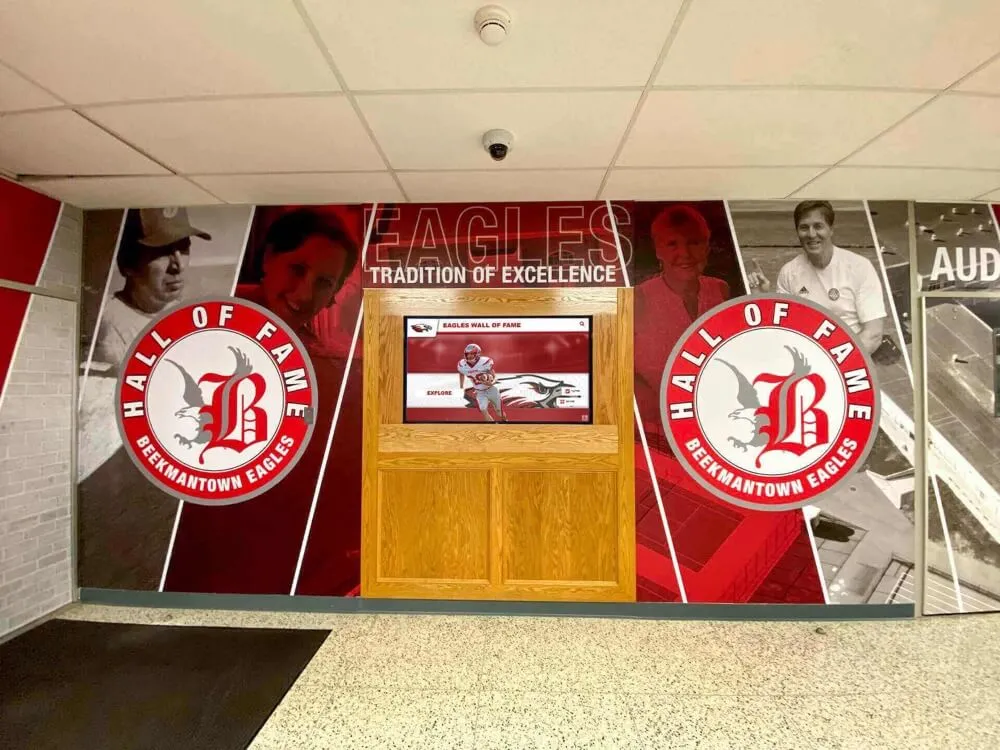
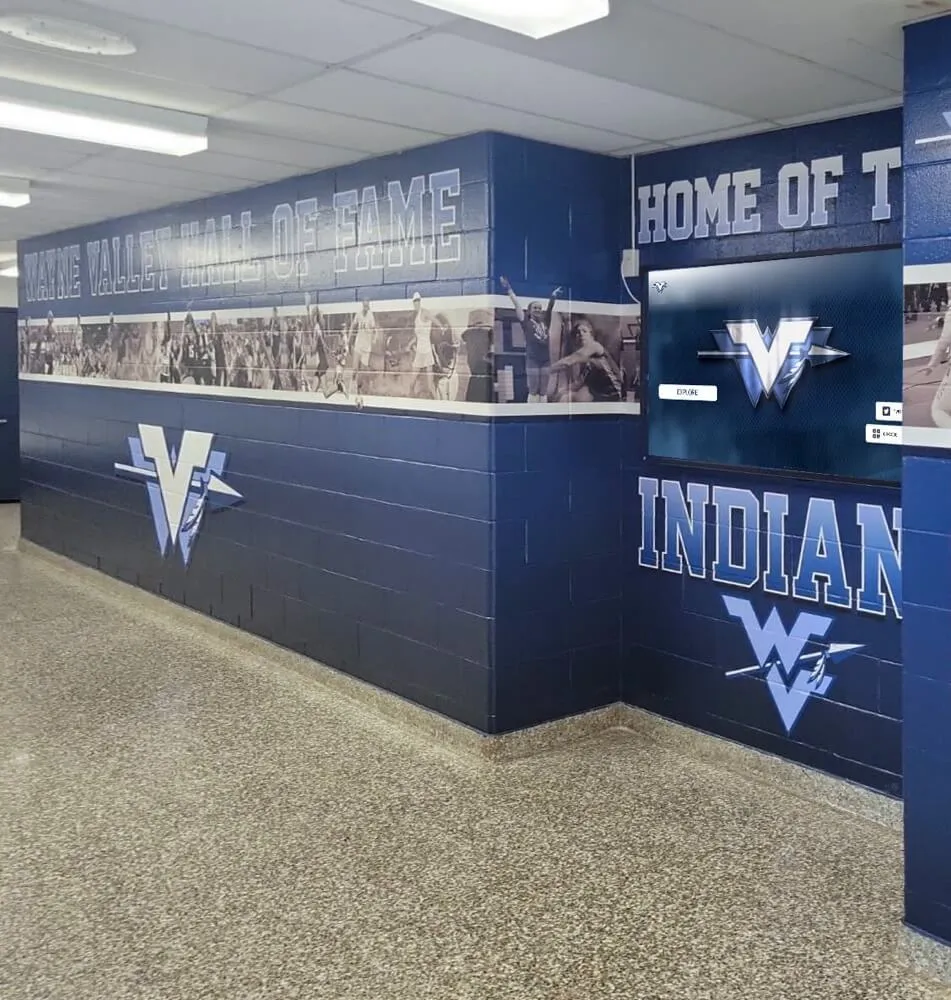
Custom installations integrate touchscreen technology with institutional design and branding elements
Museum and Exhibit Software
Museums and cultural institutions often require specialized interactive exhibit software, with some solutions supporting Mac deployment:
Exhibit Software Considerations:
- Ideum (creates interactive exhibit experiences with Mac support)
- Custom HTML5 applications deployable through Mac kiosk browsers
- Unity-based interactive applications exportable to Mac
- Web-based exhibit platforms accessible through Mac browsers
Museum applications typically require more sophisticated interaction design than simple kiosks, often involving custom development tailored to specific exhibit content and learning objectives.
Principles of interactive display design for engagement apply across platforms and content types.
Implementation Strategies for Mac Touchscreen Solutions
Successful Mac touchscreen deployments require systematic planning addressing hardware selection, software configuration, content development, and ongoing maintenance.
Hardware Selection and Compatibility
Choosing Touchscreen Displays
Mac touchscreen implementations begin with compatible display hardware including commercial-grade touchscreen monitors with Mac driver support, display sizes appropriate for use case and viewing distance, appropriate touch technology (capacitive for multi-touch, IR for durability), mounting options suitable for installation environment, and appropriate resolution for content clarity.
Organizations should verify Mac compatibility for any touchscreen display before purchase, requesting confirmation that manufacturer provides Mac drivers and technical support for macOS installations.
Mac Computer Selection
Kiosk deployments require appropriate Mac hardware including Mac mini (popular for kiosk installations due to compact size and value), iMac (all-in-one simplicity with integrated display), Mac Studio (high-performance for demanding applications), or repurposed older Mac computers (cost-effective for less demanding kiosks).
Mac mini particularly suits kiosk applications when paired with external touchscreen displays, offering reliability and performance in compact, mountable packages that integrate discreetly with display installations.
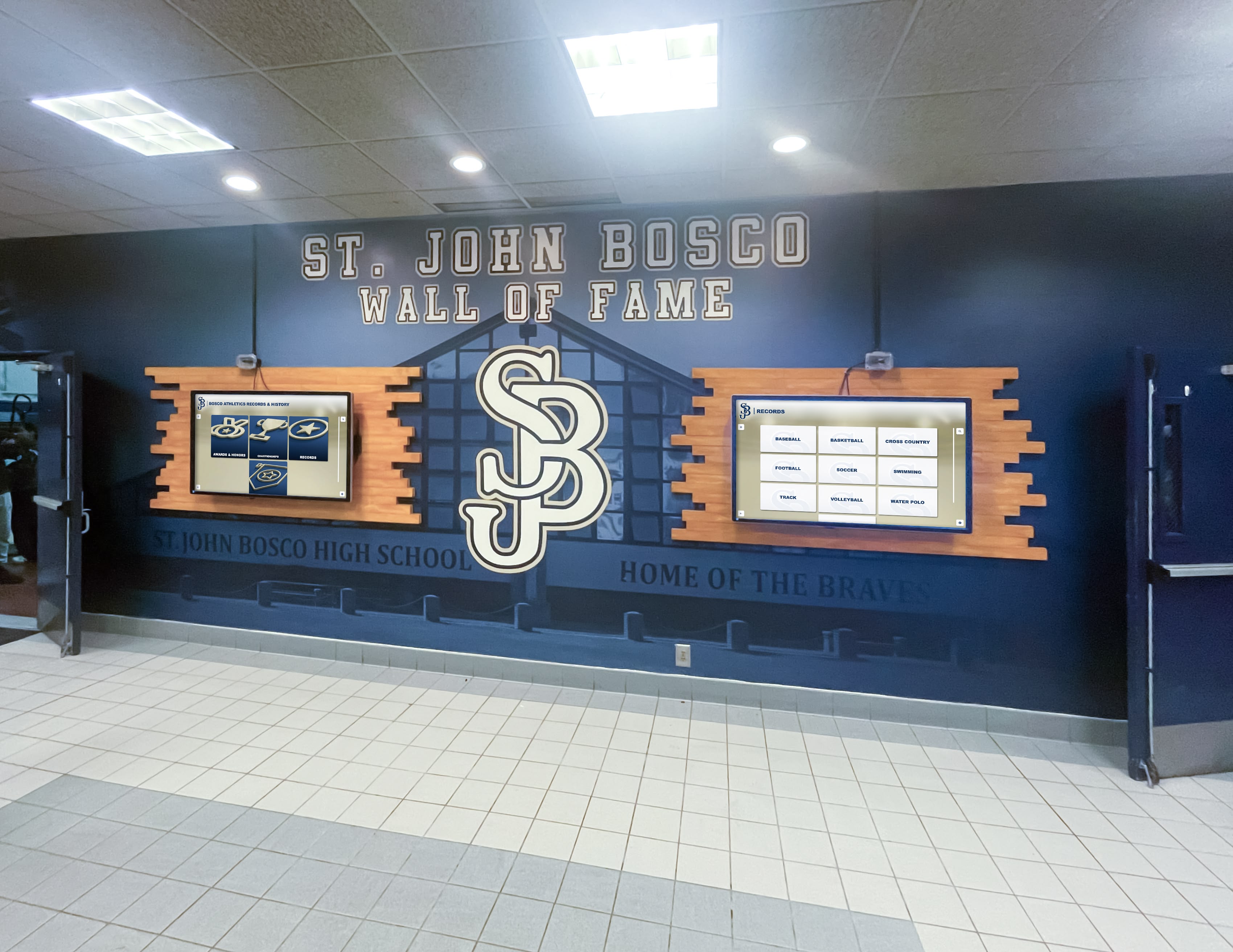
Coordinated multi-display installations provide comprehensive content presentation across large spaces
Software Configuration Best Practices
Kiosk Mode Setup
Proper kiosk configuration ensures secure, reliable operation including automatic login configuration launching kiosk software at startup, system preference restrictions preventing unauthorized changes, network security limiting access to approved resources, automatic updates scheduled during off-hours, and remote management capabilities enabling troubleshooting without physical access.
macOS provides built-in restrictions through Screen Time and parental controls that complement dedicated kiosk software, creating layered security preventing unauthorized access.
Content Optimization
Mac touchscreen content should be optimized for touch interaction including appropriately sized touch targets (minimum 44x44 pixels per Apple guidelines), clear visual feedback for touch interactions, simplified navigation requiring minimal steps, responsive design adapting to display dimensions, and performance optimization ensuring smooth, immediate responses.
Web-based content displayed through kiosk browsers should follow mobile-first design principles, as touch interaction patterns closely resemble mobile device usage regardless of display size.
Deployment and Testing
Pilot Installation
Before full deployment, pilot installations reveal configuration issues and usability challenges including hardware compatibility verification, driver stability testing under continuous operation, kiosk software security validation, user experience testing with representative audiences, and performance monitoring under realistic load conditions.
Pilots should run for minimum 2-4 weeks under actual operating conditions, allowing identification of issues that only appear through sustained operation.
User Training and Documentation
Even intuitive touchscreen interfaces benefit from minimal user guidance including simple on-screen instructions for basic interaction, visual cues indicating interactive elements, timeout behavior returning to home screen, contact information for technical assistance, and regular content updates maintaining user interest.
Staff supporting kiosk installations need documentation covering common troubleshooting procedures, content update processes, and escalation paths for issues requiring vendor support.
Comprehensive guides for interactive touchscreen software implementation provide additional deployment considerations.
Comparing Mac vs. Alternative Platforms for Touchscreens
Understanding when Mac represents the optimal choice versus alternative platforms helps organizations make informed hardware decisions.
Mac Advantages for Touchscreen Kiosks
Reliability and Stability: Mac hardware and macOS provide exceptional uptime and stability for public-facing installations, with minimal maintenance requirements and robust performance over years of continuous operation.
Security: macOS benefits from Unix-based security architecture with lower malware exposure compared to Windows, built-in disk encryption through FileVault, and generally reduced security maintenance burden.
Design and Build Quality: Mac computers offer premium build quality and attractive industrial design that complements professional installations in lobbies, museums, and public spaces where appearance matters.
Ecosystem Integration: Organizations already standardized on Apple infrastructure benefit from unified device management, consistent user experiences, and simplified IT support across all Apple devices.
Mac Limitations for Touchscreen Applications
Native Touch Support: Unlike Windows, macOS lacks native touchscreen support requiring third-party drivers that may introduce compatibility challenges or performance limitations.
Software Availability: Fewer kiosk and interactive display software options exist for Mac compared to Windows, with some specialized applications available only on Windows platforms.
Cost: Mac hardware typically costs more than equivalent Windows computers, increasing initial deployment expenses particularly for large-scale multi-display installations.
Flexibility: Windows provides greater hardware choice, more extensive peripheral support, and broader software compatibility for specialized touchscreen applications.
When Mac Makes Sense
Mac touchscreen deployments prove most appropriate when organizations already standardize on Apple infrastructure making Mac the logical choice, require Mac-specific software unavailable on other platforms, prioritize reliability and security over maximum software flexibility, value premium aesthetics complementing professional environments, or deploy limited numbers of displays where Mac cost premium is acceptable.
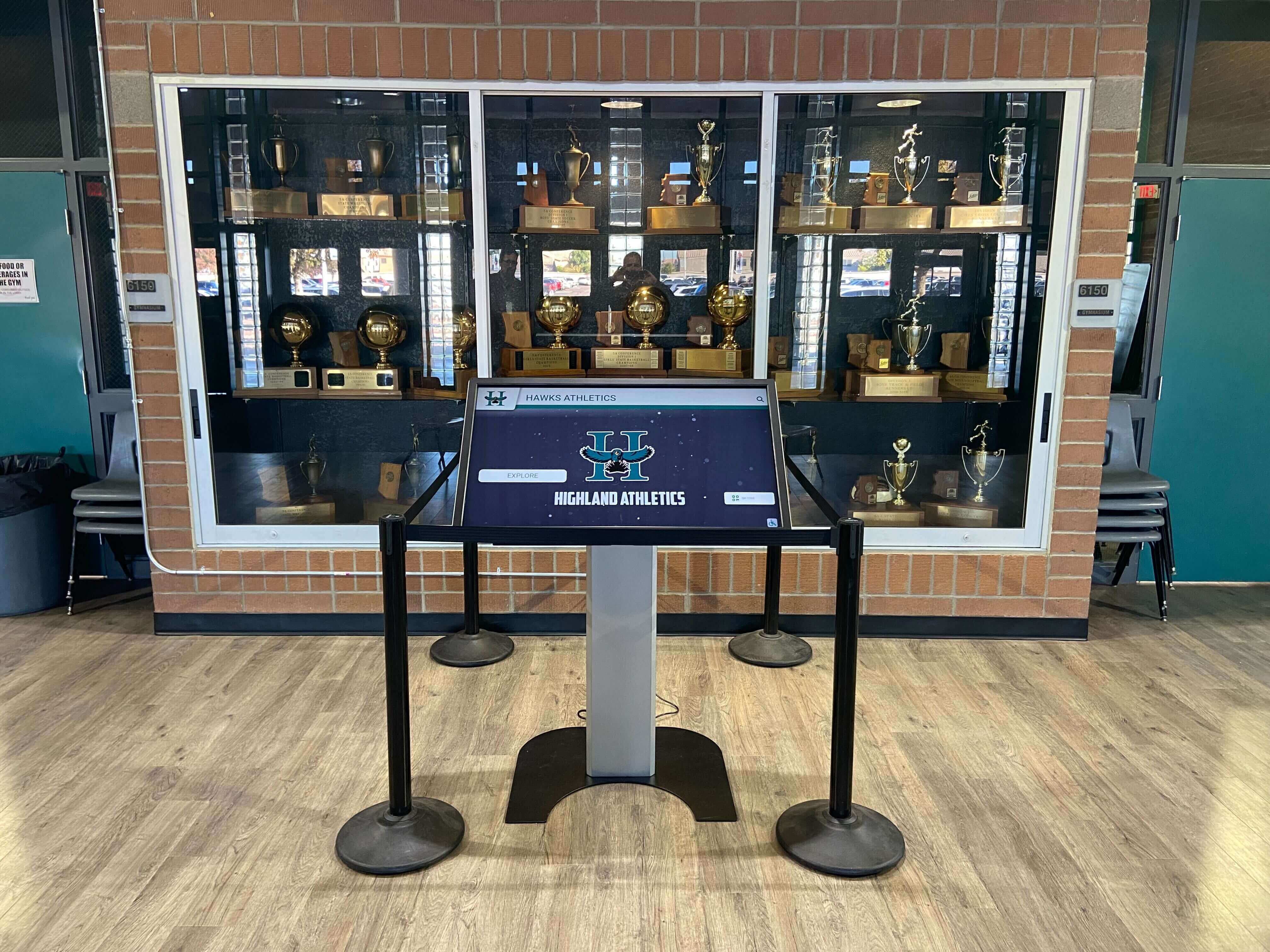
Strategic integration combines digital innovation with traditional recognition elements
When Alternative Platforms May Be Better
Organizations should consider Windows, Linux, or dedicated Android kiosk devices when deployments require maximum software compatibility, need specialized touchscreen applications unavailable on Mac, involve large-scale installations where hardware cost significantly impacts total budget, require specific peripheral support not available on Mac, or demand native multi-touch gesture support throughout operating system.
The “best” platform ultimately depends on specific requirements, existing infrastructure, budget constraints, and long-term support capabilities rather than universal superiority of any single option.
Cost Considerations for Mac Touchscreen Solutions
Understanding total cost of ownership helps organizations budget appropriately for Mac touchscreen implementations.
Hardware Costs
Initial Equipment Investment:
- Mac computer: $600-2,500 depending on model and specifications
- Touchscreen display: $500-3,000 based on size, technology, and features
- Mounting hardware: $100-500 for professional kiosk enclosures or stands
- Network infrastructure: $0-500 if additional connectivity required
- Installation services: $200-1,000 for professional mounting and configuration
A typical single Mac touchscreen kiosk installation ranges from $2,000-6,000 depending on hardware selection and installation complexity, with costs decreasing per unit for multi-display deployments benefiting from volume pricing and standardized configuration.
Software Costs
Licensing and Subscriptions:
- Touchscreen drivers: $0-50 per installation depending on manufacturer
- Kiosk software: $0-200 per device for one-time purchases, or $5-20 monthly for subscription services
- Content management platforms: $0-500 monthly depending on features and scale
- Support and maintenance: $0-500 annually for premium support offerings
Purpose-built solutions like Rocket Touchscreen offer one-time Mac App Store purchases with no recurring fees, while other platforms require ongoing subscriptions that accumulate over deployment lifetime.
Organizations should calculate 5-7 year total cost of ownership including initial hardware, software licensing, content development, ongoing support, and eventual hardware replacement when comparing platform options.
Return on Investment Considerations
Mac touchscreen installations deliver value through enhanced visitor engagement creating memorable experiences, operational efficiency replacing manual processes with self-service, consistent information delivery eliminating outdated static displays, professional appearance supporting brand and institutional image, and extended reach serving more visitors without proportional staff increases.
Educational institutions implementing digital recognition systems report that enhanced alumni engagement alone often justifies technology investment through improved fundraising outcomes.
Maintenance and Support for Mac Touchscreen Systems
Ongoing maintenance ensures touchscreen installations continue performing reliably over years of operation.
Routine Maintenance Requirements
Software Updates: Mac kiosk installations require regular maintenance including macOS security updates applied during off-hours, kiosk software updates adding features and fixing issues, touchscreen driver updates maintaining compatibility, and content updates keeping displayed information current.
Automated update scheduling minimizes maintenance burden while ensuring systems remain secure and current.
Hardware Maintenance: Physical maintenance addresses wear and tear including touchscreen cleaning removing fingerprints and smudges, display calibration maintaining touch accuracy, connector inspection ensuring reliable connections, and ventilation cleaning preventing overheating.
Commercial-grade touchscreen displays typically require minimal maintenance, but regular inspection prevents small issues from becoming significant problems.
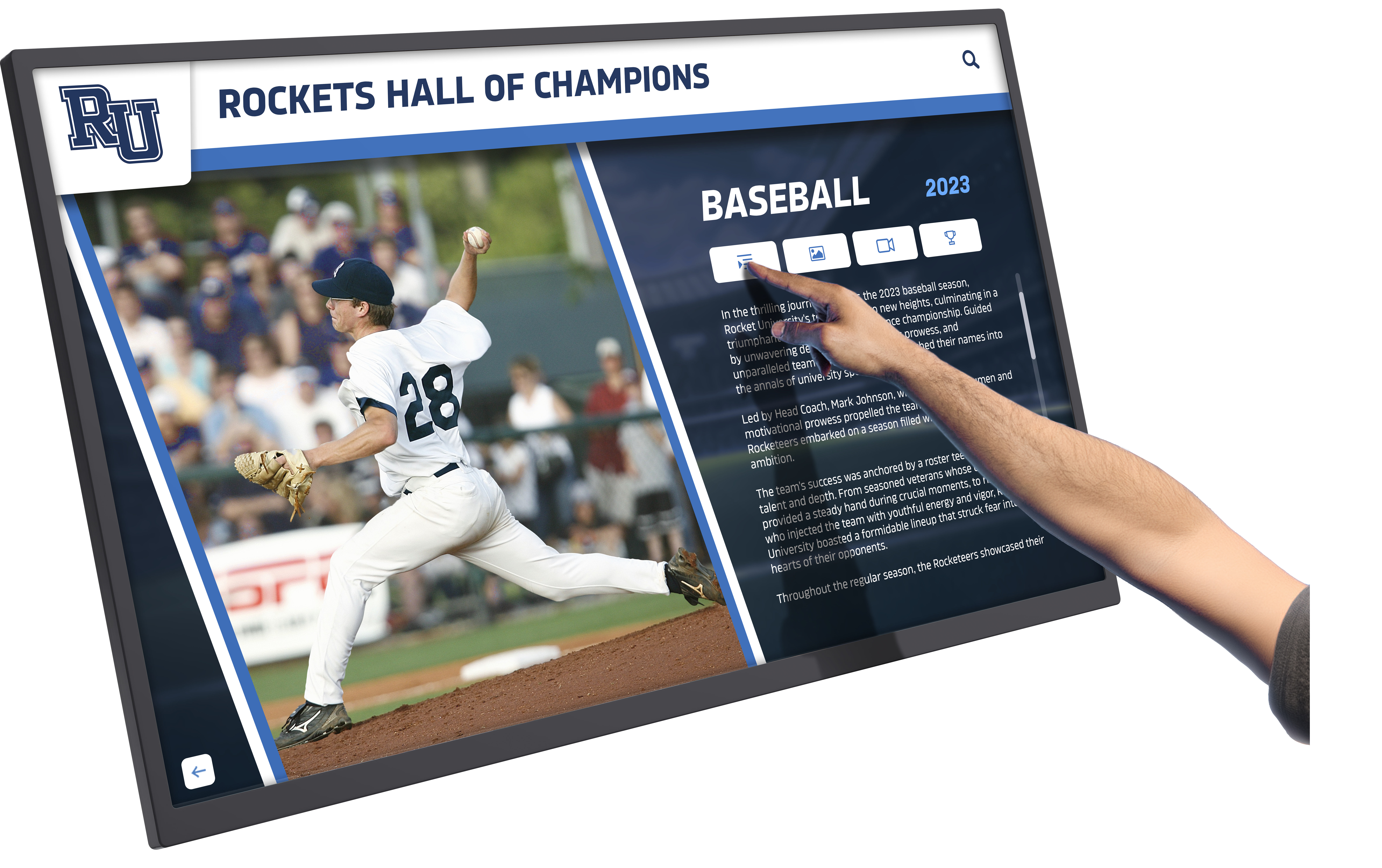
Detailed content presentation enables deep exploration of recognition information
Troubleshooting Common Issues
Touch Input Problems:
- Recalibrate touchscreen through driver utilities
- Verify driver compatibility with current macOS version
- Check physical connections between display and computer
- Test with different USB ports eliminating port-specific issues
- Restart computer resolving temporary software conflicts
Kiosk Software Issues:
- Verify kiosk software launches automatically at startup
- Check URL configurations ensuring correct content displays
- Review network connectivity for web-based content
- Inspect password protection preventing unauthorized access
- Update to latest kiosk software version resolving known bugs
Performance Degradation:
- Clear browser cache and cookies reducing bloat
- Monitor system resources identifying bottlenecks
- Update macOS and all software to latest versions
- Check for malware or unwanted processes
- Consider hardware upgrade for aging systems
Remote Management Capabilities
Cloud-based kiosk management enables centralized administration including remote content updates without physical access to displays, software configuration changes from central console, performance monitoring identifying issues proactively, scheduled restarts maintaining system health, and activity logging supporting security audits.
Remote management proves particularly valuable for multi-location deployments where physical access to every display would be impractical for routine updates and maintenance.
Organizations benefit from comprehensive support approaches ensuring long-term success of interactive display deployments.
Future Trends in Mac Touchscreen Technology
Understanding emerging trends helps organizations plan forward-looking implementations remaining relevant as technology evolves.
Apple Silicon and ARM Architecture
Apple’s transition to Apple Silicon (M1, M2, M3 processors) provides significant performance improvements while requiring software compatibility updates. Most major kiosk and touchscreen driver software now supports Apple Silicon, but organizations should verify compatibility before deploying new Mac computers.
Apple Silicon Macs offer substantial advantages for touchscreen applications including exceptional performance per watt reducing heat and power consumption, fanless operation in Mac mini and MacBook Air reducing noise, improved graphics performance enhancing multimedia content, and extended hardware longevity supporting longer deployment lifecycles.
Web-Based Application Platforms
Progressive web apps and modern web standards increasingly enable sophisticated interactive experiences deliverable through browsers without native application development. This trend benefits Mac touchscreen kiosks by enabling rich content presentation through browser-based kiosk software like Rocket Touchscreen without requiring complex application development or App Store distribution.
Web-based approaches simplify content updates, enable cross-platform compatibility, reduce development complexity, and eliminate app installation requirements.
Enhanced Touch APIs
While Apple hasn’t announced plans for Mac touchscreen support, continued development of web touch APIs and improved gesture handling in web browsers enhances what’s possible through browser-based kiosk applications. Modern web standards provide increasingly sophisticated touch interaction capabilities approaching native application quality.
Integration with Mobile Devices
Emerging patterns connect physical touchscreen displays with visitors’ personal mobile devices through QR codes enabling content transfer to personal phones, NFC triggers launching mobile experiences, progressive web apps providing consistent experiences across displays and devices, and cloud synchronization enabling users to continue explorations on personal devices.
Mobile integration recognizes that physical displays serve discovery and awareness functions, while deeper engagement often occurs on personal devices visitors can access anywhere.
Conclusion: Selecting the Best Mac Touchscreen Software
Choosing the best touchscreen software for Mac requires balancing multiple considerations including kiosk lockdown security requirements, touchscreen driver compatibility and performance, content presentation capabilities, ease of ongoing management, total cost of ownership including hardware and software, and long-term vendor support and product development.
Purpose-built solutions like Rocket Touchscreen provide comprehensive kiosk functionality optimized for Mac deployments, particularly for organizations displaying web-based content through secure, touch-friendly interfaces. The automatic launch into kiosk mode, single-touch optimization, and straightforward Mac App Store availability make it an excellent choice for educational institutions, museums, businesses, and public spaces requiring reliable Mac-powered interactive displays.
Transform Your Mac into a Professional Touchscreen Kiosk
Whether you're creating interactive displays for schools, museums, businesses, or public spaces, Rocket Touchscreen provides the secure, user-friendly kiosk software that transforms Mac computers into professional touchscreen experiences. Solutions like Rocket Alumni Solutions complement this with comprehensive content platforms designed specifically for recognition and engagement applications.
Explore Interactive Display SolutionsFor organizations needing touchscreen drivers, Touch-Base UPDD provides the most comprehensive multi-touch gesture support across diverse hardware, while manufacturer-specific drivers like ViewSonic vTouch and Mimo drivers offer optimized experiences for their respective display brands.
The most successful Mac touchscreen implementations share common characteristics: clear definition of specific use case requirements and success criteria, appropriate hardware selection balancing performance and budget, compatible software combining necessary drivers and kiosk functionality, user-friendly content optimized for touch interaction, professional installation ensuring reliable operation, systematic testing validating functionality before public deployment, ongoing maintenance addressing software updates and hardware care, and continuous improvement based on usage analytics and user feedback.
Your specific use case determines the optimal solution. Schools celebrating achievements benefit from platforms like Rocket Alumni Solutions combined with Rocket Touchscreen. Museums presenting exhibits may require custom HTML5 applications delivered through general kiosk browsers. Retail businesses might leverage digital signage platforms with Mac compatibility. Understanding your requirements guides selection of software providing necessary capabilities without unnecessary complexity or cost.
Mac computers offer exceptional reliability, security, and design quality that justify their use in touchscreen applications despite lacking native touch support. With appropriate software bridging the gap between macOS and touchscreen functionality, organizations create professional interactive experiences serving visitors effectively while leveraging Mac’s strengths in stability and user experience.
Start by clearly defining what you need to accomplish through touchscreen displays—visitor engagement, information distribution, recognition presentation, or self-service functionality. Match these needs to appropriate software categories, evaluate specific solutions through trials or demonstrations, and implement systematically with proper testing and training. With thoughtful planning and appropriate software selection, Mac-powered touchscreen installations deliver engaging, reliable experiences serving organizational goals for years to come.
Ready to explore Mac touchscreen solutions? Learn about kiosk software options and best practices or discover how interactive displays transform visitor experiences across diverse applications and environments.