Interactive Touch Screen Digital Signage: How It Works and What You Need
Purchasing an interactive touch screen display is a more involved decision than it looks from the outside. The hardware on the wall is only one piece—the touch technology layer, the media player or computer, the content management software, the network infrastructure, and the content itself all have to work together before the screen does anything useful.
This guide covers how interactive touch screen digital signage actually works—layer by layer—and what you need to evaluate before committing to a system. It goes deeper than the typical surface-level overview, covering touch technology types, computing requirements, software architecture, installation considerations, and the practical questions that determine whether a deployment succeeds long-term. Whether you are planning a donor recognition wall, an athletic hall of fame, a campus directory, or a general-purpose information kiosk, the fundamentals are the same.
Interactive touch screen digital signage refers to any display that responds to direct human touch, allowing visitors to navigate menus, search databases, explore profiles, or interact with content—rather than simply watching a rotating playlist. Understanding the distinction matters because the hardware, software, and support requirements for interactive systems differ substantially from passive digital signage. For a detailed overview of what digital signage is and where it fits within broader communication strategies, start there before going further into interactive specifics.

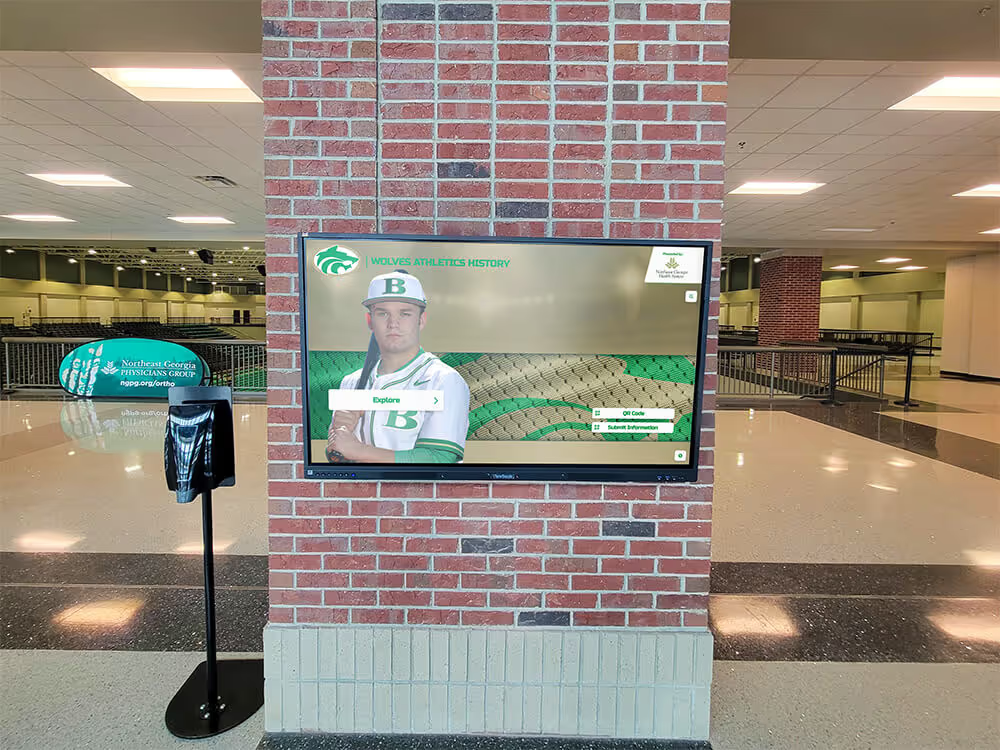
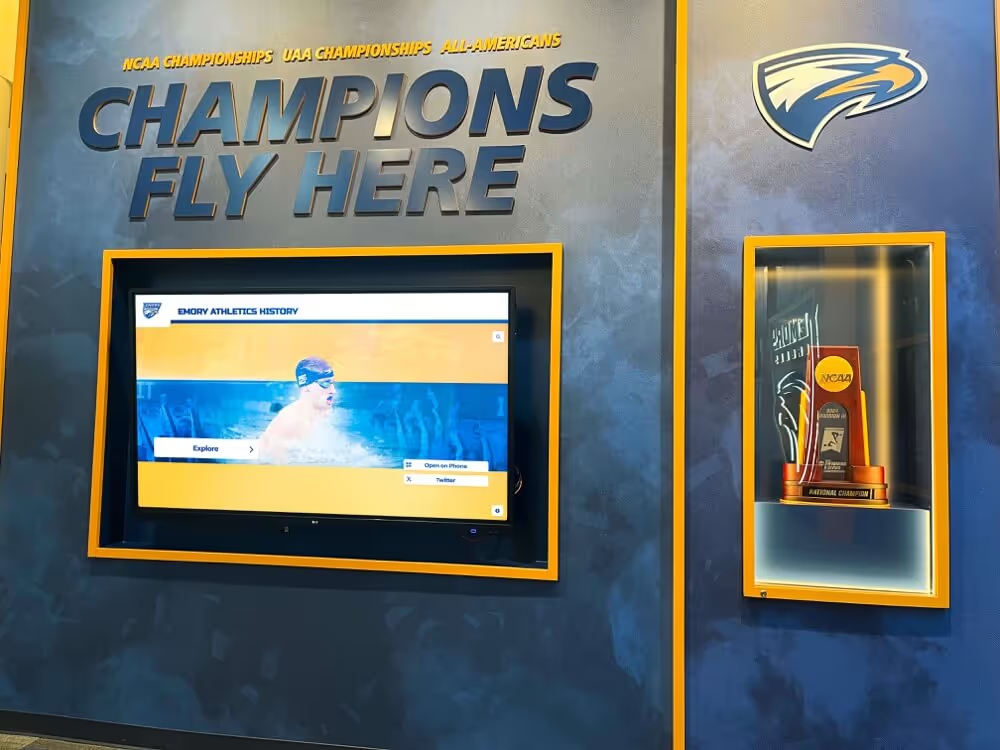
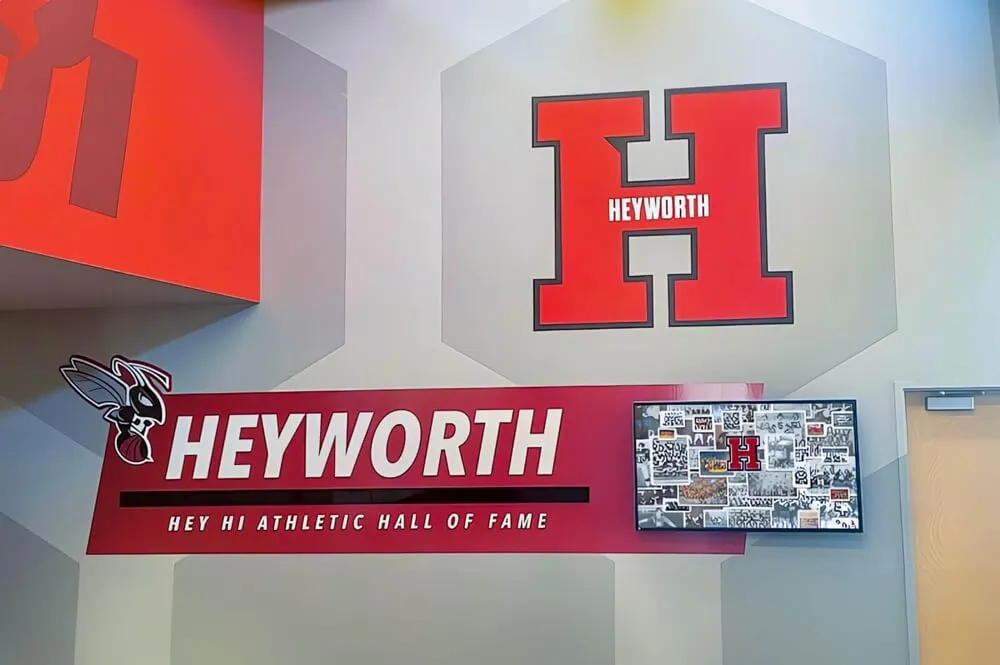
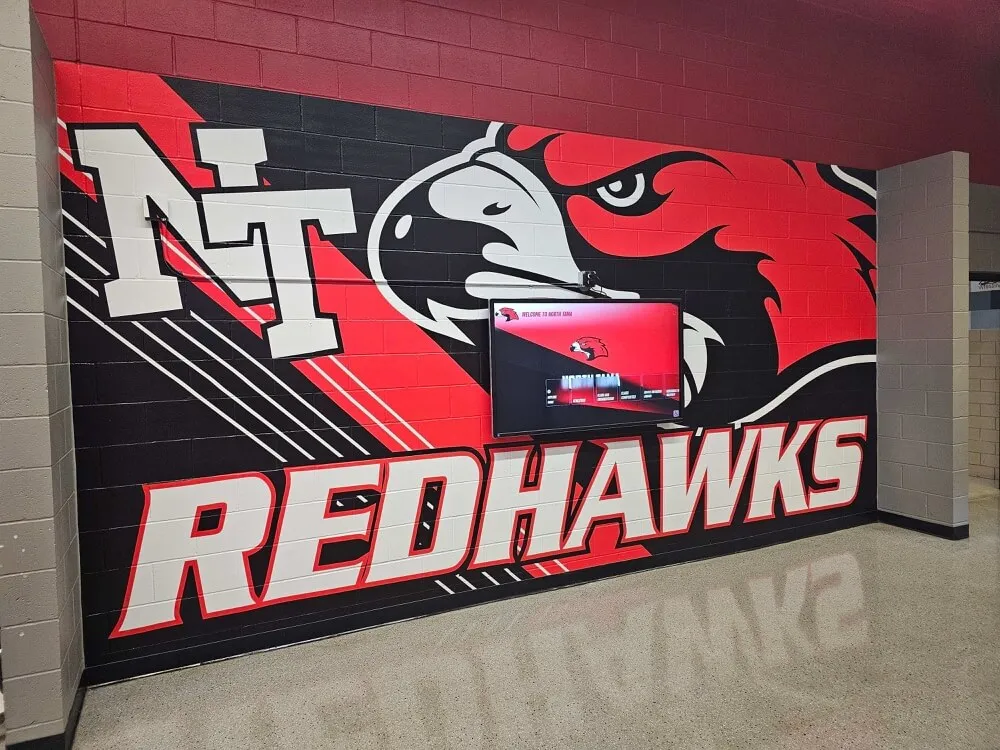
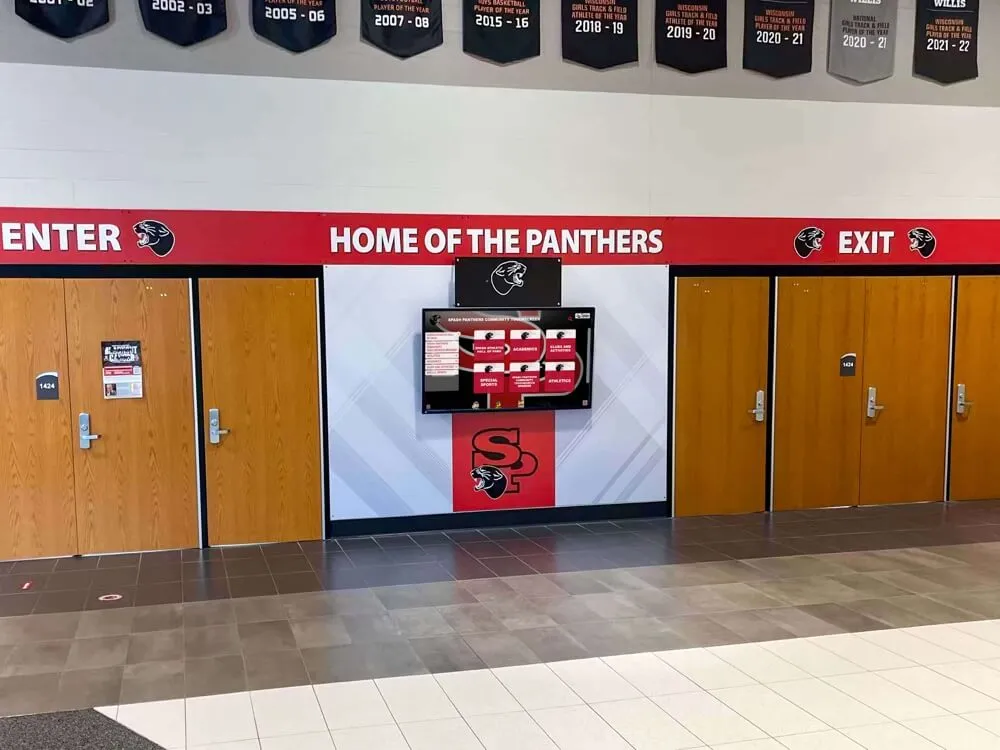
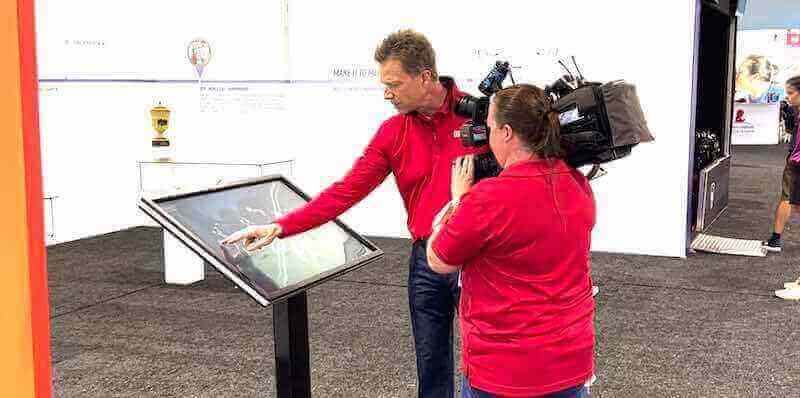
Interactive touch screen displays require careful integration of hardware, software, and content—each layer affects overall performance
How Interactive Touch Screen Digital Signage Works
Most people see a screen and assume the hardware is the product. In practice, an interactive signage system has four distinct layers that must be designed and configured together.
Layer 1: The Display Panel
The display panel is the visible screen—the LCD, LED, or OLED surface that renders content. For interactive applications, displays are typically commercial-grade rather than consumer-grade, because they are designed for continuous operation, often at higher brightness levels, and with longer warranty coverage.
Key panel specifications that matter for interactive deployments:
Brightness (nits): Consumer televisions typically output 200–350 nits. Displays in well-lit lobbies, gymnasiums, or hallways often need 450–700 nits or more to remain readable without viewer strain. Displays near windows or in direct ambient light may need 1,000+ nits.
Size and resolution: Sizes for wall-mounted interactive displays commonly range from 43 inches to 75 inches for single-panel installations. 4K (3840×2160) resolution becomes meaningful at larger sizes—below 55 inches, 1080p is often sufficient for most recognition and directory content.
Panel orientation: Landscape orientation is standard, but portrait orientation suits certain use cases like donor name lists, directory kiosks, or athletic record boards. Confirm that both the display and the software handle portrait mode without rotation artifacts.
Durability rating: Commercial displays carry ratings for hours of daily operation (16/7 or 24/7). A consumer television used as a kiosk will typically degrade or fail well before a commercial display under the same conditions.
Layer 2: The Touch Technology
The touch layer sits between the display surface and the user. Different technologies have meaningfully different performance characteristics, and picking the wrong type for your environment creates persistent usability problems.
Projected Capacitive (PCAP): This is the same technology used in smartphones and tablets. It detects the electrical field of a human fingertip and supports true multi-touch—simultaneous detection of multiple contact points. PCAP is highly accurate, fast, and durable. It requires direct finger contact (or a compatible stylus) and does not respond to gloves without special treatment. It is the most common choice for indoor interactive kiosks and displays in controlled environments.
Infrared (IR): A grid of infrared LEDs and sensors frames the screen. When a finger (or any opaque object) breaks the beam, the position is registered. IR supports large format displays cost-effectively, works with gloves, and does not require a special glass overlay. The tradeoffs are sensitivity to ambient infrared light and lower precision at the bezel edges. IR is common for larger format displays (65 inches and above) where PCAP overlays become expensive.
Optical touch: Similar to IR but uses cameras rather than LED/sensor pairs to detect touch. Optical systems can be accurate and support large formats, but optical components can be affected by surface contamination.
Resistive: Older technology that detects pressure rather than electrical field or infrared interruption. Less common in modern commercial installations, lower resolution, and more prone to surface wear. Generally not recommended for high-traffic interactive signage.
For most school lobbies, donor recognition walls, and institutional kiosks operating indoors with standard users, PCAP is the preferred technology at 43–55 inch sizes, and IR becomes practical for larger formats. For a detailed look at touch sensitivity testing in recognition display contexts, that resource covers the variables in more depth.
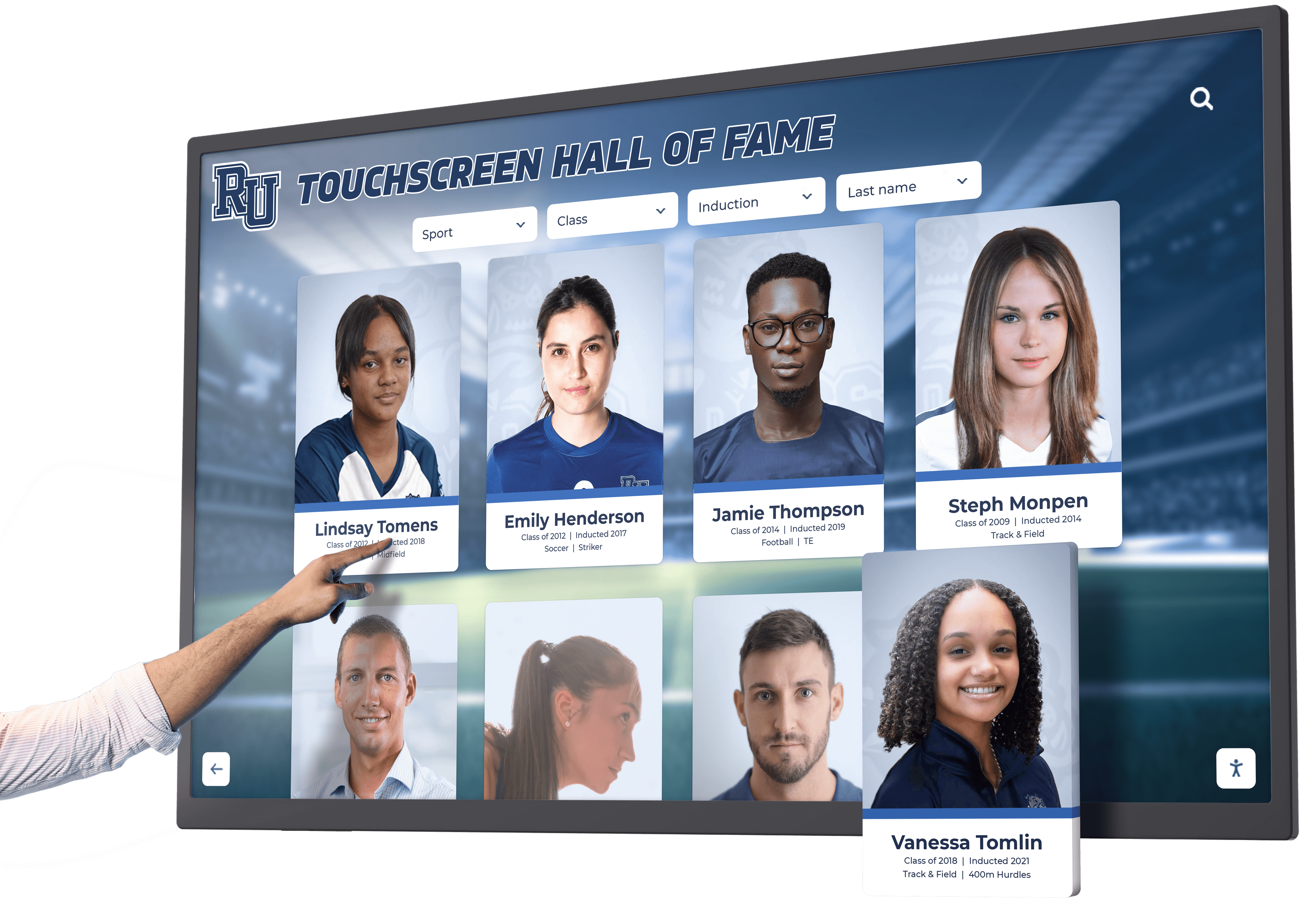
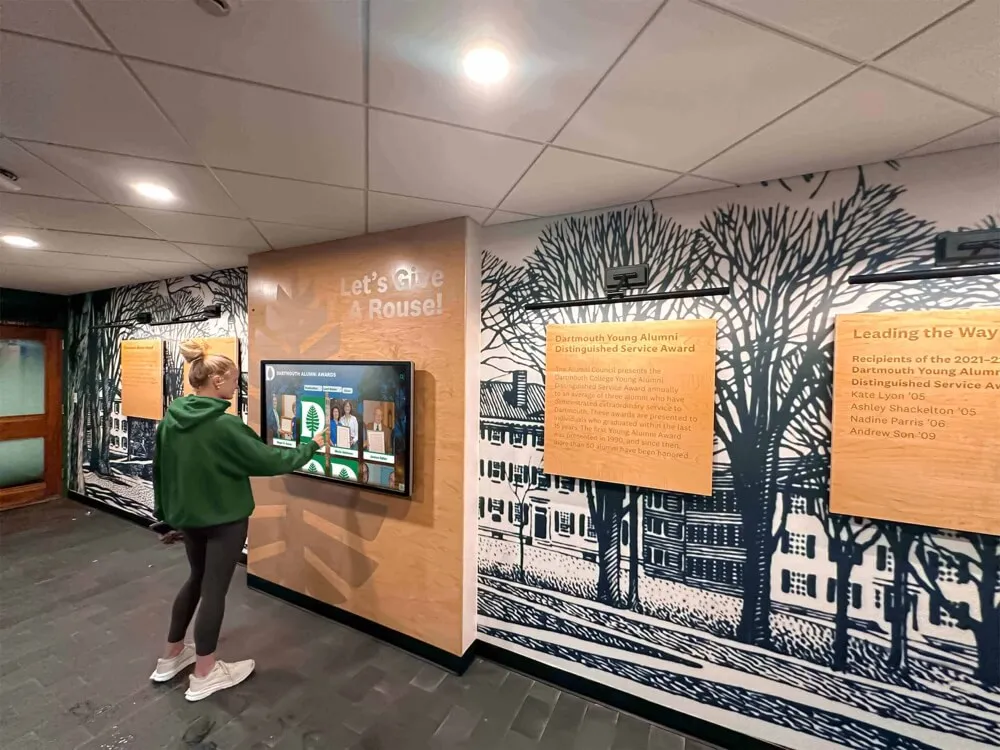
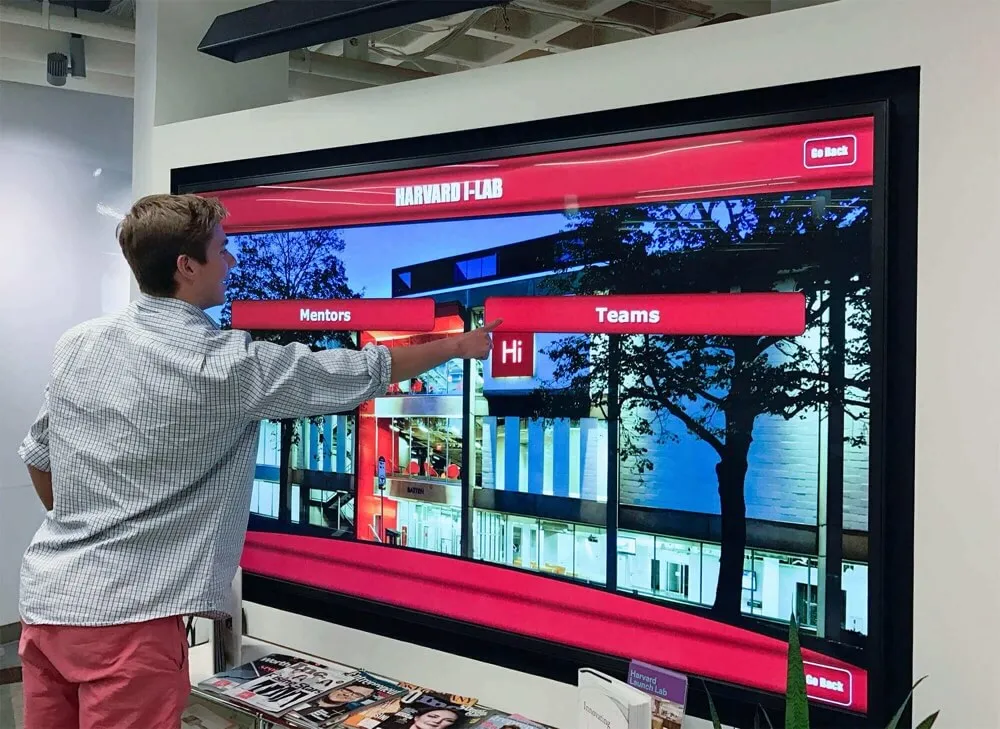
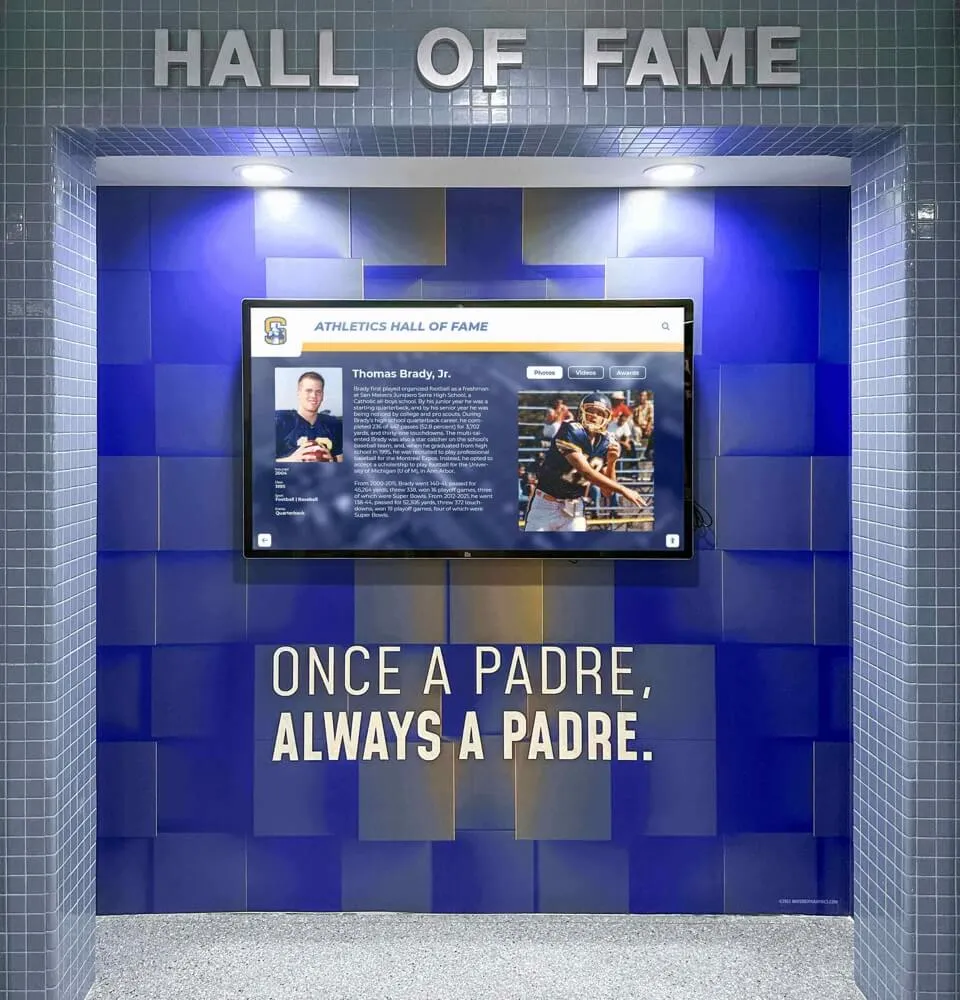
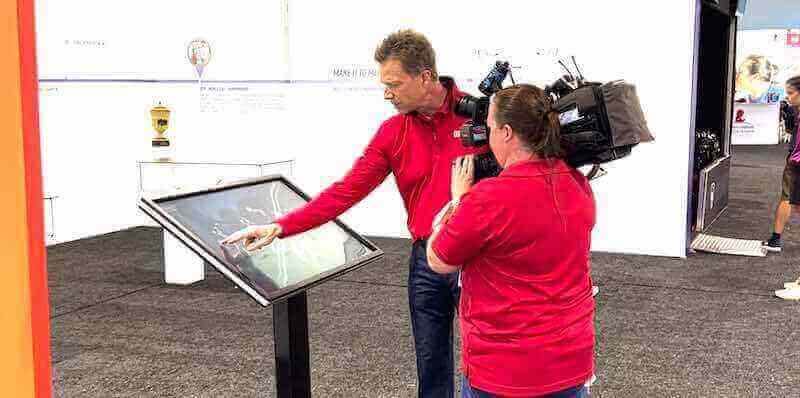
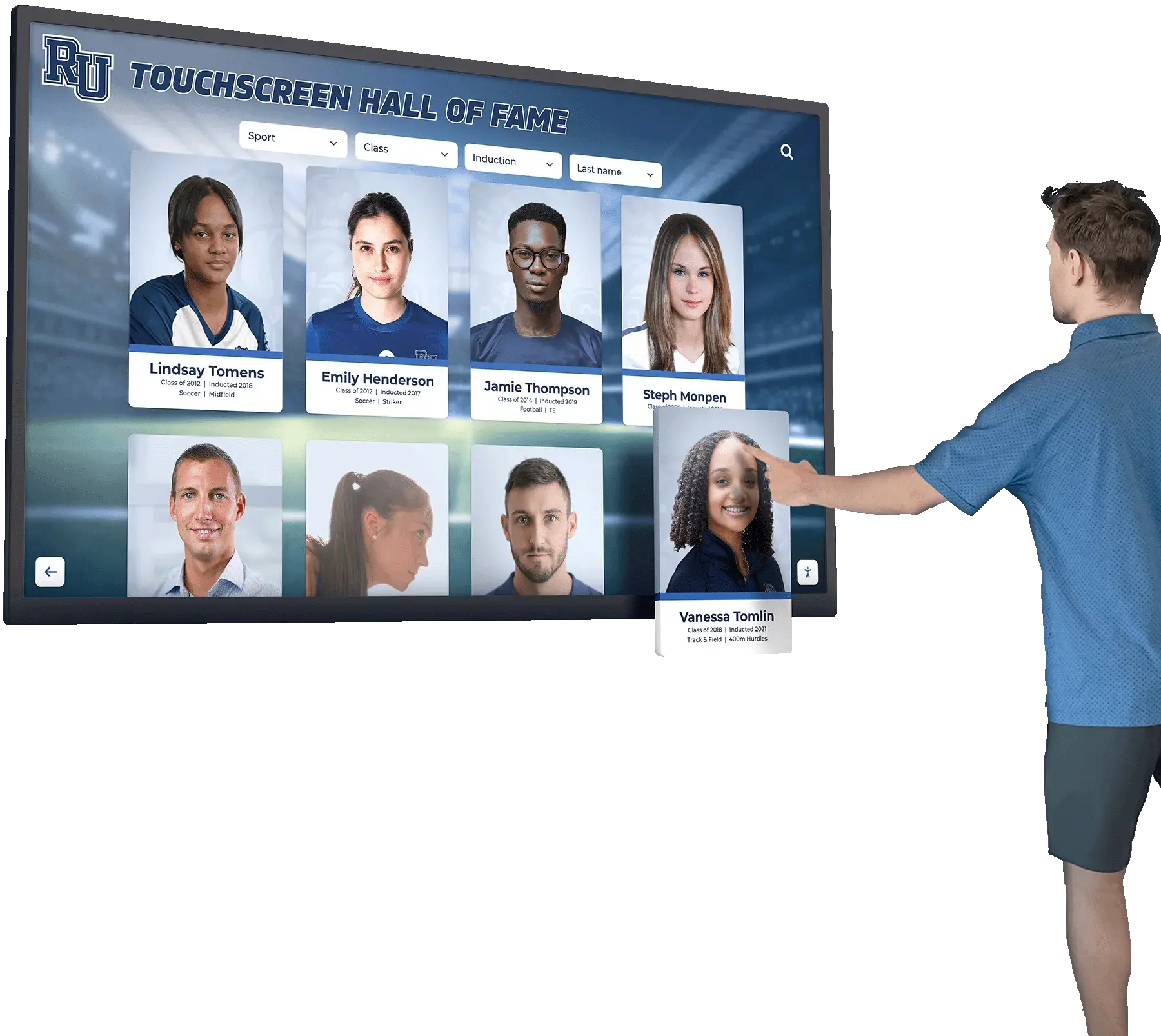
PCAP touch technology delivers accurate, responsive input at typical kiosk viewing distances
Layer 3: The Computing Unit
Behind or inside every interactive display is a computer. This is the device that runs the operating system, the signage application, and handles the processing load of content rendering, database queries, and touch input management.
Integrated system-on-chip displays: Some commercial displays have a built-in computing module (often called an SoC or OPS slot). These reduce cabling and physical footprint. The tradeoff is limited upgradeability—when the compute module is no longer sufficient, the display and computer have to be replaced together, or the module swapped if the slot is accessible.
External media players: Dedicated hardware like Intel NUCs, Windows mini-PCs, or purpose-built media player devices connect to the display via HDMI or DisplayPort. These can be upgraded or replaced independently of the display. For interactive applications running database-driven content, an external computer typically provides more processing headroom.
Cloud versus local processing: Some platforms run primarily in a browser, relying on cloud servers to manage the database and application logic, with the local device handling rendering and touch input. Others install a local application with offline capability. Cloud-dependent systems offer easier content management but require stable network connectivity. Local applications can continue operating through network interruptions.
Minimum specifications for interactive signage: Interactive applications that handle search, filtering, and multimedia content typically require at minimum a current-generation dual-core or quad-core processor, 4–8 GB RAM, and solid-state storage. Systems running video-heavy content or managing large databases benefit from more processing headroom.
Layer 4: Network and Connectivity
Interactive signage is almost always network-connected—content needs to be updated, usage data collected, and in many cases, real-time database queries made. Network planning is often an afterthought that causes avoidable problems.
Wired versus wireless: Wired Ethernet (Cat6 or better) is strongly preferred for fixed installation displays. Wireless networks introduce variability in connection quality, potential interference, and additional failure modes. If the display location does not have an existing data drop, running a cable during installation is worth the cost.
Bandwidth requirements: Bandwidth consumption depends on content type. Static image and text-based applications use minimal bandwidth for content updates. Video-heavy content requires more sustained throughput. For most recognition display and directory applications, a 10–25 Mbps connection is sufficient.
Network segmentation: IT departments often want interactive displays on a dedicated VLAN or network segment, separate from staff and student networks. This is reasonable practice. Confirm with your IT team that the display’s software can operate with the relevant firewall and proxy configurations before installation.
Remote management access: Most commercial interactive signage systems include remote access for software updates, content changes, and troubleshooting. This requires outbound network access on specific ports. Coordinate with IT early to avoid deployment delays caused by firewall configurations blocking necessary connections.
Software: The Layer That Determines Usability
Hardware provides the physical capability. Software determines whether the system is actually useful. For interactive touch screen displays, software architecture matters more than it does for passive signage because users are actively interacting with it and expecting responsive, accurate results.
Content Management System (CMS)
The CMS is where administrators create, organize, and update what appears on the display. For recognition-focused applications—donor walls, halls of fame, athletic records, academic honor displays—the CMS needs to handle structured data (names, categories, dates, media files) rather than just scheduling image playlists.
Key CMS capabilities to evaluate:
- Structured data entry: Can you enter donor names with giving tier, date, and associated campaign? Can you add athlete profiles with sport, graduation year, and achievement details? The data model needs to match your content.
- Bulk import: If you are migrating an existing plaque wall, trophy case, or spreadsheet database to a digital system, bulk import capability saves significant time. Confirm what formats are accepted (CSV, Excel, etc.) and whether the import handles media files.
- Multi-user access with roles: Organizations typically need different permission levels—a development director who can add donors, a coach who can update athletic records, an administrator who can change design settings. Verify the platform supports role-based access.
- Remote updates: Can content be updated from any internet-connected device, without on-site access to the display hardware? For organizations managing multiple display locations, cloud-based remote management is essential.
- Media library management: Images, videos, and documents need to be stored, organized, and associated with records. Evaluate whether the platform handles file format conversion, image resizing, and media organization at the scale you expect.
For schools deploying recognition systems across multiple use cases—hall of fame, trophy case, class composites, and more—platforms that consolidate those applications are worth examining. Interactive school software that runs recognition, yearbook, and trophy case experiences on a single screen reduces management complexity and hardware costs.
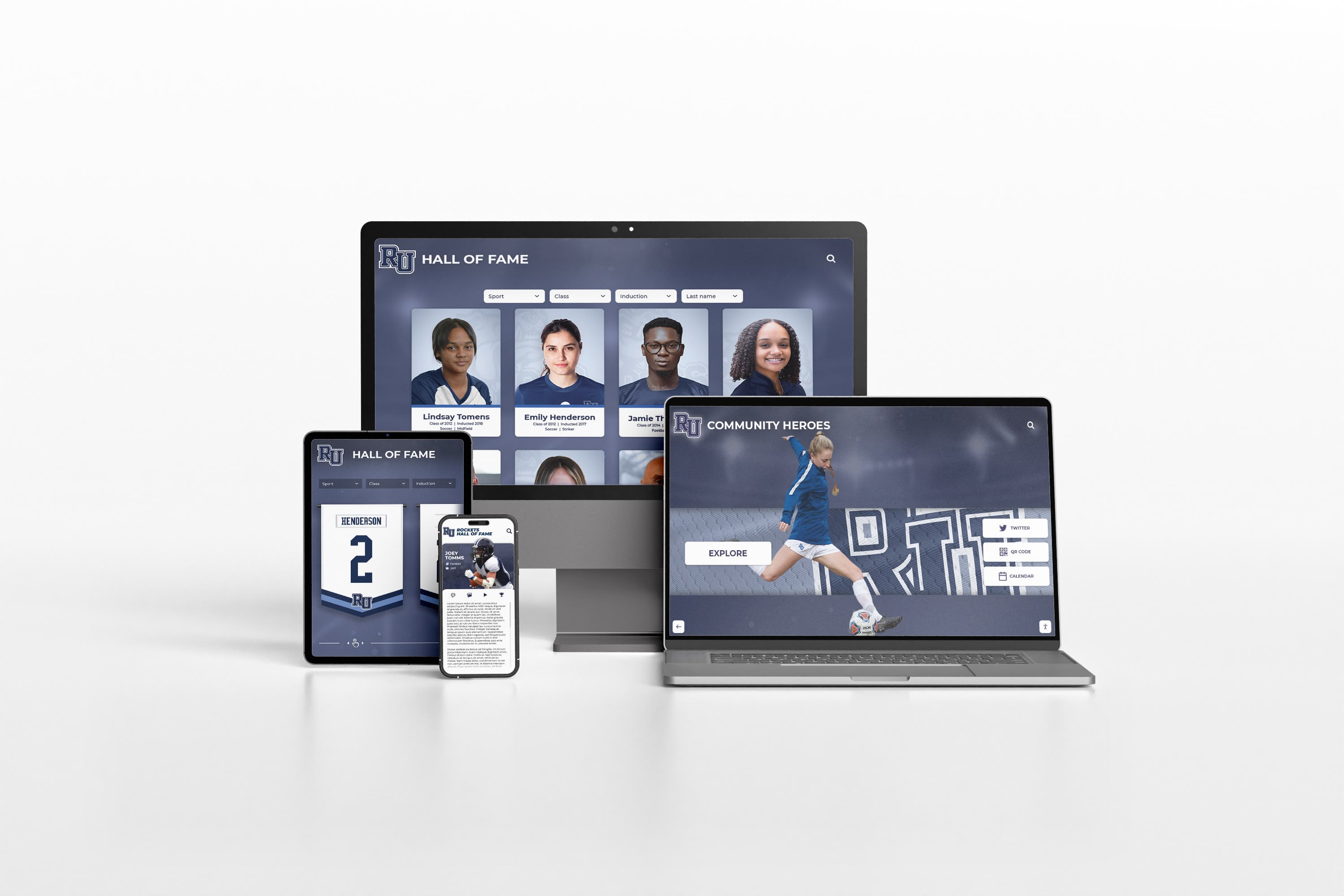
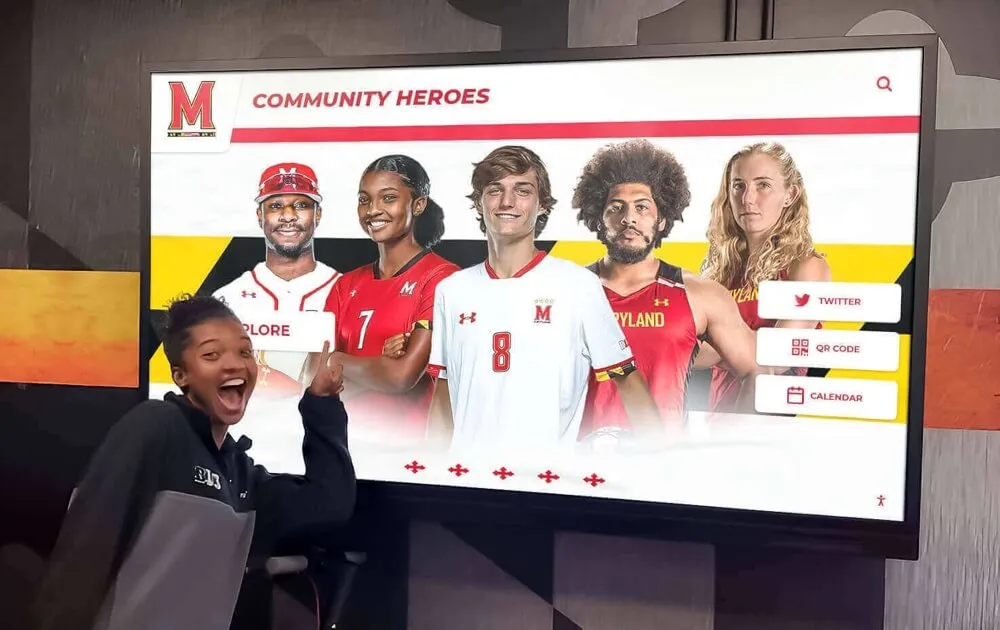
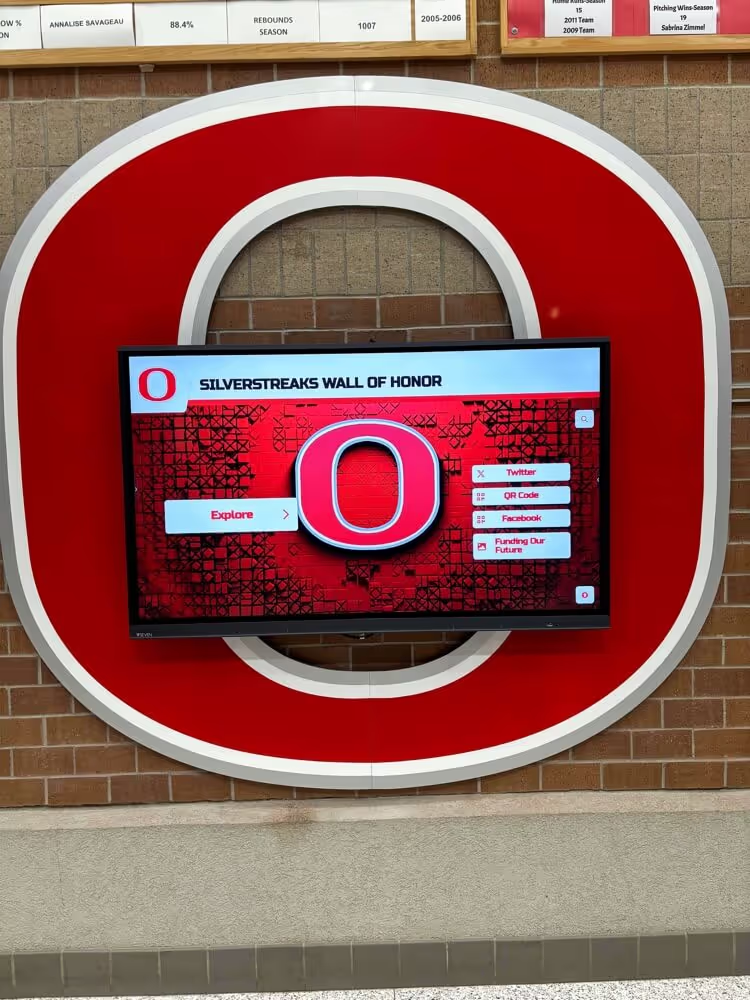
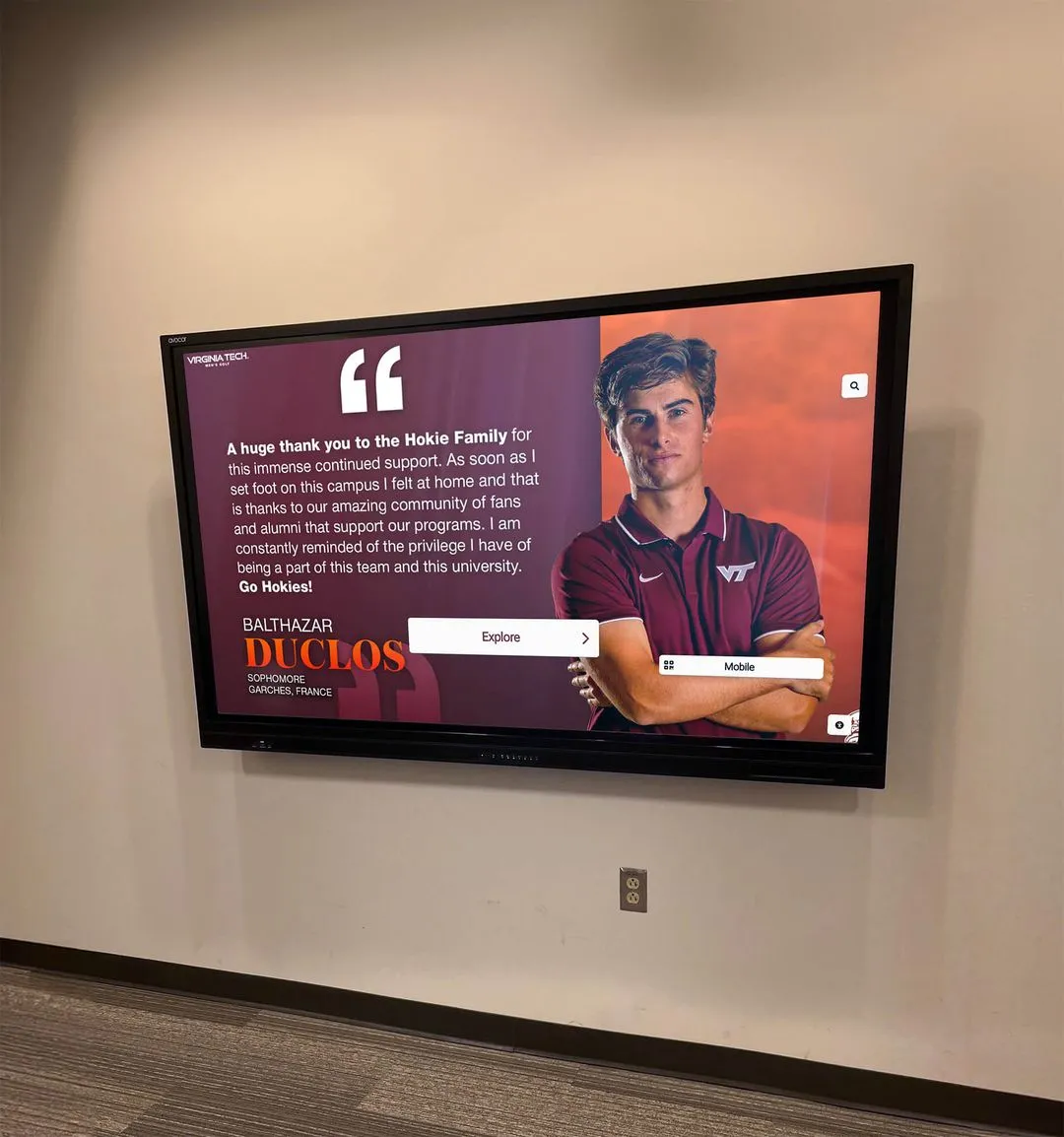
Purpose-built platforms serve content across the physical kiosk and web simultaneously, extending reach beyond the installation location
Interactive Application Layer
This is the software running on the display itself—the user-facing interface that visitors interact with. For simple informational displays (event schedules, announcements), a standard digital signage player is often sufficient. For recognition displays and directories, the interactive application needs specific capabilities:
Search and filtering: Visitors searching for a specific donor or athlete need accurate, fast search results. This requires proper indexing of the content database, not just page-level full-text search. Filtering by giving level, sport, year, or category should return accurate results without noticeable delay.
Navigation depth: A donor wall might have three levels—home screen, giving tier category, individual donor profile. An athletic hall of fame might go deeper—home, sport category, individual profile, related team records. The navigation needs to be consistent and predictable so visitors do not get lost.
Idle attract mode: When no one is actively interacting, the display should not show a static screen. Attract content—rotating featured profiles, highlighted content, ambient visuals—draws attention and prompts engagement. This is a standard feature in purpose-built recognition platforms and often requires custom configuration in general-purpose signage systems.
ADA compliance: Interactive displays in institutional settings should consider accessibility. This includes appropriate text contrast ratios, touch target sizes meeting minimum guidelines, and where possible, accommodation for visitors who cannot use touch controls. Some jurisdictions and institution types have specific accessibility requirements for public-facing digital interfaces.
Analytics: Knowing which content is viewed most frequently, how long visitors engage, and what search terms are most common helps administrators improve content strategy over time. Not all platforms provide meaningful analytics—evaluate what data is captured and how it is reported.
Web Companion and Mobile Access
Many recognition-focused platforms extend the kiosk experience to a web interface accessible from any browser. This serves multiple practical purposes: alumni who cannot visit in person can explore the database online; content can be previewed before publishing to the display; and social sharing becomes possible when individuals find their profiles. Evaluate whether the web companion uses the same content database as the kiosk, or whether updates need to be made in two places.
Common Deployment Types
Interactive touch screen signage takes several physical forms, and the right one depends on the location, audience, and content requirements.
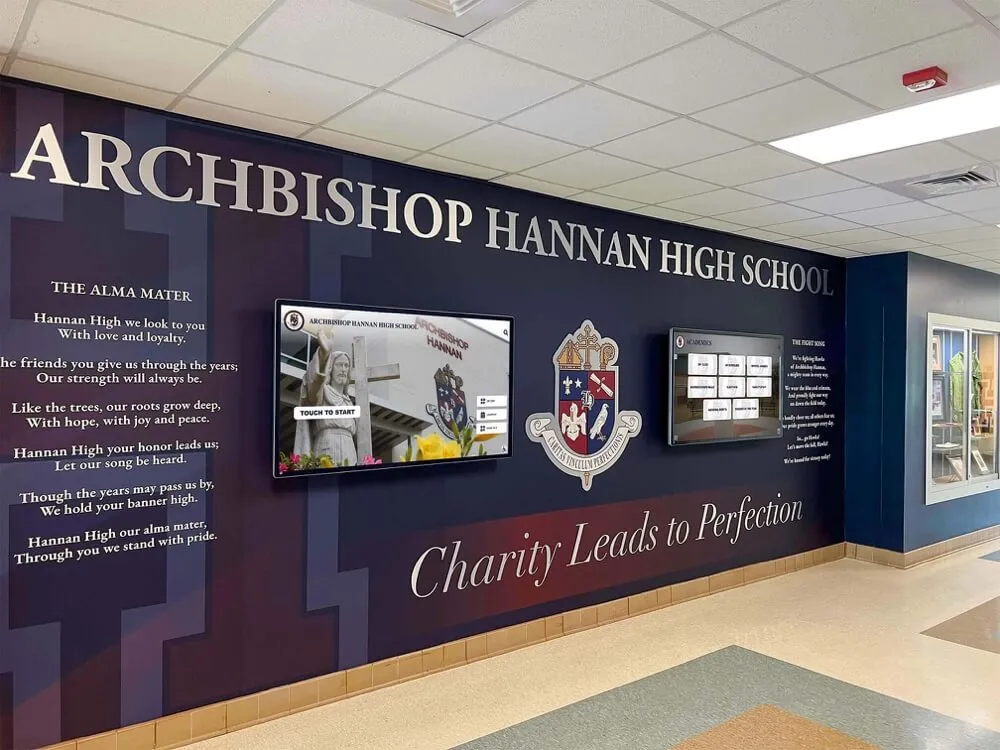
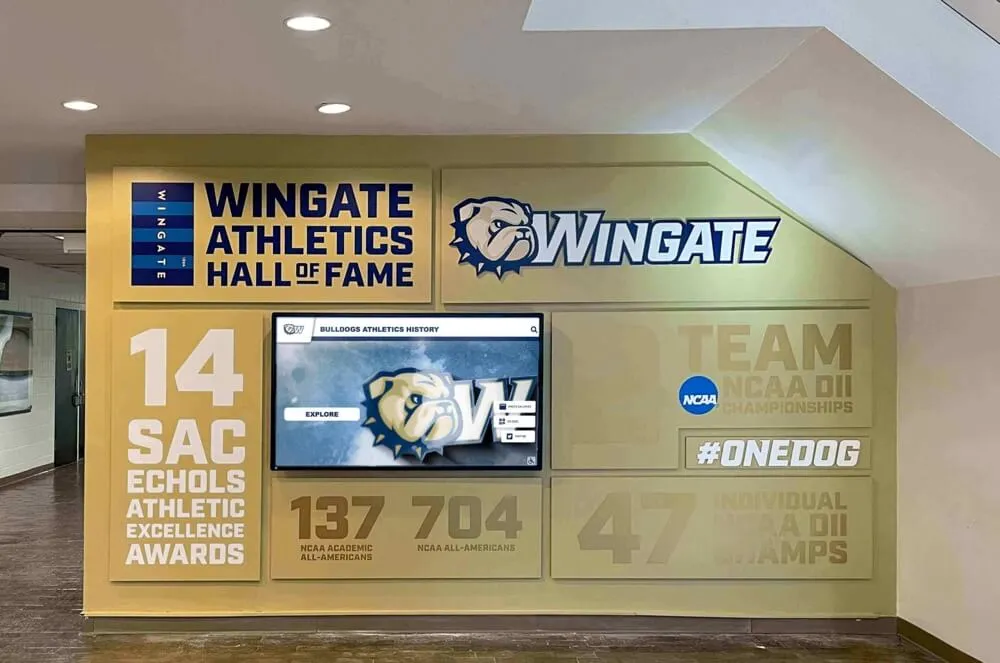
Wall-mounted displays are the most common for institutional settings. They require adequate wall structure for mounting (drywall alone is typically not sufficient for 65+ inch commercial displays without reinforcement), cable routing to conceal power and data, and mounting hardware rated for the display weight. Wall-mounted displays are permanent, visible, and professional-looking when done well. They suit hallways, lobby walls, trophy areas, and donor recognition walls.
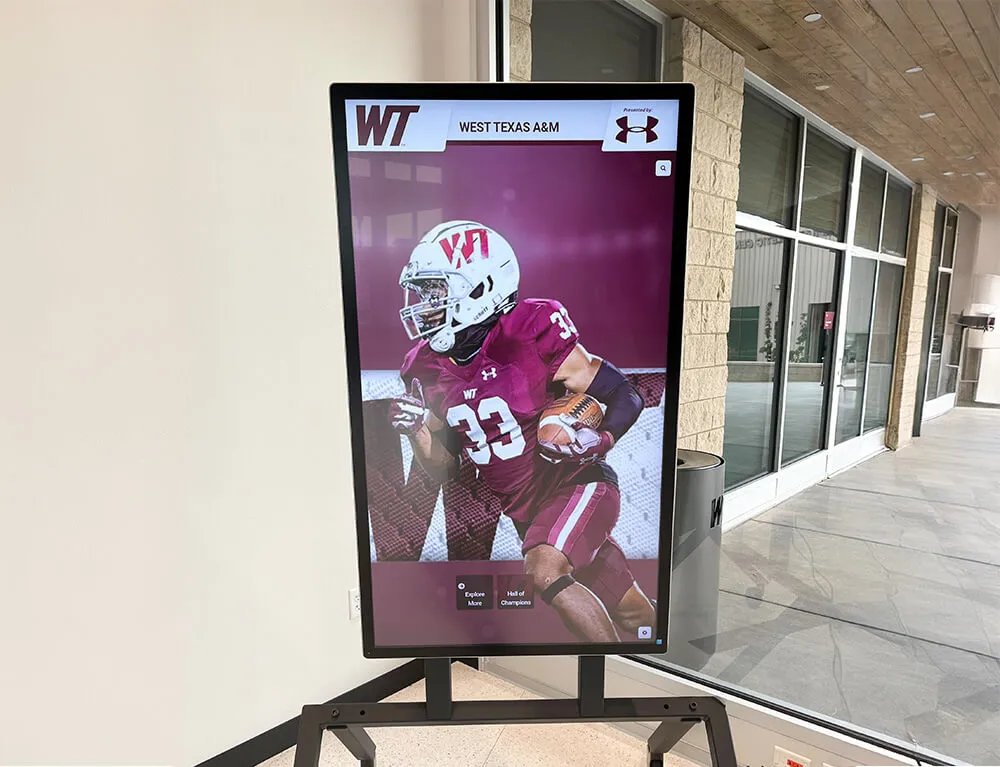
Freestanding kiosks enclose the display, computing unit, and sometimes speakers within a self-contained floor-standing enclosure. They are repositionable (within reason—power and data still need to reach them) and protect the display and hardware from accidental contact. Freestanding kiosks suit lobby positions where they serve as a focal point, locations where wall mounting is not feasible, and events or gatherings where display placement needs to change.
Multi-panel video walls combine multiple display panels into a large unified surface. These require careful configuration (panel bezels must match precisely, display brightness and color must be calibrated consistently) and more complex software. For most recognition and directory applications, a single well-specified display performs better than a multi-panel configuration at lower cost and complexity.
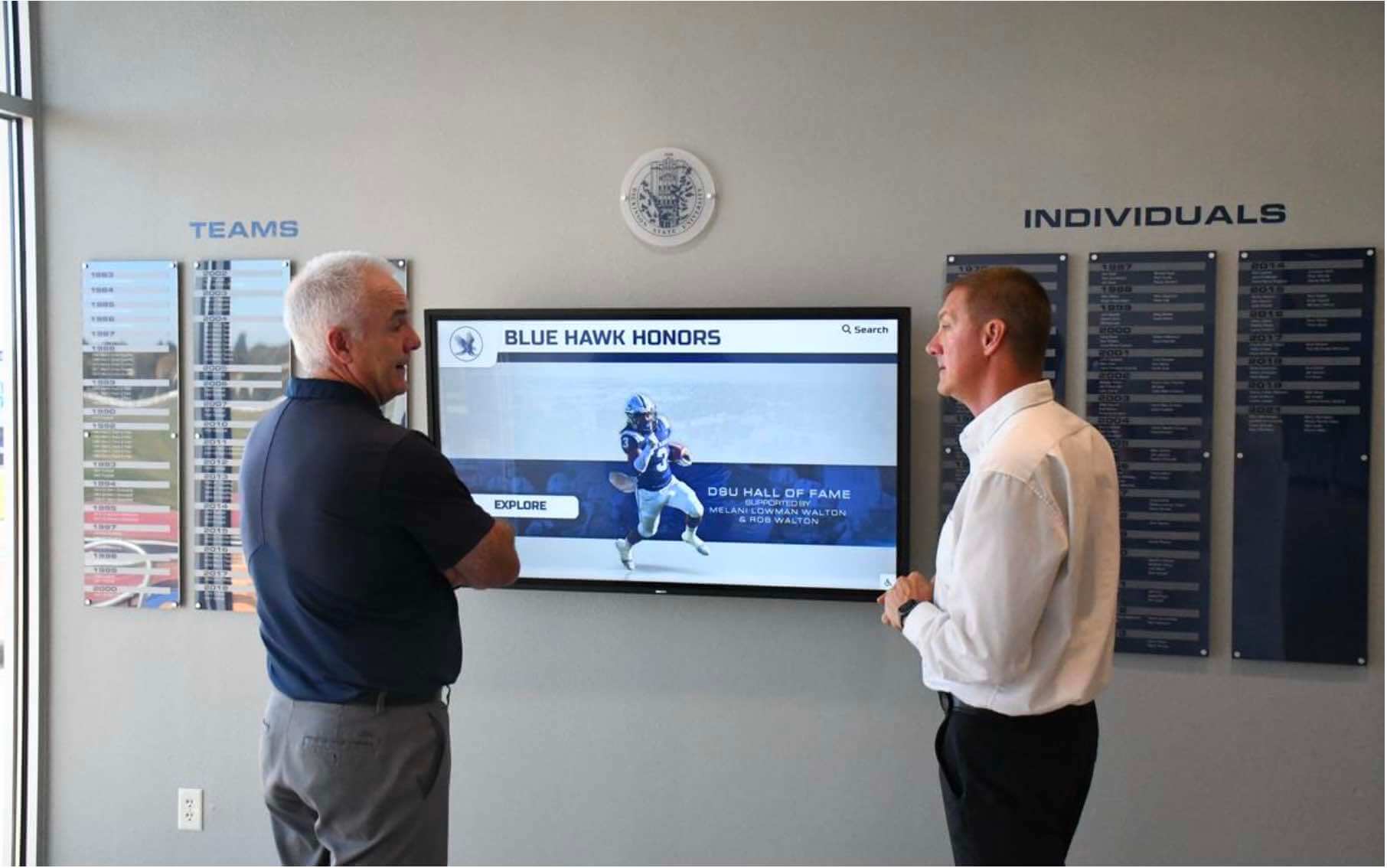
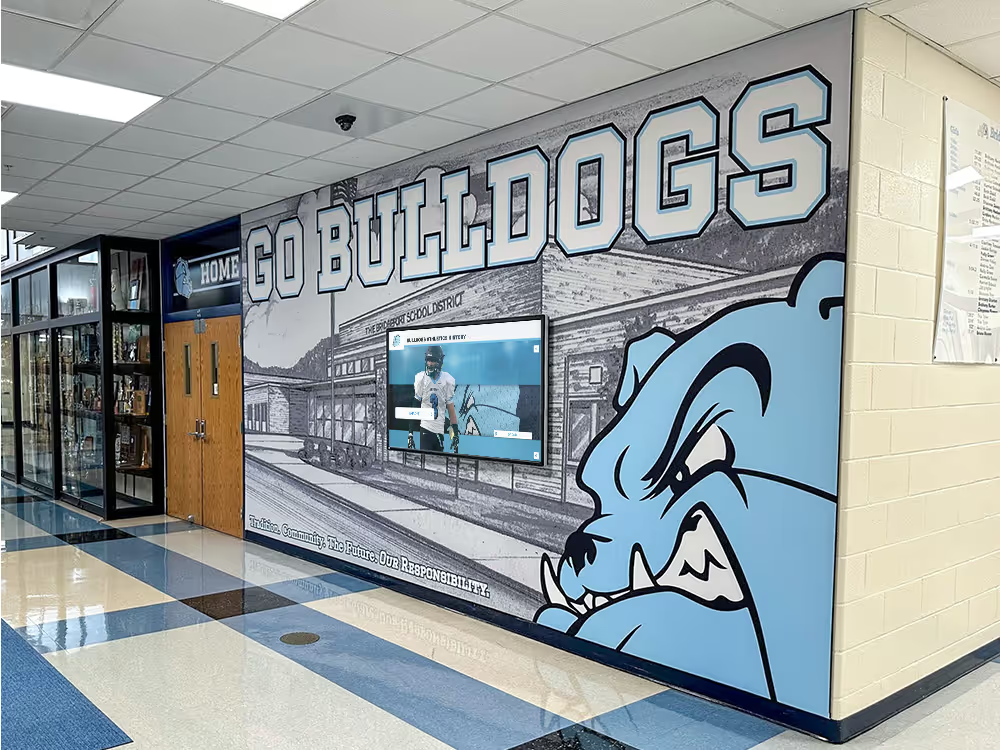
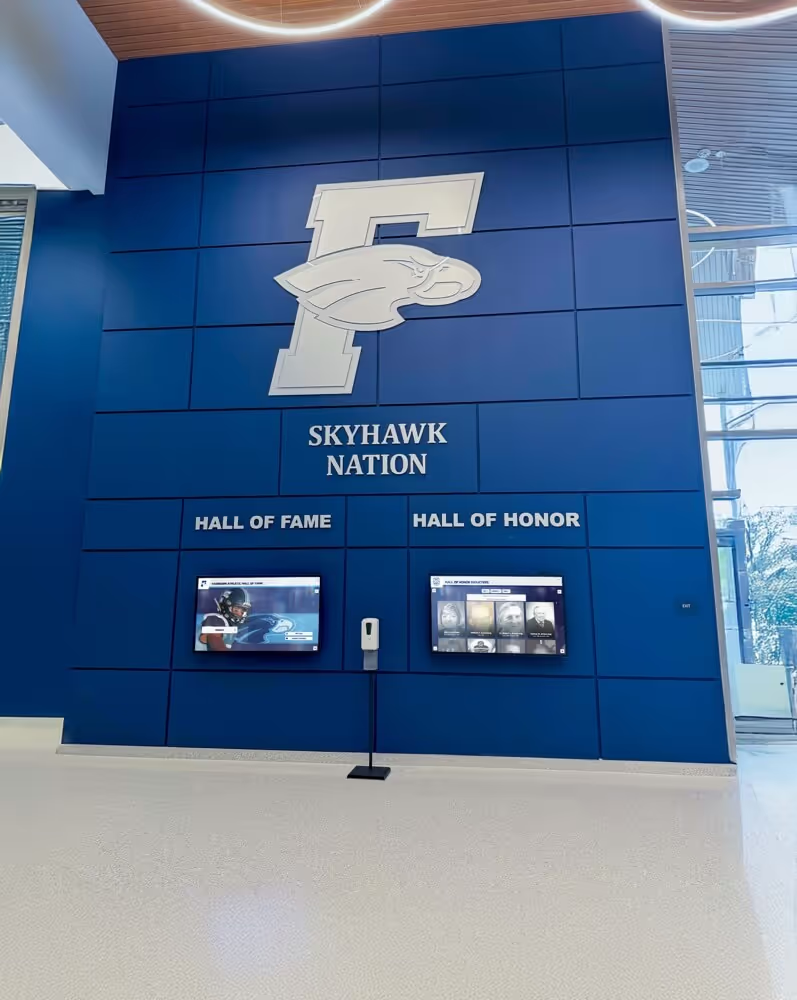
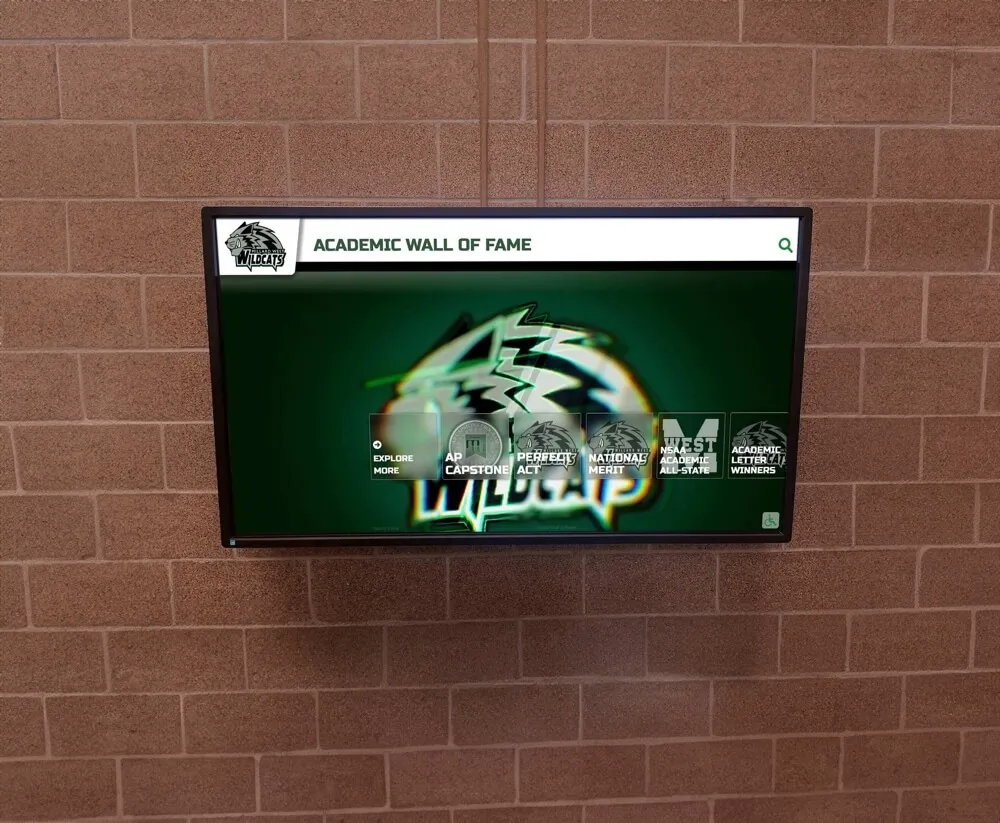
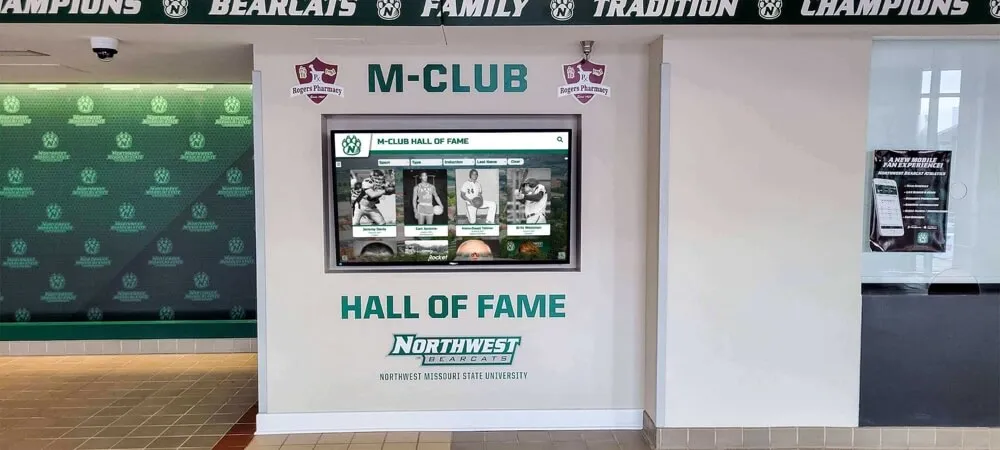
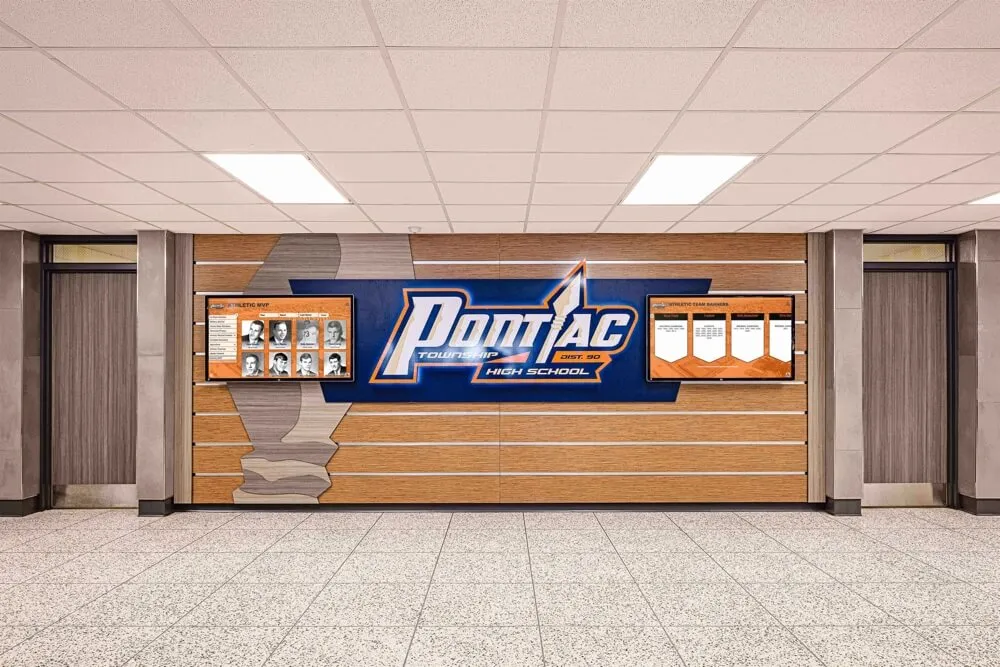
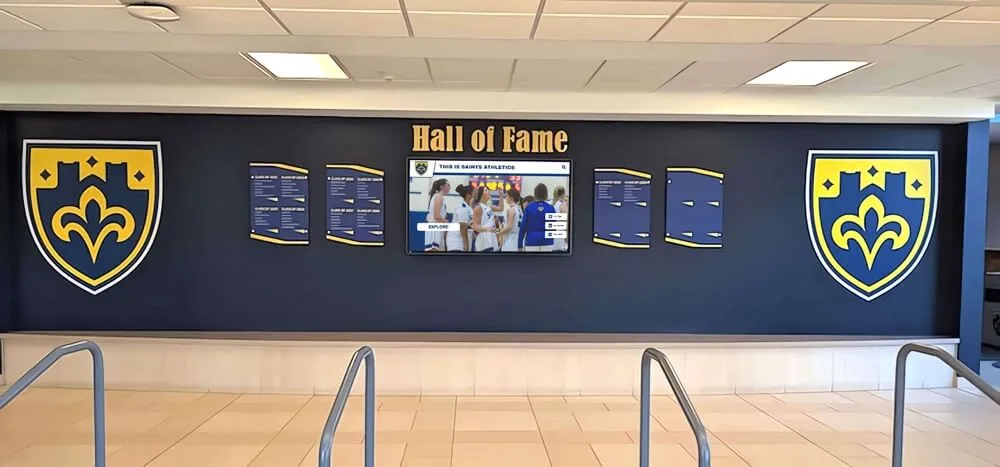
Wall-mounted commercial displays in hallways and lobbies create prominent, professional recognition focal points
Key Use Cases in Educational and Institutional Settings
Interactive touch screen digital signage serves different purposes across different environments. Understanding the dominant use cases helps clarify which features matter most for your situation.
Donor Recognition Walls
Traditional donor plaques are static. They fill up, become outdated, and require expensive physical replacement to add new names or update giving tiers. An interactive digital donor wall removes those constraints—the database can hold thousands of entries, updates take minutes rather than months, and giving tier hierarchies can be reorganized without touching the hardware.
Beyond capacity, interactive donor walls allow visitors to explore donor stories, search for specific names, filter by campaign or giving level, and view impact information that static plaques cannot convey. For advancement teams, this creates a stewardship asset that can be updated in real time as new gifts close, campaign milestones are reached, or stewardship content is added.
Digital donor recognition walls integrate well with broader stewardship programs—the display becomes part of a giving society experience rather than a one-time installation that needs occasional maintenance.
Athletic and Academic Recognition
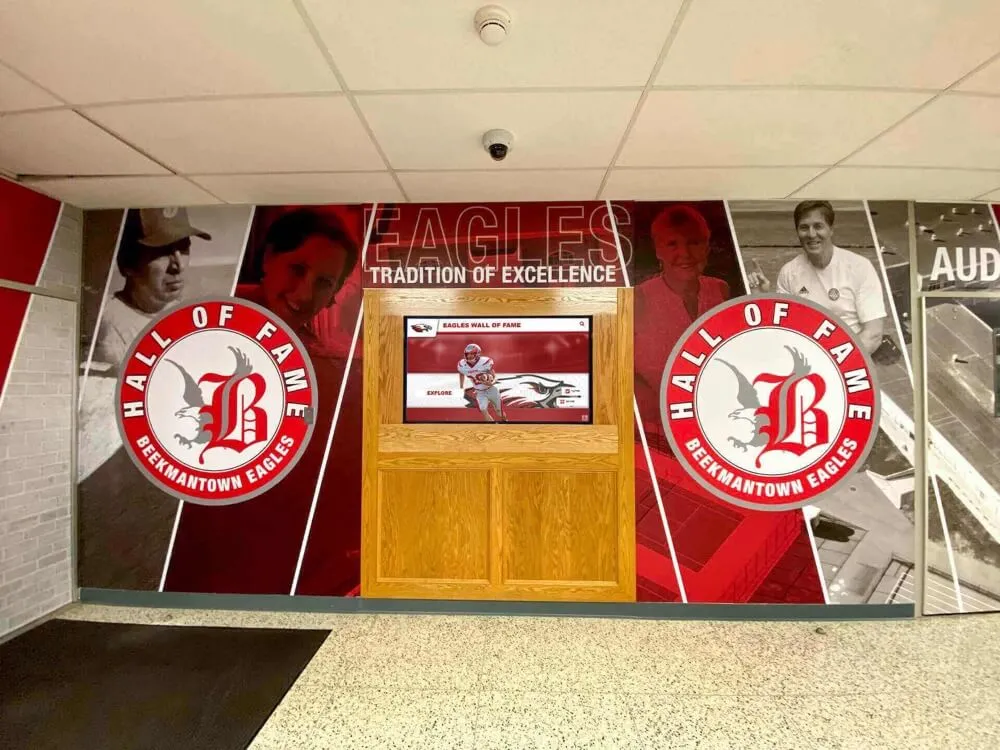
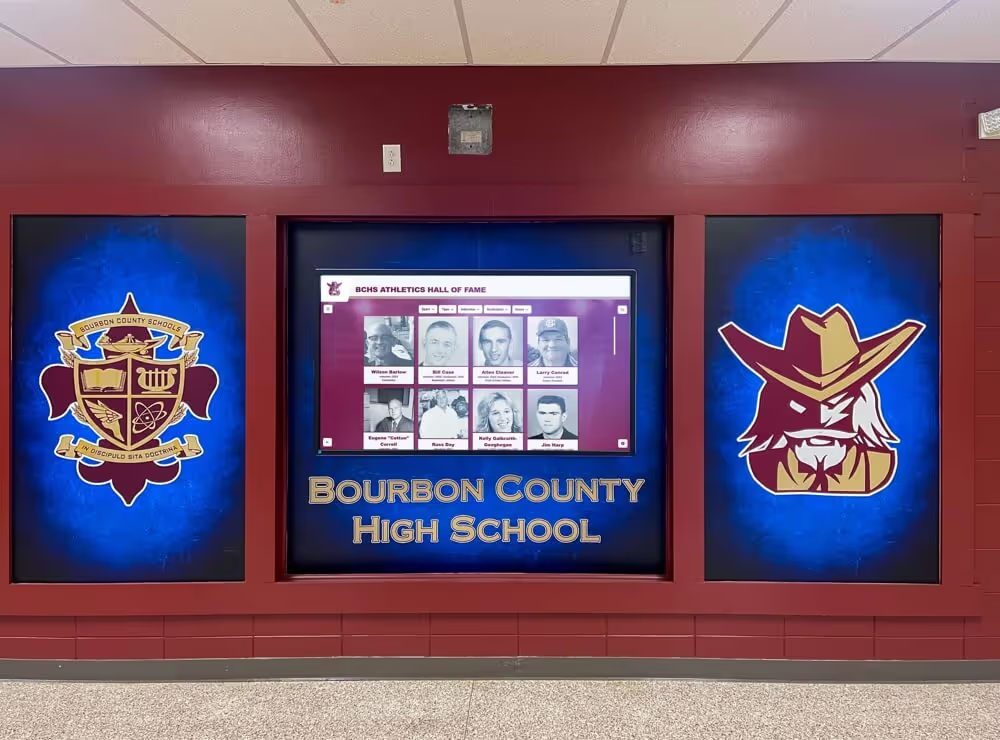
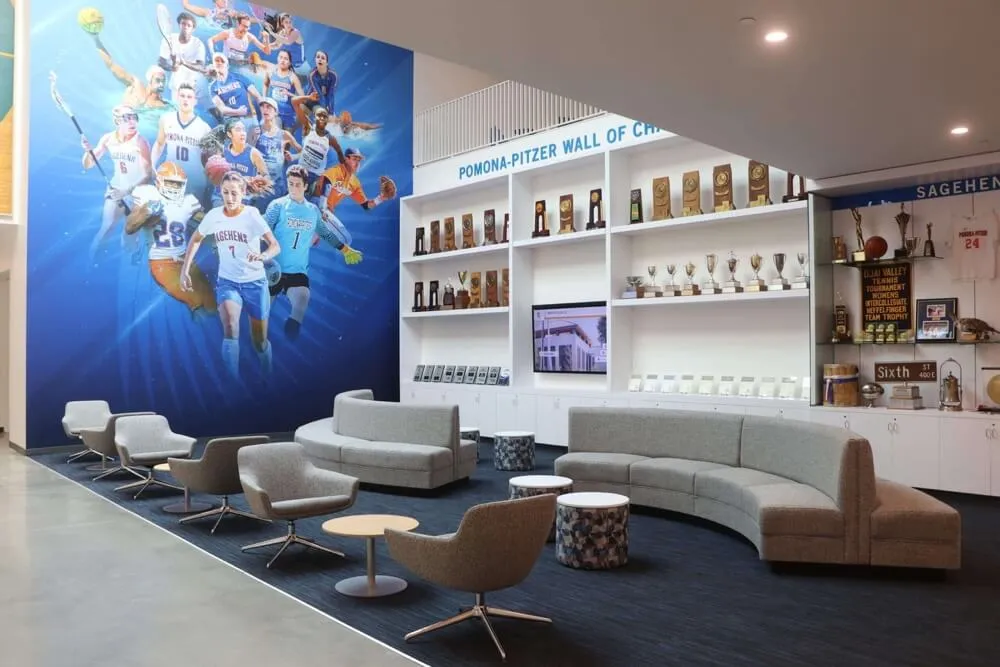
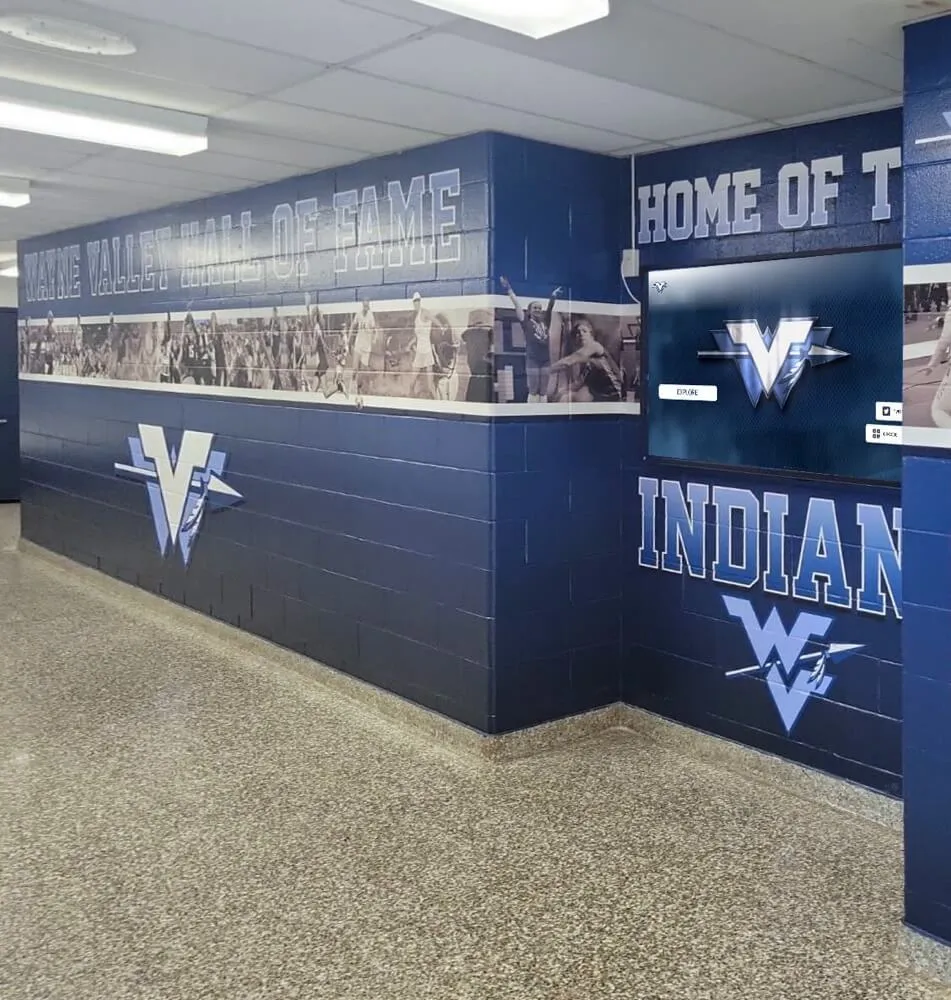
Schools and universities frequently implement interactive displays in athletic buildings, main lobbies, and alumni spaces to recognize hall of fame inductees, championship teams, and academic honorees. The challenge with traditional trophy cases and record boards is capacity—a school with a 40-year athletic history cannot fit meaningful recognition of every sport and era on a physical wall.
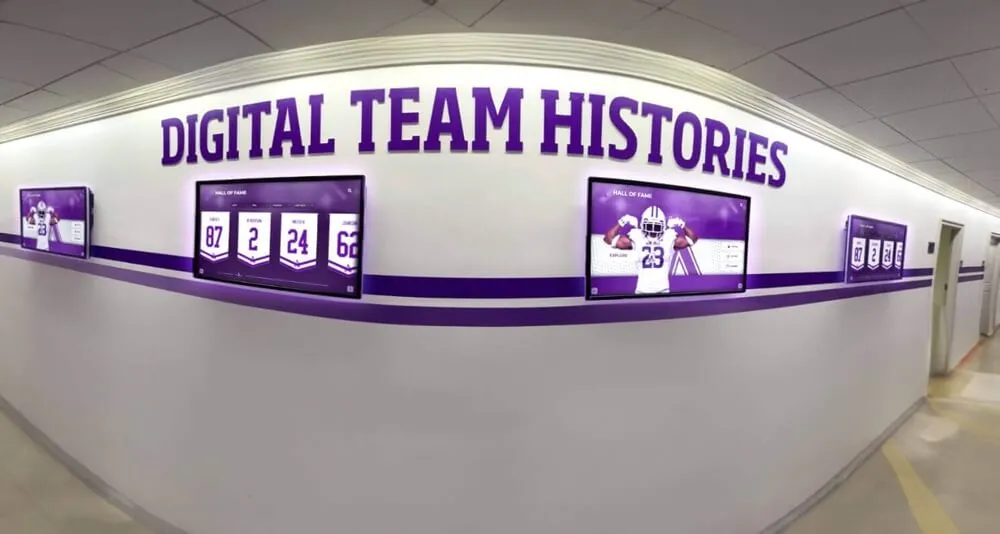
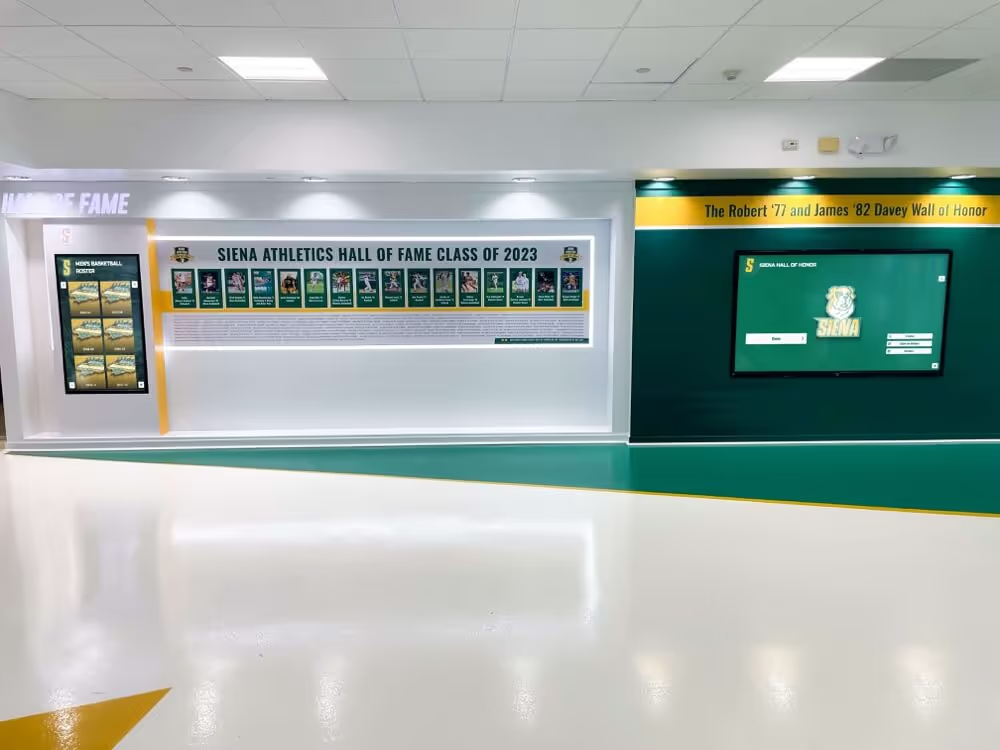
Digital recognition displays solve the capacity problem while making content richer. Athlete profiles can include photos, career statistics, video highlights, and coach reflections—context that transforms a name-and-year plaque into a story worth exploring. Interactive display technology is actively changing how school lobbies and common spaces function as recognition and community gathering points.
For comprehensive guidance on digital hall of fame touchscreen systems specifically, the considerations around content depth, search experience, and alumni engagement are covered in depth.

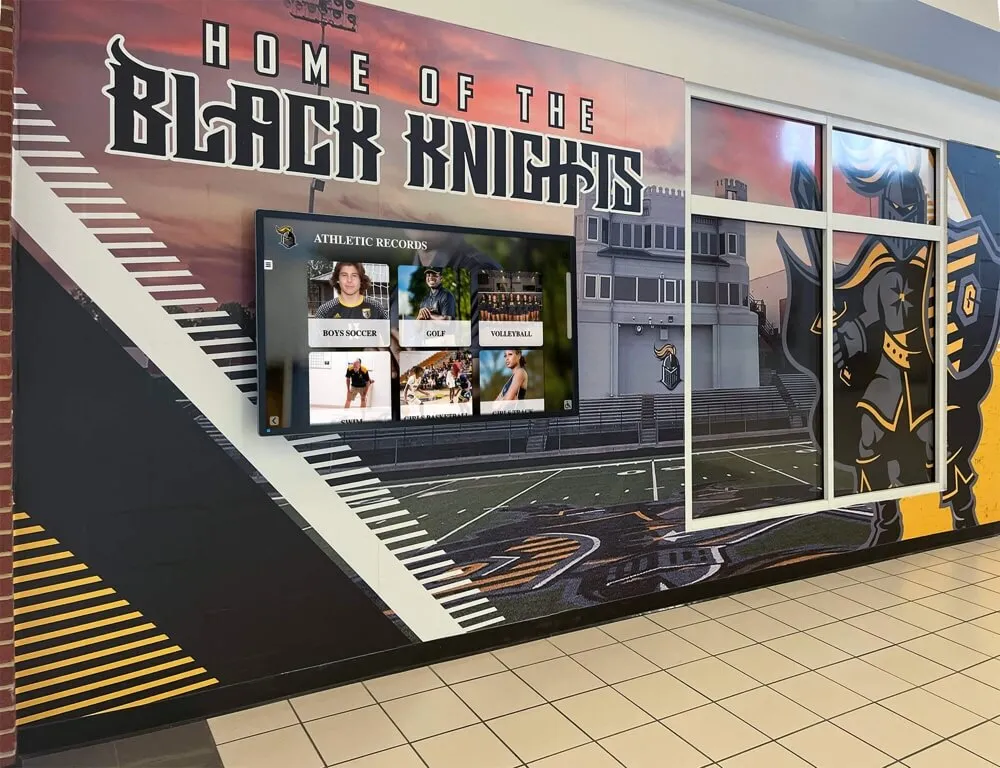
Interactive directories combine navigation, search, and profile content within a single interface—a different design challenge than passive signage
Campus Directory and Wayfinding
Large campuses—universities, medical centers, corporate offices—use interactive touch screen displays as directory and wayfinding tools. Staff and visitor directories, building maps, department listings, and event schedules are common content types. These applications require accurate, fast search (a visitor may not know the exact spelling of a faculty member’s name), current data (outdated directories erode trust quickly), and clear navigation to secondary content like office hours or department contact information.
For a detailed guide to implementing school kiosks with interactive touchscreen campus navigation, including hardware placement and software considerations specific to educational campuses, that resource covers the planning process in practical terms.
Alumni Engagement and Historical Archives
Reunion events, homecoming weekends, and alumni gatherings benefit from interactive displays that let returning graduates explore their own era of the institution’s history. A searchable database of graduating classes, team rosters, and historical photos creates natural conversation starters and encourages deeper engagement with the institution. Alumni engagement software with recognition features can build connections that translate into ongoing giving and volunteer participation.
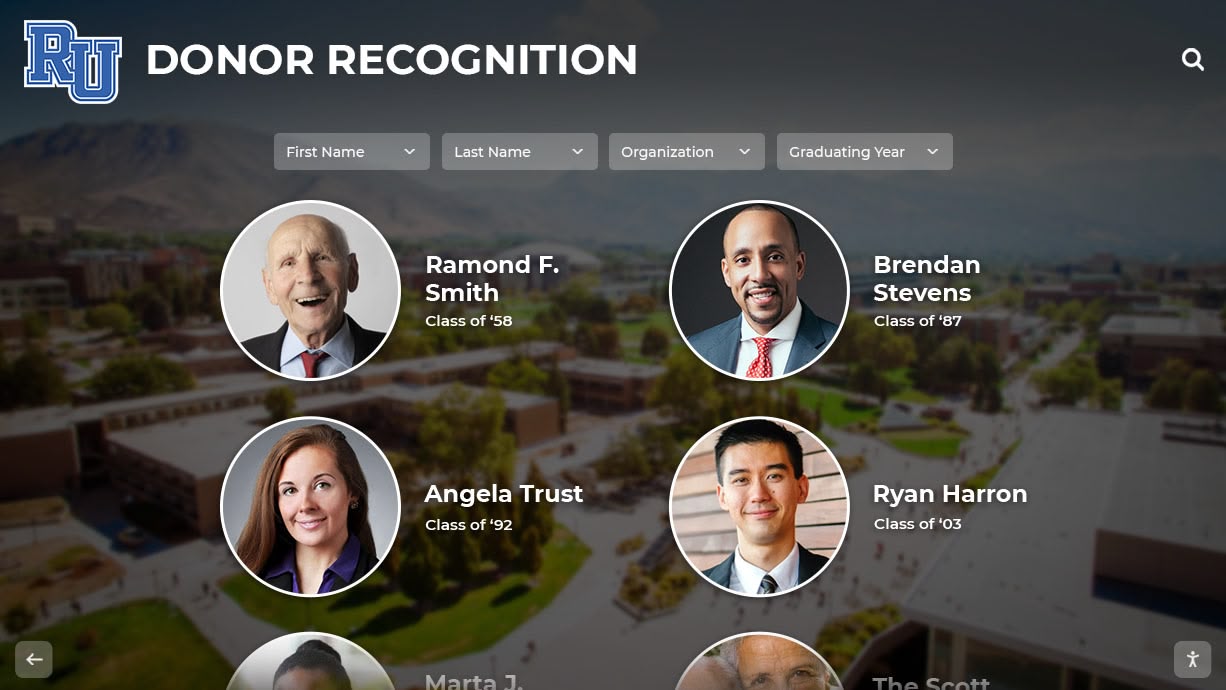
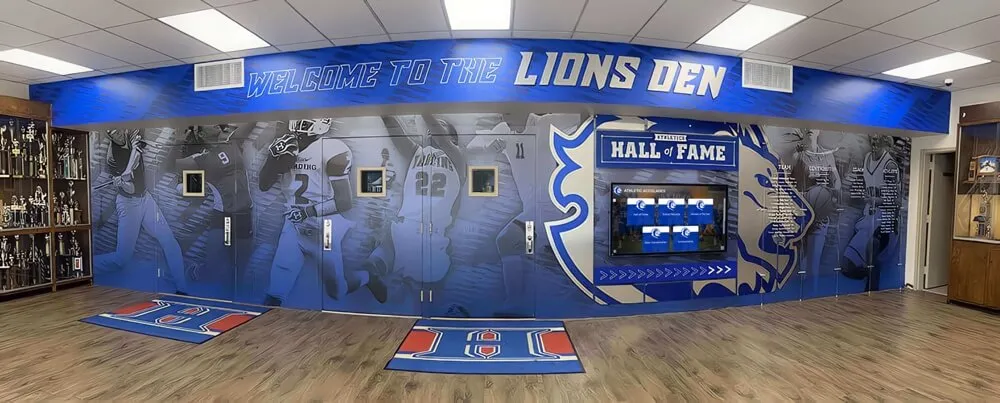
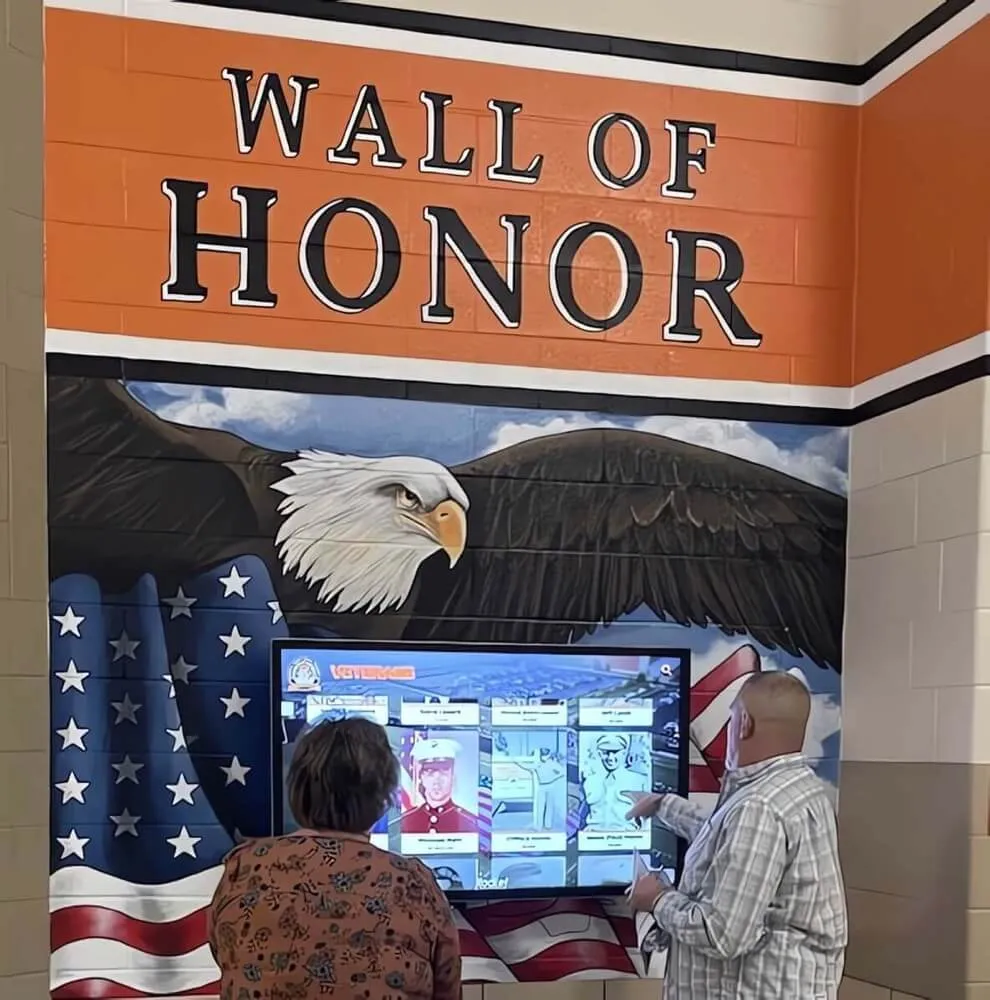
Recognition displays serve dual purposes—honoring individual contributors while creating a shared sense of community and institutional history
What You Need to Evaluate Before You Buy
The purchase decision involves more than selecting a display size. These are the questions that determine whether a deployment succeeds.
Environment Assessment
Ambient light: Measure or estimate the light levels at the planned installation location at different times of day. A lobby with east-facing windows may be tolerable in the afternoon but washed out in the morning. This affects the minimum brightness specification you need.
Foot traffic patterns: Where do people naturally pause? A display placed in a natural traffic flow point will receive more engagement than one installed in a technically convenient but less-visited location. Observe actual movement patterns before finalizing placement.
Power and data availability: Is there an electrical outlet rated for the display’s power draw at the installation point? Is there a data connection available, or will one need to be run? Electrical and data work is often the most expensive and time-consuming part of an installation. Get quotes before finalizing a location.
Mounting surface: What is the wall or structure made of? Concrete, block, steel stud, or wood stud framing require different anchoring approaches. Commercial displays are heavy—a 65-inch commercial display with its mount can weigh 60–80 lbs. This is not a standard drywall anchor situation.
Understanding the physical installation requirements early prevents cost surprises. Who installs digital hall of fame displays in schools and who coordinates the electrical, data, and mounting work varies by institution—clarifying responsibilities before signing contracts avoids delays.
Content Readiness
No display software makes disorganized content useful. Before purchasing a system, assess the state of your underlying data:
- Do you have a current list of donors, honorees, or directory entries?
- Are photos available, and at what resolution?
- Is the data in a structured, exportable format (spreadsheet, database), or stored in physical records that need to be digitized?
- Who owns content accuracy and updates going forward?
Platforms that include bulk import tools and dedicated onboarding support substantially reduce the content migration burden. But the content itself still needs to exist and be organized before import.
Hardware Longevity and Upgrade Path
Commercial displays typically carry manufacturer warranties of 3 years on parts and labor, with service life expectations of 5–7+ years under normal operating conditions. The computing hardware may have a shorter useful service life as software requirements evolve. Evaluate:
- Can the computing unit be upgraded or replaced independently of the display?
- Does the vendor provide hardware upgrade programs, or does the software require specific hardware revisions?
- What is the vendor’s track record for supporting older hardware with current software?
Commercial displays specified for schools differ from consumer televisions in meaningful ways that affect total cost of ownership over a 5-year horizon.
Software Total Cost of Ownership
Software pricing models vary:
- Annual subscription: Most common for cloud-based platforms. May be per-screen or per-organization. Confirm what is included—updates, support, hosting, and content storage limits.
- Perpetual license with annual maintenance: Less common but still present. Higher upfront, lower ongoing if you forego updates.
- Bundled hardware and software: Some vendors sell hardware and software together. This can simplify procurement but may limit flexibility if you want to upgrade one component independently.
Add up 5-year total costs: initial license or subscription × 5, support contracts, content migration services, and any per-update fees. Compare this against the alternative you are currently using (physical plaques, manual signage, no recognition system) to understand the actual investment.
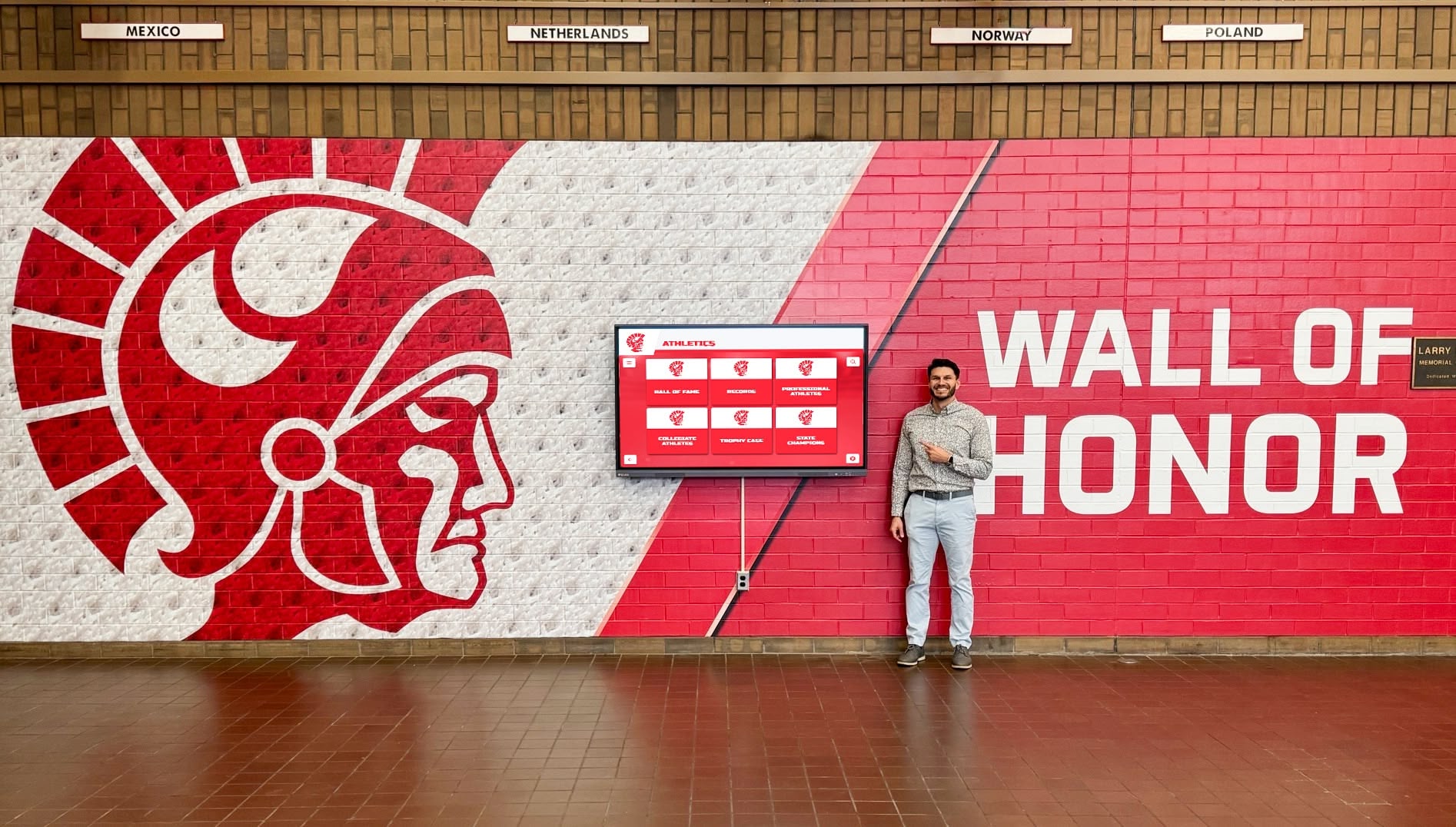
Institutions that plan content architecture and data migration carefully before installation avoid the most common post-launch problems
Pre-Purchase Checklist
Use this checklist before finalizing any interactive touch screen signage purchase:
INTERACTIVE TOUCH SCREEN SIGNAGE — PRE-PURCHASE CHECKLIST

ENVIRONMENT
[ ] Ambient light levels measured at installation location (morning, midday, afternoon)
[ ] Foot traffic patterns observed; optimal placement identified
[ ] Power outlet rated for display load confirmed at location
[ ] Data connection available (or cable routing feasibility confirmed)
[ ] Wall or mounting surface type identified; structural support verified
[ ] ADA compliance requirements reviewed for mounting height and controls

HARDWARE
[ ] Display brightness (nits) sufficient for ambient light conditions
[ ] Display size and resolution appropriate for viewing distance
[ ] Touch technology type selected (PCAP / IR) based on format and use case
[ ] Commercial-grade display rating confirmed (16/7 or 24/7 operation)
[ ] Computing unit upgrade path clarified (integrated SoC vs. external)
[ ] Minimum compute specifications verified against software requirements

NETWORK
[ ] Wired Ethernet connection at location (preferred over wireless)
[ ] Bandwidth requirements confirmed with IT
[ ] VLAN or network segment requirements discussed with IT
[ ] Firewall rules for outbound software/management traffic documented
[ ] Remote management access confirmed from administrative location

SOFTWARE
[ ] Structured data model matches content requirements (donor tiers, athlete profiles, etc.)
[ ] Bulk import confirmed with current data format (CSV, Excel, etc.)
[ ] Multi-user role-based access meets organizational needs
[ ] Search and filtering performance verified with representative data volume
[ ] Remote content update capability confirmed (no on-site access needed)
[ ] ADA/accessibility features reviewed
[ ] Analytics and reporting capabilities evaluated
[ ] Offline/cache behavior during network interruption documented

CONTENT
[ ] Current content list exists and is exportable
[ ] Photos available at minimum 1200px wide (print-quality preferred)
[ ] Content ownership and update responsibility assigned internally
[ ] Content migration timeline realistic relative to go-live date

VENDOR
[ ] Implementation services scope defined in writing
[ ] Ongoing support hours and response time commitments specified
[ ] Hardware warranty terms confirmed
[ ] Software update policy and included versions confirmed
[ ] 5-year total cost of ownership calculated and compared
[ ] References from similar organization type and deployment size requested
Why Rocket Alumni Solutions Is Worth Considering
For schools, universities, nonprofits, healthcare foundations, and other institutions focused on recognition—donor walls, halls of fame, athletic records, class composites, and related content—solutions designed specifically for those use cases outperform general-purpose digital signage configured to approximate them.
Rocket Alumni Solutions builds interactive touchscreen platforms specifically for institutional recognition. The platform handles the full content lifecycle—structured data entry, media management, bulk import from existing records, search and filtering, and web companion access—within a single system administered without specialized technical staff.
For advancement teams managing donor recognition, the platform supports dynamic giving tier hierarchies, campaign progress displays, and timely updates as gifts close. For athletic departments and alumni offices, it manages athlete profiles, championship history, and class archives with the search depth and multimedia capability that physical displays cannot match. For institutions deploying in multiple locations, cloud-based content management means a single update reaches every screen.
The implementation process includes hardware specification guidance, professional installation coordination, content migration support, and staff training—the pieces that distinguish a well-executed deployment from a screen that looks good in a demonstration and underperforms in operation.
See Rocket in Action
If your organization is planning a donor recognition wall, athletic hall of fame, or institutional recognition display and wants to see how purpose-built interactive touch screen software performs—including content management, search, and media capabilities—talk to the Rocket team directly.
Request a DonorsWall WalkthroughPutting It Together
Interactive touch screen digital signage is not a single product. It is a system—display panel, touch technology, computing unit, network connection, content management software, interactive application, and the content itself. Each layer has specifications and requirements that affect the final result.
Buying a display without evaluating the software, or selecting software without assessing network and installation requirements, leads to the most common post-deployment frustrations: a display that is slow, a CMS that requires IT involvement for routine updates, or content that was never properly migrated from an older system.
The organizations that get the most from interactive signage treat it as a content program rather than a technology purchase. They plan the content architecture before selecting software. They assess the physical environment before specifying hardware. They confirm network and installation requirements before setting a launch date. And they choose vendors whose implementation support covers the full deployment, not just the hardware sale.
For recognition-focused institutions, platforms like Rocket Alumni Solutions address all of these requirements within a purpose-built system—which means less custom configuration, more relevant default features, and implementation support from a team that has done the same deployment type many times.
This comparison is based on publicly available information as of August 2026. All product names and trademarks belong to their respective owners. Comparative statements reflect Rocket Alumni Solutions’ interpretation of available data and may change over time.