Intent: Define and decide which free touchscreen kiosk app and fully locked-down browser solution best fits your organization’s interactive display needs—whether for donor recognition, public information kiosks, or self-service terminals.
Organizations implementing touchscreen kiosks face a critical software decision that impacts security, usability, and long-term maintenance. Whether you’re deploying donor recognition displays in educational institutions, information terminals in public spaces, or interactive exhibits in museums, selecting the right kiosk browser app determines whether your installation delivers a professional, secure experience or becomes a maintenance headache vulnerable to unauthorized access.
The landscape of touchscreen kiosk apps has evolved significantly, with free alternatives emerging to challenge established paid solutions like Fully Kiosk Browser. Applications such as Rocket Touchscreen for both Android and iOS provide fully locked-down browser experiences without recurring subscription fees, making professional kiosk deployments accessible to organizations with limited budgets.
This comprehensive guide examines the best touchscreen kiosk apps available for download in 2026, comparing free and paid solutions across Android and iOS platforms. We’ll explore fully locked-down kiosk browsers, analyze alternatives to Fully Kiosk Browser, and provide practical guidance for selecting, downloading, and deploying kiosk apps that meet your specific security, functionality, and budget requirements.
Interactive touchscreen kiosks serve diverse applications across educational institutions, nonprofits, corporate environments, retail spaces, and public facilities. From schools celebrating achievements through digital recognition displays to museums presenting interactive exhibits and businesses providing self-service information terminals, the software powering these experiences must balance accessibility with security—enabling authorized content presentation while preventing unauthorized access to device settings, applications, or browsing capabilities.

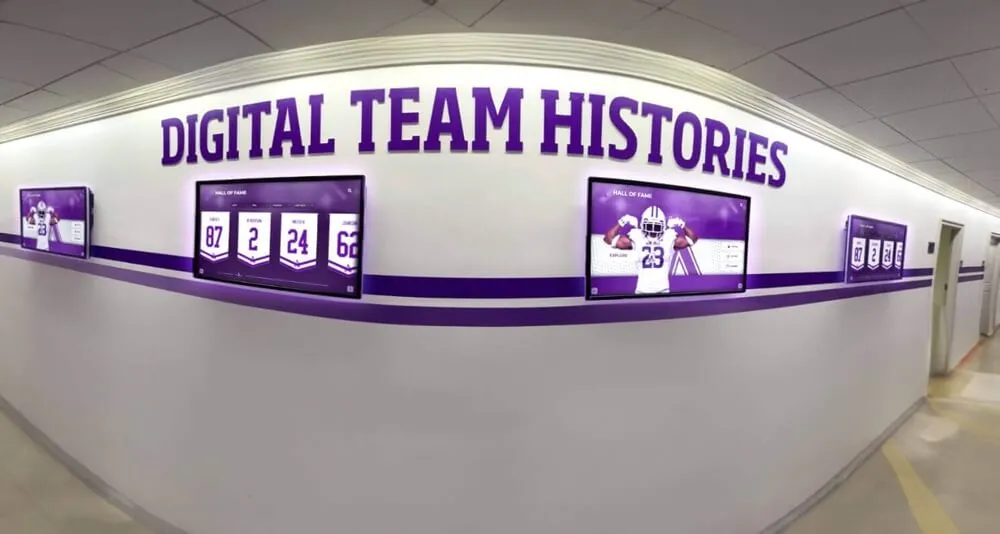
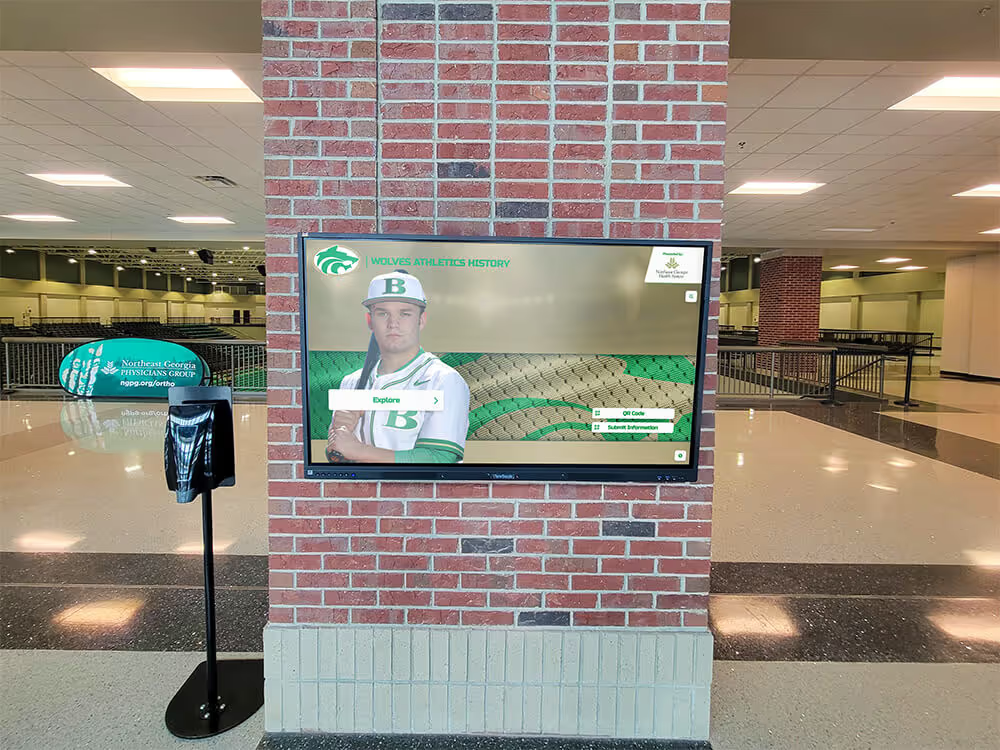
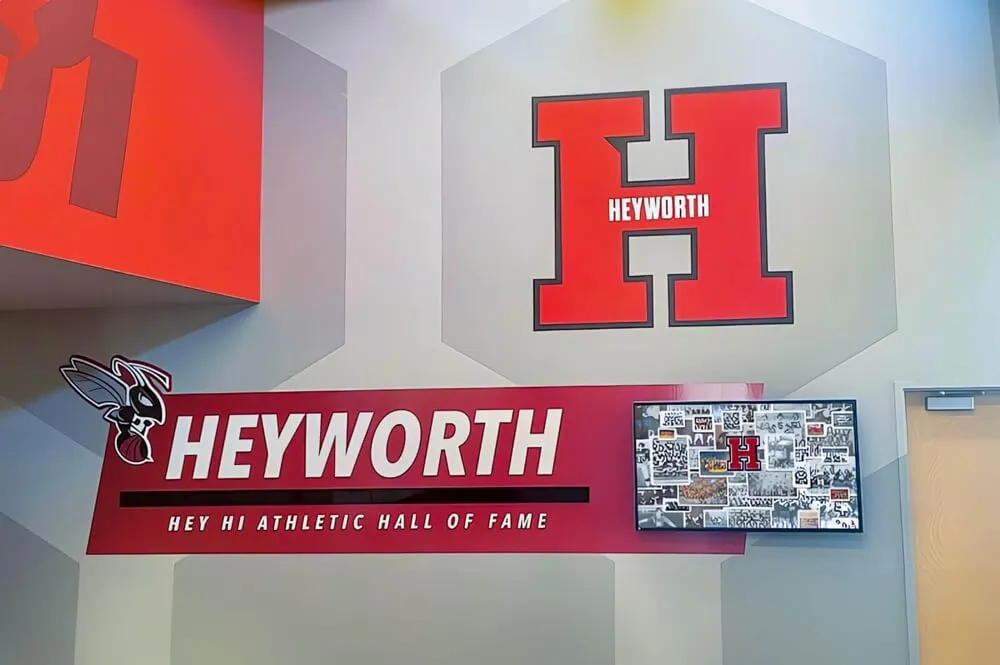
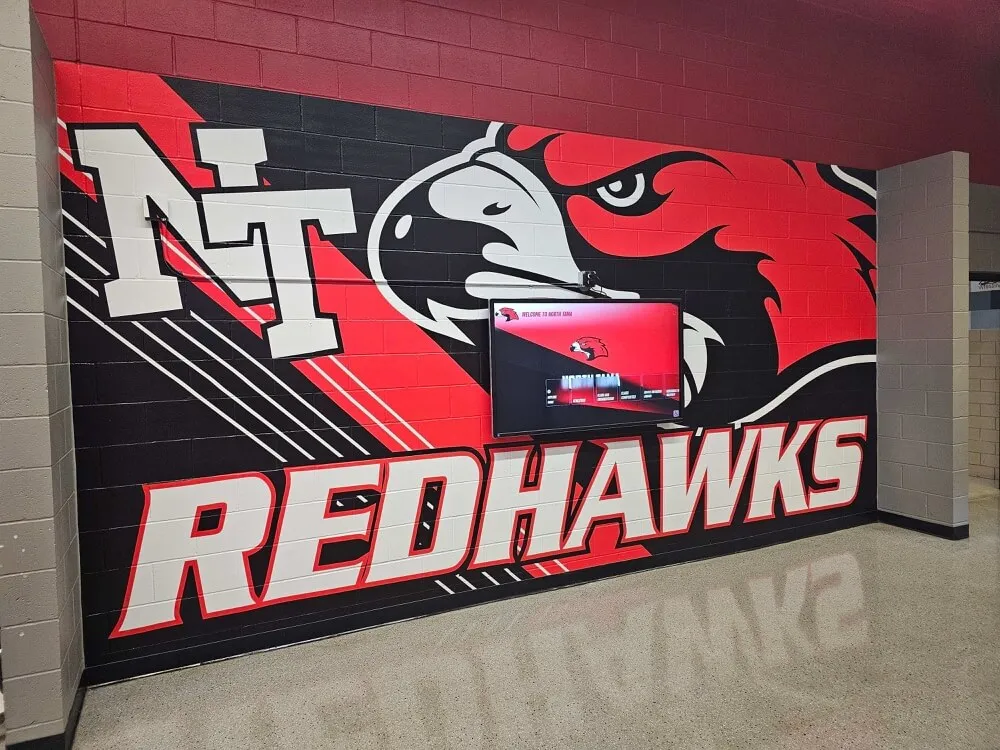
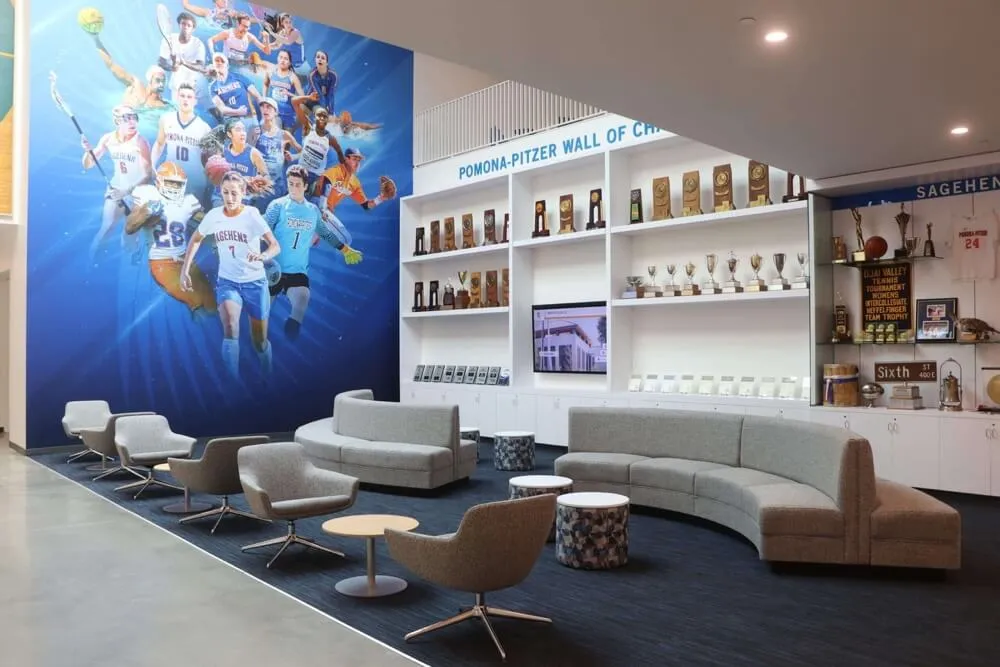
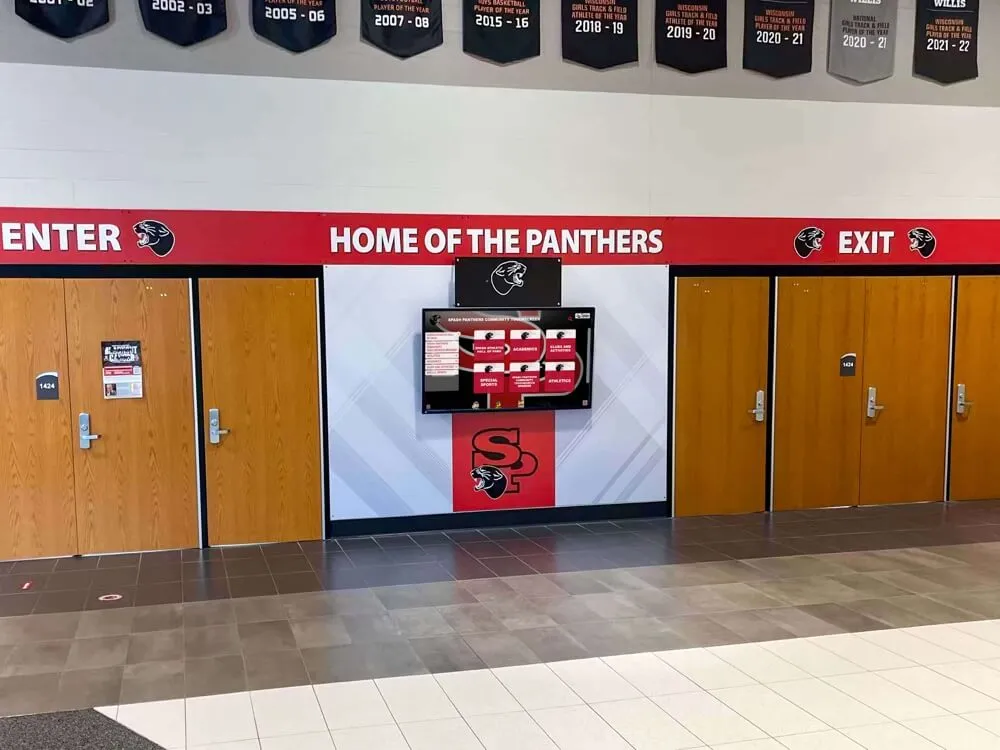
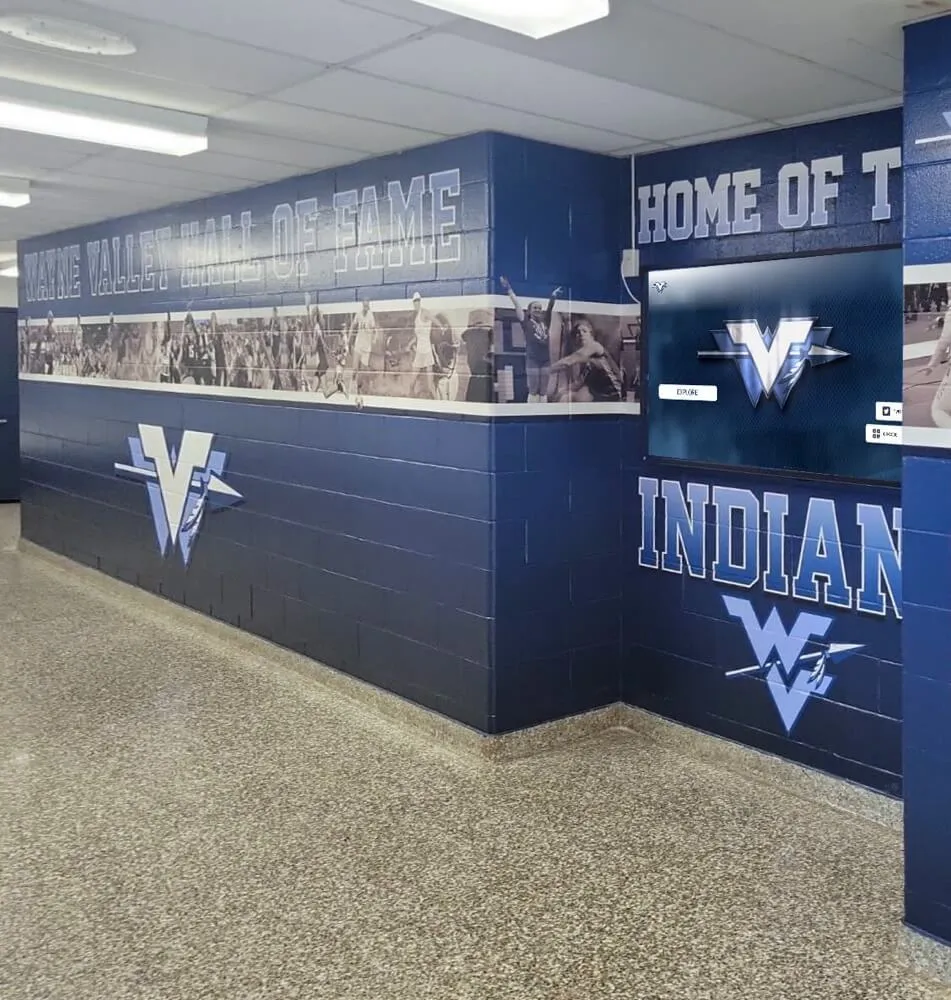
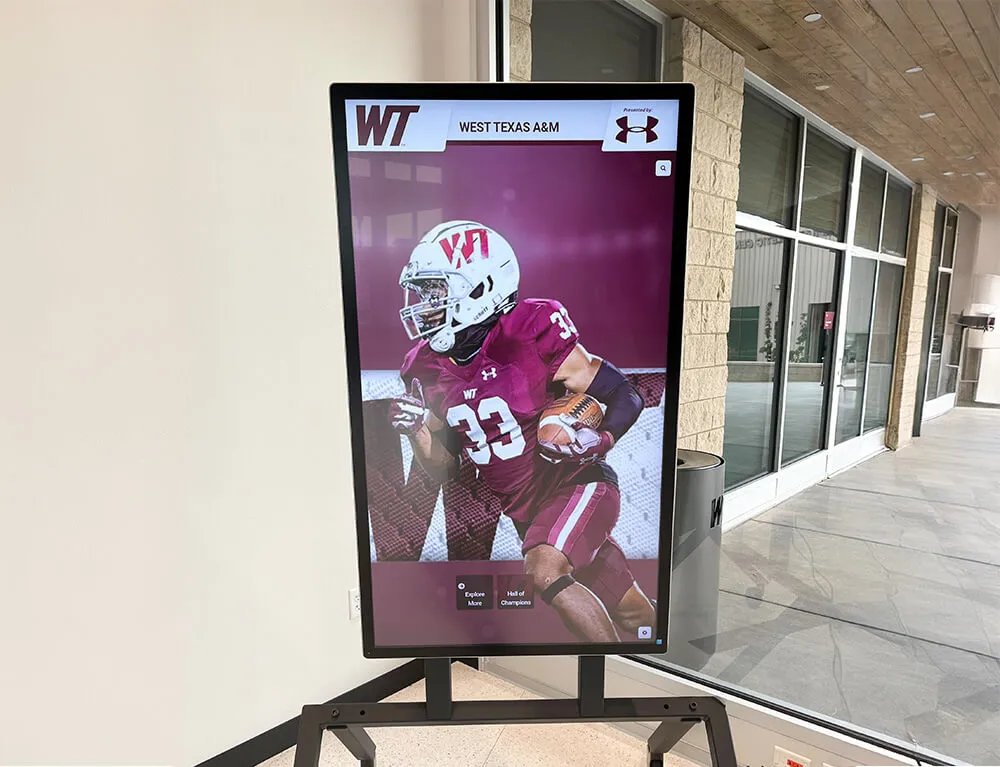
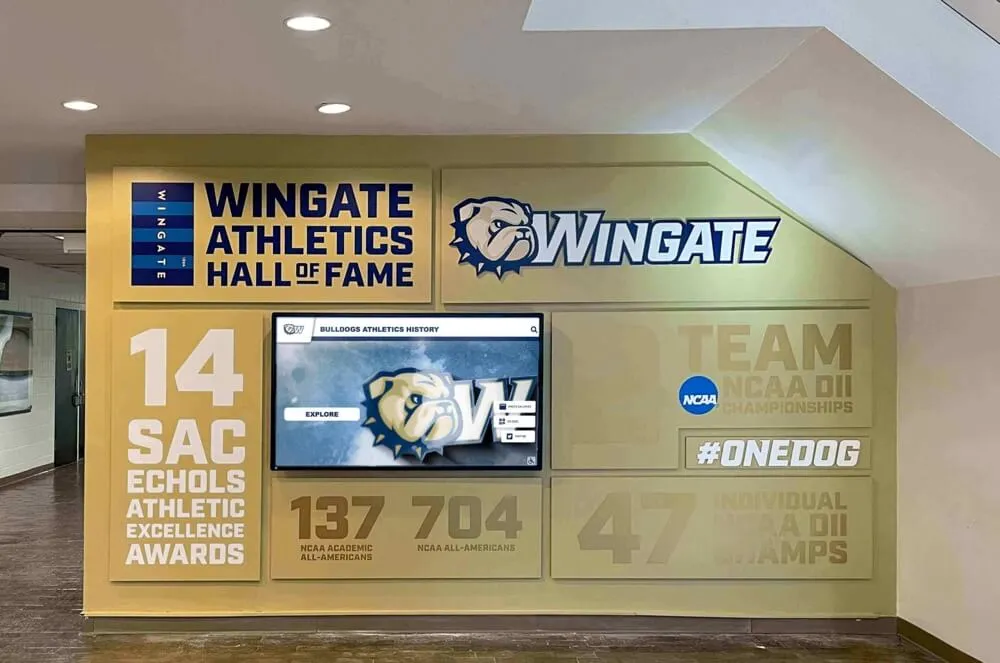
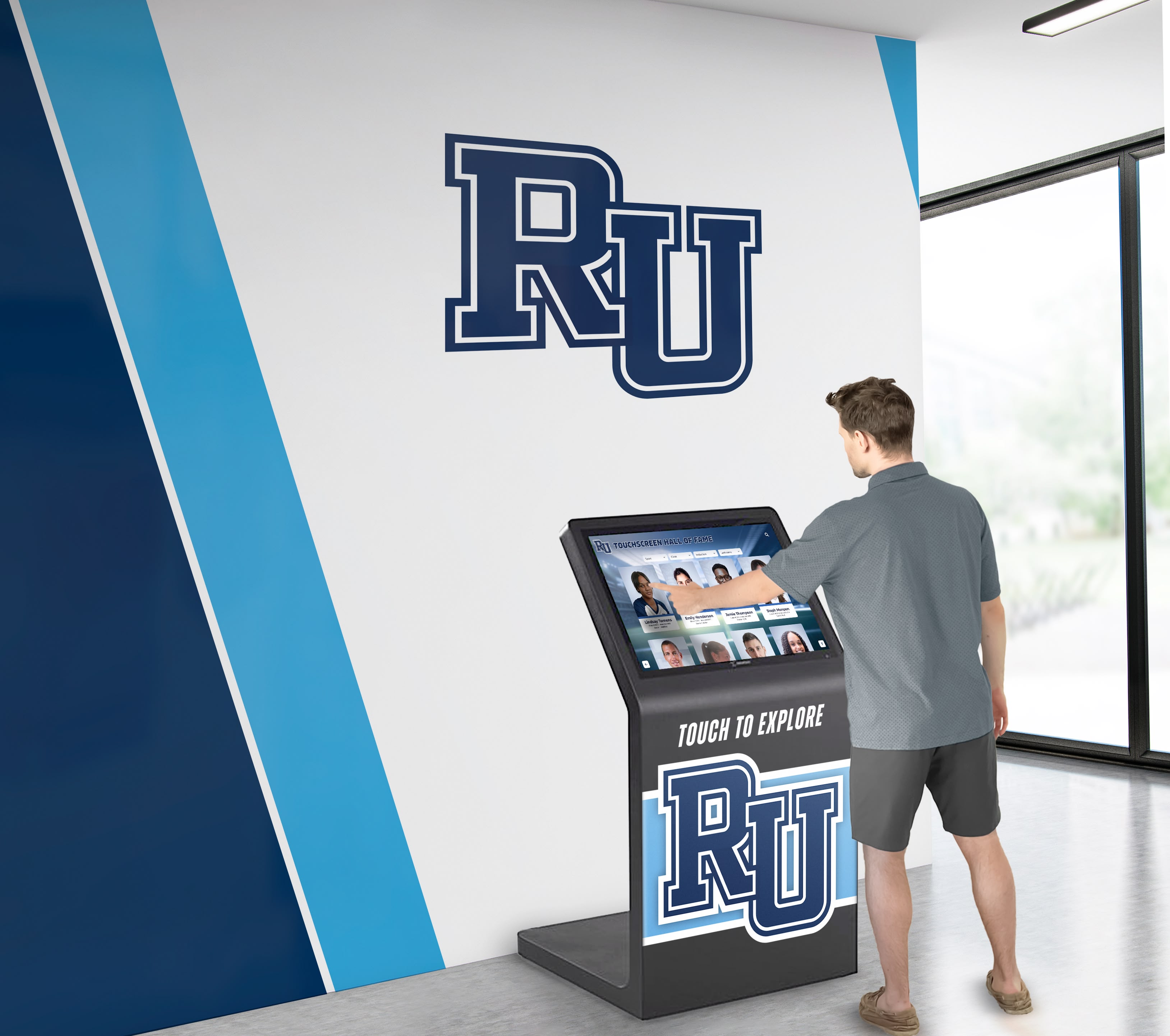
Professional kiosk browser apps transform tablets and touchscreens into secure, single-purpose displays
Understanding Touchscreen Kiosk Apps and Locked-Down Browsers
Before exploring specific applications, understanding what makes kiosk software effective helps frame evaluation criteria for different solutions.
What Is a Touchscreen Kiosk App?
A touchscreen kiosk app is specialized software designed to transform general-purpose tablets, touchscreens, or computers into secure, single-purpose devices that restrict users to specific applications, websites, or content. These apps provide lockdown capabilities preventing access to device settings, system functions, or unauthorized applications while presenting designated content through intuitive touch interfaces.
Core Kiosk App Capabilities:
- Device lockdown preventing unauthorized access to settings or applications
- Browser restrictions limiting navigation to approved websites or content
- Touch-optimized interfaces designed for public interaction without instruction
- Automatic launch starting designated applications or websites on device boot
- Remote management enabling centralized configuration and monitoring
- Session management automatically resetting displays after user inactivity
Organizations implementing touchscreen software for interactive displays require kiosk apps balancing security with user experience—tight enough to prevent tampering but flexible enough to deliver engaging content.
Fully Locked-Down Kiosk Browsers Explained
Fully locked-down kiosk browsers represent a specific category of kiosk apps focused on secure web content presentation. Unlike general kiosk apps that might lock devices to any application, kiosk browsers specifically enable displaying web-based content while preventing users from navigating beyond approved URLs, accessing browser settings, or exiting the browser interface.
Key Lockdown Features:
- URL whitelisting restricting navigation to approved domains or specific pages
- Disabled browser chrome removing address bars, menus, and navigation controls
- Prevented exit methods disabling back buttons, gestures, or keyboard shortcuts that would leave the browser
- Blocked system access preventing access to device settings, notifications, or other applications
- Enforced fullscreen mode maximizing content presentation while hiding system interfaces
- Automatic recovery restarting or reloading content after crashes or errors
These browsers enable organizations to present web-based content—whether cloud-hosted recognition platforms, custom informational websites, or interactive applications—on publicly accessible touchscreens without risking unauthorized device access or configuration changes.
Schools implementing digital recognition display systems benefit from locked-down browsers that securely present web-based content while maintaining institutional control over devices.
Why Organizations Need Kiosk Software
Standard tablets and touchscreens running default operating systems prove inappropriate for public deployment due to security vulnerabilities, configuration complexity, and user access to system functions. Without kiosk software, users can access settings, install applications, browse inappropriately, modify configurations, or even factory reset devices.
Kiosk Software Benefits:
- Security enforcement protecting institutional networks and data
- Content control ensuring only approved information displays
- Brand consistency maintaining professional presentation
- Reduced maintenance preventing user-caused configuration issues
- Liability protection limiting inappropriate access or content
- Cost efficiency extending device lifespan through controlled use
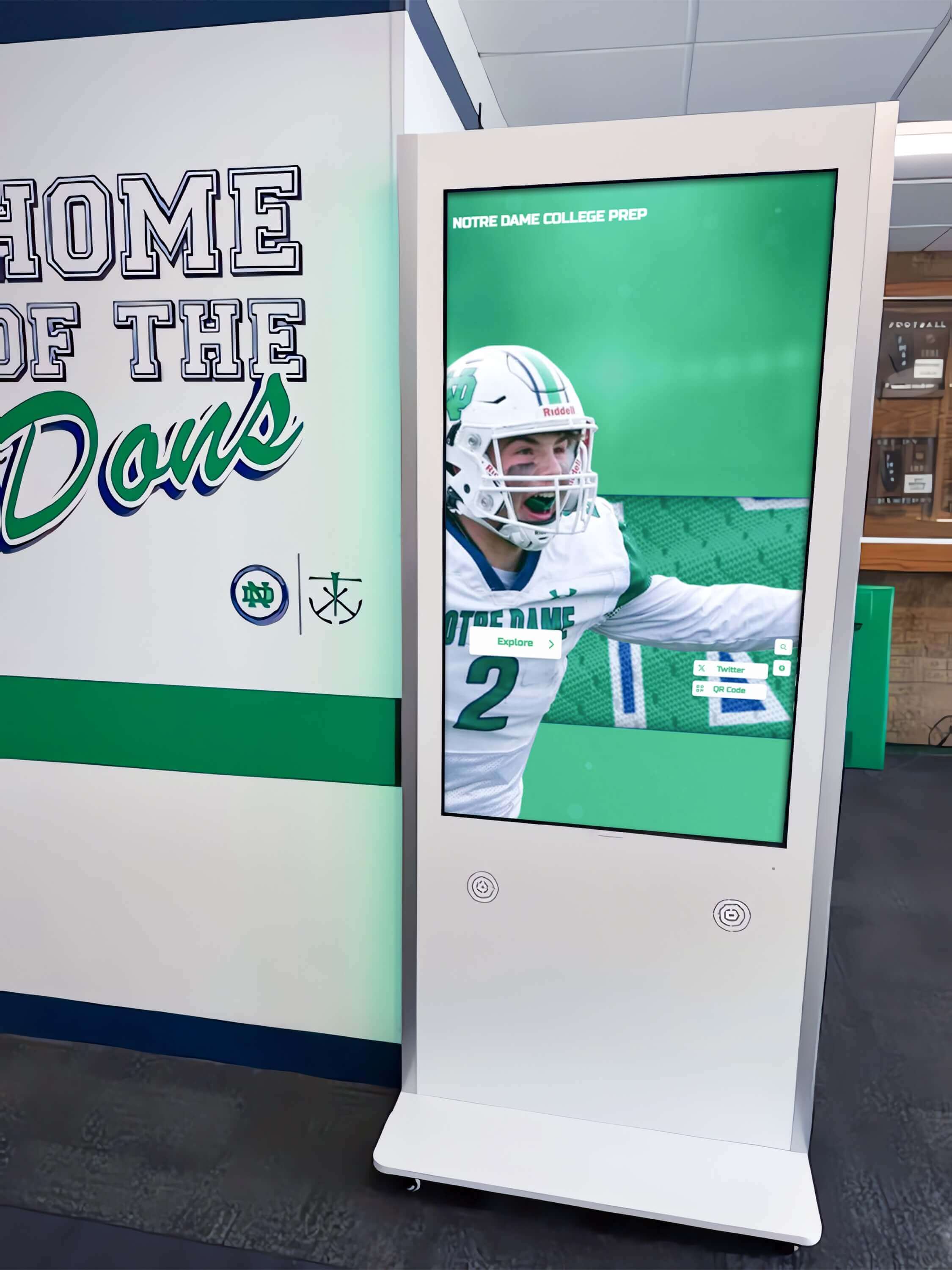
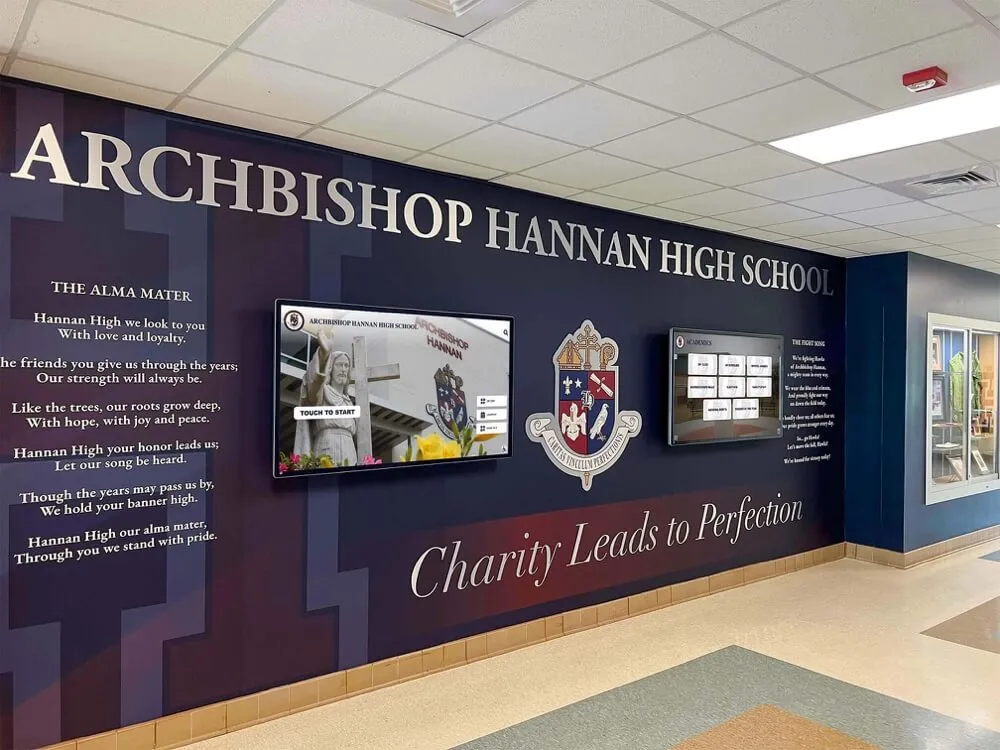
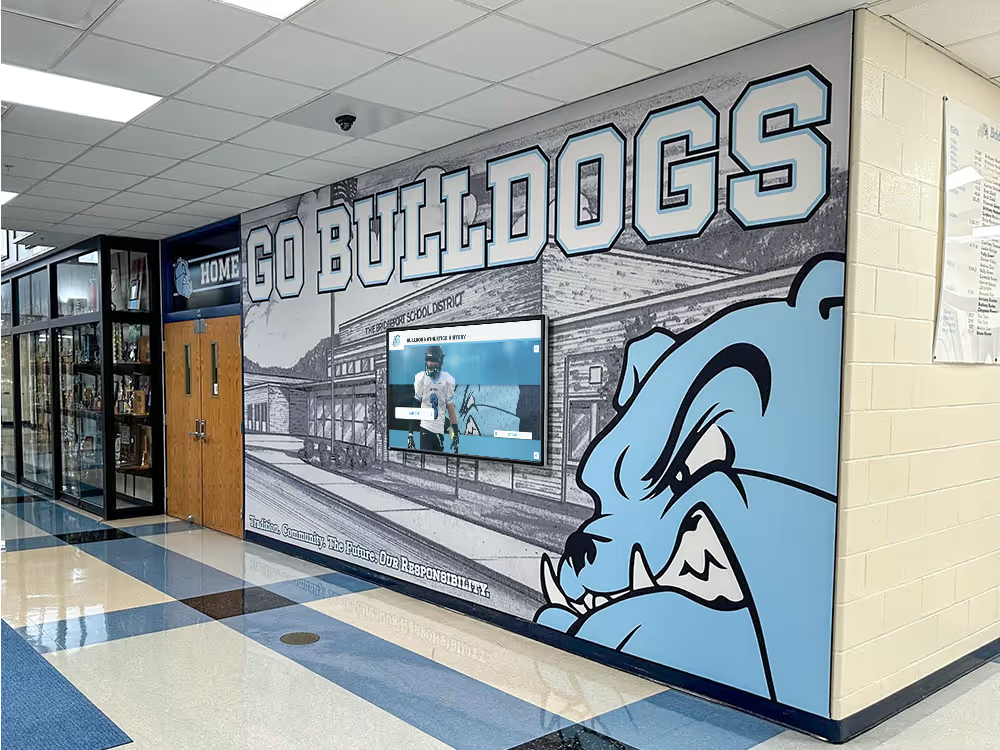
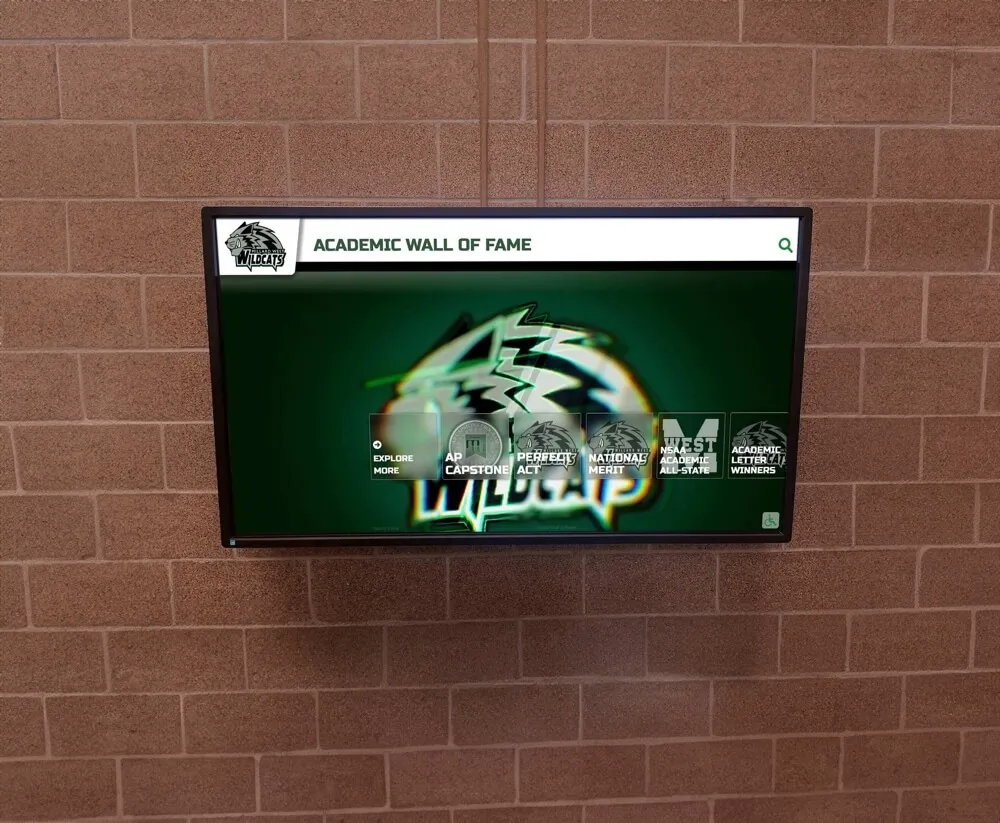
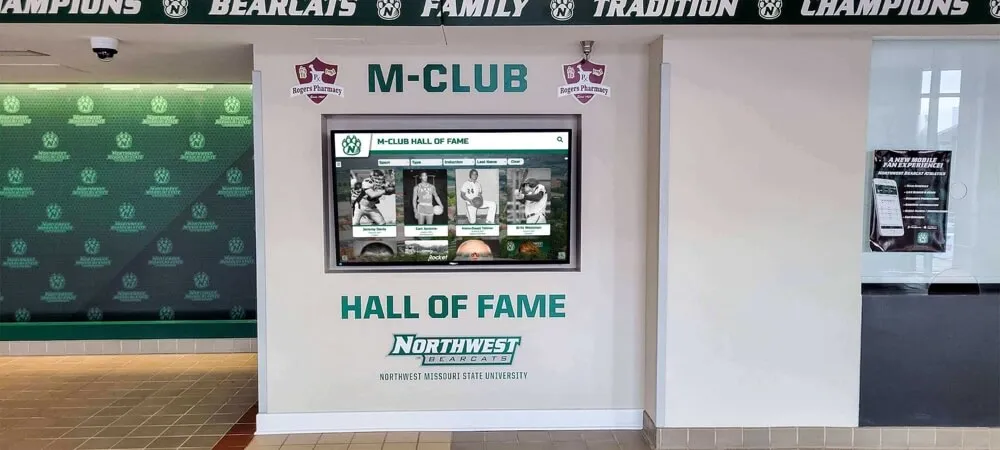
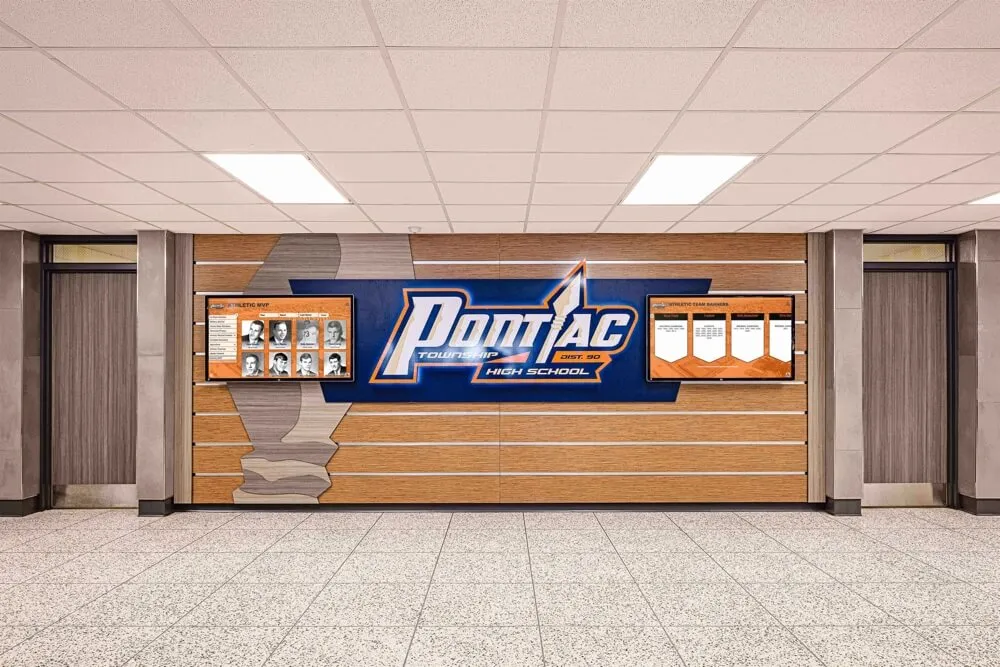
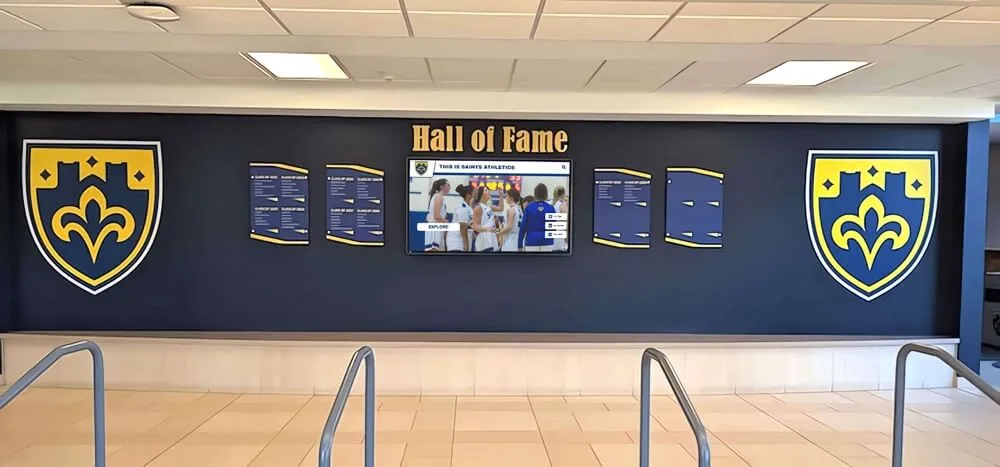
Proper kiosk software transforms consumer devices into secure institutional displays
Organizations deploying touchscreens without kiosk software often discover security issues, inappropriate usage, or configuration corruption that require constant technical intervention—exactly the operational burden that proper kiosk applications prevent.
Rocket Touchscreen: Free Fully Locked-Down Kiosk Browser
Rocket Touchscreen stands out as a completely free touchscreen kiosk app available for both Android and iOS platforms, providing fully locked-down browser capabilities without subscriptions, licenses, or usage fees.
Platform Availability and Download Options
Android Version: Available on Google Play Store for Android devices running Android 13.0 or later. The app transforms Android tablets and touchscreens into secure kiosk browsers displaying Rocket Alumni Solutions content or custom websites.
Download: Rocket Touchscreen on Google Play
iOS Version: Available on Apple App Store for iPad and iPhone running iOS 13.0 or later. The iOS version provides the same locked-down browser functionality optimized for Apple hardware, particularly iPad Pro installations.
Download: Rocket Touchscreen on App Store
Organizations exploring touchscreen software for Mac environments benefit from Rocket Touchscreen’s cross-platform consistency enabling unified deployments across different hardware.
Core Features and Capabilities
Automatic Kiosk Mode Launch: Rocket Touchscreen automatically launches in fullscreen kiosk mode when the app opens, immediately locking down the device and presenting designated content without requiring manual configuration or user interaction.
Simple Site ID Configuration: Organizations enter their Rocket Alumni Solutions Site ID once, and the app remembers this configuration, automatically navigating to the specified touchscreen site on every launch. This eliminates complex URL management and simplifies deployment across multiple devices.
Built-In Demo Mode: For organizations evaluating the app before committing to full implementation, demo mode enables testing with example content, demonstrating capabilities without requiring actual Site ID credentials.
Touch-Optimized Interface: The app provides an interface specifically designed for public touchscreen use, with appropriately sized touch targets, intuitive navigation, and responsive feedback that requires no user instruction or technical familiarity.
Zero Licensing Costs: Unlike many kiosk solutions requiring per-device licensing or monthly subscriptions, Rocket Touchscreen is completely free with no hidden fees, making professional kiosk deployments accessible to organizations with limited budgets.
Privacy-First Design: The app collects no user data and shares nothing with third parties, providing privacy protection important for educational institutions and organizations handling sensitive donor or community information.
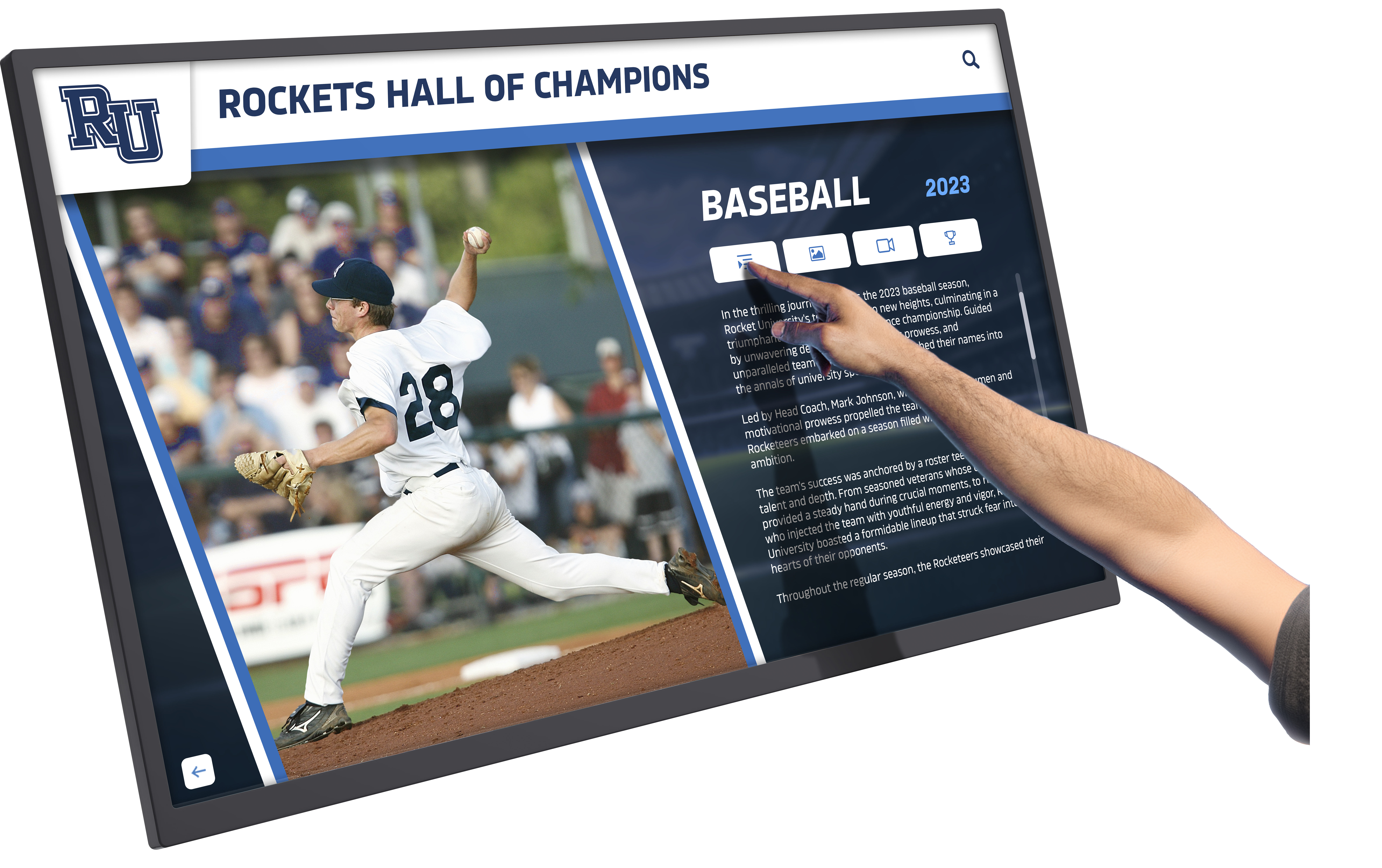
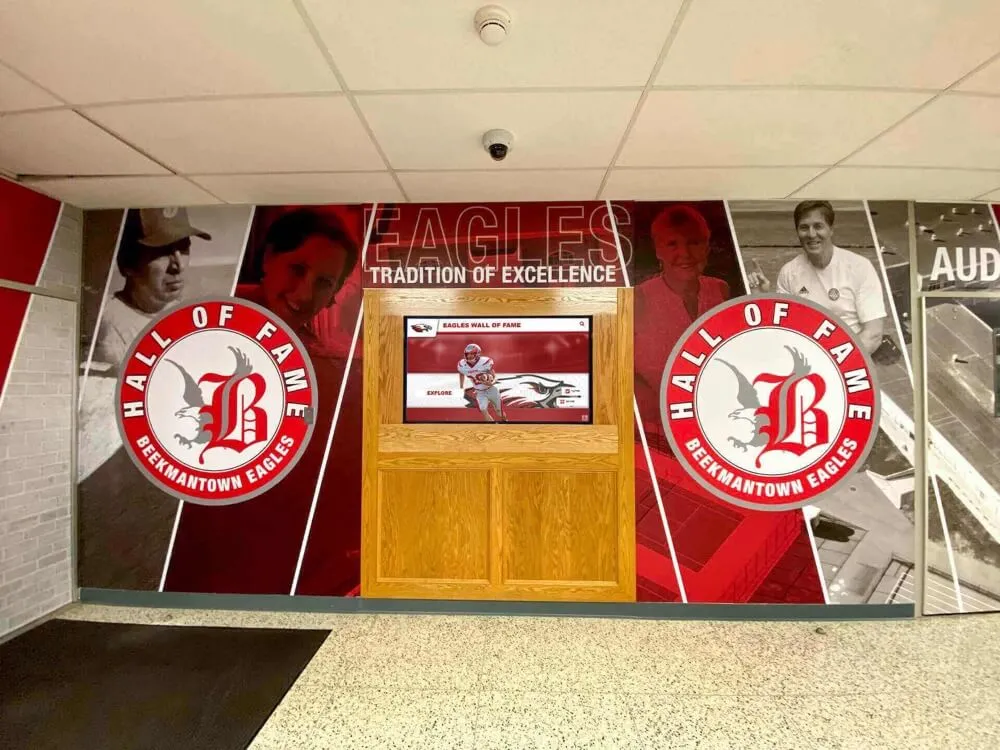
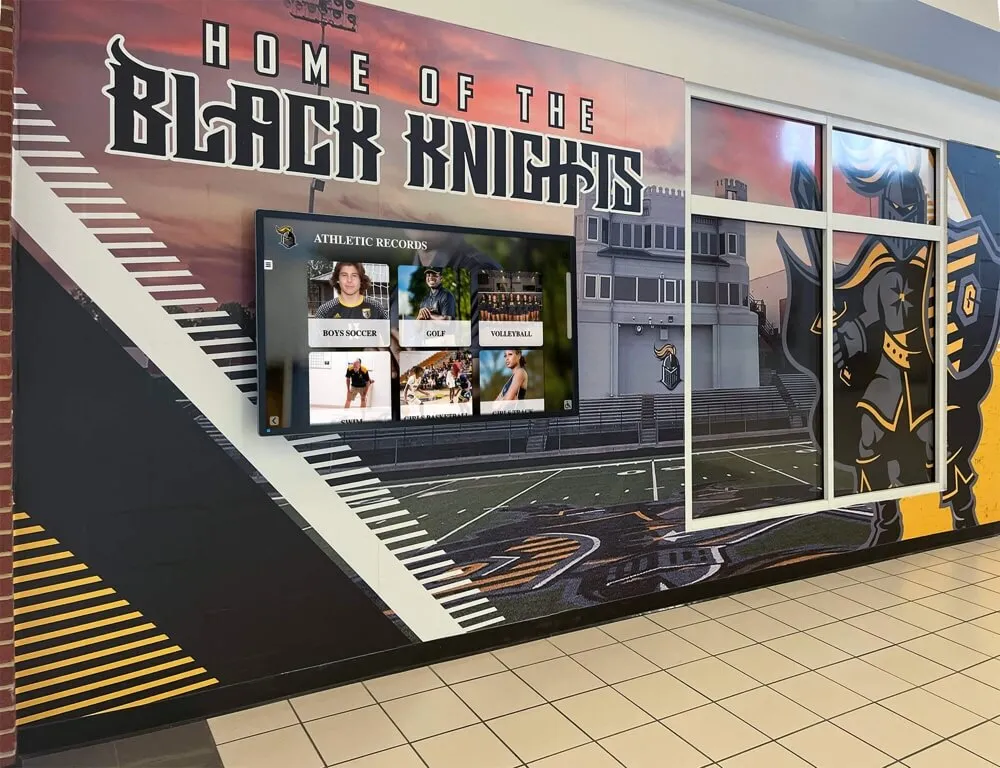
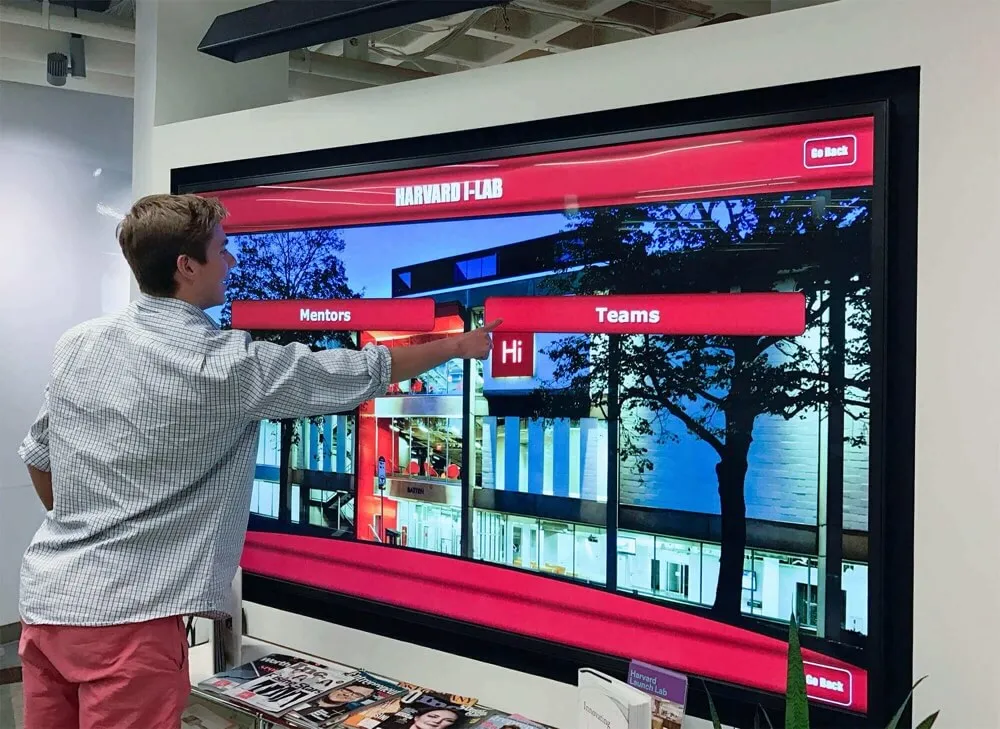
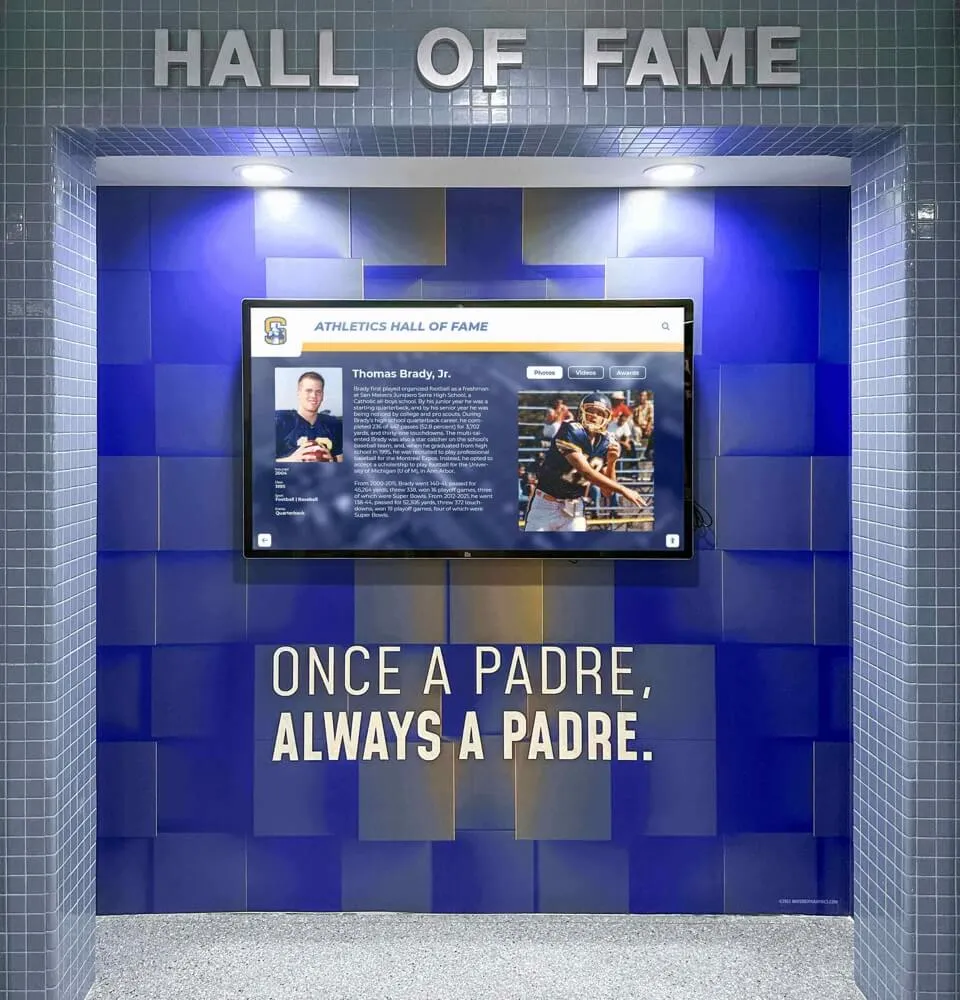
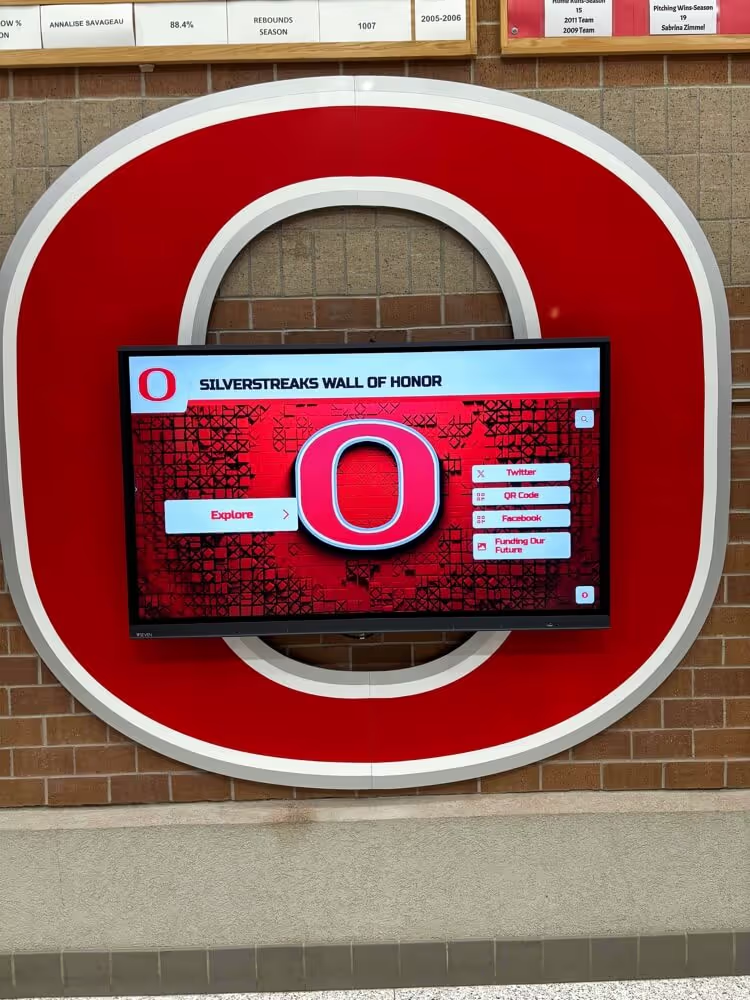
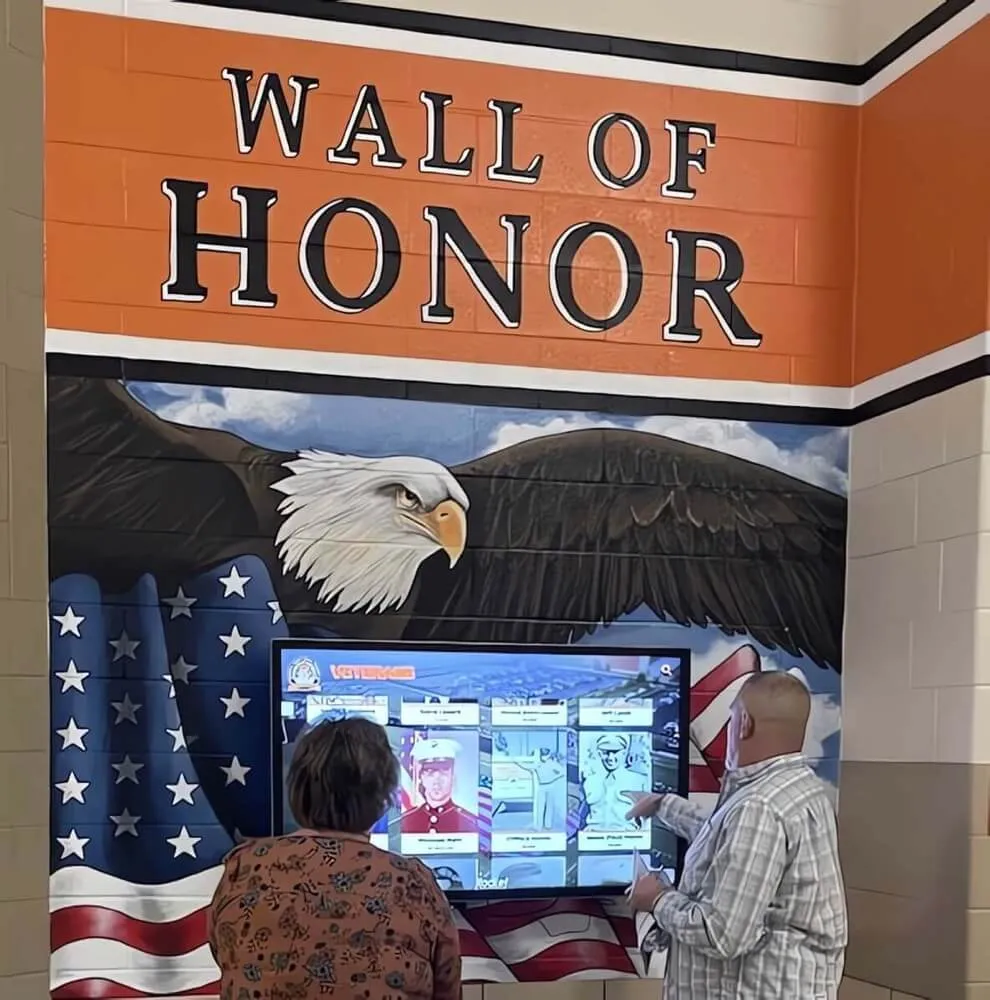
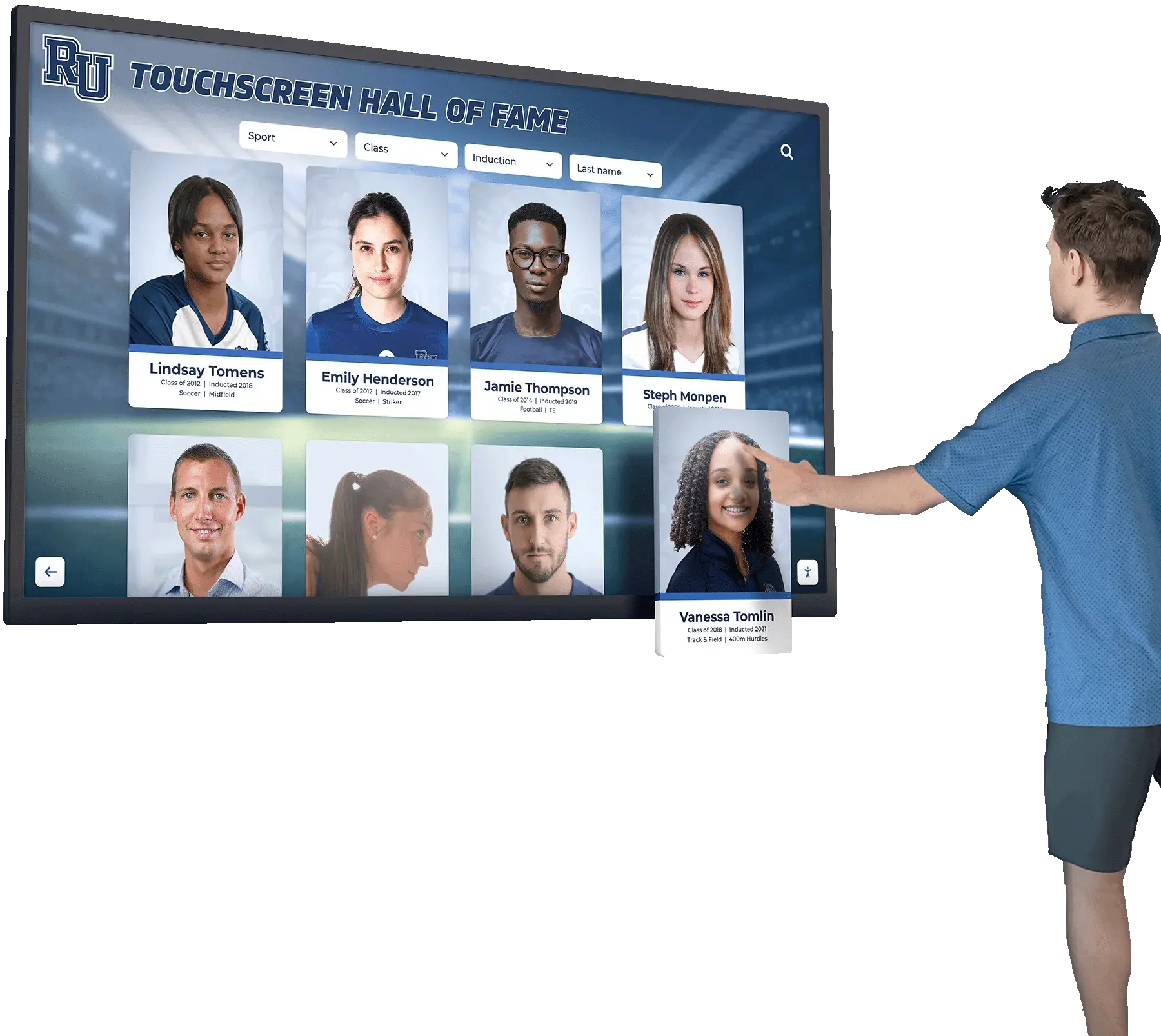
Intuitive touch navigation enables deep content exploration within secure browser environments
Ideal Use Cases for Rocket Touchscreen
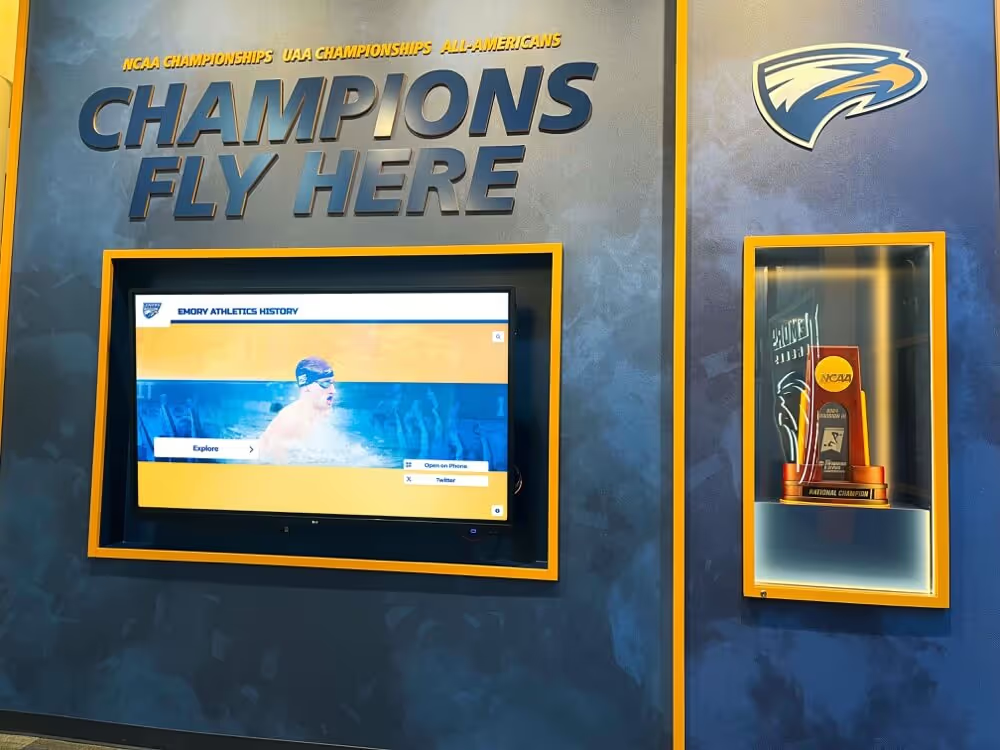
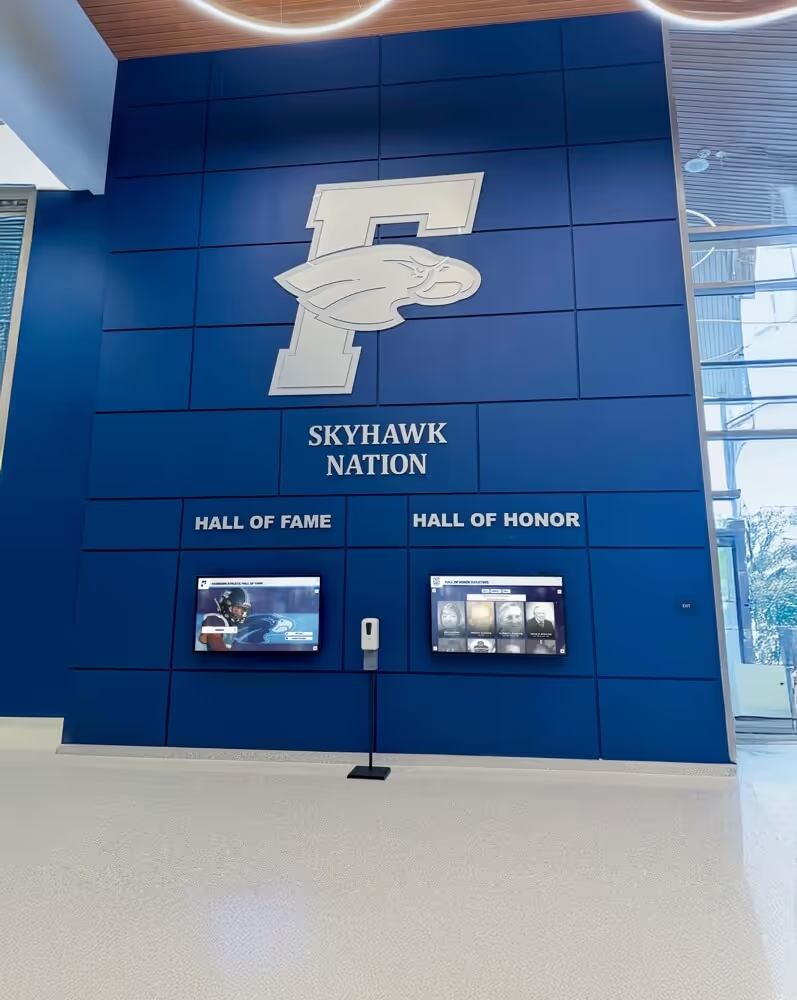
Educational Institution Recognition Displays: Schools, colleges, and universities implementing digital recognition programs use Rocket Touchscreen to present alumni achievements, athletic honors, donor recognition, and institutional history on touchscreens in lobbies, athletic facilities, and campus buildings.
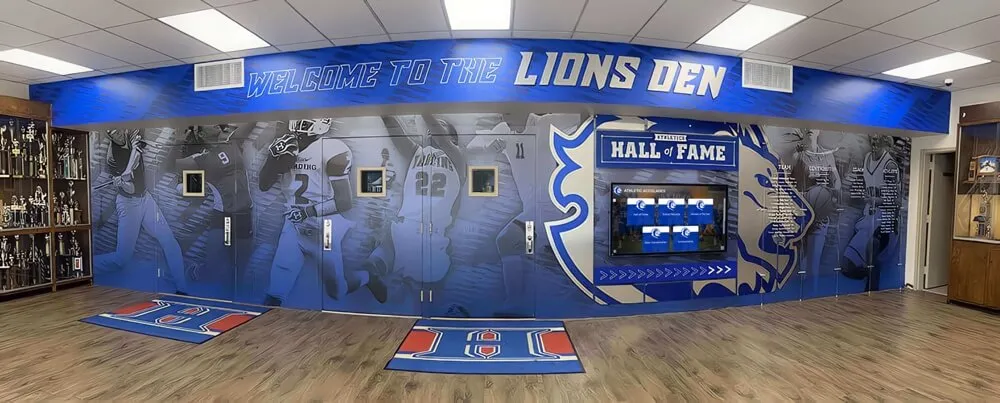
Nonprofit Donor Recognition: Foundations, cultural institutions, and community organizations leverage the app to celebrate supporters through interactive donor walls displaying contribution levels, impact stories, and recognition messaging without expensive custom development.
Museum and Exhibit Displays: Cultural institutions present interactive exhibits, collection information, and educational content through web-based platforms securely displayed via Rocket Touchscreen’s locked-down browser.
Corporate Information Kiosks: Businesses deploy the app for lobby directories, visitor information, building wayfinding, or employee recognition displays requiring secure, controlled access to web-based content.
The app particularly benefits organizations already using or considering Rocket Alumni Solutions for content management, as the seamless integration between content platform and kiosk browser eliminates technical complexity while delivering professional results.
Fully Kiosk Browser: The Established Android Solution
Fully Kiosk Browser represents the most widely known Android kiosk browser solution, offering extensive features and configuration options that have made it popular for diverse kiosk applications.
Platform and Pricing Structure
Android Exclusivity: Fully Kiosk Browser operates exclusively on Android devices running Android 5.0 or higher, with support for Android 5 ending by late 2026. The application does not support iOS, making it unsuitable for organizations standardizing on iPads or mixed hardware environments.
Free vs. Paid Versions: The app offers a free version with full functionality but occasional popup notifications encouraging upgrade to the paid Plus license. The Plus license ($19 USD one-time per device as of 2026) removes popups and enables remote device management features.
This pricing structure makes Fully Kiosk cost-effective for single devices or small deployments but increasingly expensive for large-scale implementations requiring dozens or hundreds of tablets.
Feature Set and Configuration Options
Fully Kiosk Browser provides extensive functionality including:
Comprehensive Lockdown:
- Fullscreen browser mode with disabled navigation elements
- Restricted access to device settings and system functions
- Disabled hardware buttons (configurable by device)
- Prevented exit from browser application
- URL whitelisting and blacklisting capabilities
Advanced Display Features:
- Motion detection and screensaver functionality
- Automatic brightness and display management
- Scheduled content rotation and display timing
- Multi-language support for international deployments
Remote Administration:
- REST API for programmatic device management (Plus license)
- Remote device monitoring and control
- Configuration push to multiple devices
- Crash recovery and automatic restart
Integration Capabilities:
- Home automation integration (popular for smart home control panels)
- External sensor support for interactive installations
- Custom JavaScript injection for advanced functionality
According to AirDroid’s analysis of Fully Kiosk alternatives, Fully Kiosk “works the best and is the cheapest” among traditional paid Android kiosk solutions.
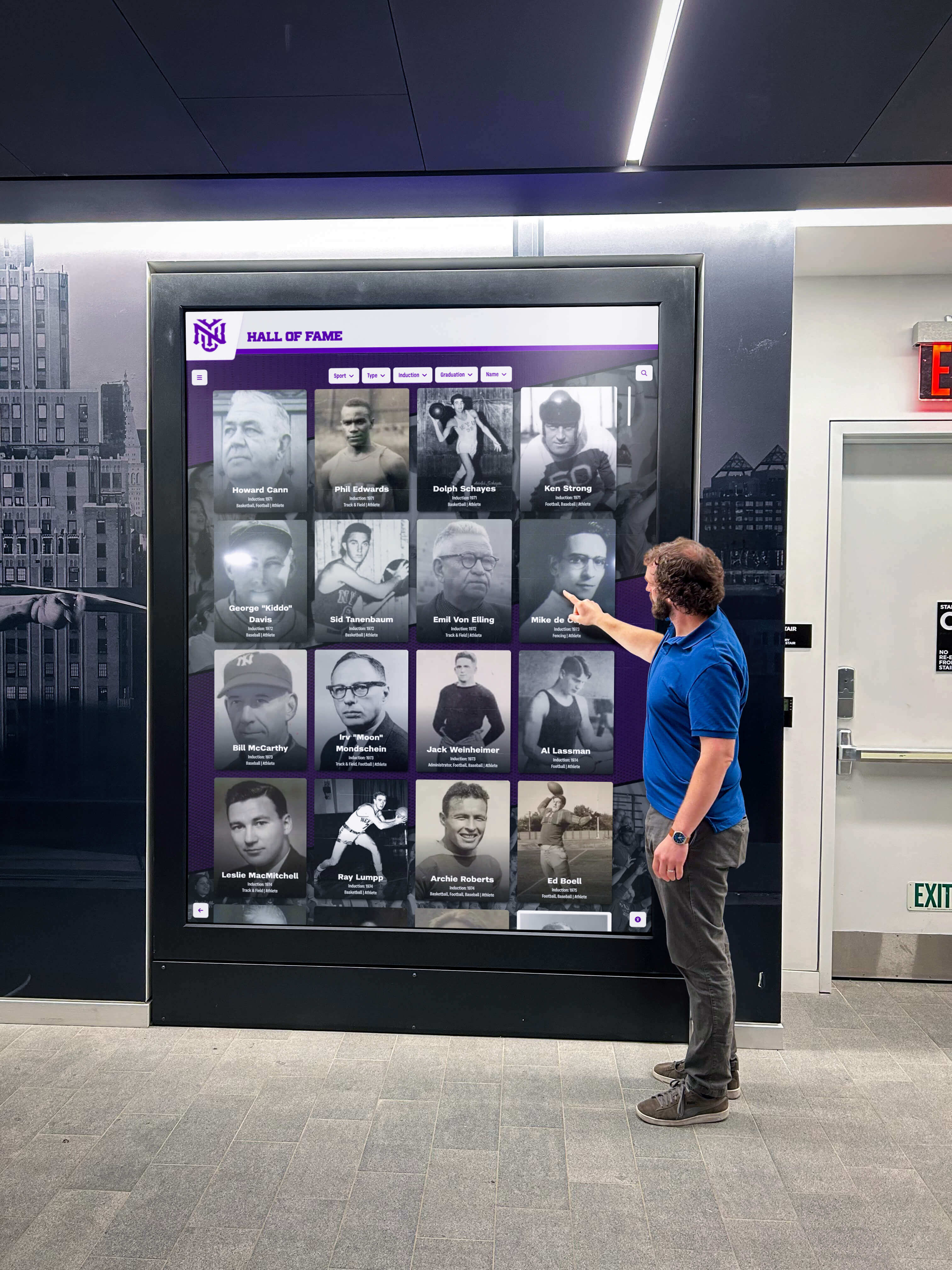
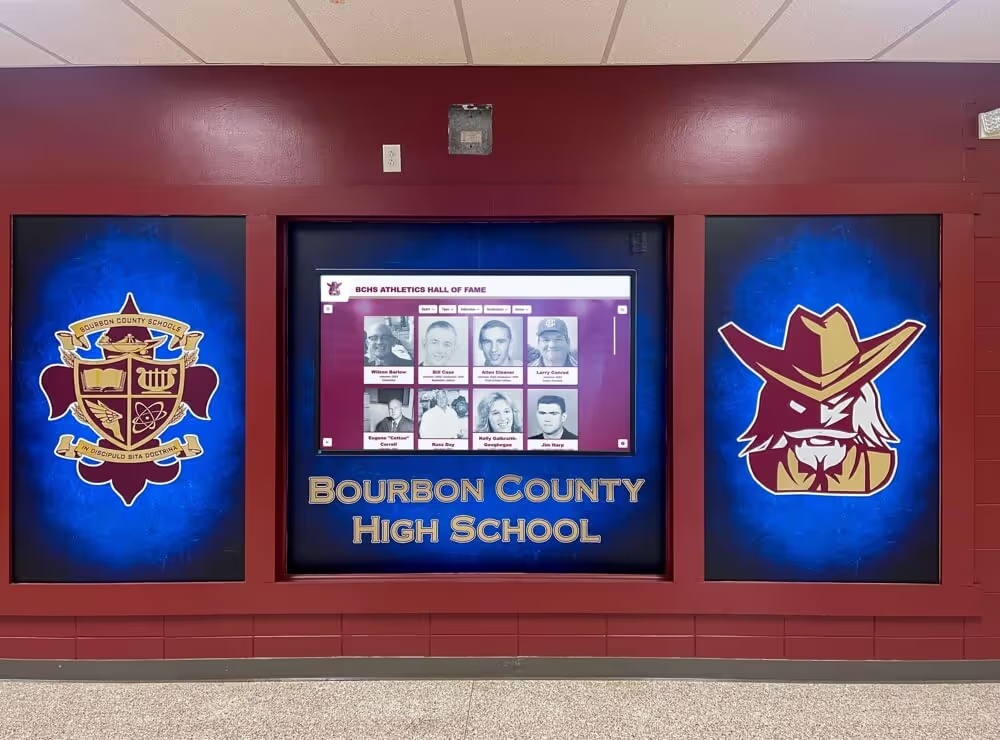
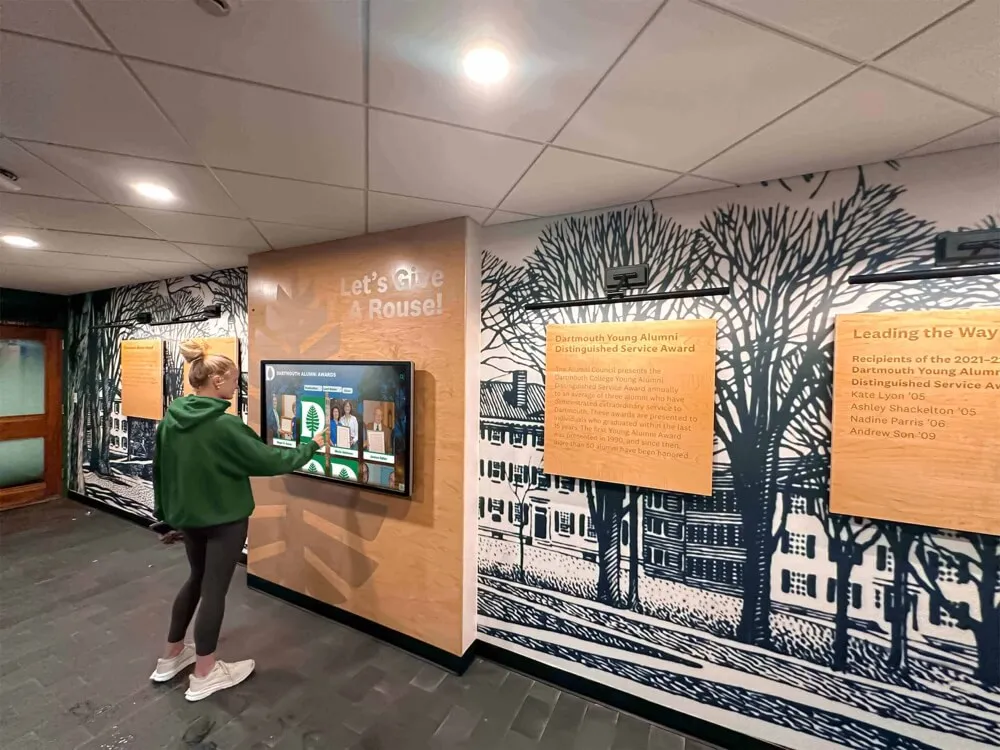
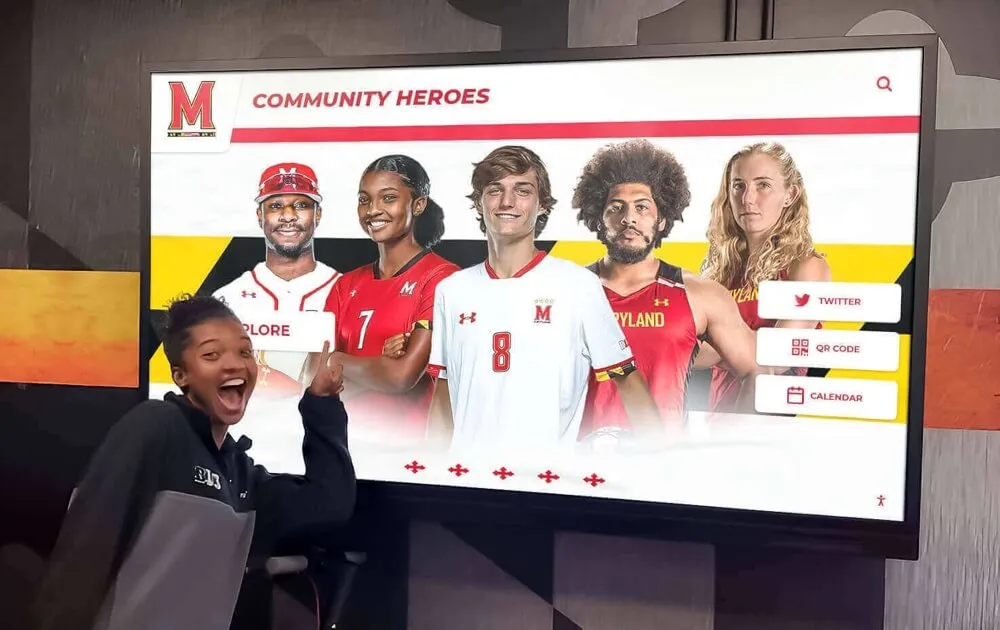
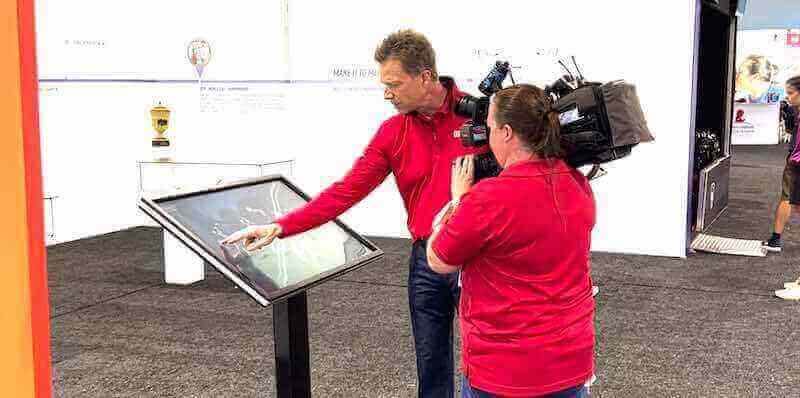
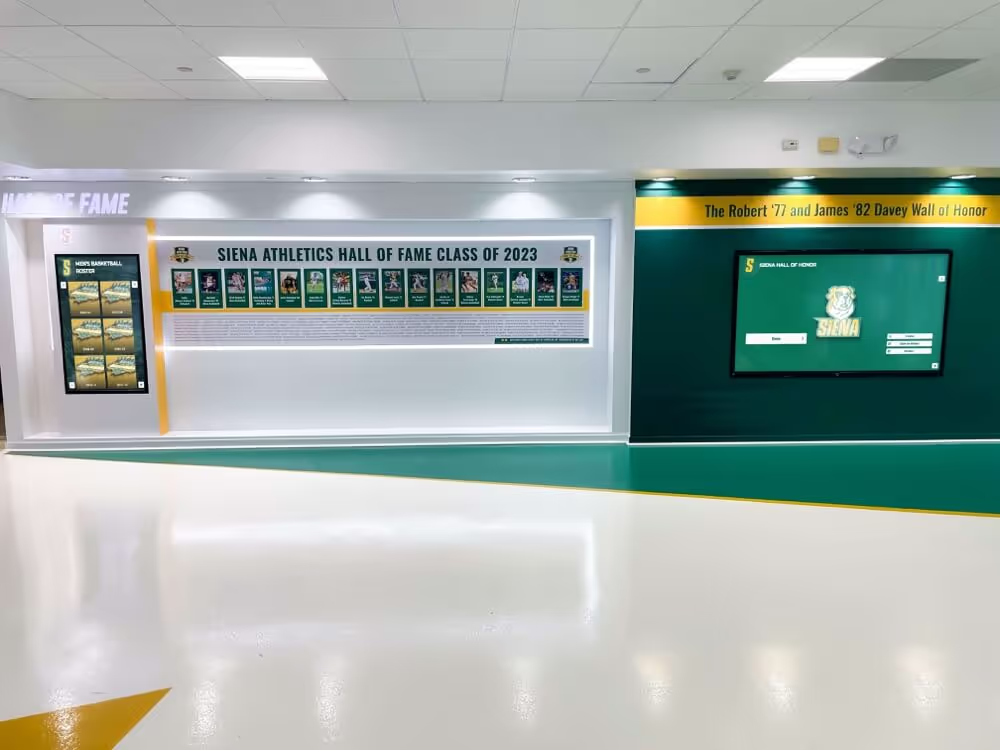
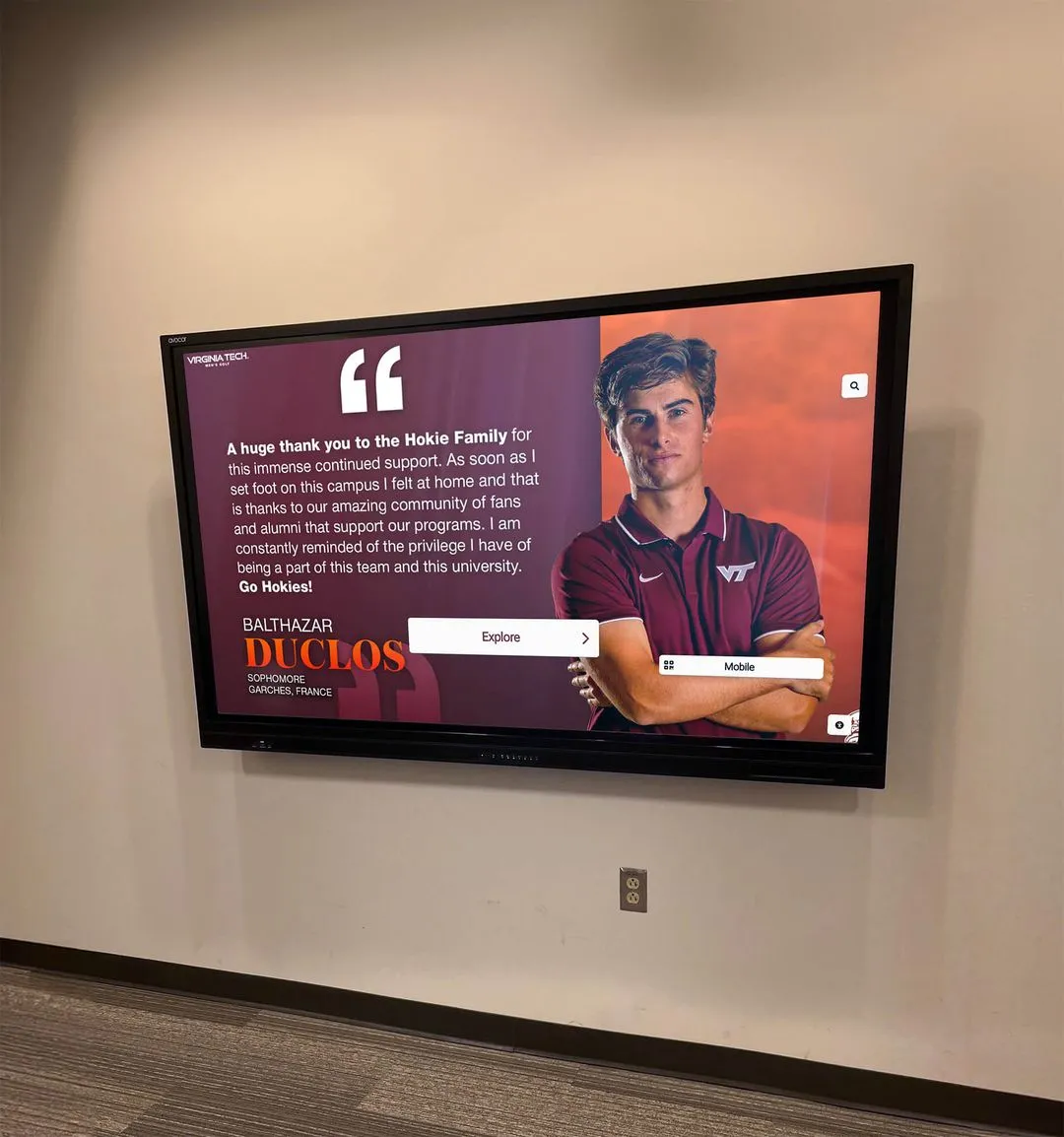
Feature-rich kiosk browsers support diverse applications from recognition to wayfinding
Limitations and Considerations
Android-Only Platform: Organizations with iPads, mixed device environments, or Mac-based infrastructure cannot use Fully Kiosk Browser, limiting deployment flexibility and potentially requiring hardware standardization around Android devices.
Complexity for Basic Use: The extensive configuration options and advanced features that make Fully Kiosk powerful also create complexity for organizations needing simple browser lockdown without requiring motion detection, home automation integration, or advanced remote management capabilities.
Per-Device Licensing Costs: While $19 per device initially seems reasonable, costs accumulate rapidly for large deployments. A 20-device implementation costs $380, a 50-device deployment reaches $950, and enterprise-scale implementations can easily exceed thousands of dollars in licensing alone.
Popup Interruptions in Free Version: Organizations using the free version experience periodic popup notifications encouraging upgrade to Plus licenses. While these disappear automatically after 15 seconds according to AppBrain’s review, they disrupt user experiences and project unprofessional impressions in public-facing installations.
Organizations implementing touchscreen kiosk software should weigh Fully Kiosk’s extensive features against simpler alternatives meeting basic requirements without complexity or licensing costs.
Comparing Free Kiosk Browser Alternatives
Beyond Rocket Touchscreen and Fully Kiosk Browser, several other options exist for organizations seeking fully locked-down kiosk solutions.
KioWare for Android
KioWare provides Android kiosk lockdown capabilities with both free and paid versions serving different organizational needs.
Free Version Limitations: The free KioWare version offers functional kiosk lockdown but displays occasional popup windows that automatically disappear after 15 seconds. According to AirDroid’s comparison, “this kind of pop-up can affect user experience and brand image, making it more suitable for personal use” rather than professional public-facing deployments.
Paid Version Features: Commercial KioWare licenses eliminate popups and provide enterprise-grade features including advanced security controls, remote management capabilities, and professional support. However, pricing typically exceeds Fully Kiosk Browser, positioning KioWare for organizations requiring enterprise support rather than budget-conscious implementations.
Kiosk Browser Lockdown
Kiosk Browser Lockdown represents another Android option designed for public kiosks and interactive digital signage installations.
Core Capabilities:
- Device lockdown restricting access to defined webpages
- User interface restrictions for public environments
- Touch-optimized navigation and controls
- Compatibility with diverse Android devices
Considerations: Multiple apps share similar “Kiosk Browser Lockdown” names, creating confusion during selection. Organizations should carefully verify specific app developers, review detailed descriptions, and test functionality before committing to large-scale deployments.
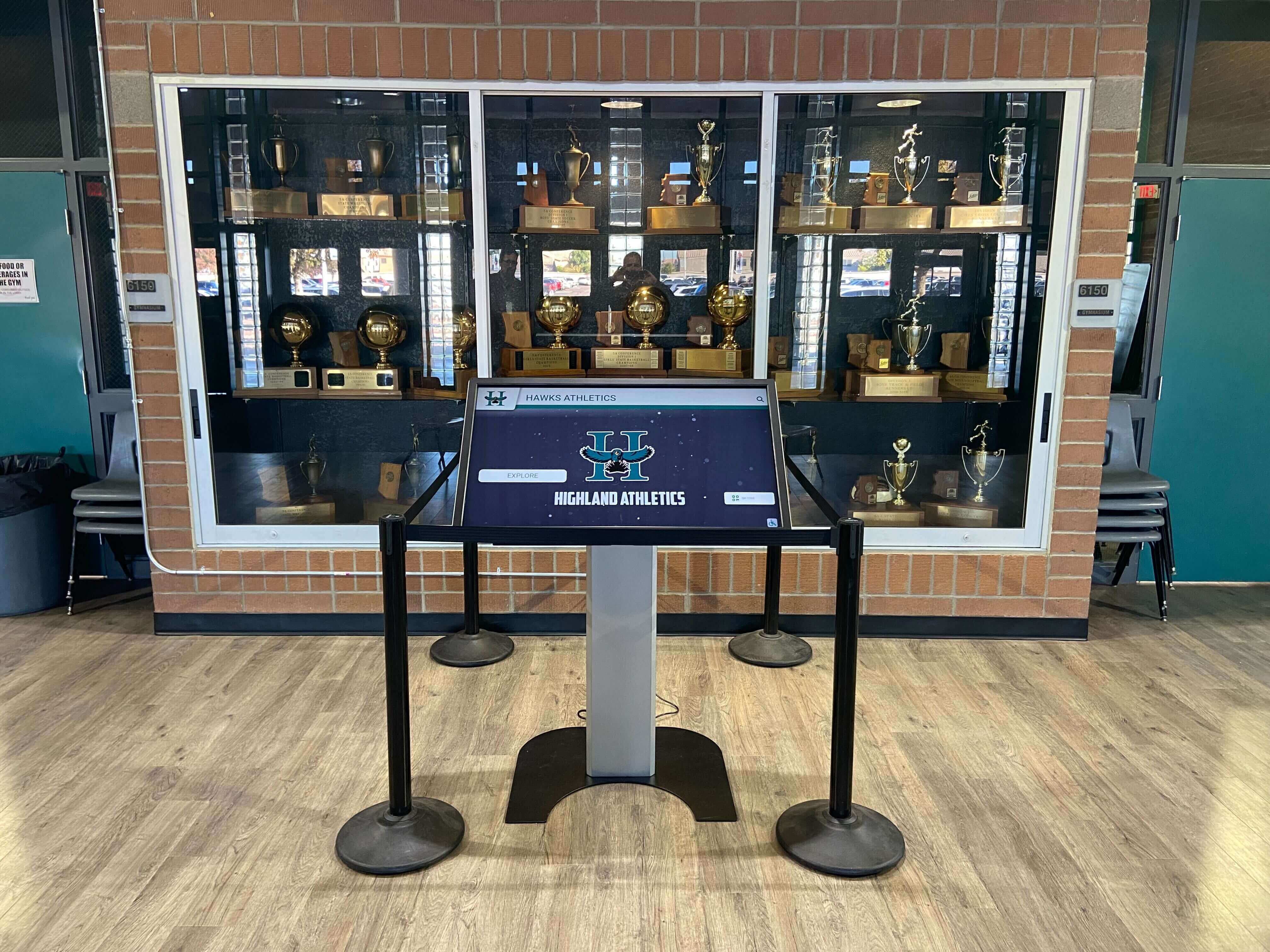
Strategic kiosk software selection enables professional displays across diverse environments
OpenKiosk and Cross-Platform Solutions
OpenKiosk provides an open-source Firefox-based kiosk browser supporting multiple platforms including Windows, Mac, and Linux.
Cross-Platform Advantages: Organizations with diverse hardware benefit from OpenKiosk’s compatibility across operating systems, enabling unified software approaches regardless of underlying hardware. This proves particularly valuable for institutions with mixed computer labs, existing hardware investments, or platform-agnostic procurement strategies.
Configuration Requirements: Open-source solutions typically require more technical expertise for configuration, deployment, and ongoing maintenance compared to purpose-built apps like Rocket Touchscreen. Organizations with IT support may find this acceptable, while those without technical resources often prefer simplified commercial solutions.
Educational institutions exploring touchscreen display options should consider technical support capacity when evaluating open-source versus commercial kiosk solutions.
Platform-Specific Considerations: Android vs. iOS
Hardware platform selection significantly impacts kiosk software availability, capabilities, and deployment approaches.
Android Kiosk App Advantages
Broad Software Availability: Android’s open ecosystem supports the widest variety of kiosk apps, including Fully Kiosk Browser, KioWare, Kiosk Browser Lockdown, Rocket Touchscreen, and dozens of specialized solutions serving niche requirements.
Hardware Flexibility: Android kiosk apps run across diverse manufacturers and price points, from budget tablets under $100 to premium displays exceeding $1,000, providing flexibility for organizations with varying budget constraints and quality requirements.
Customization Potential: Android’s openness enables deep customization, custom app development, and integration with specialized hardware that may prove difficult or impossible on more restrictive platforms.
Cost-Effective Hardware: Android tablets generally cost less than equivalent iPads, reducing total deployment expenses particularly for large-scale implementations requiring dozens of devices.
Considerations: Android’s fragmentation means software compatibility varies across device manufacturers, Android versions, and hardware configurations. Organizations should test specific device models with intended kiosk software before bulk purchasing.
iOS Kiosk App Characteristics
Limited Software Options: iOS’s restricted ecosystem offers fewer kiosk apps compared to Android, with many Android solutions unavailable on Apple platforms. Organizations committed to iPads must verify software availability before finalizing hardware decisions.
Platform Reliability: iPads provide exceptional build quality, longevity, and reliability that justify premium pricing for installations prioritizing low maintenance and extended operational lifecycles.
Native Kiosk Features: iOS includes built-in kiosk capabilities through Guided Access mode and Single App Mode that provide basic lockdown functionality without third-party software. However, these native features lack the specialized capabilities of dedicated kiosk apps, limiting their effectiveness for advanced use cases.
Professional Presentation: iPad’s premium design and user interface quality create impressions of professionalism and institutional investment that benefit public-facing installations in high-visibility locations.
Organizations exploring best touchscreen software options should evaluate both hardware platform characteristics and software availability to ensure selected combinations meet requirements.
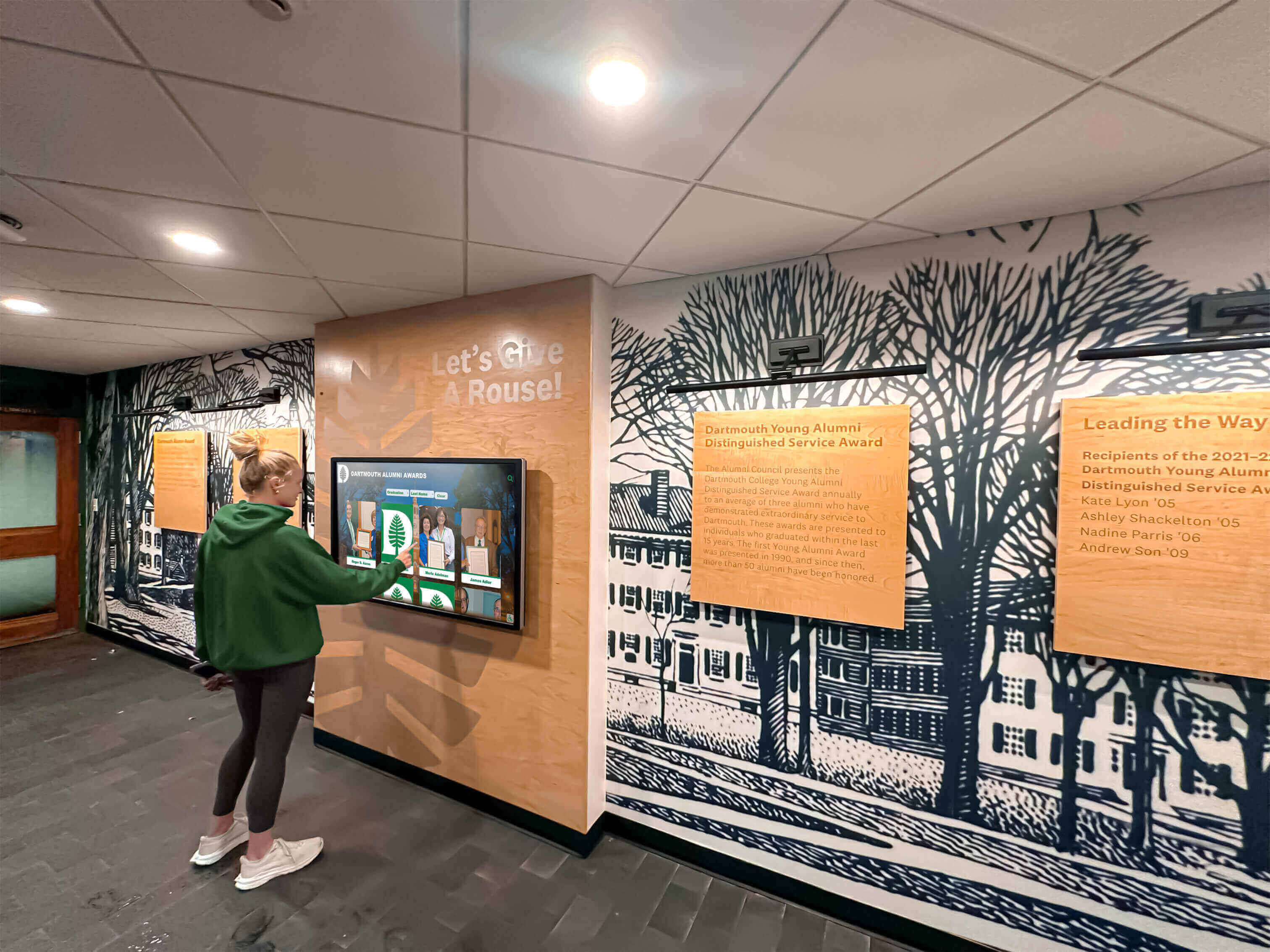
Platform selection impacts both hardware costs and software capabilities for kiosk deployments
Key Features to Evaluate in Kiosk Browser Apps
Systematic feature evaluation ensures selected kiosk software meets operational requirements without paying for unnecessary capabilities or accepting inadequate functionality.
Essential Security and Lockdown Features
Device Access Prevention: Effective kiosk apps must prevent users from exiting the browser application, accessing device settings, using other applications, activating notifications or system dialogs, or performing gestures or button presses that would compromise lockdown.
URL Control Mechanisms: Organizations need capabilities to restrict browsing to specific URLs or domains, prevent navigation to unauthorized sites, block external links or redirects, and handle attempts to access restricted content appropriately.
Session Management: Proper kiosk browsers provide automatic timeout and reset after user inactivity, return to designated home page or attract loop, clearing of browsing history and cached data, and prevention of personal information persistence between users.
Administrative Protection: Password-protected settings prevent unauthorized configuration changes, restrict access to administrative functions, and protect device management capabilities from tampering.
User Experience and Interface Design
Beyond security, kiosk apps must deliver intuitive, engaging user experiences.
Touch Optimization: Appropriately sized touch targets (minimum 44x44 pixels), clear visual feedback for interactions, responsive performance without lag, and intuitive navigation requiring no instruction prove essential for public-facing displays.
Content Presentation: Fullscreen display maximizing content visibility, support for multimedia including images and video, responsive design adapting to different screen sizes, and accessibility features supporting diverse users enhance experience quality.
Attract Mode Capabilities: When idle, displays should present engaging attract loops drawing attention, showcase featured content promoting discovery, provide clear instructions for initiating interaction, and automatically reset after preset inactivity periods.
Organizations implementing college intramural sports recognition benefit from kiosk browsers supporting rich multimedia presentation within secure locked-down environments.
Configuration and Management Capabilities
Deployment Ease: Simple initial configuration reducing technical barriers, clear documentation and setup instructions, minimal specialized knowledge requirements, and quick deployment across multiple devices accelerate implementation.
Remote Administration: For distributed deployments, capabilities for central configuration management, remote monitoring and troubleshooting, coordinated updates across device fleets, and usage analytics and reporting provide operational efficiency.
Integration Support: Organizations benefit from compatibility with content management platforms, ability to connect to institutional authentication systems, support for analytics and tracking integration, and API access for custom functionality.
Update and Maintenance: Automatic app updates ensuring security and functionality, compatibility with operating system updates, crash recovery and error handling, and reliable long-term vendor support protect long-term investments.
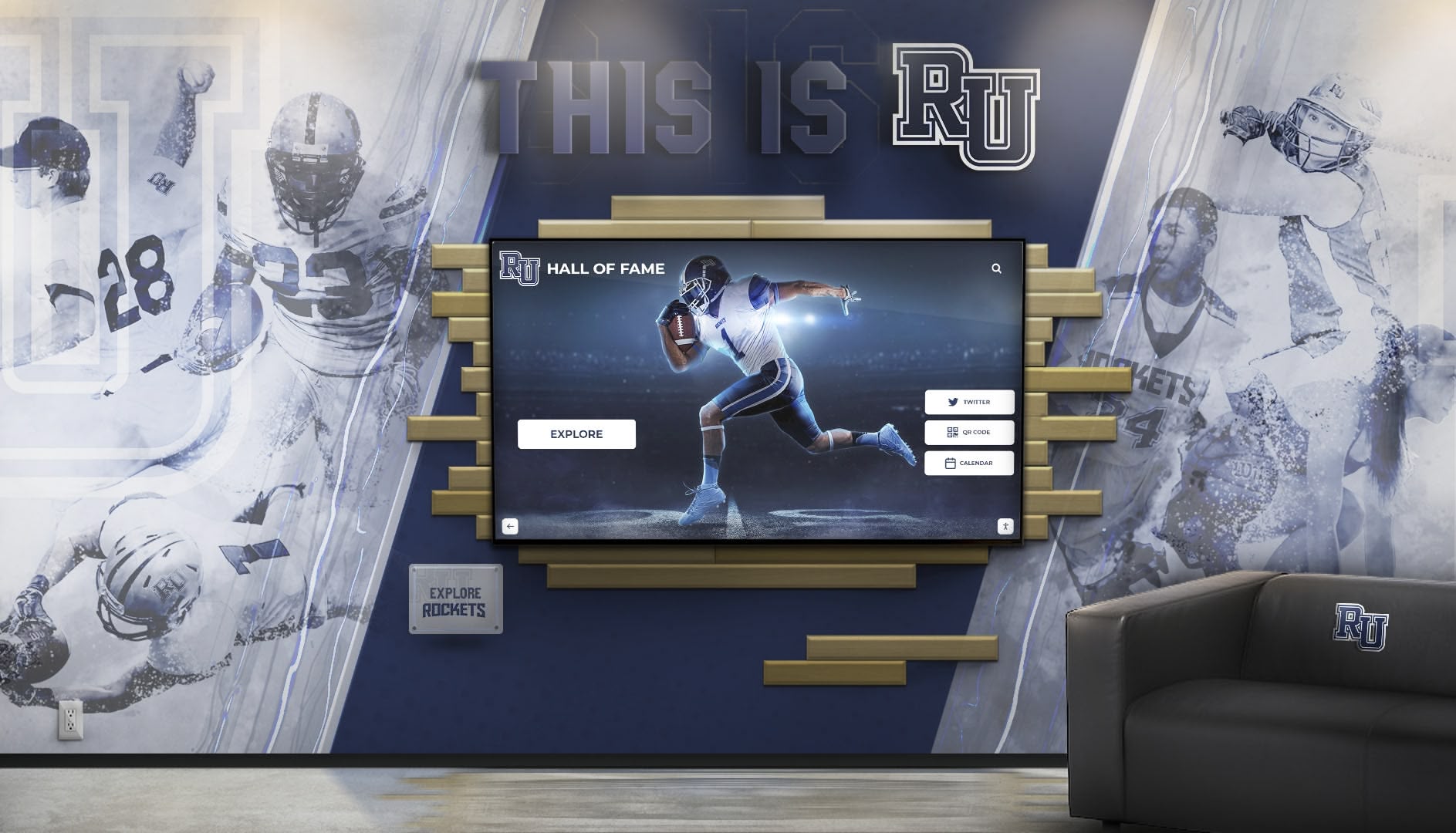
Comprehensive kiosk browsers support professional installations matching institutional branding
Step-by-Step: Downloading and Installing Kiosk Browser Apps
Systematic deployment processes ensure successful kiosk implementations from download through configuration.
Downloading Rocket Touchscreen
For Android Devices:
- Access Google Play Store on the Android tablet or touchscreen device you’ll use as a kiosk
- Search for “Rocket Touchscreen” or navigate directly to the app page at play.google.com/store/apps/details?id=com.kiosk_tauri.app
- Tap “Install” to download and install the application
- Wait for installation to complete (typically 30-60 seconds depending on network speed)
- Open Rocket Touchscreen from your app drawer or home screen
For iOS Devices (iPad/iPhone):
- Open the App Store on your iPad or iPhone device
- Search for “Rocket Touchscreen” or navigate to apps.apple.com/us/app/rocket-touchscreen/id6744412660
- Tap “Get” then authenticate with Face ID, Touch ID, or Apple ID password
- Wait for download and installation to complete
- Open Rocket Touchscreen from your home screen
Initial Configuration Steps
Setting Up Your Site ID:
- Launch Rocket Touchscreen on your device
- On the configuration screen, enter your Rocket Alumni Solutions Site ID (provided by Rocket Alumni Solutions when you set up your touchscreen content)
- Tap “Save” to store the configuration
- The app will automatically navigate to your touchscreen site and remember this setting for future launches
Testing with Demo Mode:
Organizations without Site IDs yet can evaluate functionality:
- Launch Rocket Touchscreen
- Tap “Enter Demo Mode” to experience example content
- Explore the interface, navigation, and features to evaluate suitability
- Exit demo mode and enter your actual Site ID when ready for production deployment
Enabling Device Kiosk Mode:
Android (App Pinning):
- Go to Settings > Security > App Pinning (location varies by Android version and manufacturer)
- Enable App Pinning
- Open Rocket Touchscreen
- Tap the Recent Apps button (square icon)
- On Rocket Touchscreen’s card, tap the pin icon
- The device is now locked to Rocket Touchscreen; users cannot exit without unpinning (typically requires holding Back + Recent Apps buttons)
iOS (Guided Access):
- Go to Settings > Accessibility > Guided Access
- Enable Guided Access and set a passcode
- Open Rocket Touchscreen
- Triple-click the side button (or home button on older devices)
- Tap Start in the Guided Access menu
- The device is now restricted to Rocket Touchscreen; exit requires triple-clicking and entering the passcode
Organizations deploying alumni digital displays should document configuration steps for consistency across multiple installations.
Downloading Fully Kiosk Browser
Android Installation:
- Open Google Play Store on your Android device
- Search for “Fully Kiosk Browser” or navigate to play.google.com/store/apps/details?id=de.ozerov.fully
- Tap “Install” to download (app size approximately 6-8MB depending on version)
- Open Fully Kiosk Browser after installation completes
- Grant necessary permissions when prompted (accessibility, display over other apps, etc.)
Initial Configuration:
- Set your start URL (the website you want to display in kiosk mode)
- Configure kiosk mode settings (lockdown level, disabled buttons, exit prevention)
- Set screensaver options if desired (attract loop, idle timeout)
- Configure remote admin settings if using device management features
- Enable kiosk mode to activate lockdown
Considerations: Fully Kiosk Browser requires more configuration than Rocket Touchscreen, providing greater flexibility but requiring more technical familiarity. Organizations should budget time for learning the configuration interface and testing settings before deployment.
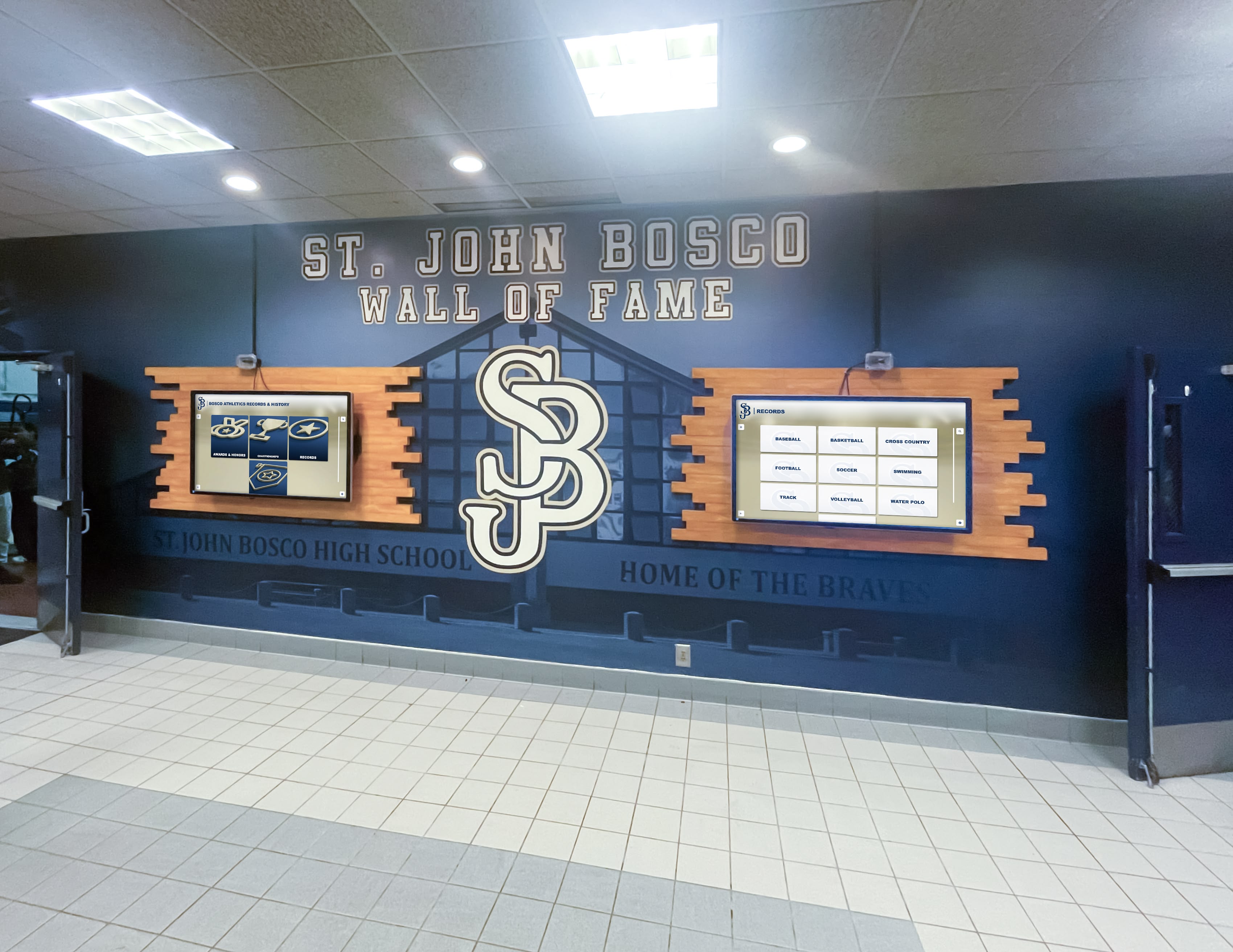
Successful kiosk deployments often involve multiple devices requiring consistent configuration
Comparing Total Cost of Ownership: Free vs. Paid Solutions
Understanding complete costs over device lifecycle informs value-based decision-making.
Rocket Touchscreen: Zero-Cost Model
Initial Implementation:
- App cost: $0
- Device hardware: $200-1,000 (Android tablet or iPad depending on size and quality)
- Mounting or enclosure: $100-500 (optional, depending on installation type)
- Configuration labor: 30-60 minutes per device
- Total initial investment: $200-1,500 per installation
Ongoing Costs:
- Licensing fees: $0
- Subscription costs: $0
- Update fees: $0 (automatic free updates)
- Support costs: Community support included
- Annual recurring cost: $0
Five-Year Total Cost of Ownership:
- Single device: $200-1,500 (hardware only, no software costs)
- 10-device deployment: $2,000-15,000 (no software licensing multiplies cost)
- 50-device deployment: $10,000-75,000 (massive savings vs. per-device licensing)
Fully Kiosk Browser: Per-Device Licensing
Initial Implementation:
- App cost: $0 (free version) or $19 per device (Plus license)
- Device hardware: $200-800 (Android tablets only)
- Configuration labor: 1-2 hours per device (more complex setup)
- Total initial investment: $200-819 per installation (Plus license)
Ongoing Costs:
- Free version: $0 (but includes periodic popups)
- Plus version: $0 recurring (one-time purchase)
- Support: Community forums (no dedicated support)
- Annual recurring cost: $0 after initial licensing
Five-Year Total Cost of Ownership:
- Single device: $219-819 (hardware + Plus license)
- 10-device deployment: $2,190-8,190 (Plus licensing adds $190)
- 50-device deployment: $10,950-40,950 (Plus licensing adds $950)
Cost Comparison Analysis:
For single devices or small deployments, Fully Kiosk Browser Plus remains cost-effective if Android compatibility aligns with hardware decisions. However, Rocket Touchscreen’s zero licensing cost provides substantial savings for larger deployments and eliminates the free version popup interruptions without any upgrade costs.
Organizations with mixed Android and iOS devices benefit additionally from Rocket Touchscreen’s cross-platform compatibility, enabling unified software approaches regardless of hardware.
Educational institutions exploring recognition system implementations should consider five-year total cost including hardware replacement cycles when evaluating kiosk software.
Use Case Scenarios: Selecting the Right Kiosk App
Different organizational contexts align with specific kiosk software solutions based on requirements, constraints, and priorities.
Educational Institution Donor Recognition
Scenario: A high school foundation wants to recognize donors supporting athletic programs through a touchscreen display in the main lobby, showcasing contributor names, photos, giving levels, and impact stories.
Recommended Solution: Rocket Touchscreen (Android or iOS)
Rationale:
- Zero software costs preserve limited foundation budgets for content and hardware
- Simple configuration enables advancement staff (not IT) to deploy independently
- Cross-platform support works with either Android tablets or iPads based on available hardware or institutional preferences
- Native integration with Rocket Alumni Solutions content platform eliminates custom development
- Professional locked-down presentation maintains institutional image without popup interruptions
Schools implementing fallen heroes displays find Rocket Touchscreen’s combination of zero licensing cost and professional presentation particularly appropriate for memorial recognition.
Small Retail Business Product Information Kiosk
Scenario: A retail store wants customers to browse product catalogs, check inventory, and access specifications through a touchscreen kiosk on the sales floor, presenting the company website in locked-down mode.
Recommended Solution: Fully Kiosk Browser Plus (Android)
Rationale:
- Established reliability for commercial applications
- Advanced features like motion detection for screensaver and automatic wake
- Remote management capabilities for monitoring and troubleshooting
- One-time $19 licensing remains affordable for single-location deployment
- Extensive configuration options accommodate evolving requirements
Retailers implementing interactive displays benefit from Fully Kiosk’s proven track record and commercial feature set.

Kiosk browsers enable secure product information access in retail environments
Large University Multi-Building Recognition Network
Scenario: A university wants 30 touchscreen displays across campus showing alumni achievements, athletic records, donor recognition, and institutional history, requiring consistent software and centralized content management.
Recommended Solution: Rocket Touchscreen (iPad or Android)
Rationale:
- Zero licensing cost across 30 devices provides massive savings ($570+ vs. Fully Kiosk Plus)
- Cross-platform support enables using existing hardware or selecting best devices without software constraints
- Simplified configuration reduces deployment complexity across multiple buildings
- Centralized content management through Rocket Alumni Solutions enables updating all displays from single dashboard
- Professional presentation without popup interruptions maintains institutional reputation
Universities implementing comprehensive recognition programs recognize that software licensing costs accumulate rapidly across large installations.
Museum Interactive Exhibit Display
Scenario: A museum creates an interactive exhibit requiring custom HTML5 content with sophisticated interactions, offline operation during network disruptions, and integration with exhibit sensors.
Recommended Solution: Fully Kiosk Browser Plus or Custom Solution
Rationale:
- Advanced feature set supports custom JavaScript, sensor integration, and complex interactions
- Offline caching capabilities maintain exhibit operation during network issues
- Extensive API access enables custom development and specialized functionality
- Proven reliability in museum and exhibit environments
- Professional support options available for complex implementations
Museums requiring specialized exhibit software may find Fully Kiosk’s advanced capabilities justify licensing costs for specialized requirements.
Implementation Best Practices for Kiosk Browser Deployments
Successful kiosk implementations follow proven practices that maximize reliability and user experience.
Hardware Selection and Preparation
Choosing Appropriate Devices:
Organizations should select hardware matching usage patterns and environments:
- Consumer-grade tablets ($200-500): Suitable for low-traffic, protected indoor environments with moderate use
- Business-grade tablets ($500-1,000): Appropriate for moderate-traffic installations requiring enhanced durability
- Commercial touchscreens ($1,000+): Essential for high-traffic public spaces demanding maximum reliability and vandal resistance
Critical Hardware Considerations:
- Screen size: Minimum 10" diagonal for comfortable public viewing, 13"+ preferred for detailed content
- Touch technology: Capacitive preferred for responsive interaction; consider commercial-grade for heavy public use
- Connectivity: WiFi adequate for most installations; cellular backup beneficial for mission-critical displays
- Power management: Disable sleep and hibernate; ensure continuous power supply
- Physical security: Secure mounting preventing device theft; protective enclosures for high-risk environments
Educational institutions implementing athletic recognition touchscreens should balance device costs against expected usage intensity and environmental exposure.
Network and Infrastructure Setup
Connectivity Requirements:
Kiosk browsers accessing cloud-based content require reliable network infrastructure:
- Bandwidth: Minimum 5-10 Mbps per device for typical web content; higher for video-heavy applications
- Reliability: Enterprise WiFi with redundancy and coverage throughout installation areas
- Security: Segregated network segment for kiosk devices separate from internal institutional networks
- Firewall rules: Whitelist necessary domains while blocking unauthorized internet access
Content Delivery Optimization:
Organizations deploying historical timeline displays should optimize media loading through content delivery networks and appropriate caching strategies.
Security Configuration and Policies
Device-Level Security:
Proper security extends beyond kiosk app lockdown:
- Disable unnecessary services: Bluetooth, NFC, camera access, and other unused features
- Restricted administrator accounts: Separate admin credentials from organizational accounts
- Automatic updates: Enable operating system security updates during off-hours
- Device encryption: Activate full-disk encryption protecting institutional data
- Physical access controls: Lock device settings behind enclosures or mounting preventing physical tampering
Network Security Measures:
Kiosk devices should operate in controlled network environments:
- Isolated VLAN: Separate kiosk devices from internal networks limiting lateral movement
- Firewall restrictions: Allow only necessary outbound connections to approved services
- Monitoring: Log and review kiosk device network activity identifying anomalies
- Regular audits: Periodically verify security configurations remain properly enforced
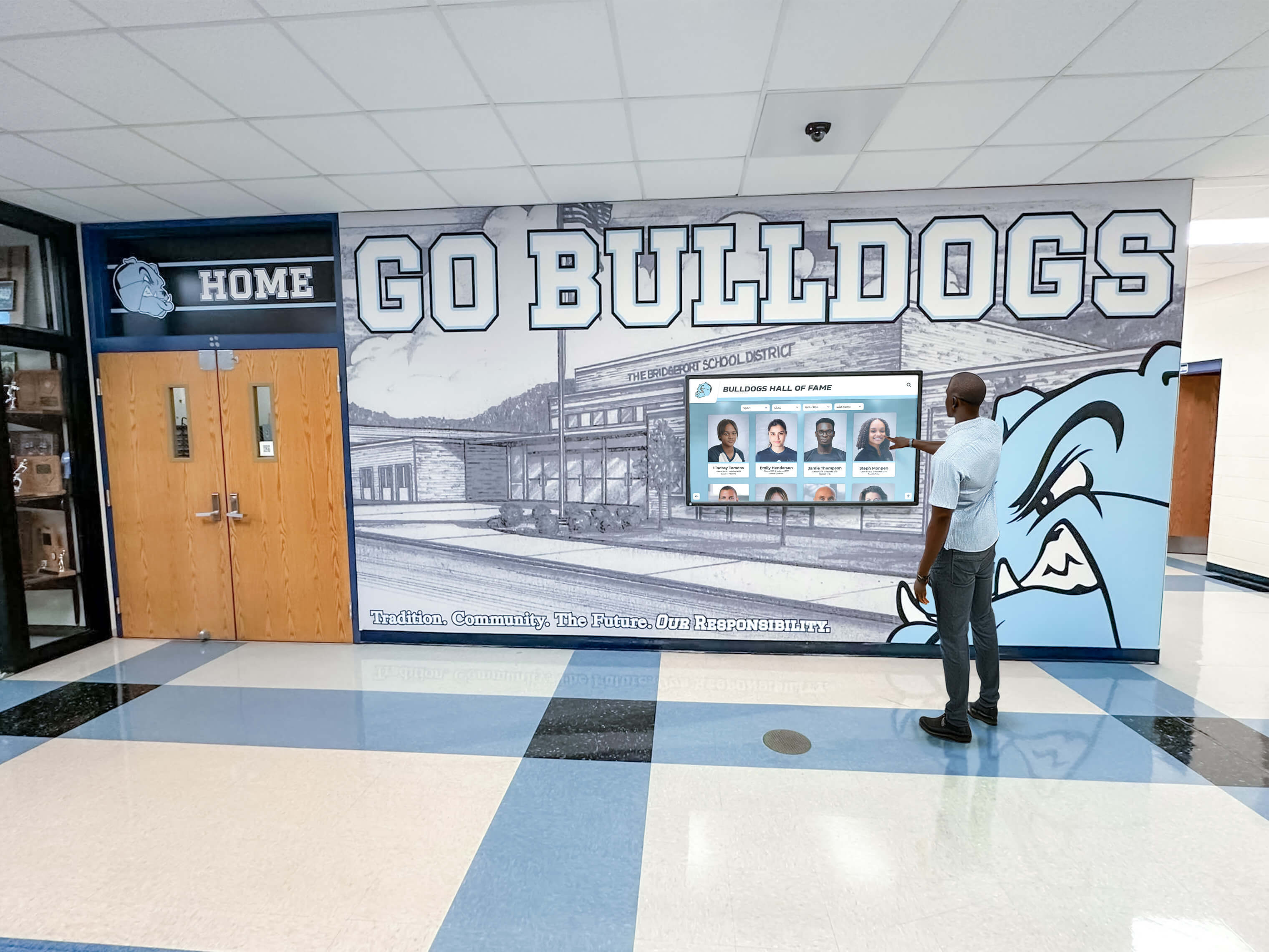
Comprehensive security ensures kiosk deployments protect institutional networks and data
Content Strategy and User Experience
Effective Content Presentation:
Beyond technology, success requires appropriate content:
- Clear navigation: Obvious paths to content without complex hierarchies
- Engaging attract loops: Eye-catching screensavers drawing attention when idle
- Appropriate content depth: Balance comprehensive information with browsable scope
- Regular updates: Fresh content maintaining interest and encouraging repeat interaction
- Performance optimization: Fast-loading pages and responsive interactions
Accessibility Considerations:
Inclusive design serves diverse audiences:
- Appropriate heights: Install touchscreens at accessible heights (typically 38-48" from floor)
- Clear typography: Minimum 16-18pt fonts for readability at arm’s length
- High contrast: Ensure text remains readable in various lighting conditions
- Alternative formats: Consider audio options or companion websites for detailed information
- Multilingual support: Serve diverse communities through multiple language options
Organizations implementing honor roll displays should design content specifically for touchscreen interaction rather than repurposing desktop website layouts.
Ongoing Maintenance and Support
Proactive Monitoring:
Successful deployments include systematic monitoring:
- Daily checks: Quick visual confirmation of operational status
- Weekly reviews: Examine usage analytics and identify issues
- Monthly maintenance: Clean screens, verify hardware connections, update content
- Quarterly assessments: Comprehensive review of performance, security, and user feedback
Troubleshooting Common Issues:
Prepared responses minimize downtime:
- Display not turning on: Check power connections, device power state, auto-sleep settings
- App not launching: Verify app remains installed, check for OS updates breaking compatibility
- Touch unresponsive: Clean screen, recalibrate touch if needed, verify driver functionality
- Content not loading: Test network connectivity, confirm content URLs remain valid, check firewall rules
- Slow performance: Clear browser cache, restart device, monitor for background processes consuming resources
Support Resource Development:
Documentation enables consistent support:
- Configuration guides: Step-by-step procedures for initial setup
- Troubleshooting flowcharts: Decision trees for resolving common issues
- Contact information: Escalation paths for problems requiring vendor or technical support
- Training materials: Resources enabling new staff to support existing installations
Alternatives for Organizations Needing Advanced Features
While Rocket Touchscreen and Fully Kiosk Browser serve most use cases, specialized requirements sometimes demand alternative approaches.
Enterprise Mobile Device Management (MDM) Solutions
Organizations deploying dozens or hundreds of kiosk devices benefit from enterprise MDM platforms providing centralized fleet management.
Scalefusion: Unified endpoint management solution with kiosk mode as core feature, supporting Android, iOS, Windows, and macOS devices. Pricing typically starts around $2-4 per device per month for basic kiosk functionality.
AirDroid Business: MDM platform specifically supporting Android kiosk deployments with remote monitoring, app management, and fleet control. According to AirDroid’s kiosk alternative comparison, their solution provides enterprise-grade features beyond basic browser lockdown.
Considerations: MDM solutions add ongoing subscription costs but provide centralized management, remote troubleshooting, compliance monitoring, and fleet analytics that justify expenses for large-scale deployments or organizations requiring comprehensive device management beyond kiosk functionality.
Custom Kiosk Application Development
Organizations with unique requirements may pursue custom development.
When Custom Development Makes Sense:
- Offline-first requirements preventing reliance on network connectivity
- Integration with proprietary institutional systems or databases
- Specialized hardware integration (custom scanners, payment systems, etc.)
- Unique interaction models not supported by browser-based approaches
- Long-term strategic need justifying development investment
Development Considerations: Custom applications require $10,000-100,000+ initial investment plus ongoing maintenance, updates, and support. Organizations should realistically assess whether unique requirements truly justify this investment versus adapting business processes to work within commercial platform capabilities.
Purpose-Built Kiosk Hardware
Vendors offer dedicated kiosk hardware with embedded software designed specifically for secure public deployments.
Integrated Kiosk Solutions: Commercial kiosk vendors provide complete packages including ruggedized touchscreens, secure enclosures, integrated computers, and purpose-built kiosk software as turnkey solutions.
Advantages: Hardware optimized for public use, integrated security features, professional industrial design, and vendor-provided support for complete system rather than individual components.
Considerations: Integrated kiosks typically cost $2,000-10,000+ per installation, positioning them for high-traffic commercial applications rather than budget-conscious educational or nonprofit implementations. Software updates and support depend entirely on vendor longevity and commitment.
Conclusion: Selecting Your Optimal Kiosk Browser Solution
Choosing the best touchscreen kiosk app and fully locked-down browser solution requires balancing functional requirements, platform preferences, budget constraints, and long-term support needs rather than seeking universal “best” solutions that vary by organizational context.
Rocket Touchscreen stands out for organizations prioritizing zero licensing costs, cross-platform flexibility, simple deployment, and integration with Rocket Alumni Solutions content platforms. The completely free application works identically on both Android and iOS devices, making it ideal for educational institutions, nonprofits, and organizations implementing donor recognition or informational displays without technical complexity or ongoing software expenses.
Download Rocket Touchscreen Today
Transform your Android tablet or iPad into a professional, secure touchscreen kiosk with Rocket Touchscreen—completely free on Google Play Store and Apple App Store. Perfect for schools, nonprofits, and organizations implementing donor recognition and interactive displays.
Explore Rocket Touchscreen SolutionsFully Kiosk Browser remains a proven Android option for organizations requiring advanced features like motion detection, home automation integration, extensive remote management capabilities, and sophisticated configuration options. The $19 Plus license eliminates popup interruptions while maintaining single-payment affordability for small deployments, though costs accumulate rapidly across large installations.
Enterprise MDM solutions serve organizations deploying large device fleets requiring centralized management, compliance monitoring, and comprehensive device control beyond kiosk lockdown alone. Monthly subscription costs justify themselves through operational efficiency gains at significant scale.
The most successful kiosk implementations share common characteristics regardless of chosen software: clear definition of functional requirements and success criteria, appropriate hardware selection balancing costs with usage demands, reliable network infrastructure supporting cloud-based content, comprehensive security configuration protecting institutional networks, engaging content designed specifically for touchscreen interaction, systematic testing validating functionality before public deployment, proactive monitoring and maintenance addressing issues quickly, and continuous improvement based on usage analytics and user feedback.
Your specific context determines the optimal solution. Educational institutions celebrating achievements through interactive donor walls benefit from Rocket Alumni Solutions’ comprehensive platform combined with free Rocket Touchscreen kiosk apps. Retail businesses requiring advanced features and Android exclusivity find Fully Kiosk Browser Plus cost-effective and capable. Large enterprises managing hundreds of devices justify MDM platform subscriptions through centralized management efficiency. Museums with unique requirements may find custom development appropriate despite higher investment.
Start by clearly defining what you need to accomplish—donor recognition, wayfinding, information distribution, or specialized interactions. Evaluate how different platforms align with your hardware preferences, budget constraints, technical capabilities, and long-term support resources. Download and test leading candidates with your actual content and hardware before committing to large-scale deployment. With systematic evaluation and appropriate software selection, touchscreen kiosk apps deliver secure, engaging experiences serving organizational goals while remaining manageable and sustainable throughout operational lifetimes.
Ready to implement touchscreen kiosk solutions? Download Rocket Touchscreen for Android or Rocket Touchscreen for iOS to begin your free fully locked-down kiosk browser deployment today.
Sources: