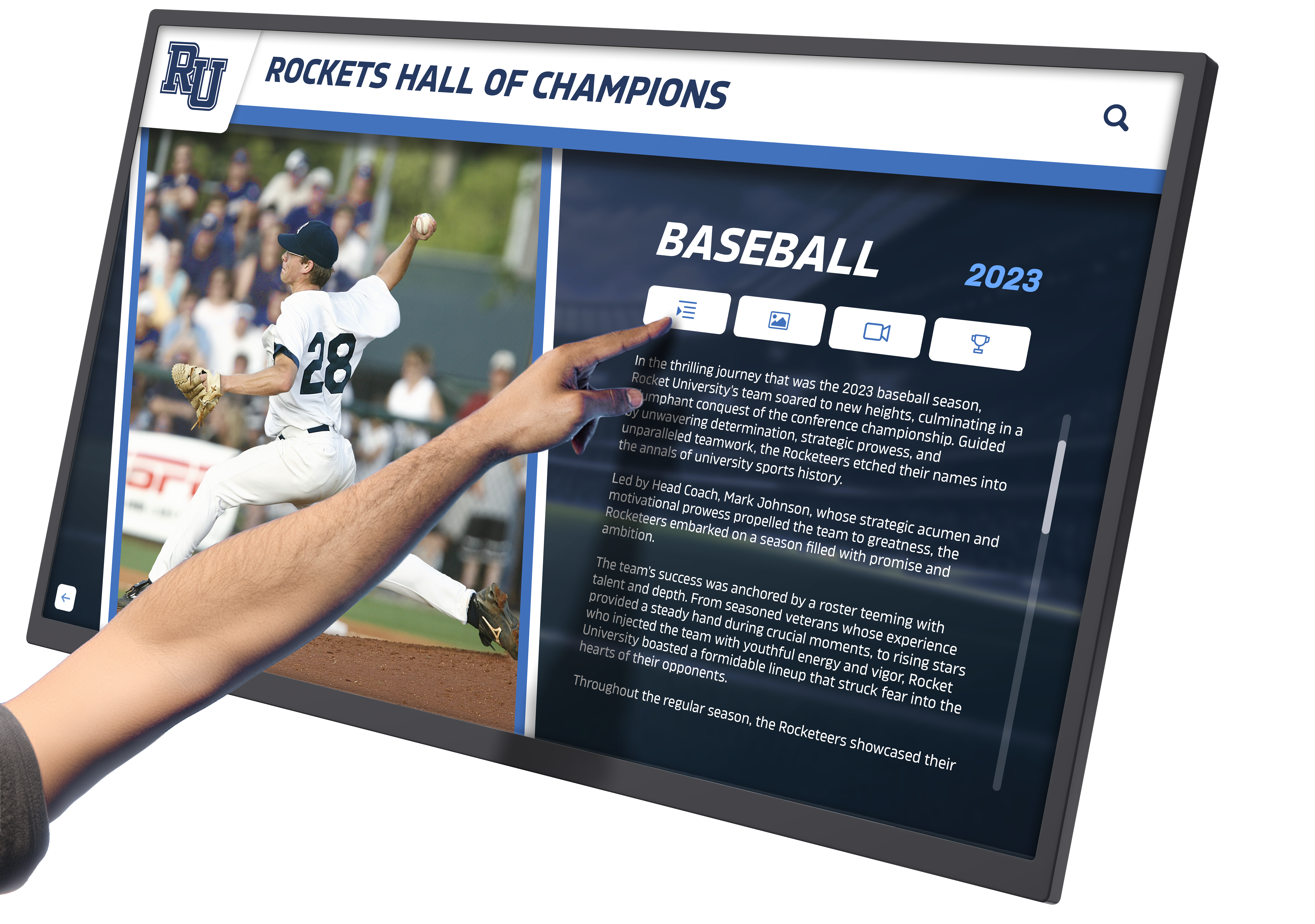
Organizations implementing touchscreen solutions often encounter challenges with hardware compatibility, multi-platform support, and advanced gesture recognition. Legacy touch devices may lack native operating system support, while modern multi-touch displays require specialized software to unlock their full potential.
This comprehensive guide explores UPDD touch software—a universal touchscreen driver solution developed by Touch-Base Ltd. You’ll learn what UPDD is, its core features and capabilities, how it compares to native touch support, installation and configuration best practices, and real-world applications across industries. Whether you’re deploying interactive kiosks, digital recognition displays, or specialized touch applications, understanding UPDD software will help you maximize the effectiveness of your touchscreen investments.
What is UPDD Touch Software?
UPDD (Universal Pointer Device Driver) is a comprehensive touchscreen driver software suite developed and maintained by Touch-Base Ltd., a company with over 30 years of experience in touch technology. Unlike operating system-native touch support, UPDD provides a universal solution designed to work across multiple platforms and support both legacy and modern touch hardware.
The Evolution of Touch Driver Technology
Touch-Base was established in 1989 as a leading developer and supplier of touchscreen and pointer device drivers. The company supplies branded drivers to hardware manufacturers and distributors worldwide, as well as direct sales to end users. Over three decades, UPDD has evolved from supporting simple single-touch serial devices to sophisticated multi-touch displays with advanced gesture recognition.
The need for universal touch drivers arose from several industry challenges:
Hardware Fragmentation: Different touchscreen manufacturers implemented varying communication protocols, making it difficult for operating systems to provide universal support.
Legacy Device Support: Many organizations invested in touchscreen hardware that predated native OS touch support, requiring third-party drivers to maintain functionality.
Advanced Feature Requirements: Native OS touch support often provides basic functionality, while specialized applications require advanced calibration, gesture recognition, and API access.
Cross-Platform Deployment: Organizations deploying touchscreens across Windows, macOS, Linux, and Android environments needed consistent driver behavior across all platforms.
UPDD was developed to address these challenges by providing a single driver solution that works universally across operating systems and touch hardware types.
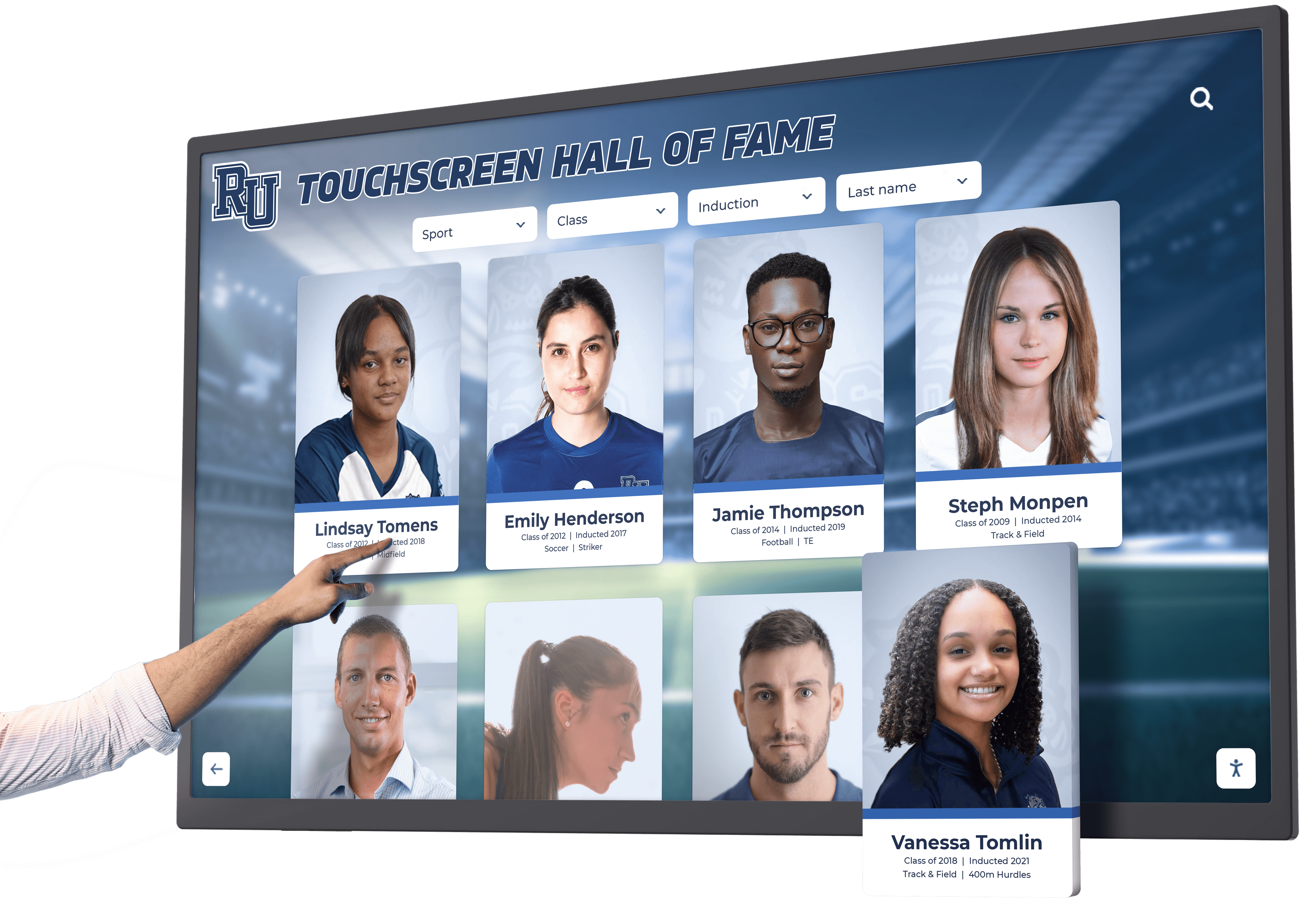
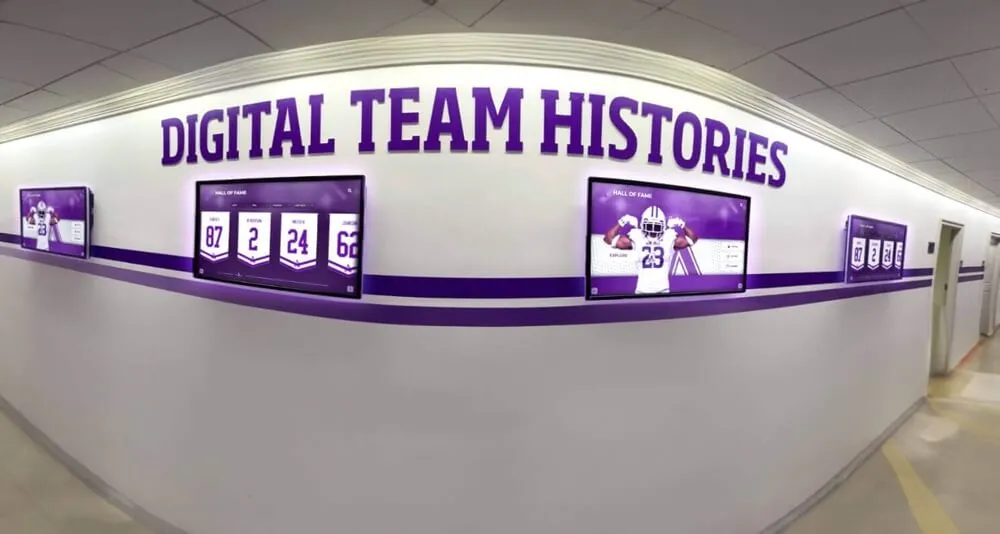
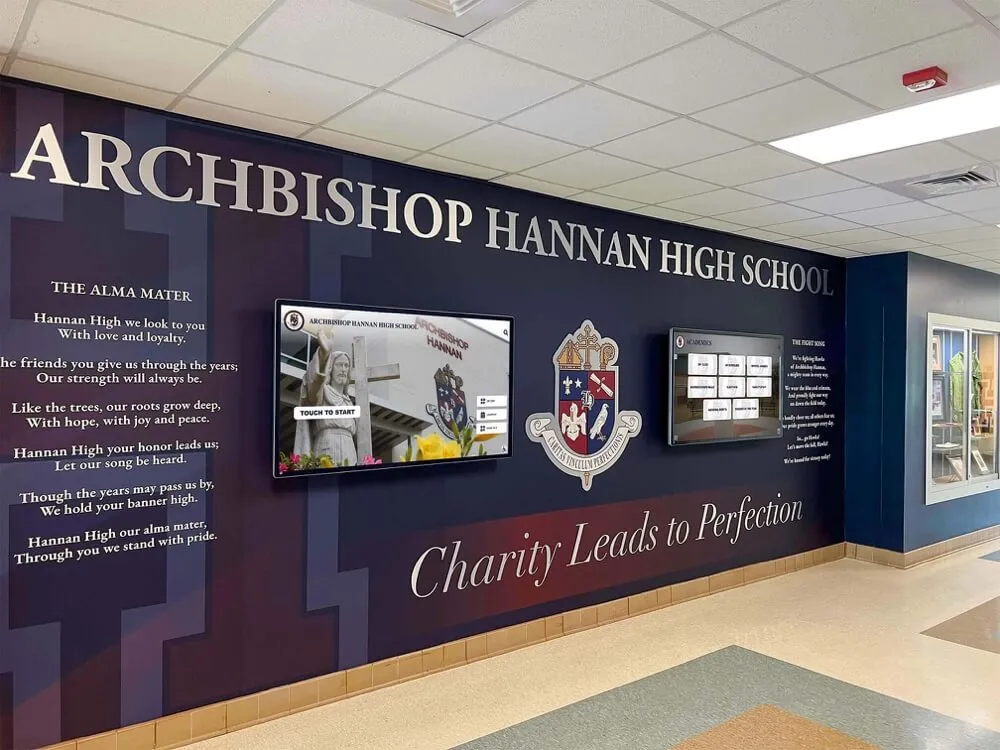
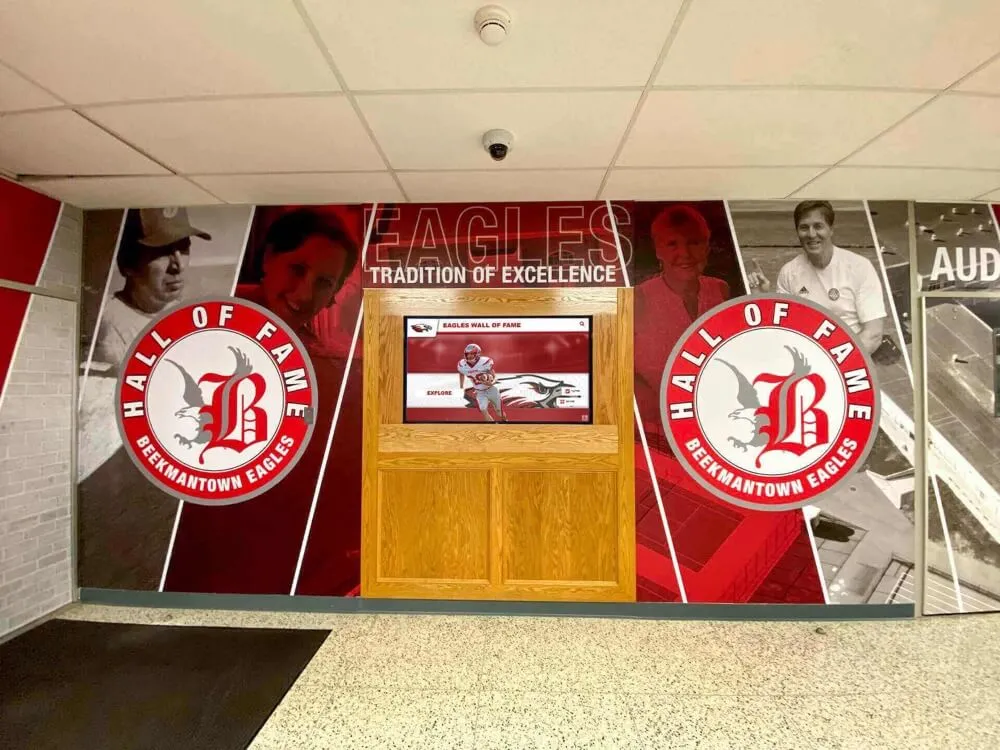
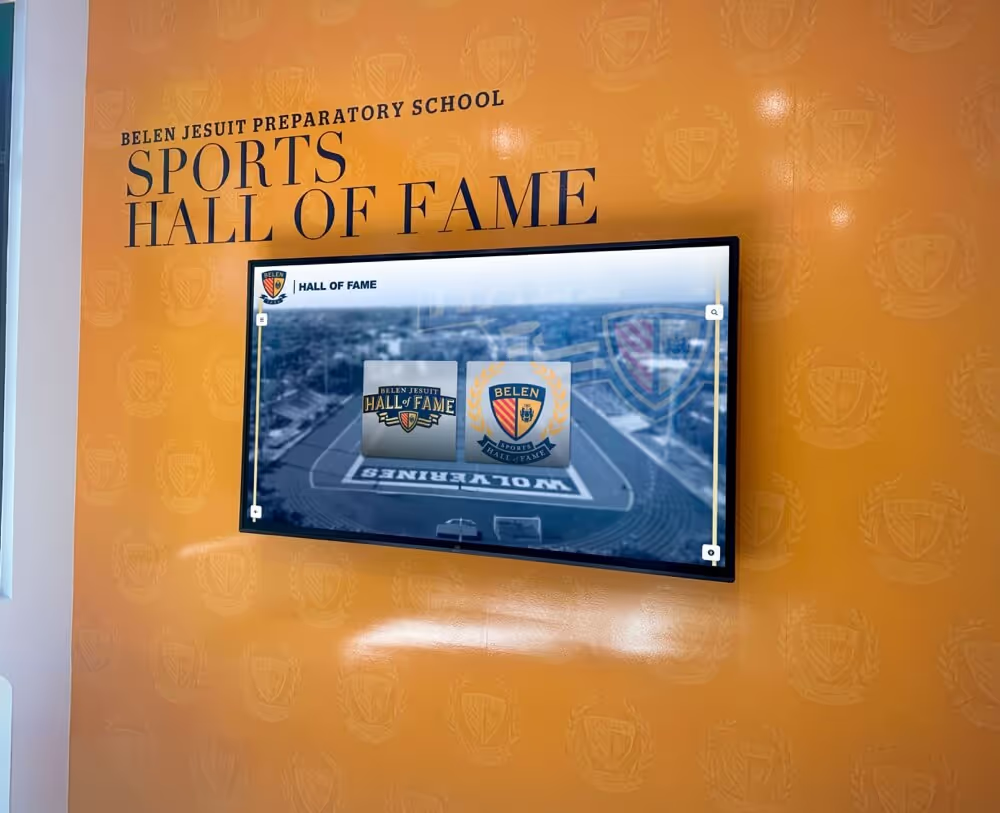
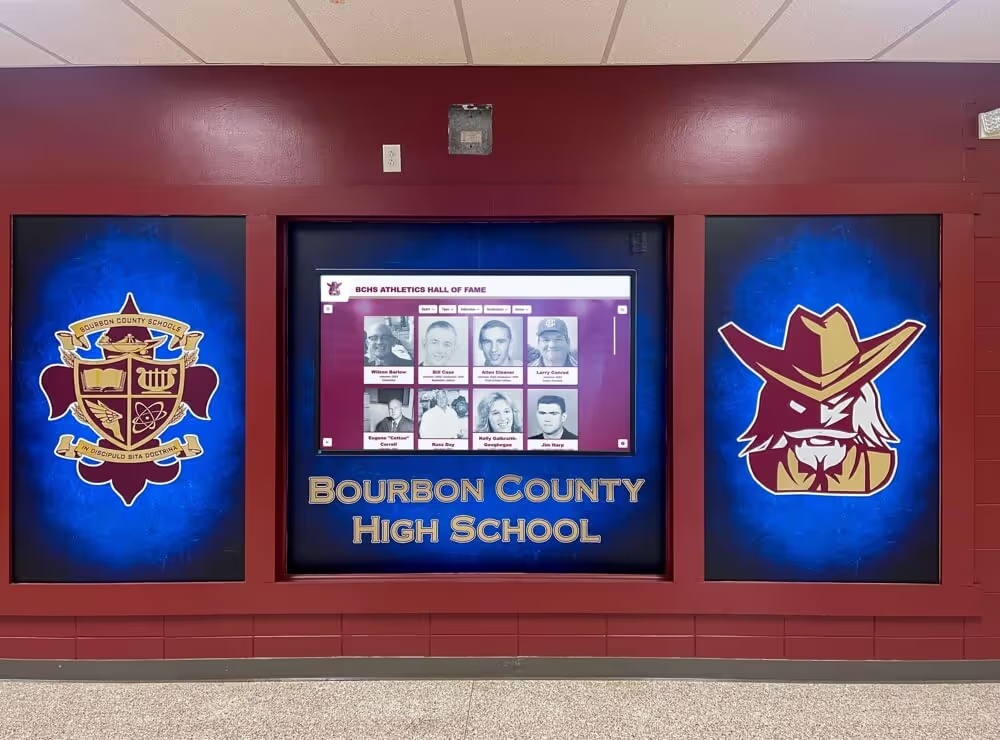
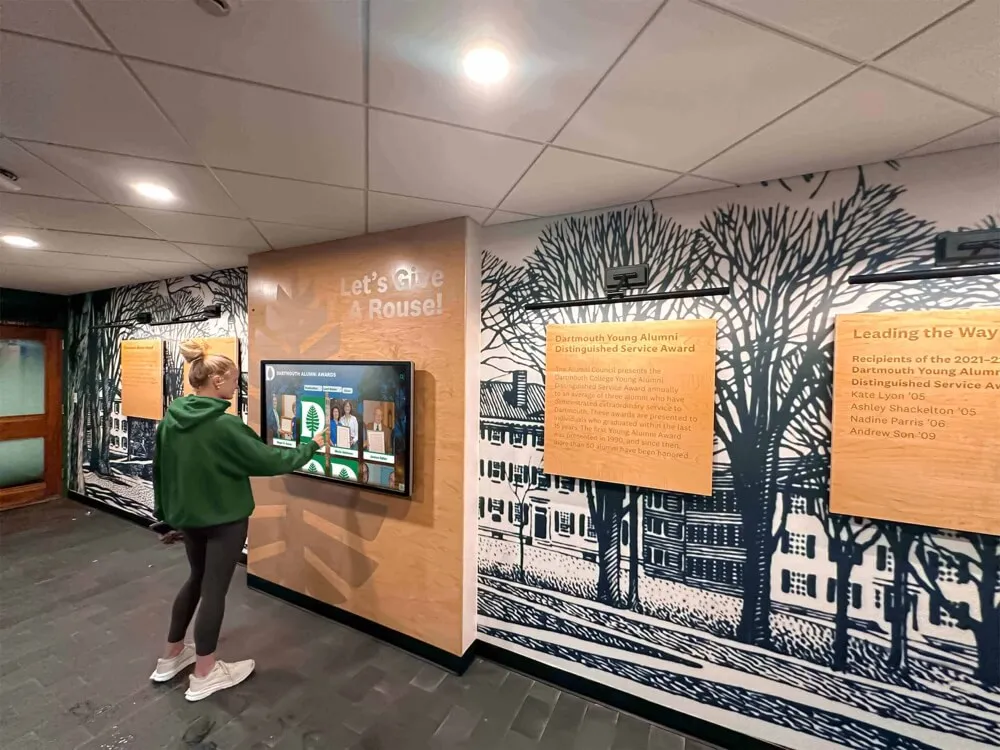
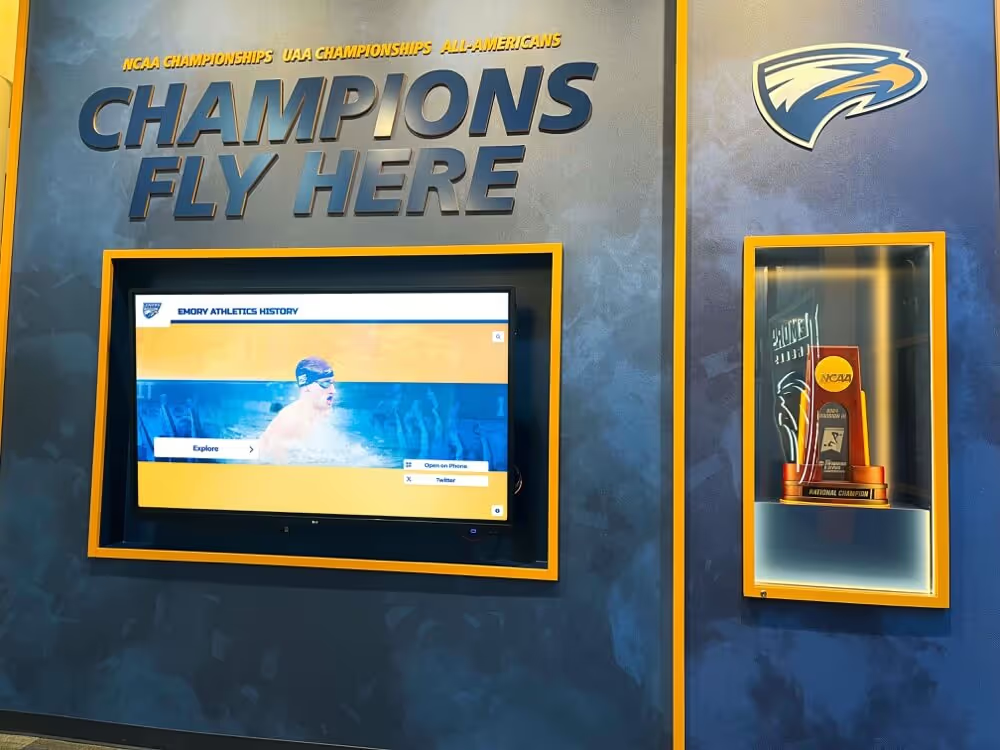
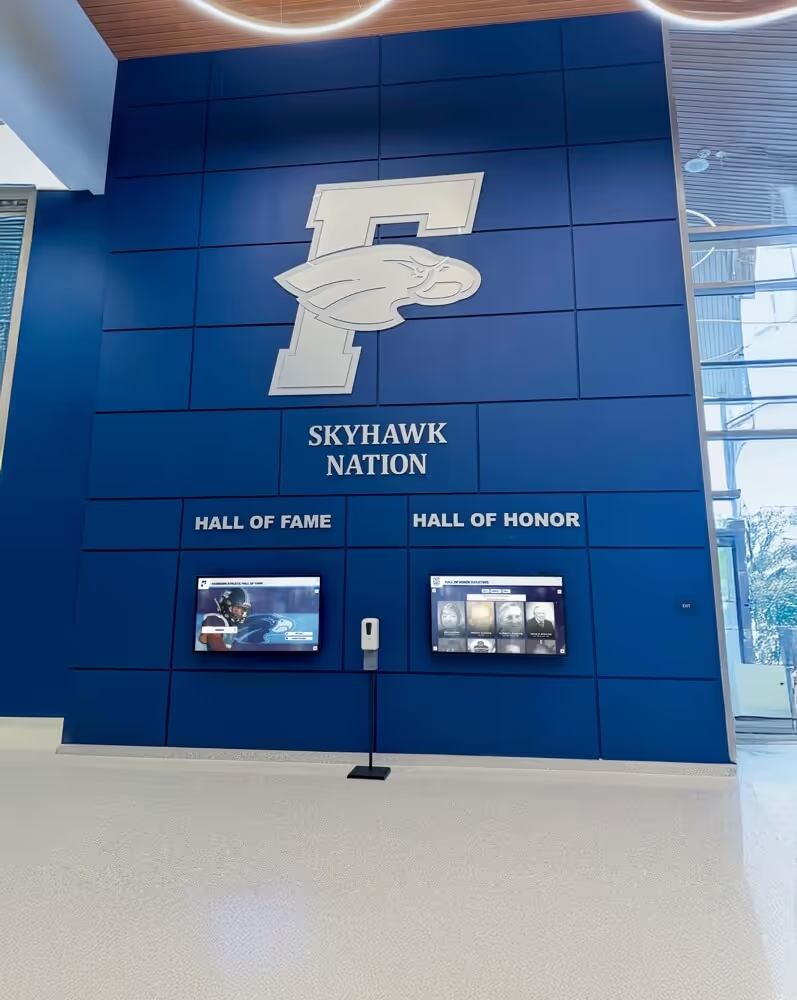
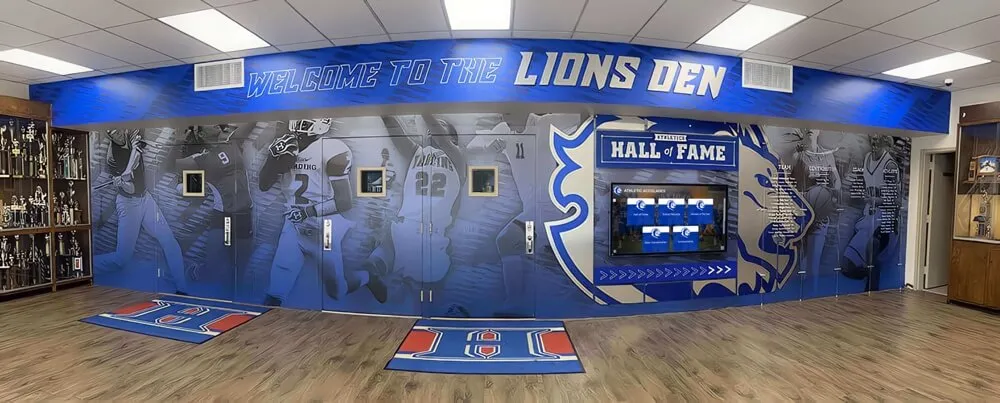
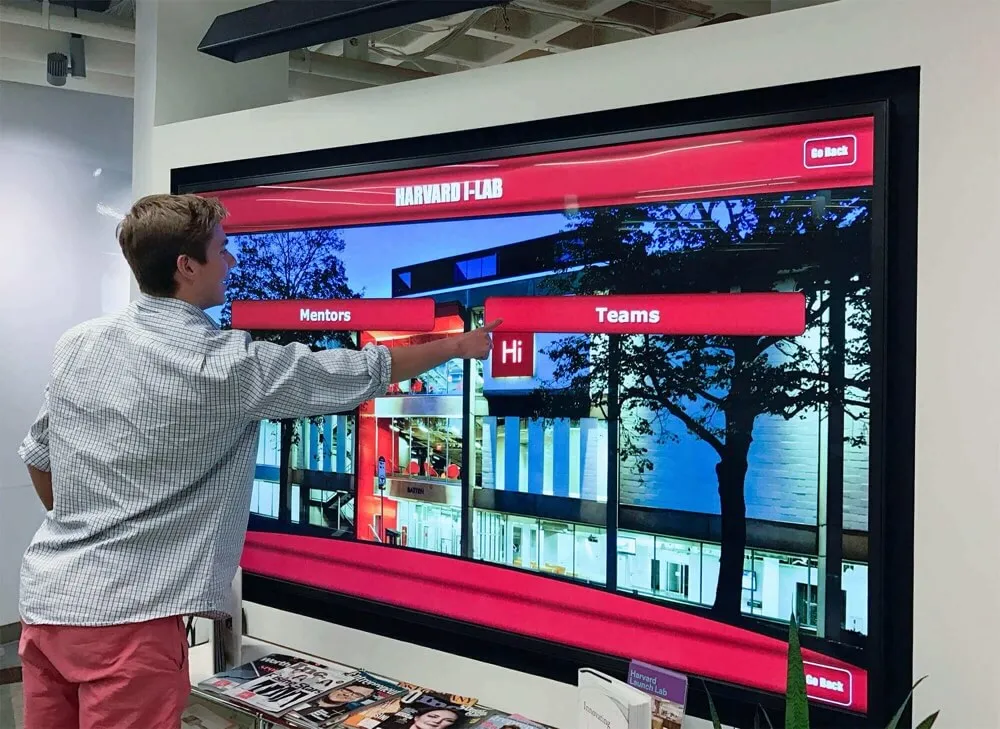
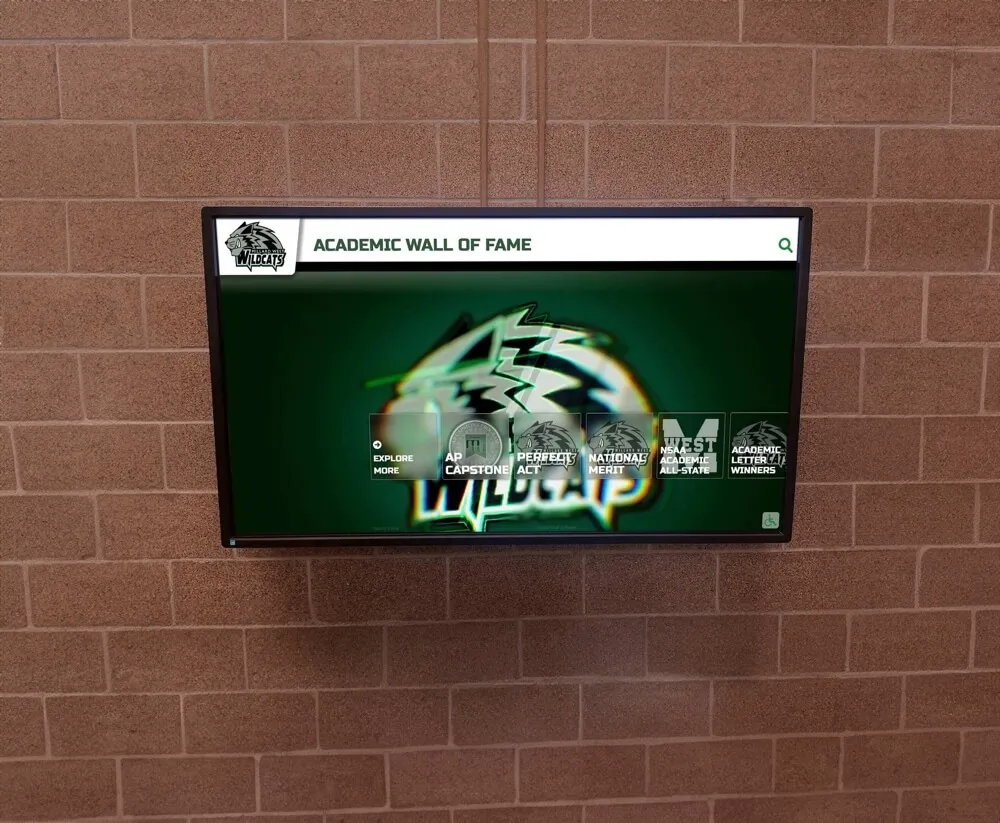
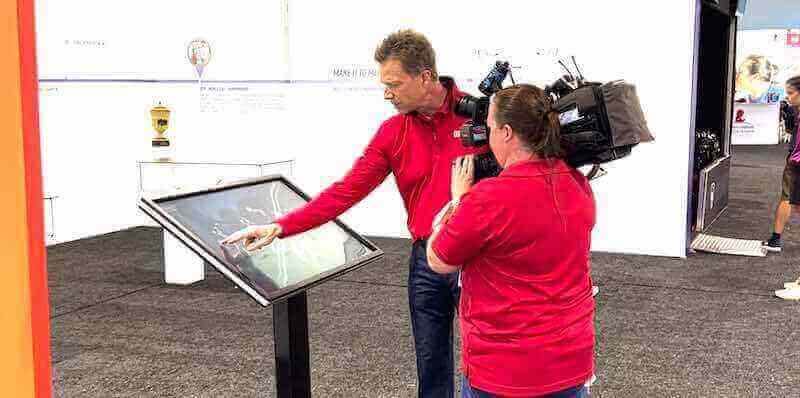
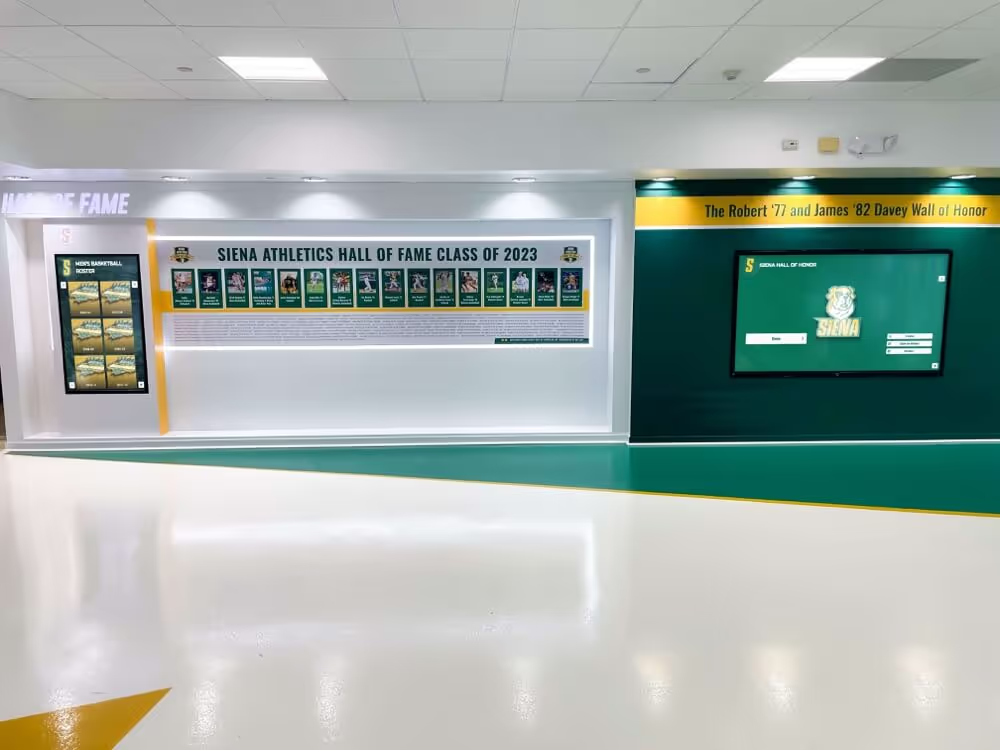
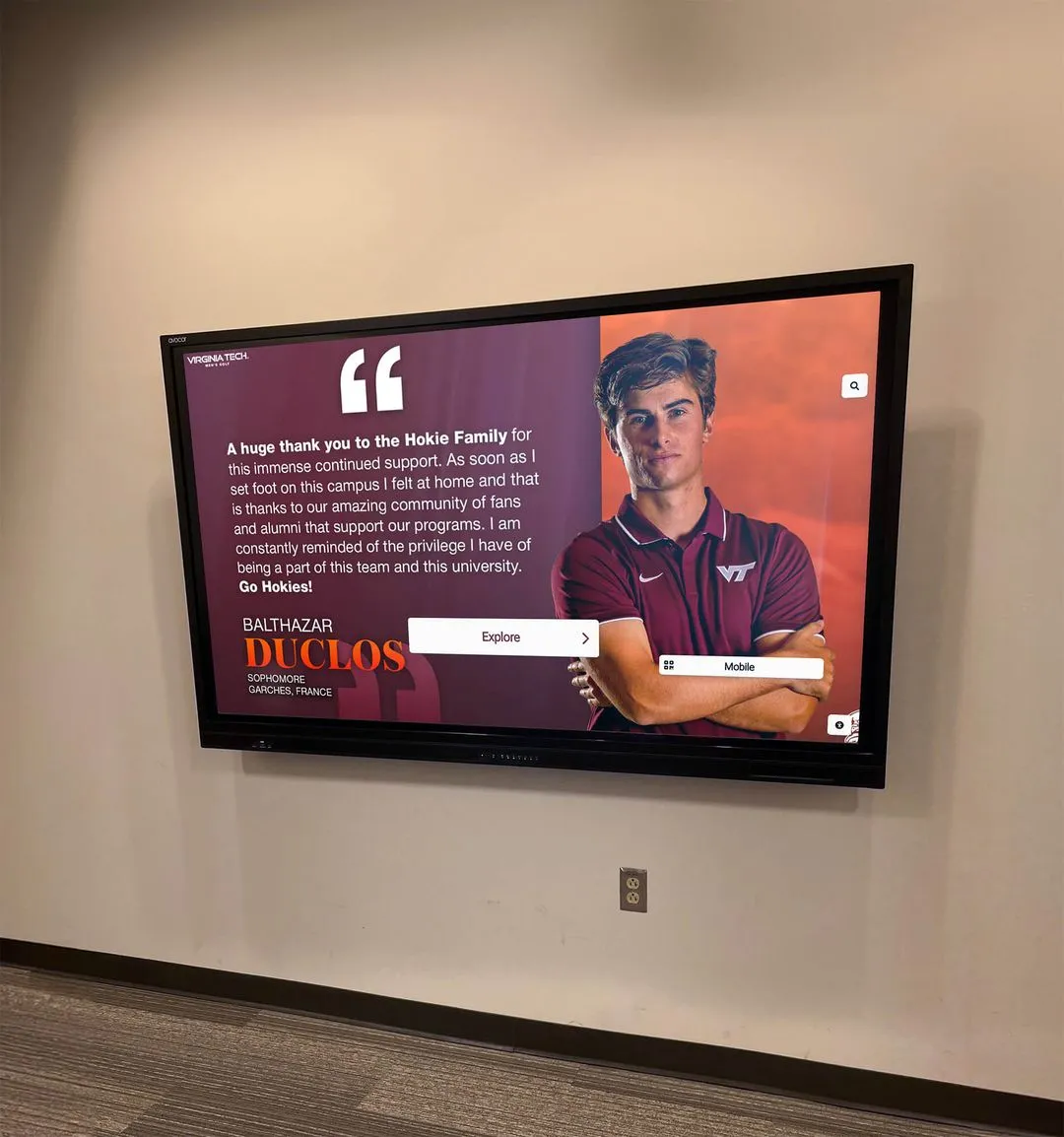
UPDD software enables smooth touch interactions across various display types and applications, from athletic recognition systems to interactive kiosks
Core Architecture and Design Philosophy
UPDD’s architecture is built on several fundamental design principles:
Universal Hardware Support: The driver supports legacy serial and non-HID USB devices as well as modern HID USB devices. This universal approach means organizations can deploy UPDD across diverse hardware environments without worrying about compatibility issues.
Multi-Platform Consistency: UPDD V6 supports the main operating systems including Windows, macOS, Linux, and Android. Version 7 represents a universal binary driver with native support for both Intel and ARM processors, ensuring future compatibility as processor architectures evolve.
Flexible Integration Options: The UPDD software suite can interface with underlying systems or applications in multiple ways, including OS virtual mouse interfaces, multi-touch HID interfaces, TUIO (Tangible User Interface Objects) protocol, and the comprehensive UPDD API for total application touch control.
Gap-Filling Philosophy: Rather than replacing native OS touch support entirely, UPDD fills the gaps—offering touch functionality where none exists, supporting legacy touch hardware, and providing features for unusual hardware configurations not catered to by native touch support.
This design philosophy makes UPDD particularly valuable for organizations with complex touchscreen deployments or specialized requirements that exceed native OS capabilities.
Key Features and Capabilities
Understanding UPDD’s feature set helps organizations determine whether this driver solution meets their specific touchscreen requirements. The software provides capabilities that extend far beyond basic touch input.
Operating System and Platform Support
UPDD offers extensive cross-platform compatibility:
Windows Support: UPDD runs on Windows XP through Windows 11, providing consistent touch functionality across both legacy and modern Windows environments. This is particularly valuable for organizations with mixed Windows deployments or those maintaining legacy systems.
macOS Support: Version 6 supports Mac OS X 10.7 through macOS 10.13, while Version 7 supports macOS 10.14 and above. The latest UPDD driver is a universal binary with native support for both Intel and Apple Silicon (ARM) processors, ensuring optimal performance on modern Macs.
Linux Support: UPDD supports most Linux distributions, making it suitable for embedded systems, kiosk deployments, and specialized Linux-based touchscreen applications.
Android Support: Android compatibility enables UPDD deployment on tablets and Android-based kiosk systems, providing consistent touch behavior across mobile and desktop platforms.
Additional Platforms: UPDD also supports Solaris 10 and 11, as well as Windows CE 5 through 2013, addressing the needs of specialized industrial and embedded applications.
This comprehensive platform support means organizations can deploy a single driver solution across their entire technology ecosystem, simplifying support and maintenance.
Multi-Touch and Gesture Recognition
Modern touchscreens support multiple simultaneous touch points, and UPDD provides full multi-touch capabilities:
Full Gesture Support: When using multi-touch displays, UPDD supports full multi-touch gestures that mimic the functionality of multi-touch trackpads or magic mice. This includes tap, double-tap, press-and-hold, swipe, pinch-to-zoom, rotate, and multi-finger gestures.
Application-Specific Gestures: UPDD Commander (a component of the software suite) allows users to configure specific actions for gestures inside individual applications. For example, you might configure a two-finger swipe to perform one action in a web browser and a different action in a digital signage application.
Touch vs. Gesture Differentiation: The driver intelligently distinguishes between intentional touch input (clicking, dragging) and gestural input (swiping, pinching), ensuring that applications receive the appropriate input type.
Calibration for Gesture Accuracy: UPDD’s calibration capabilities ensure that multi-touch gestures are accurately recognized, even on displays where the touch surface doesn’t perfectly align with the visual display area.
These gesture capabilities make UPDD particularly suitable for applications requiring intuitive touch interaction, such as interactive museum exhibits, educational displays, and public information kiosks.
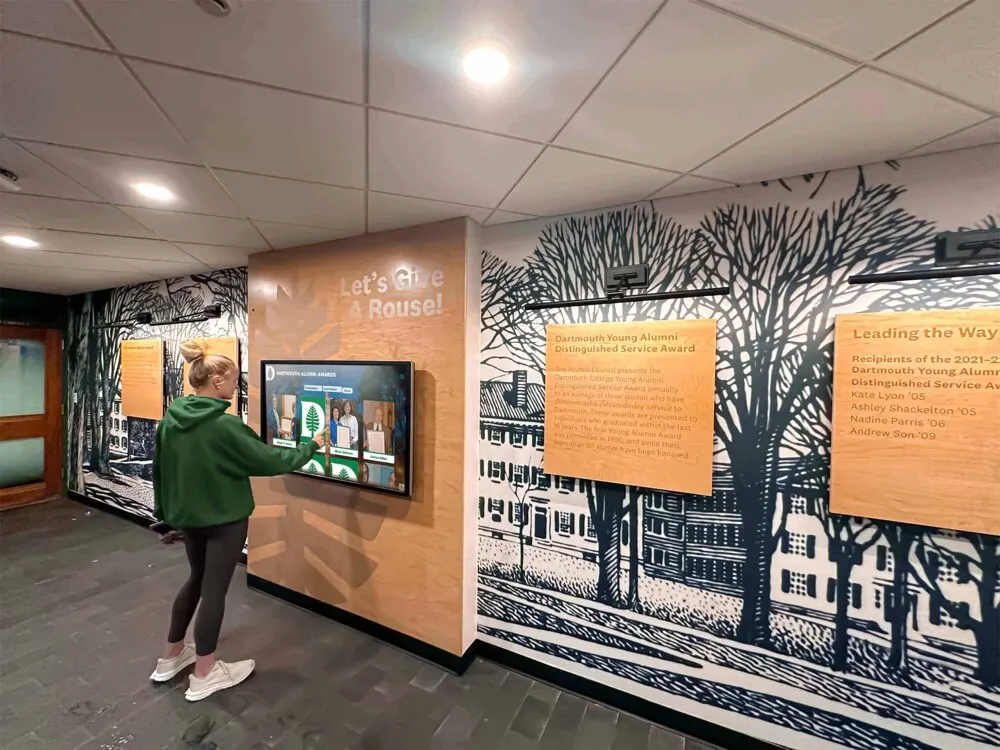
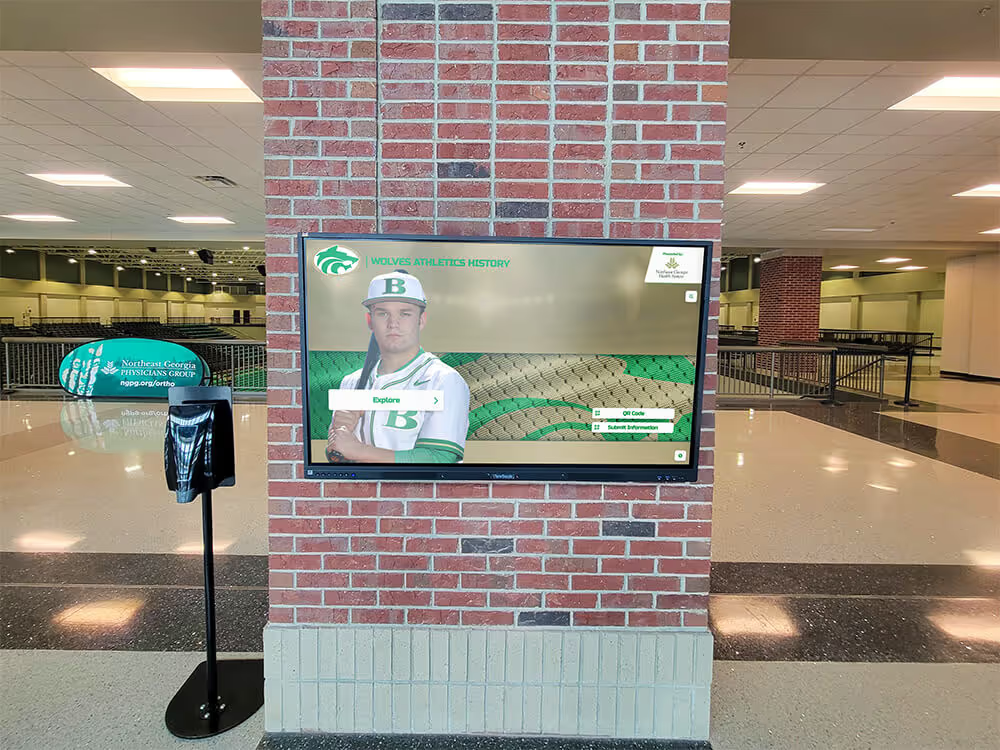
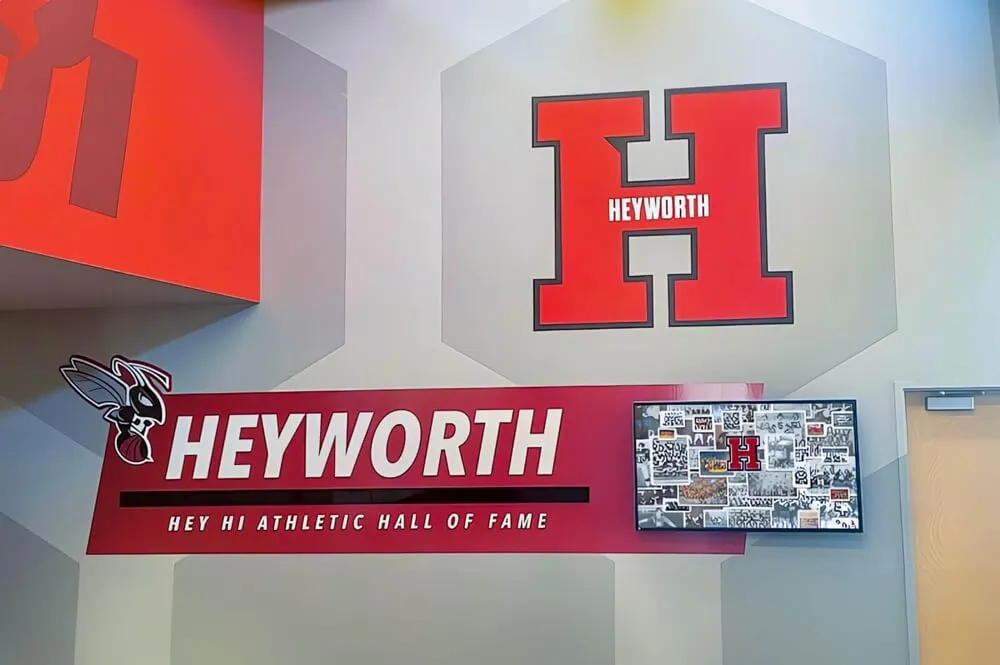
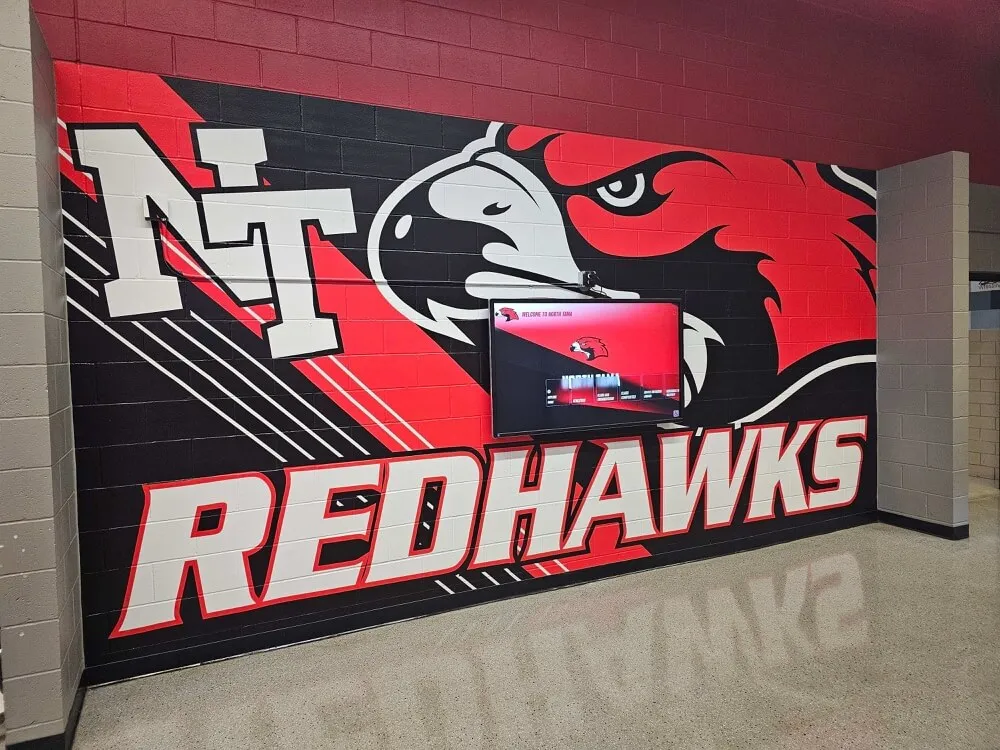
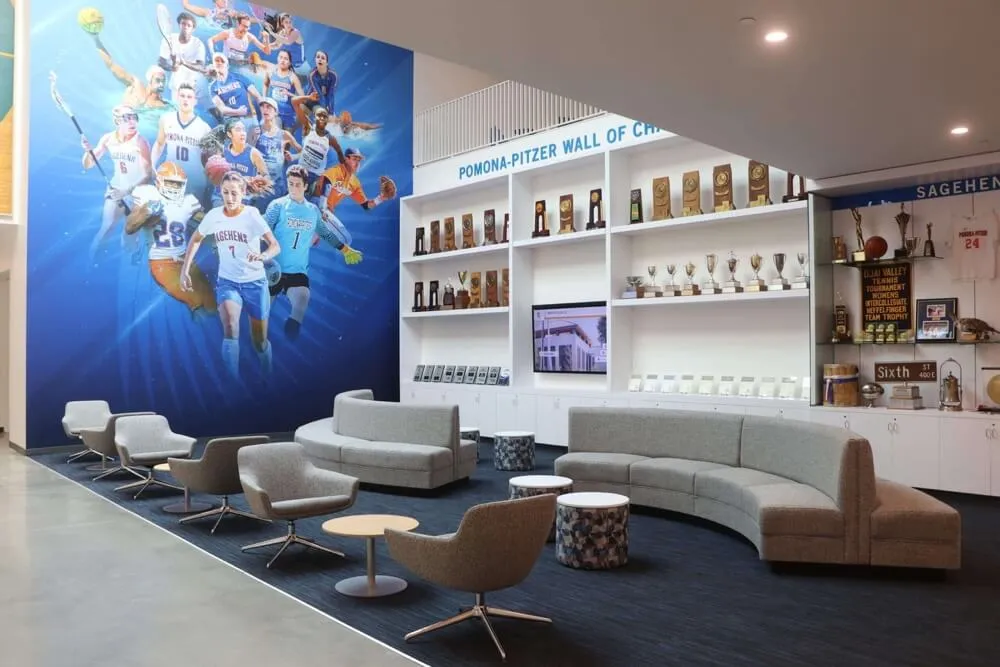
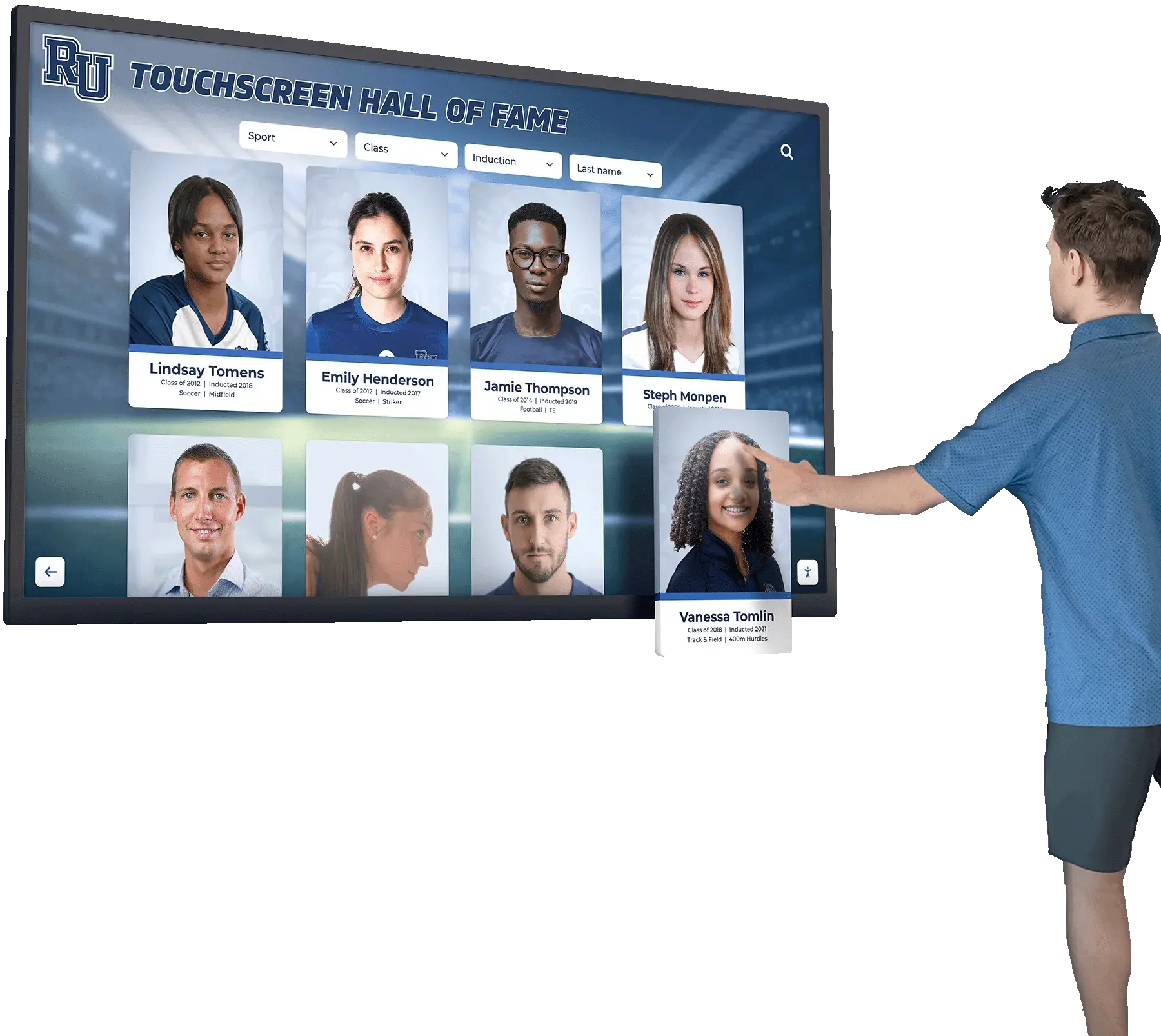
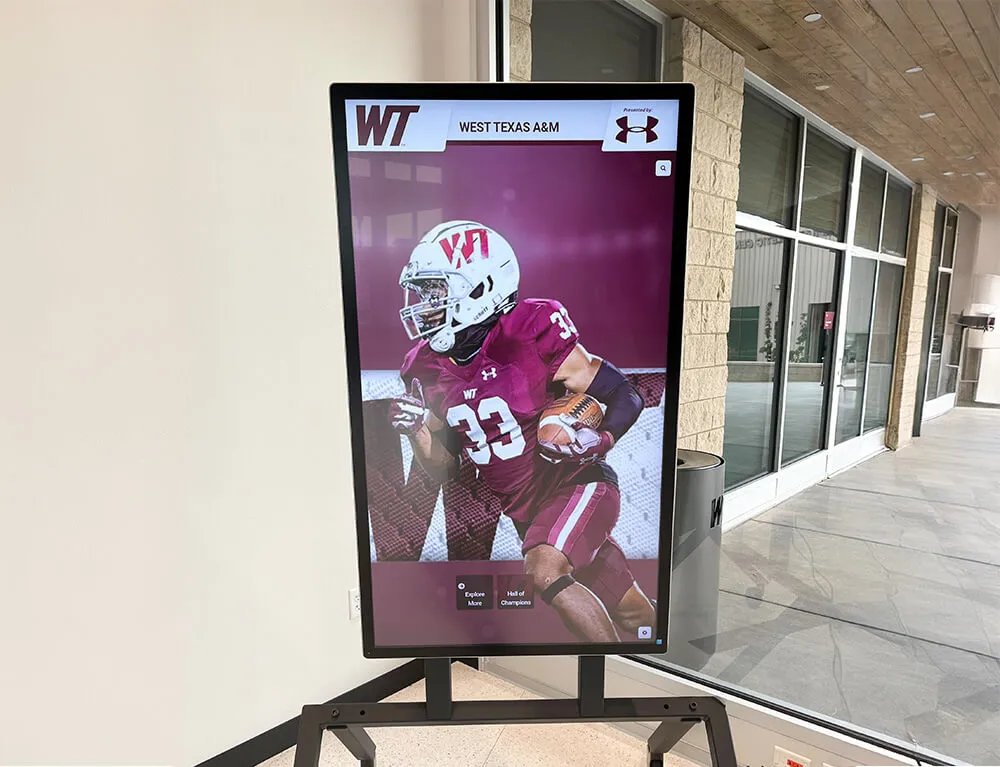
Multi-touch gesture support enables intuitive navigation through complex content hierarchies on interactive displays
Hardware Compatibility and Device Support
One of UPDD’s strongest features is its extensive hardware compatibility:
Legacy Device Support: UPDD supports touchscreens that use RS-232 serial connections and older USB protocols that predate the HID standard. This allows organizations to continue using functional hardware that might otherwise become obsolete as operating systems drop legacy driver support.
Modern HID Devices: The driver fully supports modern USB HID-compliant touchscreens, providing enhanced functionality even when native OS support exists.
Controller Support: UPDD includes built-in support for touch controllers from major manufacturers, eliminating the need for manufacturer-specific drivers in many cases.
Automatic Detection: The software includes automatic device detection capabilities that identify connected touchscreens and configure appropriate settings, simplifying deployment in environments with multiple touch display types.
Multiple Display Support: UPDD can manage multiple touchscreens connected to a single computer, ensuring each touch input is associated with the correct display. This is critical for applications using multiple monitors or video walls with touch capability.
This broad hardware compatibility makes UPDD a future-proof investment, as organizations can upgrade computers or operating systems without necessarily replacing functional touchscreen hardware.
API and Integration Capabilities
For developers and organizations with custom applications, UPDD provides comprehensive integration options:
Comprehensive API: UPDD implements a full-featured API interface available under all supported operating systems. The API allows applications to interface with every aspect of driver functionality, from basic touch input to advanced calibration and configuration.
TUIO Protocol Support: UPDD includes TUIO Server functionality, enabling applications built for the TUIO tangible user interface protocol to receive touch input from UPDD-supported devices. This is particularly valuable for interactive installations and creative applications.
OS Integration Modes: Applications can access UPDD functionality through standard OS mouse/touch interfaces or through direct API calls for low-latency, high-precision touch input.
Event Handling: The API provides detailed touch event information including contact points, pressure levels (for pressure-sensitive displays), touch area, and timing information for gesture detection.
Configuration Access: Applications can programmatically access and modify UPDD settings, enabling custom configuration interfaces or deployment automation scripts.
These integration capabilities make UPDD suitable for organizations developing custom interactive touchscreen software solutions or deploying specialized applications requiring advanced touch functionality.
Calibration and Configuration Tools
Accurate touch calibration is essential for user satisfaction, and UPDD provides robust calibration capabilities:
Multi-Point Calibration: UPDD supports various calibration methods from simple 4-point calibration to advanced multi-point calibration for displays with geometric distortion or parallax issues.
Per-Monitor Calibration: In multi-monitor setups, each display can be independently calibrated to ensure accurate touch input regardless of display positioning or orientation.
UPDD Console: The UPDD Console application provides a graphical interface for viewing, updating, and configuring the driver and installed devices. Features include device list management, function bar access, and comprehensive settings configuration.
UPDD Daemon: This component provides system tray access to connection status, calibration settings, and testing features. Users can quickly access calibration and testing tools without opening the full console application.
Command-Line Configuration: For automated deployments or scripted configuration, UPDD provides command-line tools that can modify settings without user interaction.
Settings Profiles: Organizations can create and deploy configuration profiles that standardize UPDD settings across multiple installations, ensuring consistent behavior and reducing support requirements.
These configuration tools ensure that UPDD can be properly deployed and maintained even in large-scale installations with hundreds of touchscreen devices.
Understanding When You Need UPDD
While modern operating systems include native touchscreen support, there are specific scenarios where UPDD provides significant advantages or becomes essential.
Legacy Hardware Support
Organizations with existing touchscreen investments may find UPDD indispensable:
Pre-HID Touch Devices: Touchscreens manufactured before widespread HID adoption may use proprietary USB protocols or serial connections. Modern operating systems may not include drivers for these devices, making them non-functional without third-party driver software like UPDD.
Discontinued Manufacturer Support: Touch display manufacturers may discontinue driver support for older models, particularly for newer operating systems. UPDD can often support these devices even when manufacturer drivers are no longer available.
Cross-Generation Compatibility: Organizations that have deployed touchscreens over many years may have a mix of old and new hardware. UPDD can provide a single driver solution for all devices, simplifying support compared to managing multiple manufacturer-specific drivers.
Return on Investment Protection: Rather than replacing functional touchscreen hardware simply because driver support has ended, organizations can extend the useful life of their investments by deploying UPDD.
This legacy support makes UPDD particularly valuable for educational institutions, museums, and government agencies that may have long equipment replacement cycles and mixed-generation hardware deployments.
Advanced Feature Requirements
Native OS touch support provides basic functionality, but some applications require more:
Precision Calibration: Applications requiring high touch precision—such as CAD systems, medical imaging displays, or precision drawing applications—benefit from UPDD’s advanced calibration capabilities that can correct for parallax, geometric distortion, and alignment issues beyond native OS compensation.
Custom Gesture Recognition: While operating systems support standard gestures, applications with specialized interaction models may need custom gesture definitions. UPDD Commander allows configuration of application-specific gestures that aren’t possible with native OS touch support.
Touch Input Filtering: In some environments, displays may receive unintended touch input (accidental contact, environmental factors). UPDD provides filtering and threshold settings that can reduce false touches beyond native OS capabilities.
Pressure Sensitivity: For pressure-sensitive touch displays, UPDD can provide pressure data to applications even when native OS support for pressure sensitivity is limited or inconsistent.
Touch vs. Stylus Differentiation: Some applications need to differentiate between finger touch and stylus input. UPDD provides this differentiation even on displays where native OS support is inconsistent.
Organizations deploying touchscreen software for interactive displays in specialized applications often find these advanced features essential for optimal user experience.
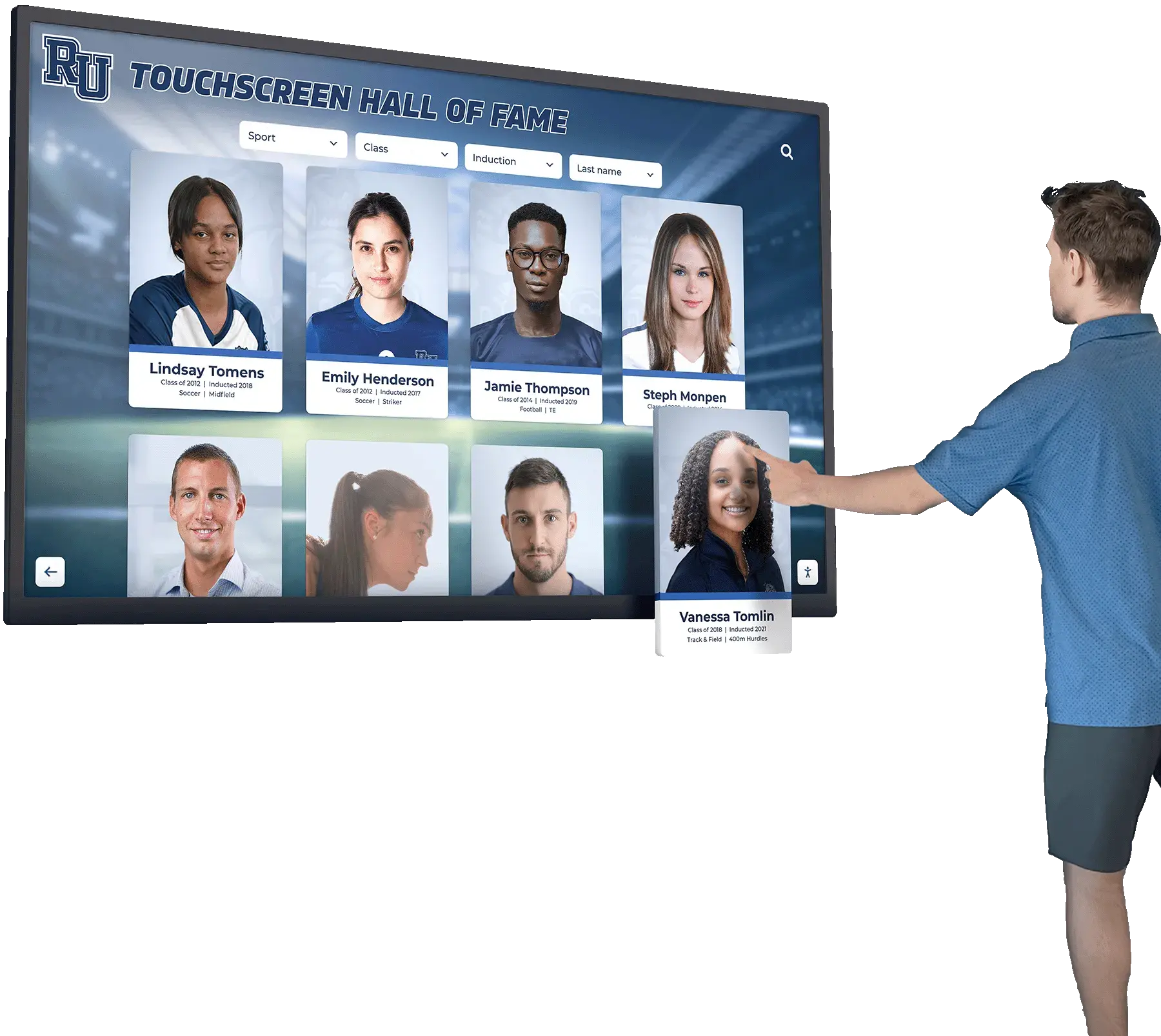
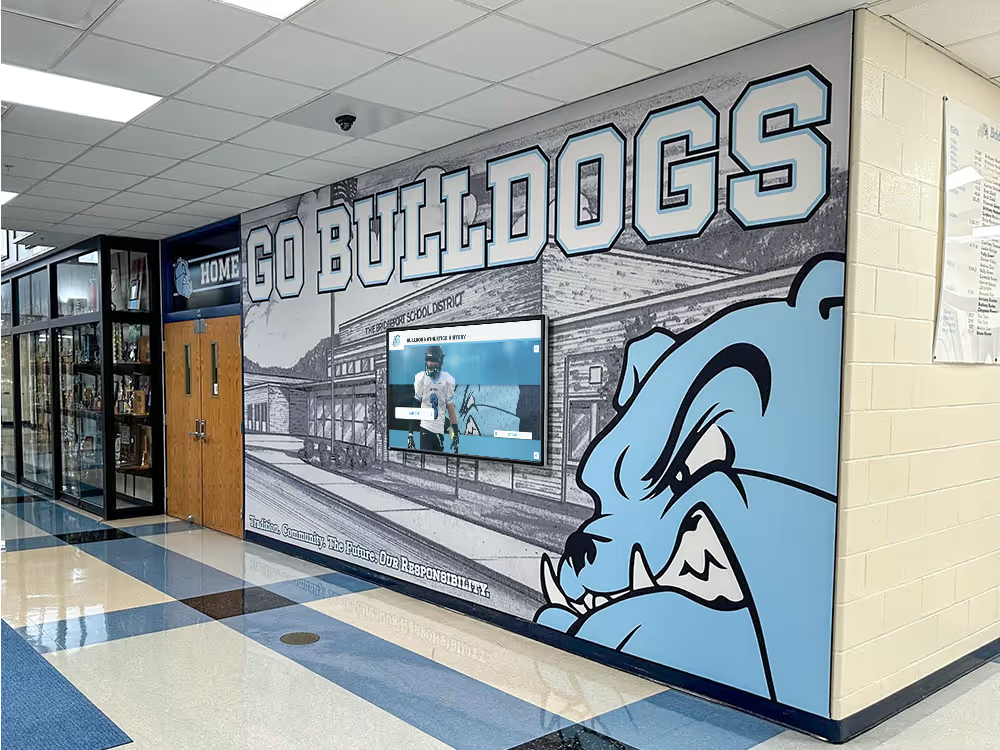
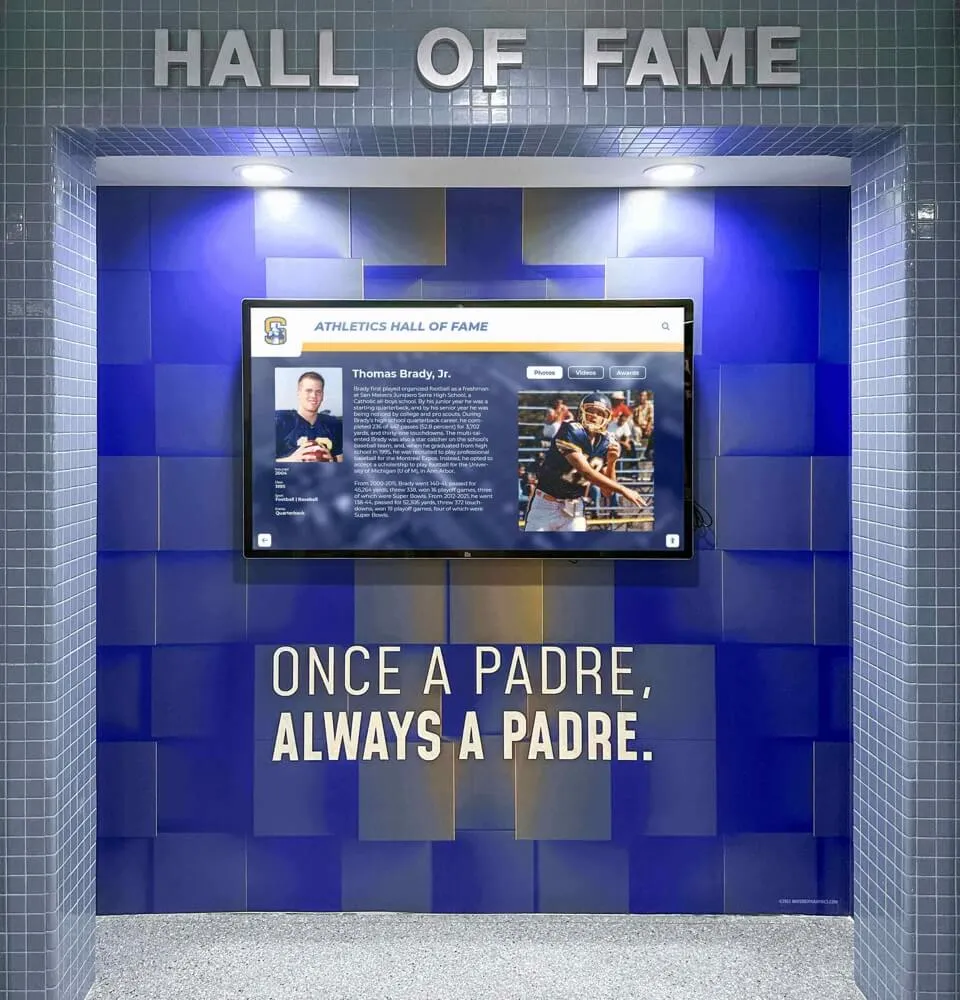
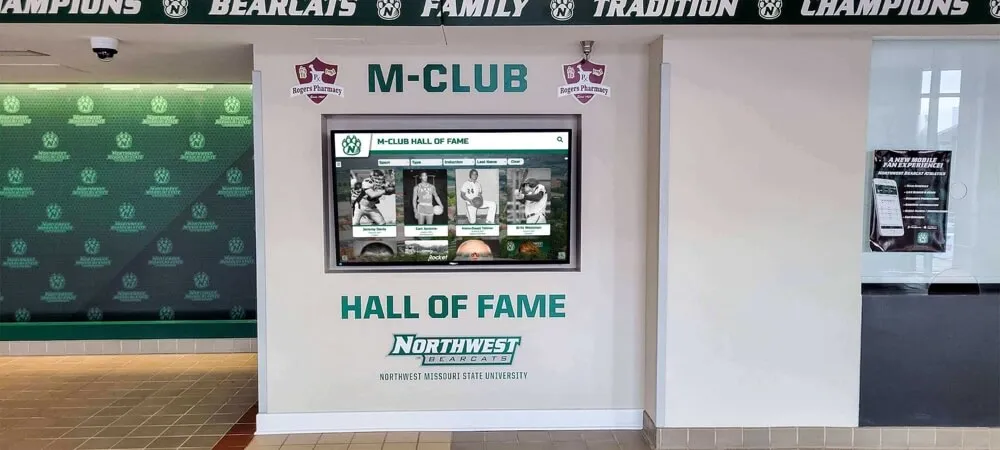
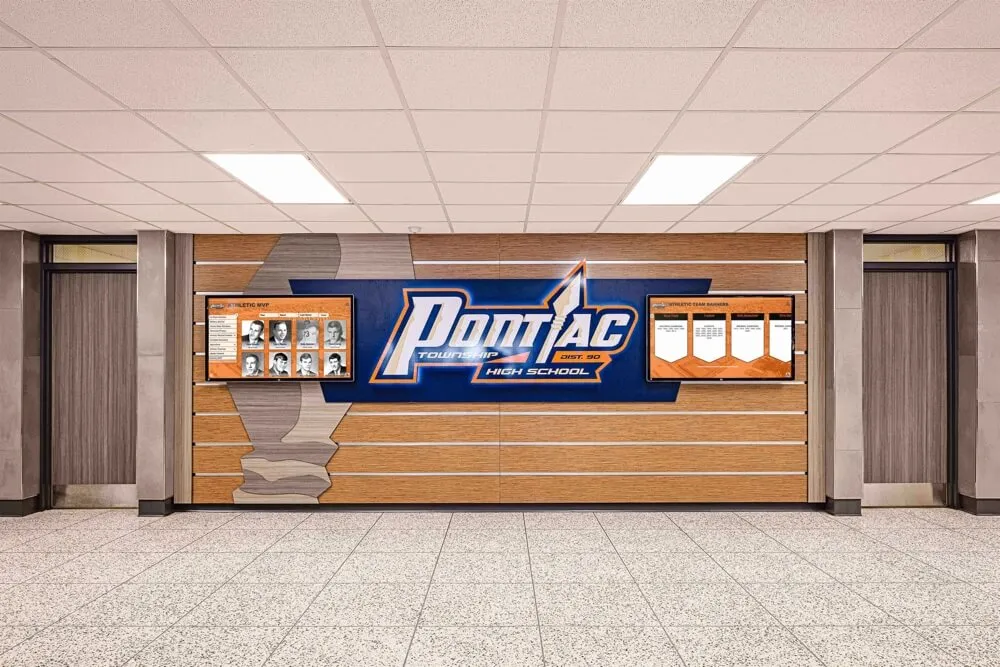
Advanced features like precise calibration and custom gesture recognition enable sophisticated interactive experiences
Multi-Platform Deployment Scenarios
Organizations operating across different computing platforms benefit from UPDD’s consistency:
Cross-Platform Applications: Software deployed on Windows, macOS, and Linux can use the UPDD API to ensure consistent touch behavior across all platforms, rather than dealing with OS-specific touch APIs and their varying capabilities.
Standardized Kiosk Deployments: Organizations deploying kiosks on different operating systems can use UPDD to ensure consistent touch response and calibration procedures across all locations, simplifying training and support.
Development and Testing: Application developers creating touch-enabled software can use UPDD during development to test behavior across platforms without maintaining separate hardware environments for each OS.
Migration Protection: Organizations planning OS migrations (such as moving from Windows to Linux for kiosk systems) can deploy UPDD on both platforms to ensure touch functionality remains consistent during and after the transition.
This cross-platform consistency is particularly valuable for organizations with geographically distributed installations or those supporting multiple operating systems for different use cases.
Specialized Application Integration
Some application types particularly benefit from UPDD’s capabilities:
Interactive Digital Signage: Digital signage systems displaying dynamic content with touch interaction—such as wayfinding kiosks, product catalogs, or interactive donor recognition displays—benefit from UPDD’s reliable touch input and gesture support. Organizations implementing digital touchscreen solutions for athletic recognition often use UPDD to ensure consistent functionality across diverse hardware.
Museum and Exhibition Displays: Interactive exhibits require reliable, intuitive touch interaction. UPDD’s calibration capabilities ensure accuracy even with large-format touchscreens or displays mounted at angles, while its gesture support enables engaging multi-touch exhibits.
Educational Interactive Displays: Schools and universities deploying interactive whiteboards or collaborative touch displays benefit from UPDD’s multi-touch support and ability to differentiate between multiple simultaneous users. Learn more about designing touch screen experiences for educational environments.
Industrial Control Interfaces: Manufacturing and process control applications often run on specialized or legacy operating systems. UPDD’s broad platform support and API access enable custom industrial touch interfaces on non-standard platforms.
Public Information Kiosks: Self-service kiosks in government buildings, transit systems, or commercial facilities require reliable touch input across varying environmental conditions. UPDD’s filtering and calibration capabilities help maintain functionality even in challenging environments.
These application types often have requirements that exceed native OS touch support, making UPDD a valuable component of the overall solution.
Installation and Setup Guide
Proper installation and initial configuration are essential for optimal UPDD performance. This section provides guidance for deploying UPDD across different platforms.
Pre-Installation Considerations
Before installing UPDD, organizations should address several preparatory steps:
System Requirements Assessment: Verify that target systems meet UPDD’s requirements for the specific OS version. Check available disk space, memory, and processor compatibility (Intel vs. ARM).
Existing Driver Identification: Identify any existing touchscreen drivers on target systems. In some cases, manufacturer-specific drivers may conflict with UPDD and should be removed before UPDD installation.
Hardware Documentation: Gather documentation for touchscreen hardware including model numbers, connection types, and controller specifications. This information helps identify the appropriate UPDD configuration.
Licensing Planning: Determine licensing requirements based on the number of systems requiring UPDD. Touch-Base offers various licensing options including single-system licenses, site licenses, and OEM arrangements.
Administrative Access: Ensure you have administrative credentials for target systems, as UPDD installation requires elevated privileges to install kernel extensions and system drivers.
Backup Procedures: Establish system backup procedures before driver installation, particularly for production systems, to enable recovery if issues occur during installation.
These preparatory steps help ensure smooth deployment and minimize the risk of installation problems.
Windows Installation Process
Installing UPDD on Windows systems follows a straightforward process:
Download Acquisition: Access the UPDD driver download from the Touch-Base license portal or from the download link provided via email. The Windows driver is delivered as an executable installer (.exe file).
Installer Execution: Right-click the installer and select “Run as administrator” to ensure proper permissions for driver installation. The installer will verify system compatibility before proceeding.
Installation Options: The installer presents options for components to install, including the core driver, UPDD Console, UPDD Daemon, test utilities, and API development files. For end-user installations, the default selection (driver, console, and daemon) is typically appropriate.
Driver Signing Acknowledgment: Windows may display security warnings about driver signing. UPDD drivers are properly signed, but older Windows versions may display warnings. Proceed with installation when prompted.
Device Detection: After installation, UPDD will attempt to detect connected touchscreen devices. If devices are found, they will be automatically configured with default settings.
Initial Calibration: For non-HID devices or devices requiring calibration, the installer may prompt for initial calibration. Follow the on-screen instructions to touch calibration points in sequence.
Restart Recommendation: While not always required, restarting the system after installation ensures all driver components are properly loaded and active.
After installation, access UPDD Daemon from the system tray to verify device connection and access configuration options.
macOS Installation Process
macOS installation includes additional steps due to system security requirements:
Package Download: The UPDD driver for macOS is delivered as a disk image file (.dmg). Download the appropriate version for your macOS version and processor type (Intel or ARM/Apple Silicon).
Disk Image Mounting: Double-click the downloaded .dmg file to mount the disk image. Open the mounted volume to access the installer package.
Installer Launch: Double-click the UPDD installer package (.pkg file). The macOS installer will open and guide you through the installation process.
Administrative Authentication: Enter administrative credentials when prompted. The installer requires admin access to install kernel extensions and system components.
System Extension Approval: This is a critical step in macOS 10.13 and above. After the installer completes, macOS will display a notification that a system extension was blocked. Open System Preferences > Security & Privacy and click “Allow” to permit the UPDD extension. Without this approval, touch functionality will not work.
Accessibility Permissions: UPDD requires accessibility permissions to function properly. Navigate to System Preferences > Security & Privacy > Privacy > Accessibility and ensure UPDD components are enabled.
Device Configuration: After installation and permissions are granted, launch UPDD Console from Applications to configure connected devices. The console will display detected touch devices and their status.
Calibration Process: If the registered touch point is offset from the actual touch location, invoke the Configure option from the UPDD Daemon menu (accessible from the menu bar). Follow the calibration procedure, touching each cross as it appears.
macOS installation requires careful attention to permission granting, as skipping these steps will result in non-functional touch input.
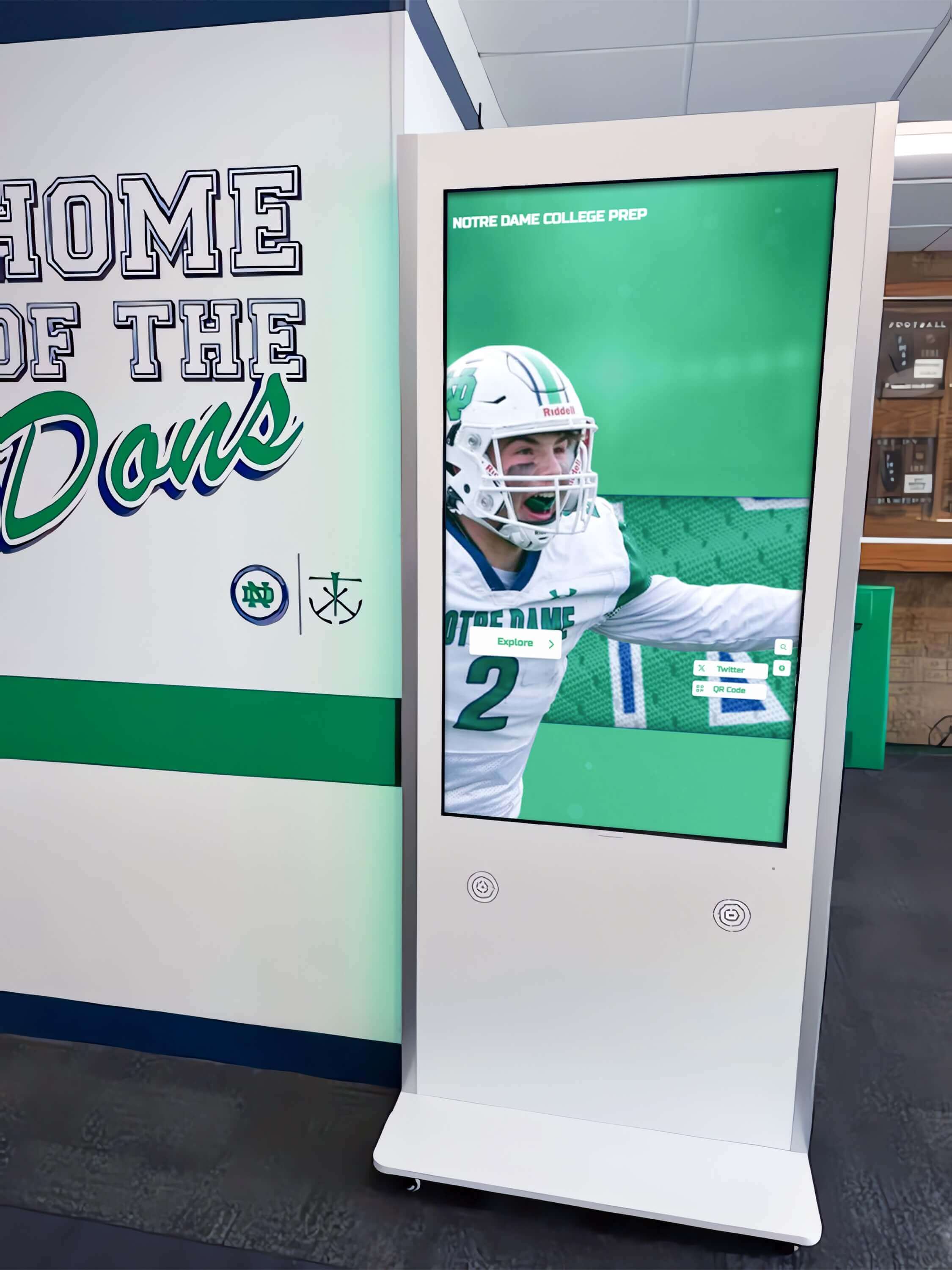
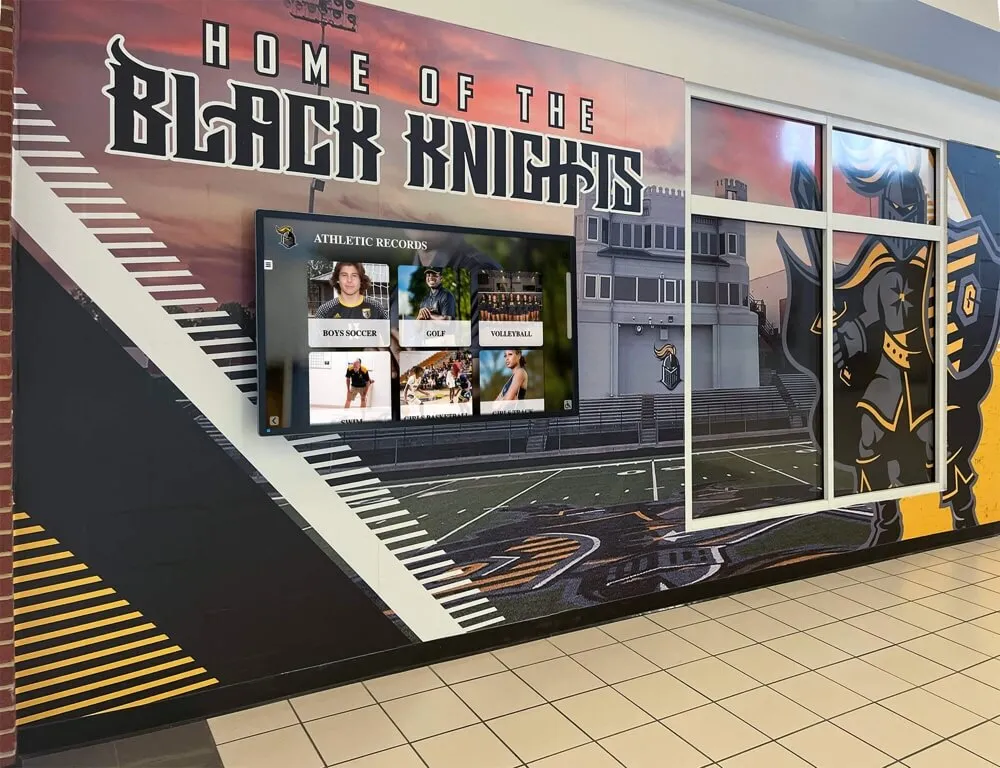
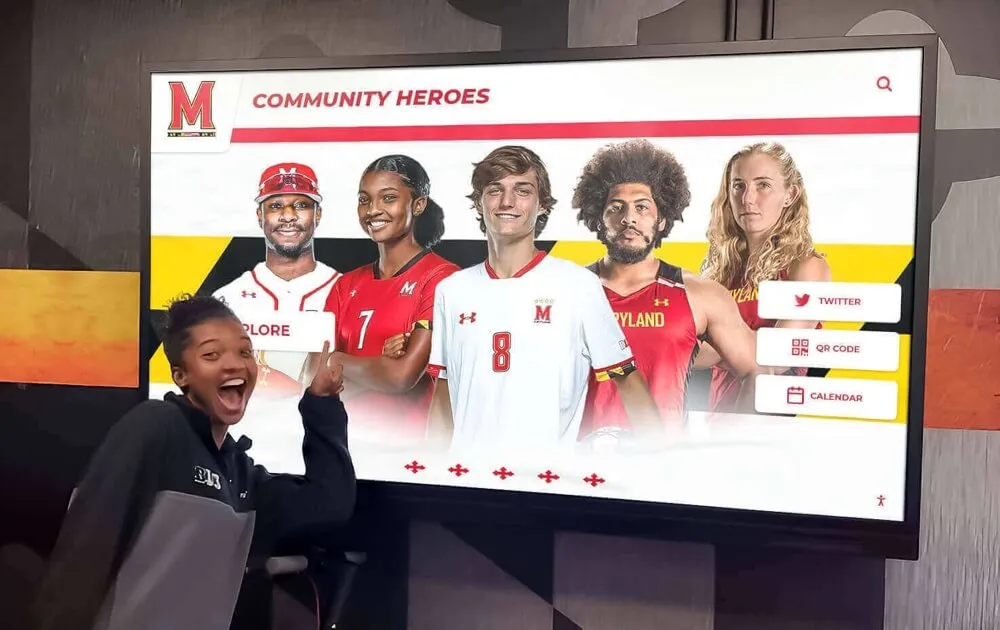
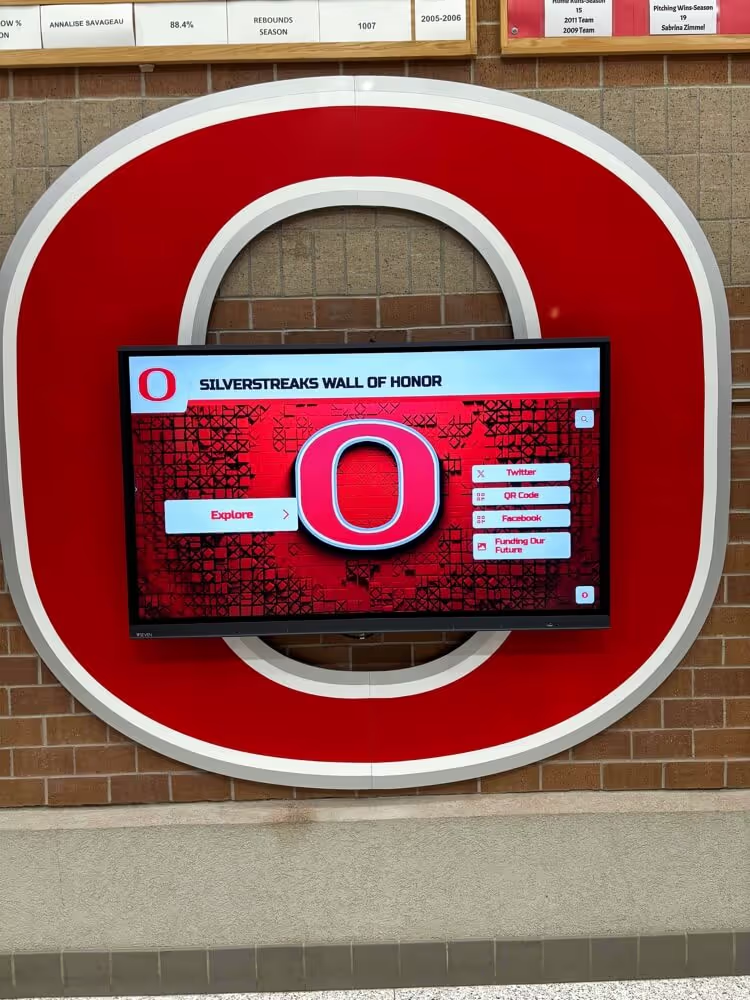
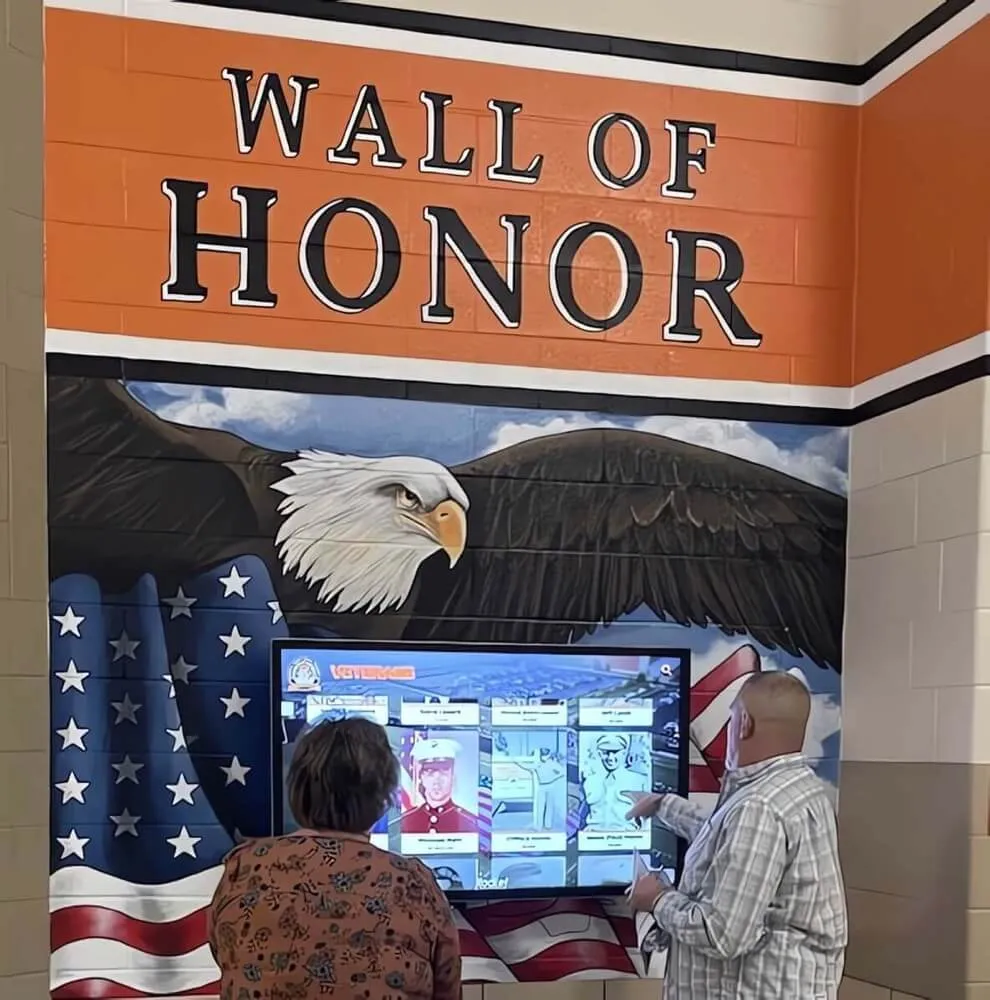
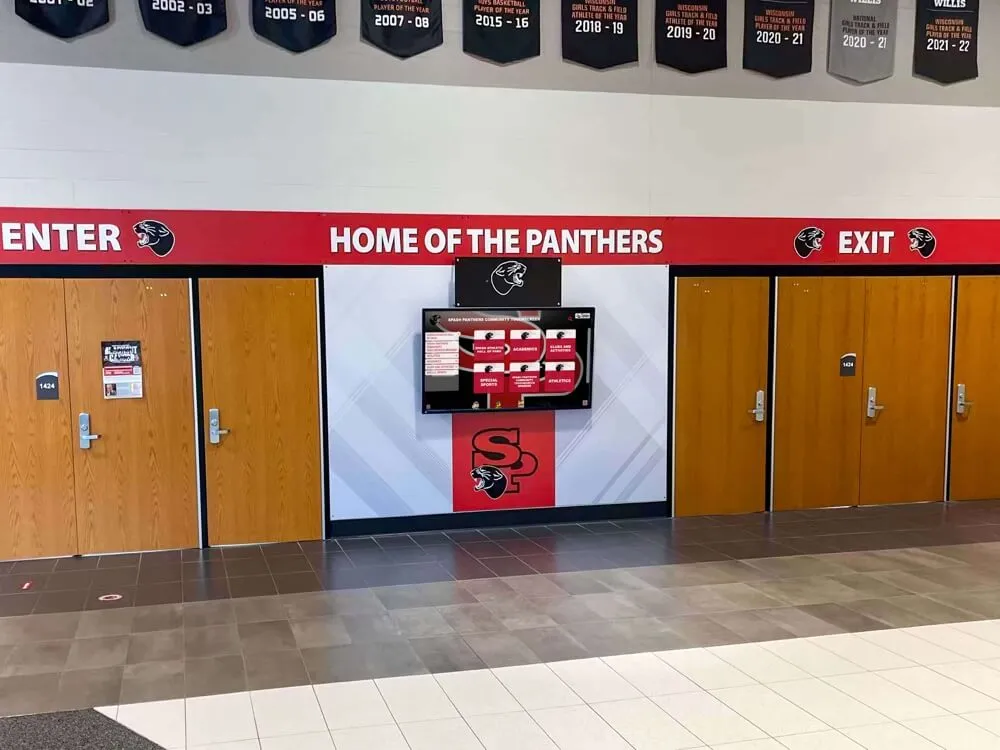
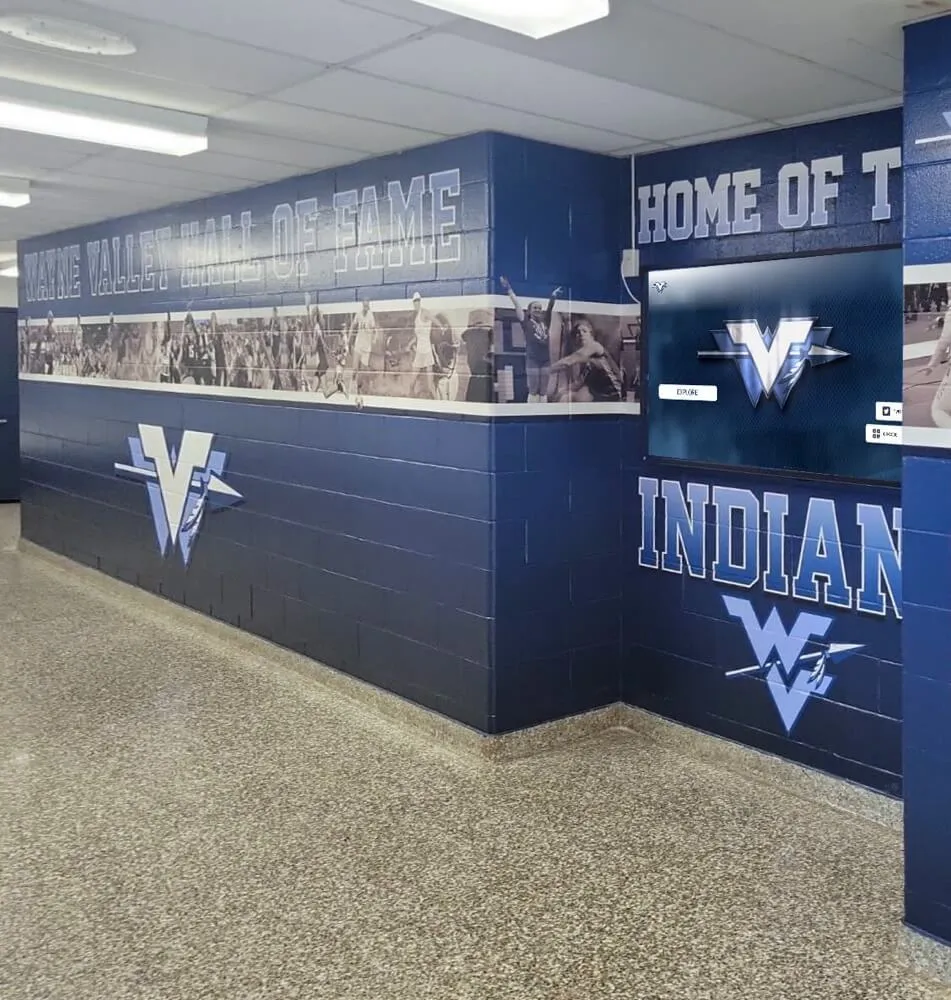
Proper installation and configuration ensure reliable touchscreen functionality in high-traffic environments like school hallways and public spaces
Linux Installation Process
Linux installation varies slightly depending on the distribution:
Package Format: UPDD for Linux is typically distributed as a tarball (.tar.gz) containing installation scripts and driver files. Some distributions may offer DEB or RPM packages for simplified installation.
Extraction: Extract the downloaded tarball to a temporary location using tar -xzf updd-package-name.tar.gz.
Installation Script: Navigate to the extracted directory and run the installation script with root privileges: sudo ./install.sh. The script will detect your distribution and install appropriate components.
Kernel Module: UPDD includes a kernel module that must be compiled for your specific kernel version. The installer will attempt to compile the module automatically if kernel headers are available. Ensure your distribution’s kernel development packages are installed.
Device Permissions: Linux systems require appropriate permissions for USB device access. The UPDD installer creates udev rules to grant necessary permissions, but you may need to log out and back in for permission changes to take effect.
Service Configuration: The installer will configure UPDD to start automatically at boot. Verify service status with systemctl status updd (on systemd-based distributions).
X Server Configuration: For some touchscreen types, X Server configuration may need modification. The UPDD documentation includes sample xorg.conf snippets for common configurations.
Testing: Use the UPDD test utility to verify touch input is functioning: updd_test. This displays a simple interface for testing touch response.
Linux installation requires more technical knowledge than Windows or macOS deployment, making it more suitable for IT professionals or those with Linux system administration experience.
Initial Configuration and Calibration
After installation on any platform, perform initial configuration:
Device Verification: Open UPDD Console and verify that connected touchscreen devices appear in the device list with “Active” status. If devices aren’t detected, check physical connections and review the troubleshooting documentation.
Basic Settings: Review basic settings including touch mode (mouse emulation vs. HID mode), gesture recognition settings, and timeout values. Default settings work well for most applications, but adjustments may be needed for specific use cases.
Calibration Assessment: Test touch accuracy by touching objects near screen corners and edges. If touch registration appears offset from the touch location, calibration is needed.
Calibration Procedure: Access calibration through UPDD Daemon or Console. The calibration wizard will display targets (typically crosses or circles) at specific screen locations. Touch each target at its center and hold until it disappears. Complete all calibration points in sequence for accurate calibration.
Multi-Monitor Calibration: In multi-monitor setups, calibrate each touchscreen separately. UPDD will prompt you to identify which display you’re calibrating and display calibration targets only on that screen.
Profile Saving: After achieving satisfactory configuration, save settings as a profile. This profile can be deployed to other identical systems to ensure consistent configuration.
Proper initial configuration establishes a baseline for optimal performance and user satisfaction.
Advanced Configuration and Optimization
Beyond basic installation, UPDD offers extensive configuration options for specialized requirements and performance optimization.
Touch Gesture Configuration
Customizing gesture recognition enhances user experience for specific applications:
UPDD Commander: This component provides the interface for gesture configuration. Access it from UPDD Console or launch it directly from Applications/Programs.
Application-Specific Gestures: Configure different gesture responses for different applications. For example, configure two-finger swipe to switch tabs in a web browser but to advance slides in a presentation application.
Gesture Sensitivity: Adjust gesture recognition thresholds to match user expectations. Increase sensitivity for displays requiring light touch, or decrease sensitivity for environments where accidental touches occur frequently.
Gesture Timing: Configure timing parameters for gestures such as double-tap delay, press-and-hold duration, and swipe velocity thresholds. These adjustments help accommodate different user populations (children vs. adults, for example).
Gesture Mapping: Map recognized gestures to specific actions such as mouse clicks, keyboard shortcuts, or custom application commands. This enables touchscreens to trigger functions that would normally require keyboard input.
These customization options make UPDD particularly suitable for designing specialized touch screen experiences that match specific application requirements and user expectations.
Multi-Monitor and Video Wall Configuration
Organizations deploying multiple touchscreens require careful configuration:
Display Association: UPDD must correctly associate each touchscreen with its corresponding video display. In systems with multiple monitors and multiple touchscreens, configure device-to-display mapping in UPDD Console.
Extended vs. Mirrored Displays: Configuration differs depending on whether displays are configured as extended desktop (each display shows different content) or mirrored (all displays show identical content). UPDD handles these scenarios differently, and proper configuration ensures touch input is directed to the appropriate application.
Video Wall Calibration: For touch-enabled video walls composed of multiple displays, calibrate the entire wall as a single touch surface or calibrate each display independently, depending on the video wall controller capabilities.
Touch Spanning: In video walls, configure whether a single touch gesture can span multiple displays or whether each display is treated as an independent touch surface.
Bezel Compensation: Some video wall configurations require bezel compensation—adjusting for the physical gaps between displays. UPDD can incorporate bezel compensation into calibration for more natural touch interaction across display boundaries.
These configuration options enable sophisticated multi-display installations such as large-format interactive walls and multi-monitor control room systems.
Performance Optimization
Fine-tuning UPDD configuration can improve performance and responsiveness:
Touch Report Rate: Adjust how frequently the driver reports touch position updates to the operating system. Higher rates provide smoother tracking for dragging operations but increase CPU usage. Lower rates reduce system load but may appear less responsive.
Gesture Processing: In applications that don’t require gesture recognition, disabling gesture processing reduces latency and CPU utilization, providing faster response to simple touch and release events.
API vs. OS Integration: Applications using the UPDD API directly can achieve lower latency than those relying on OS mouse emulation. For performance-critical applications, use API integration when possible.
Filtering Settings: UPDD includes filtering options that reduce jitter and false touches. However, aggressive filtering can increase latency. Balance filtering strength with responsiveness requirements for each specific application.
Multi-Touch Point Limits: If applications don’t require many simultaneous touch points, limiting the maximum tracked touches can improve performance. For example, an application requiring only single touch can perform better with multi-touch disabled.
These optimizations help ensure UPDD performs optimally even on resource-constrained systems or in demanding applications.
Security and Access Control
In public-facing deployments, security configuration is important:
Configuration Lock: UPDD can be configured to prevent end users from accessing configuration tools. This prevents unauthorized changes to calibration or gesture settings in kiosk environments.
Windows Registry Protection: On Windows systems, UPDD settings can be stored in protected registry locations that require administrative access to modify.
Profile Deployment: Use centrally managed configuration profiles to enforce consistent settings across multiple installations and prevent local modifications.
API Access Control: For applications using the UPDD API, implement application-level authentication to ensure only authorized applications can access driver functionality.
Diagnostic Data Protection: In environments with privacy requirements, configure diagnostic data collection and logging to comply with data protection policies.
These security measures are particularly important for installations in public spaces or environments handling sensitive information, such as interactive displays in religious institutions or healthcare facilities.
Real-World Applications and Use Cases
Understanding how organizations deploy UPDD in real-world scenarios helps illustrate its practical value across different industries and applications.
Interactive Digital Signage and Kiosks
Digital signage with touch interaction has become increasingly common:
Retail Product Catalogs: Retail environments deploy touchscreens running product catalog applications where customers can browse inventory, view specifications, and check availability. UPDD ensures reliable touch response even with varying user touch pressure and interaction styles.
Wayfinding Kiosks: Shopping malls, hospitals, corporate campuses, and universities deploy wayfinding kiosks to help visitors navigate complex environments. UPDD’s gesture support enables intuitive map navigation with pinch-to-zoom and panning gestures.
Self-Service Check-In: Hotels, airlines, and medical facilities use self-service check-in kiosks to reduce staff workload and improve customer experience. UPDD’s reliability and cross-platform support enable consistent kiosk experiences across diverse hardware platforms.
Interactive Donor Recognition: Educational institutions and nonprofit organizations increasingly deploy interactive touchscreen displays for donor recognition, allowing visitors to explore donor information, campaign histories, and institution impact. UPDD enables smooth browsing through large databases of donor profiles.
Queue Management Systems: Service organizations deploy touchscreen kiosks for customer queue management, appointment scheduling, and service selection. UPDD’s filtering capabilities help prevent accidental touches in busy environments.
These applications benefit from UPDD’s reliable touch input, advanced calibration, and gesture support that enhance user experience beyond basic native OS capabilities.
Educational Environments
Educational institutions have diverse touchscreen requirements:
Interactive Whiteboards: Classrooms equipped with interactive whiteboards or large touchscreens benefit from UPDD’s multi-touch support, enabling multiple students to interact simultaneously during collaborative activities.
Student Information Kiosks: Schools and universities deploy information kiosks displaying schedules, event information, and campus resources. UPDD’s cross-platform support enables consistent experiences whether kiosks run Windows, macOS, or Linux.
Library Catalog Systems: Educational institution libraries use touchscreen catalog systems for resource browsing and checkout. UPDD’s precise calibration ensures accurate text input on on-screen keyboards.
Digital Hall of Fame Displays: Many schools deploy digital hall of fame solutions showcasing athletic achievements, academic honors, and distinguished alumni. UPDD enables intuitive browsing through years of historical data and multimedia content.
Laboratory Equipment: Science labs increasingly use touchscreen interfaces for equipment control and data collection. UPDD’s API access enables custom scientific applications with specialized touch interaction models.
Educational environments particularly benefit from UPDD’s ability to support diverse hardware types, as schools often maintain equipment for many years and may have touchscreens of varying ages and capabilities.
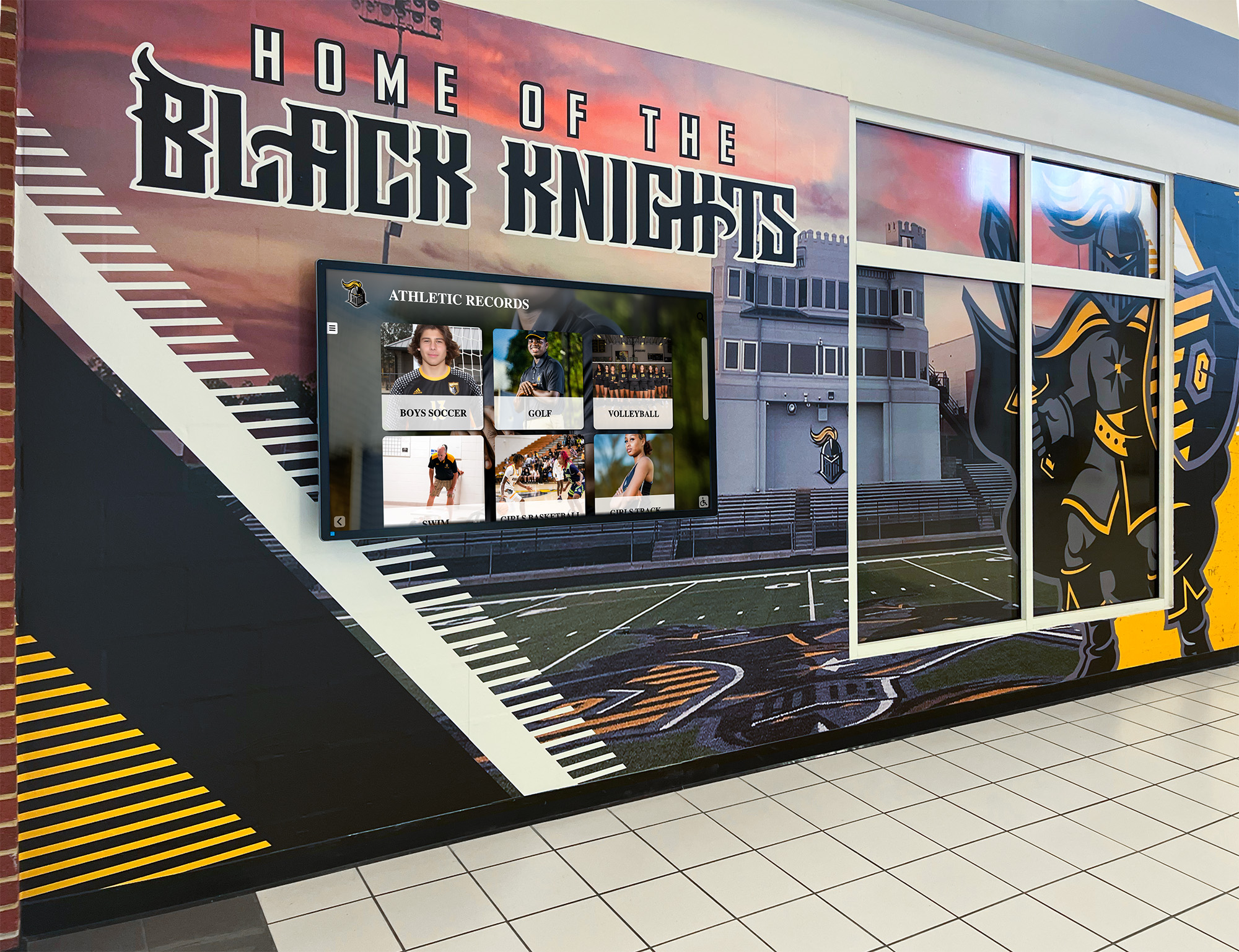
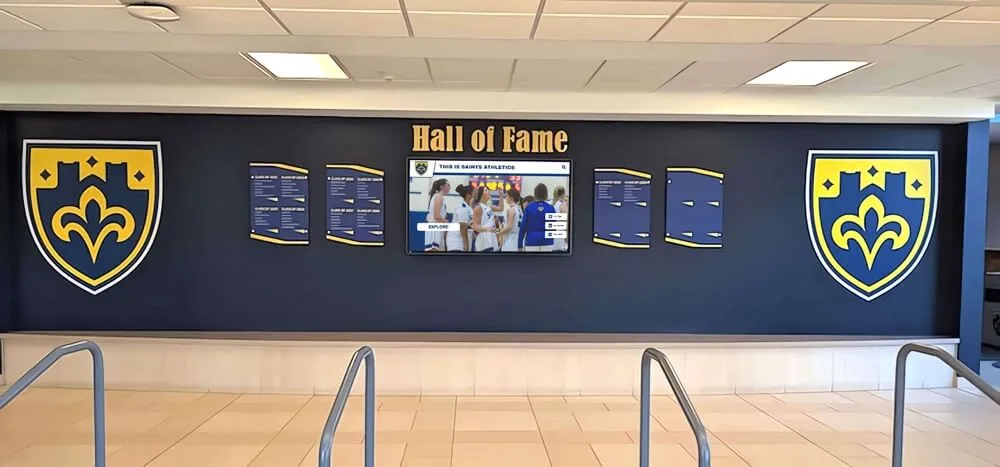
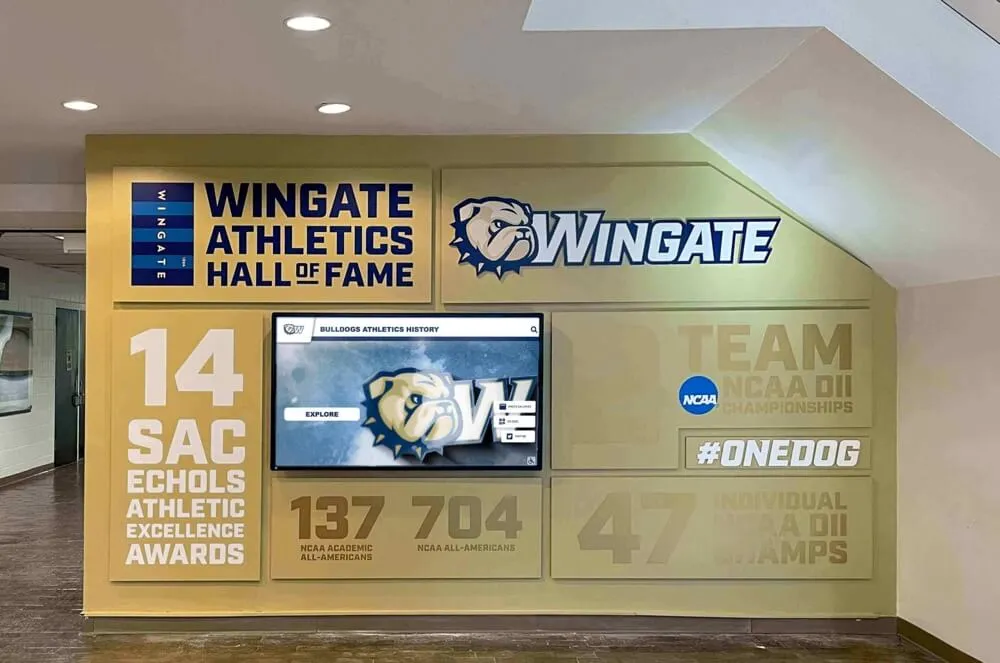
Educational institutions use UPDD-powered touchscreens to create engaging digital recognition displays that showcase school history and achievements
Museum and Exhibition Installations
Museums and exhibitions rely heavily on interactive technology:
Artifact Information Systems: Museums deploy touchscreens near exhibits where visitors can access detailed information, multimedia content, and contextual background about artifacts. UPDD’s gesture support enables intuitive content navigation.
Interactive Timeline Displays: Historical organizations create interactive timeline displays allowing visitors to explore events chronologically with swipe gestures and touch-to-expand detail views. UPDD ensures smooth animation and responsive gesture recognition.
Visitor Engagement Stations: Science centers and children’s museums deploy hands-on interactive stations where visitors can conduct virtual experiments, explore simulations, and participate in educational games. UPDD’s reliable touch input is essential for engaging experiences.
Collection Browsing Interfaces: Museums with extensive collections deploy touchscreen interfaces allowing visitors to browse digital catalogs of items not currently on display. UPDD’s multi-touch support enables natural browsing gestures.
Exhibition Planning: Some museums provide interactive tools where visitors can curate virtual exhibitions, save favorites, or plan return visits. UPDD API integration enables custom applications with sophisticated touch interaction models.
Museum installations particularly benefit from UPDD’s ability to support large-format displays and angled mounting configurations where precise calibration is essential for user satisfaction.
Corporate and Commercial Applications
Business environments increasingly incorporate touchscreen technology:
Conference Room Systems: Modern conference rooms feature touchscreen displays for video conferencing control, presentation annotation, and digital whiteboarding. UPDD’s multi-touch support enables collaborative interaction during meetings.
Reception and Directory Kiosks: Corporate lobbies deploy touchscreen directories helping visitors locate employees, departments, and amenities. Organizations implementing lobby visitor kiosks use UPDD to ensure reliable functionality in high-traffic areas.
Employee Recognition Displays: Companies deploy digital employee recognition systems showcasing achievements, service milestones, and company values. UPDD enables engaging browsing experiences that connect employees with company culture.
Manufacturing Quality Control: Industrial facilities use touchscreen interfaces for quality control checkpoints, inventory management, and production tracking. UPDD’s support for industrial-grade touchscreens and harsh environment operation is valuable in these settings.
Restaurant and Hospitality: Restaurants deploy touchscreen point-of-sale systems and self-order kiosks. UPDD’s reliability and fast response contribute to efficient operations during high-volume service periods.
Corporate applications benefit from UPDD’s enterprise-grade reliability and comprehensive diagnostic tools that help IT departments maintain uptime in business-critical touchscreen systems.
Healthcare and Medical Applications
Healthcare environments have stringent requirements for reliability and hygiene:
Patient Check-In Systems: Medical facilities deploy touchscreen check-in kiosks reducing reception workload and improving patient flow. UPDD’s filtering capabilities help prevent false touches from cleaning procedures between patients.
Electronic Medical Records Stations: Hospitals use touchscreen workstations for medical record access at point-of-care. UPDD’s precise calibration enables accurate touch input even when users wear gloves.
Medical Imaging Workstations: Radiology departments use touchscreens for image review, measurement, and annotation. UPDD’s pressure sensitivity support and precise calibration enable accurate diagnostic work.
Patient Education Displays: Hospital rooms and waiting areas feature touchscreen displays providing patient education content about conditions, procedures, and medication management. UPDD ensures reliable operation in continuous-use scenarios.
Assistive Technology: Healthcare facilities serving individuals with disabilities use touchscreen interfaces with specialized accessibility applications. UPDD’s customizable gesture recognition and sensitivity settings accommodate users with varying motor control capabilities.
Healthcare applications particularly value UPDD’s reliability and diagnostic capabilities, as system failures can impact patient care and operational efficiency.
Integration with Other Technologies
UPDD doesn’t operate in isolation—understanding how it integrates with complementary technologies helps organizations build complete solutions.
Content Management Systems
Interactive touchscreen displays require content to display, and UPDD integrates well with various content management approaches:
Digital Signage Platforms: Commercial digital signage software platforms can run on UPDD-enabled systems, using touch input to enable interactive content. UPDD provides the reliable touch layer while the signage platform manages content scheduling, media playback, and remote management.
Custom CMS Integration: Organizations with custom content management systems can use the UPDD API to create tightly integrated experiences where touch gestures trigger CMS functions like content filtering, search, and navigation. Purpose-built platforms like Rocket Alumni Solutions provide comprehensive content management specifically designed for recognition displays, offering intuitive interfaces for updating athlete profiles, donor information, and historical content. These specialized systems combine UPDD’s reliable touch input with purpose-designed content workflows optimized for recognition applications.
Web-Based Content: Many interactive displays simply run web browsers in kiosk mode, displaying HTML-based content. UPDD translates touch input into mouse events that web content can process, enabling standard web development techniques for interactive applications.
Database-Driven Displays: For applications displaying information from databases—such as employee directories, event schedules, or product catalogs—UPDD provides the touch input layer while database-connected applications manage content retrieval and display.
This separation of concerns allows organizations to select the best content management solution for their needs while relying on UPDD for consistent touch functionality.
Hardware Integration Considerations
UPDD works alongside other hardware components in complete touchscreen solutions:
Display Technology Compatibility: UPDD works with touchscreens using various sensing technologies including resistive, capacitive, infrared, optical, and surface acoustic wave. Understanding the sensing technology helps optimize UPDD configuration for best performance.
Computer Module Selection: Interactive displays typically use embedded computers, media players, or industrial PCs. Ensure selected computer modules run operating systems supported by UPDD and have sufficient performance for both UPDD and the target application.
Touch Overlay Integration: Some organizations retrofit existing displays with touch overlays. UPDD can often support these retrofit solutions, extending the interactive capabilities of existing display investments.
Environmental Enclosures: For outdoor or harsh environment installations, touchscreens may be housed in protective enclosures. Ensure enclosure design doesn’t interfere with touch sensing technology and that UPDD calibration can compensate for any parallax introduced by protective coverings.
Mounting Considerations: Touch calibration may need adjustment when displays are mounted at angles or in portrait orientation. UPDD’s calibration capabilities accommodate non-standard mounting configurations.
Coordinating UPDD deployment with hardware selection ensures all components work together optimally.
Software Development and API Usage
Developers creating custom touchscreen applications can leverage UPDD’s capabilities:
API Documentation: Touch-Base provides comprehensive API documentation covering function calls, data structures, and usage examples across all supported platforms. Developers should review this documentation before beginning custom application development.
Development Environments: UPDD provides development files for common programming environments including C/C++, Python, Java, and .NET. These libraries simplify API integration compared to raw API calls.
Event-Driven Architecture: UPDD uses an event-driven model where applications register callbacks that UPDD invokes when touch events occur. This architecture enables responsive applications that react immediately to user input.
Multi-Touch Data Access: Applications can access detailed multi-touch data including the number of touch points, position of each point, touch area, and pressure (for pressure-sensitive displays). This data enables sophisticated gesture recognition beyond UPDD’s built-in gestures.
Configuration Access: The API allows applications to programmatically read and modify UPDD settings. This enables applications to switch between different configuration profiles based on context or to provide custom configuration interfaces.
Cross-Platform Abstraction: The UPDD API provides consistent function calls across operating systems, allowing developers to write portable touchscreen applications without platform-specific touch input code.
Developers working on specialized applications or requiring features beyond standard touch input should explore UPDD’s API capabilities as part of their planning process.
Troubleshooting and Support
Even with proper installation and configuration, organizations may occasionally encounter issues requiring troubleshooting.
Common Installation Issues
Several issues may arise during or after installation:
Touch Not Responding (macOS): This is the most common macOS issue, typically caused by not allowing the system extension or not granting accessibility permissions. Solution: Open System Preferences > Security & Privacy, allow the blocked extension, then verify accessibility permissions are granted for UPDD components.
Device Not Detected: If UPDD doesn’t detect the touchscreen after installation, verify physical connections (cable, USB port), check Device Manager (Windows) or System Information (macOS) to confirm the OS recognizes the hardware, and review UPDD’s supported device list to verify compatibility.
Incorrect Touch Mapping: If touch input appears on the wrong monitor in multi-display setups, access UPDD Console, review the device-to-display mapping, and adjust associations to correctly link each touchscreen with its corresponding display.
Driver Conflicts: Existing manufacturer-specific touch drivers may conflict with UPDD. Solution: Uninstall other touch drivers before installing UPDD, or configure UPDD to operate alongside existing drivers if both are needed for different devices.
Permission Issues (Linux): Touch input may not work due to insufficient device permissions. Solution: Verify udev rules were correctly installed, check that your user account is in the appropriate group for device access, and log out and back in to apply group membership changes.
These common issues typically have straightforward solutions documented in the UPDD support resources.
Calibration Problems
Calibration issues affect user experience significantly:
Persistent Offset: If touch input consistently registers offset from the touch point even after calibration, verify you’re calibrating the correct display in multi-monitor setups, check for parallax issues with thick protective coverings or angled mounting, and ensure display resolution matches the native panel resolution.
Inconsistent Accuracy: If touch accuracy varies across the display area, this may indicate geometric distortion requiring multi-point calibration with more calibration points, non-flat touch surface (rare but possible with damaged displays), or interference from electromagnetic sources near the display.
Calibration Won’t Save: If calibration completes successfully but reverts after restart, verify UPDD has permission to write to its configuration location, check for system policies preventing configuration file modification, and ensure the system isn’t resetting settings due to imaging or policy enforcement.
Touch Areas Reversed: If the display appears to be reading touch input inverted or mirrored, check physical display rotation settings in OS display preferences, verify display orientation settings in UPDD Console, and recalibrate after correcting orientation settings.
Calibration problems often indicate hardware issues or configuration mismatches that require systematic diagnosis.
Performance and Reliability Issues
Organizations may encounter performance-related problems:
Slow Touch Response: Laggy touch response degrades user experience. Potential causes include insufficient system resources (CPU, memory), excessive filtering settings in UPDD configuration, resource-intensive background applications competing for CPU time, and outdated UPDD version lacking optimizations for current OS.
Intermittent Touch Loss: If touch functionality occasionally stops working, investigate loose physical connections (cable, USB), USB power management settings automatically suspending touch devices, driver conflicts with other USB devices, and hardware faults in the touchscreen controller or cabling.
Ghost Touches: False touch input appearing without physical contact may result from electrical interference near the touchscreen, damage to the touch sensor, moisture or contamination on the touch surface, or inappropriately sensitive touch threshold settings in UPDD configuration.
Application-Specific Issues: If touch works properly in some applications but not others, verify the problematic application supports touch input and is compatible with UPDD’s integration mode, check whether the application requires specific gesture settings, and review whether the application has internal touch input settings requiring configuration.
Systematic diagnosis helps identify whether issues originate from UPDD configuration, hardware problems, or application-level compatibility.
Support Resources and Documentation
Touch-Base provides extensive support resources:
Official Documentation: The comprehensive UPDD driver documentation contains detailed installation instructions, configuration guidance, troubleshooting procedures, and API reference information. This should be the first resource consulted when issues arise.
Support Portal: The Touch-Base support website at support.touch-base.com provides searchable documentation, FAQs, and technical articles organized by topic and operating system.
Troubleshooting Section: The documentation includes a dedicated troubleshooting section addressing common issues categorized by symptom, making it easy to find relevant solutions.
Technical Support Contacts: Licensed UPDD users can access technical support through email or support ticket systems. Response times and support levels vary based on licensing arrangements.
Community Resources: While Touch-Base doesn’t maintain public user forums, various technology forums and communities discuss touchscreen deployments where experienced users share troubleshooting insights.
Version Release Notes: When encountering issues, review release notes for your UPDD version and check whether newer versions address known issues. Updates often include bug fixes and compatibility improvements.
Organizations deploying UPDD at scale should familiarize themselves with these support resources before issues arise to enable faster problem resolution.
Comparing UPDD to Native Touch Support
Understanding when UPDD provides advantages over native OS touch support helps organizations make informed deployment decisions.
Native Touch Support Overview
Modern operating systems include built-in touchscreen support:
Windows Touch Support: Windows has included touch support since Windows 7, with significant improvements in Windows 8, 10, and 11. Windows supports multi-touch, gesture recognition, and both HID and legacy touch devices through inbox drivers.
macOS Touch Support: macOS includes native touch support for trackpads and Apple’s own touch displays, but third-party USB touchscreens often require manufacturer drivers or universal solutions like UPDD.
Linux Touch Support: Linux kernel includes touch support through input subsystems, but configuration often requires manual setup and compatibility varies across hardware and distributions.
Android Touch Support: Android was designed for touch from inception and provides comprehensive native touch support for capacitive touchscreens using standard Android input protocols.
In many cases, native OS touch support provides sufficient functionality for basic touch interaction.
When Native Support Is Sufficient
Organizations may not need UPDD in certain scenarios:
Modern HID Touchscreens on Windows: Recent touchscreens using the HID protocol on current Windows versions typically work well with inbox drivers, providing reliable touch input and gesture recognition without third-party drivers.
Basic Touch Requirements: Applications requiring only simple touch input (tap, drag) without advanced gestures or precise calibration often work satisfactorily with native OS support.
Consumer-Grade Touchscreens: Touchscreens designed for consumer markets (tablets, convertible laptops) generally work well with native OS support, as manufacturers ensure compatibility with standard OS touch APIs.
Single-Platform Deployments: If all systems run the same OS version and use identical hardware, native OS support may provide sufficient consistency without requiring universal driver software.
In these scenarios, organizations can avoid the licensing cost and maintenance overhead of third-party touch driver software.
UPDD’s Distinct Advantages
However, UPDD provides clear benefits in specific situations:
Legacy Hardware Support: UPDD excels at supporting touchscreens that predate HID standardization or that use proprietary protocols. This extends hardware lifespan and protects prior investments.
Cross-Platform Consistency: Organizations deploying touchscreens across Windows, macOS, Linux, and Android benefit from UPDD’s consistent behavior and configuration across all platforms, simplifying support and training.
Advanced Calibration Needs: UPDD’s multi-point calibration and geometric correction capabilities exceed native OS calibration, essential for large-format displays, angled mounting, or displays with significant parallax.
API Access: Applications requiring programmatic access to touch input data and driver configuration benefit from UPDD’s comprehensive API, which provides more detailed access than most native OS touch APIs.
Specialized Gesture Requirements: While native OS support includes standard gestures, applications with custom gesture needs benefit from UPDD Commander’s application-specific gesture configuration.
Enterprise Management: UPDD’s configuration profiles and centralized settings management simplify deployment and maintenance in enterprise environments with many touchscreen installations.
These advantages make UPDD particularly valuable in professional, commercial, and institutional touchscreen deployments rather than consumer applications.
Cost-Benefit Analysis
Organizations should weigh UPDD’s benefits against its costs:
Licensing Costs: UPDD requires per-system or site licensing, adding cost compared to free native OS support. However, this cost should be weighed against the value of extended hardware lifespan, reduced support requirements, and enhanced functionality.
Implementation Time: Initial UPDD deployment requires installation, configuration, and testing time. In small deployments, this may exceed the time required to work within native OS limitations. In large deployments, standardizing on UPDD typically reduces overall support time.
Maintenance Overhead: UPDD requires periodic updates to maintain compatibility with OS updates. Organizations must balance this maintenance requirement against the alternative of managing multiple manufacturer-specific drivers or replacing functional hardware.
Functionality Value: The value of UPDD’s advanced features depends entirely on application requirements. Organizations requiring simple touch input may find little value, while those with sophisticated interaction models may find UPDD’s capabilities essential.
Support Efficiency: Organizations with many touchscreen installations often find that standardizing on UPDD reduces support complexity, as support staff need to understand only one driver system rather than multiple manufacturer-specific solutions.
A thorough cost-benefit analysis considering these factors helps organizations make appropriate decisions for their specific circumstances.
Future of Touch Technology and UPDD
Understanding technology trends helps organizations plan long-term touchscreen strategies.
Emerging Touch Technologies
The touchscreen technology landscape continues evolving:
Haptic Feedback Integration: Next-generation touchscreens increasingly incorporate haptic feedback, providing tactile responses to touch input. This technology improves user experience by confirming input and enabling “feeling” virtual buttons. As haptic displays become more common, driver software like UPDD must evolve to support haptic effect control alongside traditional touch input.
Pressure-Sensitive Displays: Following the success of pressure-sensitive stylus input, pressure-sensitive touch displays allow applications to differentiate between light and firm touches, enabling more nuanced interaction. UPDD’s support for pressure data positions it well for these emerging displays.
Gesture Evolution: Touch gestures continue to evolve beyond basic pinch, swipe, and rotate. Future applications may recognize more complex gestures, hand poses, and multi-user simultaneous interaction patterns. Flexible driver software capable of recognizing custom gestures will become increasingly important.
Large-Format and Video Wall Touch: As display technology advances, interactive video walls composed of multiple displays are becoming more common. Driver software must handle touch input spanning multiple physical displays and coordinate with video wall controllers.
Outdoor and Harsh Environment Touch: Improvements in touch sensing technology enable reliable operation in challenging environments including direct sunlight, temperature extremes, and wet conditions. Driver software must accommodate the unique characteristics of these specialized displays.
UPDD’s universal architecture positions it well to adapt to these emerging technologies while maintaining backward compatibility with existing hardware.
Software Architecture Trends
Driver software architecture is also evolving:
Cloud-Based Management: Future driver management may include cloud-based configuration, remote diagnostics, and centralized deployment management. Organizations with distributed touchscreen installations would benefit from cloud-based oversight and control.
AI-Assisted Calibration: Machine learning could enable automatic calibration that adapts to display characteristics, mounting configuration, and user behavior patterns without requiring manual calibration procedures.
Predictive Maintenance: Driver software could monitor touch hardware performance over time, predicting hardware failures before they occur and alerting organizations to replace failing components proactively.
Security Enhancements: As touchscreens become more prevalent in sensitive applications, driver-level security features including encrypted communication, trusted execution environments, and secure boot verification will become more important.
Containerization and Virtualization: Modern application deployment increasingly uses containerization and virtualization. Touch driver software must work reliably in containerized applications and virtual desktop environments.
These architectural trends will influence how touch driver software evolves over the coming years.
UPDD Development Roadmap
While specific roadmap details are proprietary to Touch-Base, likely development directions include:
Enhanced Platform Support: Continued support for new OS versions as Windows, macOS, Linux, and Android evolve, ensuring UPDD remains compatible with current operating systems.
Improved API Capabilities: Expansion of API functionality to provide applications with even more detailed touch data and control over driver behavior, enabling increasingly sophisticated custom applications.
Performance Optimization: Ongoing optimization to reduce latency, improve multi-touch tracking accuracy, and minimize CPU utilization, particularly important as touchscreens appear on resource-constrained embedded systems.
Expanded Hardware Support: Addition of support for new touch technologies and controller types as they emerge in the market, maintaining UPDD’s position as a universal solution.
Enhanced Management Tools: Development of improved configuration and management tools for enterprise deployments, potentially including remote management capabilities and centralized oversight for distributed installations.
Organizations considering UPDD should monitor Touch-Base’s announcements for specific development direction and timelines.
Complementary Solutions for Interactive Displays
While UPDD provides the touch input layer, complete interactive display solutions require additional components.
Content Management for Recognition Displays
Interactive recognition displays require specialized content management:
Purpose-Built Platforms: Organizations implementing digital halls of fame, donor recognition walls, or athletic achievement displays benefit from platforms specifically designed for recognition applications. Solutions like Rocket Alumni Solutions provide intuitive content management systems tailored to recognition displays, offering features like profile templates, bulk import capabilities, and web integration that connect physical touchscreen displays with online heritage portals. These specialized systems understand the unique workflows of recognition applications—managing athlete statistics, donor giving levels, and historical timelines—in ways that general-purpose content management systems don’t address.
Integration Architecture: Complete solutions combine UPDD’s reliable touch input with specialized content management, creating seamless experiences where visitors can intuitively browse through years of history, search for specific individuals, and explore detailed profiles with photos, statistics, and multimedia content.
Update Workflows: Recognition displays require frequent updates as new honorees are inducted, donor campaigns progress, and achievements accumulate. Purpose-built content management systems provide role-based access allowing non-technical staff to update content without IT intervention, while UPDD ensures the touch interface remains responsive and intuitive.
This separation of concerns—UPDD handling touch input while specialized platforms manage recognition content—creates robust, maintainable solutions that serve organizations effectively for years.
Hardware Considerations for Complete Solutions
UPDD is one component in a complete touchscreen solution:
Display Selection: Choose displays appropriate for installation environment (indoor vs. outdoor), viewing distance (determines required size), and ambient lighting (affects brightness requirements). Consider whether touch overlay retrofit or integrated touch display is more appropriate.
Computer Module Selection: Select computer modules with sufficient performance for both UPDD and your target application, operating systems supported by both UPDD and your application software, appropriate connectivity (HDMI, DisplayPort, USB) for your display, and form factor suitable for installation constraints.
Mounting Solutions: Consider ergonomics and accessibility when determining mounting height and angle, whether portrait or landscape orientation better serves content layout, physical security requirements for public installations, and accessibility compliance for organizations serving diverse populations.
Network Connectivity: Plan for wired Ethernet, Wi-Fi, or cellular connectivity based on installation location, bandwidth requirements for content updates and remote management, and security requirements for the network environment.
Power and Infrastructure: Ensure adequate power availability for displays and computer modules, UPS protection for locations where power interruptions would impact service, and cable management for professional appearance and safety.
Coordinating hardware selection with software requirements ensures all components work together optimally.
Maintenance and Lifecycle Management
Long-term success requires planning for maintenance:
Cleaning Protocols: Establish regular cleaning procedures appropriate for touch sensing technology (some cleaners damage capacitive touch surfaces), frequency based on usage level and environment, and procedures for disinfection in healthcare or high-traffic environments.
Software Updates: Plan for regular UPDD updates to maintain OS compatibility, content application updates to add features and fix bugs, and security updates for all system components to address vulnerabilities.
Hardware Monitoring: Implement procedures to monitor display health including burn-in prevention for displays showing static content, backlight lifespan and brightness degradation, and touch sensor calibration accuracy over time.
Support Planning: Establish clear support escalation procedures for end users, spare hardware inventory for rapid replacement of failed components, and vendor relationships for hardware and software support.
Replacement Planning: Develop lifecycle expectations for displays, computer modules, and touch sensors, budget planning for scheduled replacements, and migration planning when replacing aging systems.
Proactive maintenance and lifecycle management prevent disruptions and extend solution longevity.
Conclusion
UPDD touch software represents a mature, comprehensive solution for organizations requiring reliable touchscreen functionality across diverse platforms and hardware types. As a universal driver system, UPDD fills critical gaps in native operating system touch support while providing advanced capabilities that exceed standard OS functionality.
Organizations benefit from UPDD deployment when they need to support legacy touchscreen hardware, require advanced calibration or gesture recognition features, operate across multiple platforms requiring consistent behavior, develop custom applications needing API access to touch data, or manage large-scale touchscreen deployments requiring centralized configuration.
The software’s extensive platform support—spanning Windows, macOS, Linux, and Android—combined with broad hardware compatibility makes it particularly suitable for institutional, commercial, and industrial applications where touchscreen reliability is essential. UPDD’s architecture provides the foundation for sophisticated interactive experiences from museum exhibits and educational displays to corporate recognition systems and public information kiosks.
When implementing touchscreen solutions, organizations should evaluate whether native OS touch support meets their requirements or whether UPDD’s advanced capabilities justify its licensing costs and implementation effort. For many professional touchscreen deployments, UPDD’s benefits in hardware longevity, calibration precision, cross-platform consistency, and API access make it a valuable investment that enhances user experience and simplifies long-term support.
As touchscreen technology continues evolving with haptic feedback, pressure sensitivity, and increasingly sophisticated gesture recognition, universal driver solutions like UPDD will remain important bridges between diverse hardware capabilities and application requirements. Organizations planning long-term touchscreen strategies should consider how driver software choices impact hardware flexibility, application possibilities, and support efficiency over multi-year deployment lifecycles.
For institutions implementing interactive touchscreen solutions for recognition and engagement, the combination of reliable touch input from UPDD with purpose-built content management creates powerful platforms for celebrating achievements, recognizing contributions, and preserving institutional history in engaging, accessible formats that serve communities effectively for years to come.
Ready to Implement Interactive Recognition Displays?
While UPDD provides the touchscreen foundation, Rocket Alumni Solutions offers complete interactive recognition systems combining reliable touch software with intuitive content management designed specifically for halls of fame, donor walls, and achievement displays. Our platform handles content updates, web integration, and visitor engagement while working seamlessly with professional touch hardware.
Explore Recognition Display Solutions